Home
Home
How to Access the Aeries Parent Portal and Manage Your Student Records
The Aeries Parent Portal is a secure web-based platform used by hundreds of school districts to provide real-time access to student grades, attendance, and transcripts. To log in, you typically need a district-specific URL (e.g., districtname.aeries.net ) and a verified account. If you are a new user, you must obtain a Student ID and a Verification Code (VPC) from your school office to link your student's records to your email address.
What Is the Aeries Parent Portal?
The Aeries Student Information System (SIS) serves as the central nervous system for school data management. It is a comprehensive database that stores everything from a student's first day of kindergarten to their high school graduation. For parents, the portal acts as a transparent window into this database, allowing for active participation in a child's academic journey.
According to Aeries Support documentation , the system underwent a significant update in 2019, transitioning from the "Classic View" to a "Modern View" designed for better mobile responsiveness. While the interface has improved, the core functionality remains focused on providing critical data points: attendance records, gradebook details, standardized test scores, and graduation progress.
Attendance Tracking
View period-by-period attendance and receive alerts for unexcused absences or tardies in real-time.
Gradebook Access
See individual assignment scores, teacher comments, and the current overall percentage for every class.
Official Records
Download unofficial transcripts, report cards, and state testing results (like CAASPP or ELPAC) directly.
It is important to distinguish between parent and student accounts. While students use the portal to check their own progress, parent accounts possess administrative privileges. Only a parent account can complete the mandatory "Data Confirmation" process required at the start of each school year to update emergency contacts and medical information.
How Do I Create a New Aeries Account?
Creating an account is a multi-step security process designed to protect student privacy under the Family Educational Rights and Privacy Act (FERPA). You cannot simply sign up with an email; your account must be "handshaked" with the school's internal records using specific identifiers.
Gathering Your Required Credentials
Before beginning the online registration, ensure you have the following four pieces of information, which are typically provided in a letter from the school district:
- Personal Email Address
- This will serve as your username and the destination for password reset links.
- Student’s Permanent ID Number
- A unique 6-to-10 digit number assigned to the student by the district.
- Verification Code (VPC)
- A random alphanumeric code used to link the student to your specific email.
- Home Phone Number
- The primary number currently on file with the school district.
Step-by-Step Registration Process
- Navigate to your specific school district's Aeries Portal URL.
- Click the "Create New Account" link located below the login fields.
- Select "Parent" as the account type and enter your email address and a secure password.
- Check your inbox for a verification email. You must click the link in this email to activate the account.
- Log in with your new credentials. The system will prompt you for the Student ID, Home Phone, and VPC.
- Once entered, the student's name will appear at the top of the screen, indicating a successful link.
How to Manage Multiple Students in One Portal
For families with children in different grade levels or different schools within the same district, Aeries offers a centralized management feature. You do not need separate logins for each child; instead, you link multiple students to a single parent email address.
To add a sibling, log into your existing account and look for the student's name in the top right corner of the dashboard. Click the name to reveal a dropdown menu and select "Add Additional Student." You will then be prompted to enter the Student ID, Phone Number, and VPC for the second child. Once linked, you can toggle between student profiles instantly without logging out.
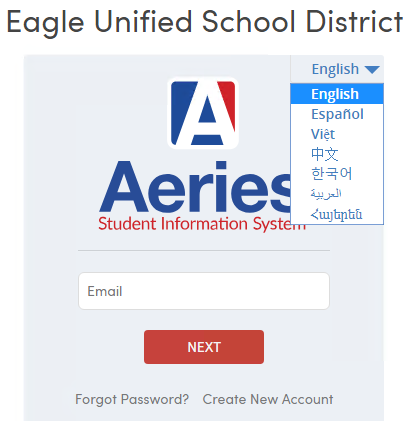
Image source: Aeries Support - Aeries SIS
Why Is the Aeries Mobile App Not Working?
While the Aeries Mobile Portal app is a top-tier choice for quick checks on the go, it is known for occasional stability issues. User reviews on the Google Play Store frequently highlight a "Login Loop" error where the app repeatedly asks for credentials or displays a generic "Error occurred please try logging out" message.
The "Deep Reset" Fix
If you encounter a persistent login error, community wisdom suggests a specific "Deep Reset" sequence that often resolves cache-related bugs:
- Clear Cache: Go to your phone's settings, find the Aeries App, and select "Clear Cache" and "Clear Data."
- Uninstall: Remove the app entirely from your device.
- Restart: Power your phone off and back on to clear temporary system files.
- Reinstall: Download the latest version from the App Store or Google Play.
Mobile App vs. Mobile Web Browser
During high-traffic periods—such as the hour report cards are released or the first week of school—the dedicated app may struggle to connect to district servers. In these instances, using a mobile web browser (like Chrome or Safari) to visit the portal URL is a highly effective alternative. The web version is often more stable and provides access to complex forms, such as "Data Confirmation," which frequently fail on the app's interface.
Understanding the Aeries and ParentSquare Connection
A common point of confusion for parents is the relationship between Aeries and ParentSquare. While they often work together, they serve distinct purposes in the school ecosystem. Aeries is the database (the source of truth for grades and records), whereas ParentSquare is the communication tool (the platform for messages, newsletters, and alerts).
| Feature | Aeries Parent Portal | ParentSquare |
|---|---|---|
| Primary Purpose | Academic Records & Grades | School-to-Home Communication |
| Attendance | View detailed history | Receive absence notifications |
| Messaging | Email links to teachers | Two-way chat and posts |
| Forms | Annual Data Confirmation | Permission slips & sign-ups |
Many districts utilize Single Sign-On (SSO) , meaning that when you click a "Communications" tab within Aeries, it may automatically log you into ParentSquare. However, if you need to check a specific grade on a math quiz, Aeries remains the primary destination.
How to Use Advanced Features to Help Your Student
Beyond simple monitoring, the Aeries Parent Portal offers tools that allow for strategic academic planning. One of the most impactful features is the "What-If" Grade Editor , available in the mobile app. This tool allows parents and students to temporarily input hypothetical scores for upcoming assignments or finals to see how they would affect the overall class grade. This is a significant advancement for students who need to prioritize their study time during finals week.
Customizing Your Dashboard
The modern portal interface allows for significant customization. You can drag and drop different dashboard tiles to prioritize the information most relevant to you. For example, if your student is an athlete, you might move the "Attendance" and "Eligibility" tiles to the top. If you are focused on college applications, the "Graduation Status" and "UC/CSU Requirements" summary should be your priority.
Tracking Graduation Requirements
As detailed by San Mateo High School , the portal provides a "Credit Summary" that breaks down credits earned versus credits required in specific categories like English, Math, and Fine Arts. This allows parents to identify potential credit deficiencies early, ensuring the student stays on track for graduation and college eligibility.
Completing the Annual Data Confirmation Process
Every summer, usually in August, districts "lock" the parent portal until the Data Confirmation process is complete. This is a digital version of the old "first day packets" and is mandatory for all returning students. During this process, you will be asked to review and update:
- Emergency Contacts: Ensuring the school has the correct order of people to call in an emergency.
- Medical History: Updating allergies, medications, or new health conditions.
- Authorizations: Granting or denying permission for photo releases, internet usage, and directory information.
- Documents: Electronically signing the district handbook and residency requirements.
If you see a large yellow alert banner at the top of your portal, you must complete these steps before you can view teacher assignments or schedules. The portal also offers multi-lingual support for this process, with translations available in Spanish, Vietnamese, Korean, Chinese, Arabic, and Armenian.
What Does It Mean to Be an Aries Parent?
While the software "Aeries" is a technical tool, the term "Aries parent" also refers to individuals born under the first sign of the zodiac (March 21 – April 19). In the realm of astrology, an Aries parent is often characterized by high energy, a protective nature, and a "natural-born leader" mentality.

Image source: Pinterest
Strengths of the Aries Parent
According to parenting experts at Maisonette , Aries parents are exceptionally strong advocates for their children. They are the first to stand up for their child in a school meeting and the most enthusiastic cheerleaders on the sidelines of a soccer game. Their fire-sign energy encourages independence and bravery, teaching children to take risks and lead rather than follow.
Potential Challenges and Compatibility
The same passion that makes an Aries parent a great advocate can sometimes manifest as "hot-headedness" or impatience. Aries parents may struggle with children who have slower processing speeds (typical of Earth signs like Taurus or Capricorn) or those who are highly sensitive (Water signs like Cancer or Pisces). Learning to balance their natural drive with a child's need for emotional space is a key growth area for the Aries parent.
Frequently Asked Questions
How do I reset my Aeries password without a school code?
If you already have an active account, you can reset your password using the "Forgot Password" link on the login page. You will receive an email with a reset link. However, if you have never created an account, you cannot bypass the requirement for a Student ID and Verification Code (VPC). These must be obtained from the school office to ensure the security of the student's data.
Can I see daily homework assignments on Aeries?
Typically, Aeries is used to display grades on assignments rather than the assignments themselves. While some teachers may upload files or descriptions, most districts use Learning Management Systems (LMS) like Google Classroom or Canvas for daily work. Aeries serves as the final record of how those assignments impacted the student's overall grade.
Why can't I see my child's test scores or report card?
There are three common reasons for restricted access: 1) The district has "locked" the portal for the annual Data Confirmation process. 2) The grading period has not yet closed, and teachers are still finalizing scores. 3) The district has a specific release date for standardized test scores. Check for a notification banner at the top of your dashboard for specific instructions.
Is there a fee to use the Aeries Parent Portal?
No, the Aeries Parent Portal is a free service provided by your school district. While there is an official app in the App Store and Google Play, it is also free to download and use. Be cautious of third-party "grade tracker" apps that may ask for your Aeries credentials; these are not official and may pose a security risk to your student's data.
What should I do if my student's attendance is marked incorrectly?
Parents have "read-only" access to attendance data and cannot edit these records themselves. If you believe an error has been made, you must contact the school's attendance office directly. It is helpful to have documentation, such as a doctor's note or a timestamped email, to support the request for a correction.
Key Takeaways for Managing Your Student's Records
- Secure your credentials by visiting the school office in person to obtain your Student ID and Verification Code (VPC).
- Link all siblings to a single email address using the "Add Additional Student" dropdown menu to save time.
- Use the mobile web browser as a reliable backup if the Aeries app experiences a "Login Loop" or stability issues.
- Complete Data Confirmation every August to ensure you have uninterrupted access to grades and teacher assignments.
- Leverage the "What-If" tool to help your student strategize for final exams and understand their academic standing.
- Distinguish between platforms by using Aeries for official records and ParentSquare for daily teacher communication.
- Monitor graduation progress early and often to ensure all credit requirements and college prerequisites are being met.
Log in to your district's portal today to review your student's most recent attendance and assignment scores.