Home
Home
How to Access Your GRL Content and Sync It With Your Course
To access your materials, visit the official GRL Content login portal at grlcontent.com . If your instructor has integrated the course with your school's Learning Management System (LMS), you should log in directly through Canvas, Blackboard, or Brightspace to ensure your grades sync correctly. For technical assistance, you can reach support at 1-800-344-9051 .
Navigating digital courseware can be a significant step forward in your academic journey, but it often comes with technical hurdles. Great River Learning (GRL) provides a notably innovative platform that replaces traditional textbooks with interactive, media-rich content. Whether you are a student trying to redeem an access code or an instructor setting up a new semester, understanding the nuances of the GRL ecosystem is essential for a smooth experience.
Ready to start your coursework?
Go to GRL Content LoginUnderstanding GRL Content and the WebCOM Platform Connection
One of the most frequent points of confusion for new users is the branding. While you are using GRL Content, you may notice references to the WebCOM platform . It is important to understand that WebCOM is the underlying engine that powers the GRL experience. If you see "WebCOM" on your credit card statement after purchasing access, or if the word appears in your browser tab while a quiz is loading, do not be alarmed. It is a legitimate part of the Great River Learning ecosystem.
According to Illinois State University's software catalog , GRL Content is a proprietary digital publishing platform. Unlike a static PDF or a simple e-book, this platform is a "Web app" that requires an active internet connection to function. It integrates homework problems, interactive diagrams, and assessment tools directly into the reading material.
Beyond the textbook, GRL offers several engagement tools. For instance, the "Can I Get a Retake?" podcast provides a more human element to the brand, discussing educational trends and student success strategies. This multi-faceted approach makes GRL a top-tier choice for modern higher education, moving beyond the limitations of legacy print media.
Steps to Redeem Your GRL Content Access Code Correctly
Redeeming your access code is the first critical step in your course. These codes are unique alphanumeric strings that grant you entry to specific course sections. Because these codes are generally single-use and tied to a specific student account, you should avoid purchasing "used" GRL-enabled books from third-party sellers, as the codes are almost certainly already activated.
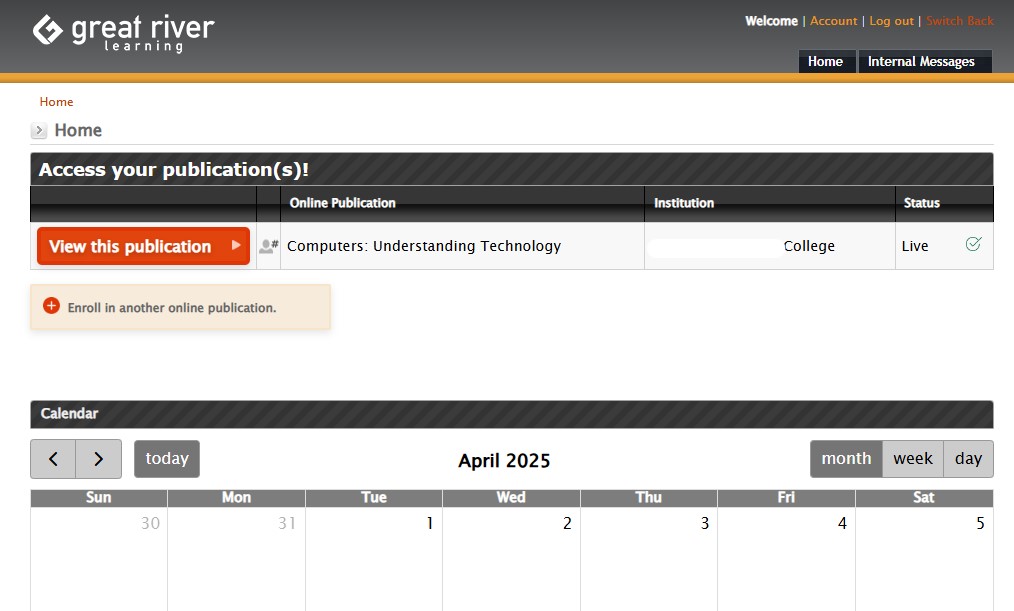
Image source: Great River Learning Support Portal |
To redeem your code, follow these steps:
- Navigate to the Portal: Go to the main login page and look for the "Purchase/Redeem" or "Register" button.
- Select Your Institution: You will be prompted to choose your university and the specific department for your course.
- Enter the Code: Carefully type in the code found in your physical textbook or your digital confirmation email. Be mindful of common typos, such as mistaking the letter "O" for the number "0".
- Confirm Your Section: Ensure you are joining the correct section number as listed on your syllabus. Joining the wrong section may prevent your instructor from seeing your work.
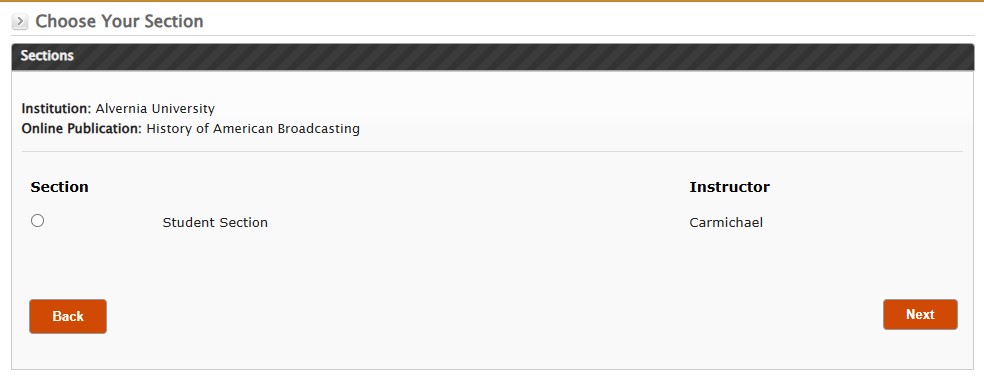
Image source: Great River Learning Support Portal |
If you encounter an "Invalid Access Code" error, first verify that you haven't already registered. Many students forget they created an account during a previous session. If the error persists, contact Great River Learning support with your proof of purchase ready.
Integrating GRL Content With Canvas or Brightspace for Grade Syncing
For many students, the most important aspect of GRL Content is ensuring that their hard work is reflected in their school's gradebook. This is achieved through LTI (Learning Tools Interoperability) integration. If your instructor has set this up, you should never log in directly at grlcontent.com for graded work. Instead, you must use the links provided within your school's LMS.
According to Minnesota State Service Desk documentation , clicking the GRL link inside a platform like Brightspace automatically signs the user into the WebCOM platform. This "Single Sign-On" (SSO) process is what links your student ID to your GRL progress.
Direct Login vs. LMS Login Comparison
| Feature | Direct Login (grlcontent.com) | LMS Integration (Canvas/D2L) |
|---|---|---|
| Best For | Independent study / Mobile app setup | Graded assignments / Homework |
| Grade Sync | Manual (Instructor must export) | Automatic (Real-time or daily) |
| Login Method | GRL-specific username/pass | University ID (SSO) |
| Setup Effort | Manual redemption required | Click-and-go (usually) |
Instructors can further enhance the experience by using "Deep Linking." Instead of a general link to the GRL homepage, deep links take students directly to a specific chapter or quiz. This reduces navigation friction and is widely regarded as a best practice for digital course design.
Setting Up the QuizPrep Mobile App for On the Go Study
To supplement the web-based platform, GRL offers the QuizPrep mobile app . This tool is a strong contender for students who want to squeeze in study sessions during a commute or between classes. However, setting it up requires a specific workflow that differs from the desktop login.
You cannot simply use your university email and password to log into the QuizPrep app. Instead, you typically need a Mobile App Code . This code is generated from within your GRL Content dashboard on a desktop browser. Once you have this code, you can link your mobile device to your active course materials.
The app allows for some offline functionality, but the core textbook content generally requires an active connection. This ensures that your progress is saved to the cloud and can be accessed from any device later.
Troubleshooting Common GRL Content Login and Sync Issues
Even the most stable platforms encounter issues. Most GRL technical problems stem from browser settings rather than server-side failures. If you find that your screen goes white when clicking a link in Canvas, or if a quiz refuses to load, the culprit is likely your browser's security settings.
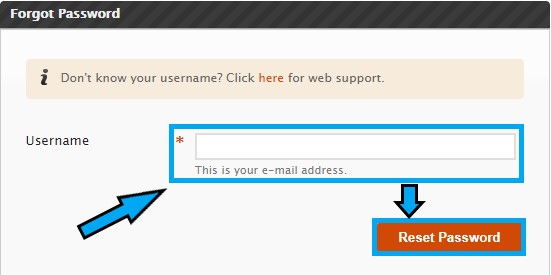
Image source: Great River Learning Support Portal |
Follow this pre-flight checklist to resolve 90% of common issues:
- Disable Pop-up Blockers: GRL often opens quizzes in a new window. If your browser blocks pop-ups, the quiz will never appear.
- Enable Cross-Site Tracking (Safari Users): This is the most common issue for Mac and iPhone users. Go to Settings > Safari and turn OFF "Prevent Cross-Site Tracking." If this is on, Canvas cannot "talk" to GRL, and you will be stuck on a login loop.
- Clear Cache and Cookies: If the site feels sluggish or buttons aren't responding, clearing your browser's temporary files can often fix the glitch.
- Check System Status: Before assuming your computer is broken, check the GRL Support Status Portal to see if there is a widespread outage.
"If your grades are not appearing in Canvas immediately, do not panic. Grade sync latency can range from a few minutes to 24 hours depending on the university's server settings."
Frequently Asked Questions
Can I reuse an access code from a previous semester?
Generally, no. Access codes are designed for single-use and are tied to a specific course instance and semester. If you are retaking a course, you may need to contact GRL support to see if they offer a discount or extension, but in most cases, a new code is required to access the updated curriculum and the new instructor's gradebook.
What should I do if my access code is marked as invalid?
First, double-check the characters you entered. Common mistakes include confusing 'S' with '5' or 'I' with '1'. If you are certain the code is correct, ensure you have selected the right institution. If it still fails, contact GRL support at 1-800-344-9051. You will need to provide proof of purchase, such as a receipt from your campus bookstore.
Does GRL Content work on iPads and tablets?
Yes, GRL Content is compatible with most modern tablets. You can access the full platform through a mobile browser like Chrome or Safari. For the best experience, ensure your tablet's OS is up to date and that you have disabled "Prevent Cross-Site Tracking" in your browser settings to allow for LMS integration.
Why does my screen go white when I click a GRL link in Canvas?
This is almost always caused by a browser security setting that blocks third-party cookies or cross-site tracking. The LMS (Canvas) is trying to pass your credentials to GRL, but the browser is blocking the handoff. Switching to Google Chrome or Mozilla Firefox often resolves this, as these browsers tend to be more compatible with LTI integrations than Safari.
How do I get a refund for a digital access code?
Refund policies vary depending on where you purchased the code. If you bought it through your campus bookstore, you must follow their specific return policy. If you purchased directly from the GRL website, you typically have a limited window (often 14 days) to request a refund, provided the code has not been heavily used. Visit the GRL support page for their official refund request form.
Final Thoughts on Using GRL Content Successfully
Mastering the GRL Content platform is a vital part of your academic success this semester. By following the correct integration paths and maintaining your browser settings, you can focus on learning rather than troubleshooting.
- Confirm your login method by checking your syllabus for LMS integration instructions.
- Keep your access code card in a safe place until the semester ends and your final grades are posted.
- Use Chrome or Firefox as your primary browsers to ensure the highest level of compatibility with interactive quizzes.
- Check the status portal at the first sign of technical trouble to see if the issue is local or platform-wide.
- Link the QuizPrep app using the mobile code from your desktop dashboard for flexible study sessions.
- Adjust Safari settings by disabling "Prevent Cross-Site Tracking" if you are a Mac or iOS user.
Start by logging into your course portal today to ensure your access code is active and your account is properly linked to your instructor's gradebook.