Home
Home
How to Build Professional Games Using the editor.construct.net Web Editor
To access the Construct 3 game engine, navigate directly to editor.construct.net in a modern browser like Chrome or Edge. This browser-based IDE allows you to build complex 2D and 3D games without local installation. For optimal performance, ensure WebGL 2.0 is enabled and your browser cache is clear. If you encounter the "Failed to Fetch" error, a hard refresh (Ctrl+F5) or clearing site data usually resolves the issue by resetting the Service Worker.
Image source: Construct 3
What Makes the Construct 3 Web Editor Different?
The transition from Construct 2 to Construct 3 marked a significant advancement in how game development tools are delivered. While its predecessor relied on a .NET-based Windows application, the current iteration at editor.construct.net is built entirely on a JavaScript and Node.js architecture. This shift allows the engine to run natively on virtually any platform with a modern browser, including Windows, macOS, Linux, ChromeOS, and even mobile devices.
One of the most notable benefits of this browser-first approach is the "Live Editing" capability. Because the engine is JavaScript-based, developers can often modify game logic or adjust object properties while the preview is running. This creates a highly iterative workflow that few other engines match in terms of speed. Furthermore, the editor utilizes a Service Worker to cache files locally, meaning that once the initial load is complete, you can continue working even without an active internet connection.
According to official Scirra documentation , the engine handles the complexities of cross-platform exporting automatically. Whether you are targeting HTML5, Android, iOS, or desktop platforms, the web editor manages the wrappers and dependencies, allowing creators to focus on design rather than technical overhead. This accessibility has led to a massive community, with over 250,000 monthly active users producing tens of thousands of games.
How to Set Up Your Browser for High Performance
Running a full-scale game engine inside a browser tab requires specific configurations to ensure stability. The editor.construct.net environment relies heavily on WebGL 2.0 for rendering both the editor UI and the game preview. If your hardware acceleration is disabled, you may experience significant lag or a complete failure to load the layout view.
Memory management is another critical factor. Large projects with high-resolution textures can quickly consume available RAM, leading to "Out of Memory" crashes. To prevent this, developers should:
- Close unnecessary browser tabs to free up system resources.
- Use the "Downscale" tool in the image editor to reduce asset sizes.
- Enable "GPU Process" monitoring in Chrome to see how much VRAM the editor is utilizing.
- Prefer Chrome or Edge for heavy projects, as their V8 engine typically offers a slight performance edge for Construct's logic processing.
Offline functionality is a common point of confusion. While the editor is capable of working offline, this is only possible *after* the browser has successfully installed the Service Worker. If you clear your browser history or use Incognito mode, the editor will need to re-download its core files before it can function without a connection again.
How to Fix the Failed to Fetch Error and Other Common Issues
The "Failed to Fetch" error is perhaps the most frequent hurdle users face when using editor.construct.net. This usually occurs when the browser attempts to update the editor to a new version (like the r495 update) but encounters a network interruption or a conflict with the existing cache. Because the editor relies on a complex web of Service Workers to manage files, a partial update can leave the environment in an unstable state.
To resolve this, follow these steps in order:
-
Hard Refresh:
Press
Ctrl + F5(orCmd + Shift + Ron Mac) to force the browser to ignore the cache and fetch new files. - Clear Site Data: Open Chrome DevTools (F12), go to the "Application" tab, select "Storage," and click "Clear site data." This resets the Service Worker without affecting your saved project files if they are stored in the cloud.
- Disable Extensions: Ad-blockers and privacy extensions sometimes mistakenly block the scripts required for the editor to load. Try running the editor in a clean profile to rule out extension conflicts.
| Error Message | Likely Cause | Immediate Solution |
|---|---|---|
| Failed to Fetch | Service Worker update interruption | Hard refresh or clear site data |
| Unhandled Rejection | Cloud storage sync error | Re-authenticate Google Drive/Dropbox |
| Out of Memory | Excessive texture usage | Close tabs; downscale images |
| WebGL Context Lost | GPU driver crash | Restart browser; update drivers |
Moving Beyond the Basics with Advanced Logic Systems
Many beginners fall into the "Tutorial Trap," where they can follow a step-by-step guide to make a platformer but struggle to build original systems. To move past this, you must master the underlying logic structures that Construct 3 provides. The engine is widely regarded as one of the top choices for visual scripting because it doesn't just simplify code; it provides a robust framework for complex data management.
Escaping the Tutorial Trap
The key to professional development in editor.construct.net is understanding Object Picking . Unlike traditional coding where you might iterate through a list of objects, Construct uses a "Selected Object List" (SOL) system. When you trigger a condition, the engine automatically filters which instances of an object the subsequent actions will apply to. Misunderstanding this is the primary reason logic "breaks" when multiple enemies or items are on screen at once.
The Big Four Objects for Complex Systems
To build scalable games, you should move away from simple instance variables and embrace these four components:
- Arrays & Dictionaries
- Essential for inventory systems, quest logs, and saving complex game states. Dictionaries are particularly useful for "Key-Value" pairs, such as storing player stats (e.g., "Strength": 10).
- 9-Patch
- A specialized sprite object that allows for UI elements to scale without distorting their corners. This is a top-tier tool for creating professional-looking menus that work on any screen resolution.
- For-Each Loops
- When you need to perform an action on every instance of an object individually (like checking the line of sight for ten different guards), the For-Each loop ensures the logic is applied correctly to each one.
- Sub-events
- These allow you to nest logic, creating a hierarchy that is both easier to read and more performant. Sub-events only run if their parent condition is met, significantly reducing the CPU load.
How to Master 3D Features in a 2D Engine
While Construct 3 is primarily a 2D engine, recent updates have introduced remarkably strong 3D capabilities. You can now manipulate the "Z-Elevation" of any object, effectively moving it closer to or further from the camera. This allows for parallax effects that go beyond simple layer scrolling, creating a true sense of depth.
The 3D Shape object and Mesh Distortion tools allow developers to create pseudo-3D environments. By distorting a 2D sprite's mesh, you can simulate perspective, such as a flag waving in the wind or a character turning their head. These features rank among the most innovative additions to the engine in recent years, enabling "2.5D" aesthetics similar to modern indie hits.
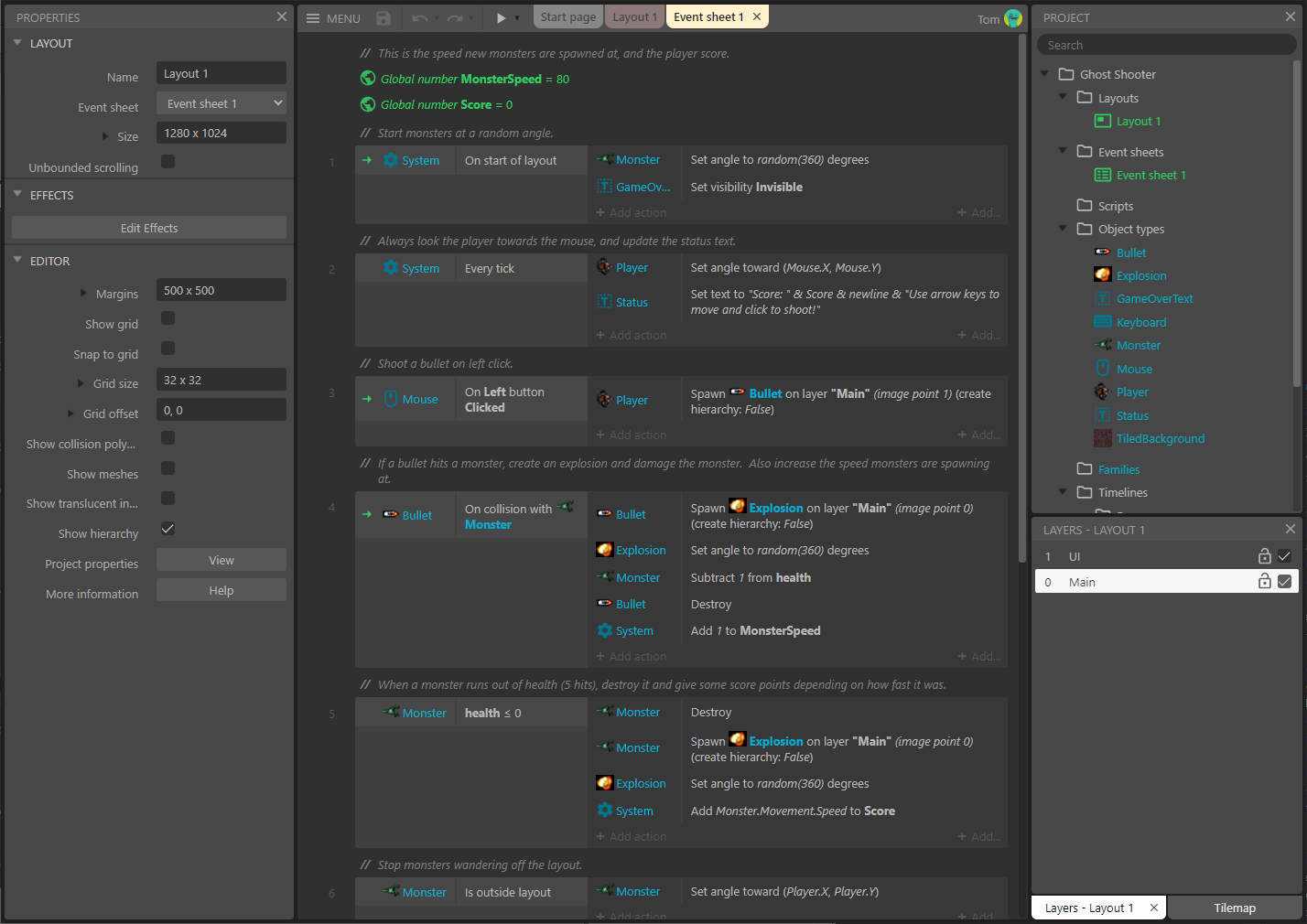
Image source: www.construct.net
Adjusting the Vanishing Point in the project properties is another advanced technique. By shifting the camera's perspective, you can create top-down games with realistic wall heights or side-scrollers with deep backgrounds. Mastering these settings is essential for any developer looking to stand out in the crowded indie market.
How to Manage Your Projects and Assets Effectively
Efficiency in editor.construct.net isn't just about logic; it's about how you handle your workflow. The engine offers several ways to save your work: Cloud Save (Google Drive, Dropbox, OneDrive), Local Browser Save, and Download as File (.c3p). For professional projects, using a combination of Cloud Save and periodic local backups is a highly recommended practice.
The Remote Preview feature is a significant step forward for mobile testing. By clicking the "Remote Preview" button, the editor generates a QR code. Scanning this with a smartphone allows you to play the game instantly on the device, using the actual hardware sensors like the accelerometer or touch screen. This eliminates the need to export an APK or IPA just to test a minor gameplay tweak.
"The ability to undock the Event Sheet and move it to a second monitor is a major improvement for productivity. It allows you to view your layout and your logic simultaneously, which is a top-tier workflow for complex level design." — Insights from the Construct Community Forum.
Comparing Construct 3 to Other Web-Based Engines
When choosing a development tool, it is helpful to see how editor.construct.net stacks up against other popular no-code or low-code options. While each engine has its strengths, Construct 3 stands out for its balance of ease of use and deep logical customizability.
| Feature | Construct 3 | GDevelop | Pogo (Stencyl) |
|---|---|---|---|
| Logic System | Visual Events + JS | Visual Events | Block-based (Scratch-like) |
| 3D Support | Strong (Z-axis, Mesh) | Basic / Experimental | Limited |
| Mobile Testing | QR Remote Preview | Network Preview | Local Build |
| Pricing | Subscription-based | Free / Tiered | Annual License |
While GDevelop offers a free tier that is attractive for hobbyists, Construct 3 is often considered a top choice for professional indie developers due to its more mature plugin ecosystem and superior performance in complex scenes. The ability to integrate raw JavaScript directly into the event sheet means that you are never truly "limited" by the no-code interface.
Frequently Asked Questions
Is editor.construct.net free to use?
Construct 3 offers a free trial version that allows you to explore the editor's features without an account. However, the free version has limitations on the number of events (usually 50), layers, and effects you can use. To publish commercial games or access advanced features like JavaScript integration, a paid subscription is required. This model supports the continuous updates and server costs associated with a browser-based engine.
Can I use Construct 3 without an internet connection?
Yes, but with a specific caveat. You must load the editor at least once while online so the Service Worker can cache the application files. Once cached, you can visit editor.construct.net even when offline, and the editor will load from your local storage. Note that cloud-saving features will be unavailable until you reconnect, so you should save your projects as local .c3p files during offline sessions.
Does Construct 3 use .NET or JavaScript?
Construct 3 is entirely JavaScript-based. While Construct 2 was a Windows-only .NET application, Scirra rebuilt the engine for the web using modern web technologies. This allows for better cross-platform compatibility and enables users to write custom JavaScript code directly within the editor to extend the engine's functionality.
How do I fix the "Failed to Fetch" error?
This error is usually caused by a corrupted Service Worker or a network glitch during an update. The most effective fix is to perform a hard refresh (Ctrl+F5) or to clear the site data for editor.construct.net in your browser's developer tools. If the problem persists, check if a browser extension or firewall is blocking the editor's access to its update servers.
What is the best browser for Construct 3?
While the editor is designed to be cross-browser compatible, most developers find that Chromium-based browsers like Google Chrome or Microsoft Edge offer the most stable experience. These browsers typically have the most robust WebGL support and efficient JavaScript execution, which are vital for maintaining high frame rates in the editor and during game previews.
Building professional games in a browser environment requires a blend of technical optimization and logical depth. By following the strategies outlined above, you can maximize the potential of this notably innovative engine.
- Prioritize browser health by ensuring WebGL 2.0 is active and clearing site data if "Failed to Fetch" errors occur.
- Master Object Picking to ensure your logic scales correctly when multiple instances are on screen.
- Leverage Arrays and Dictionaries for data-heavy systems like inventories and save states rather than relying solely on instance variables.
- Utilize Remote Preview via QR codes to test mobile performance and touch controls instantly without long export times.
- Explore 3D features like Z-elevation and Mesh Distortion to add modern visual depth to your 2D projects.
- Stay on the Stable branch for production work to avoid potential bugs in experimental beta releases.
- Adopt a multi-monitor workflow by undocking event sheets to increase your visible workspace and productivity.
To begin your next project, simply open your browser and head to the editor to start building your first scene today.