Home
Home
How to Download the TONEX Editor and Sync Presets to Your Pedal
The TONEX Editor is not a standalone application but a built-in feature of the TONEX software (version 1.9.0 or later). To access it, you must download the IK Product Manager , install the main TONEX application, and connect your hardware via USB-C. Once connected, the "Librarian" and "Editor" tabs within the software allow you to manage presets and tweak parameters in real-time.
For guitarists and bassists using the IK Multimedia ecosystem, the transition from software-based modeling to hardware-based performance is bridged by the TONEX Editor. Whether you are using the full-sized TONEX Pedal or the compact TONEX ONE, the editor serves as the central hub for organizing your captures, adjusting VIR (Volumetric Impulse Response) settings, and syncing your favorite tones for stage use.
In recent years, the platform has evolved significantly. As of 2026, the software has moved beyond simple preset management into a highly integrated environment that supports over 65,000 Tone Models. Understanding how to navigate this interface is essential for getting the most out of your hardware investment.
Where to Find the TONEX Editor Download
One of the most common points of confusion for new users is searching for a dedicated "TONEX Editor.exe" or installer file. It is important to clarify that the editor is a specific view mode within the standard TONEX software . You will not find a separate download link for the editor on the official website.
To get started, follow these steps to ensure you have the correct version installed:
- Download the IK Product Manager: This is the gateway for all IK Multimedia software. Install it and log in with your account credentials.
- Register Your Hardware: If you haven't already, use the serial number provided with your TONEX Pedal or TONEX ONE to register the device. This unlocks the necessary software licenses.
- Install TONEX: Locate "TONEX" in the Software tab of the Product Manager. Ensure you are installing version 1.9.0 or later, as earlier versions do not include the hardware librarian and editor features.
- Launch the Application: Once installed, open the TONEX standalone app. You will see tabs at the top for "Player," "Librarian," and "ToneNET."
If you are a DAW user, the TONEX plugin also receives these updates, but for hardware management and syncing, the standalone version is generally more stable and easier to use for bulk transfers.
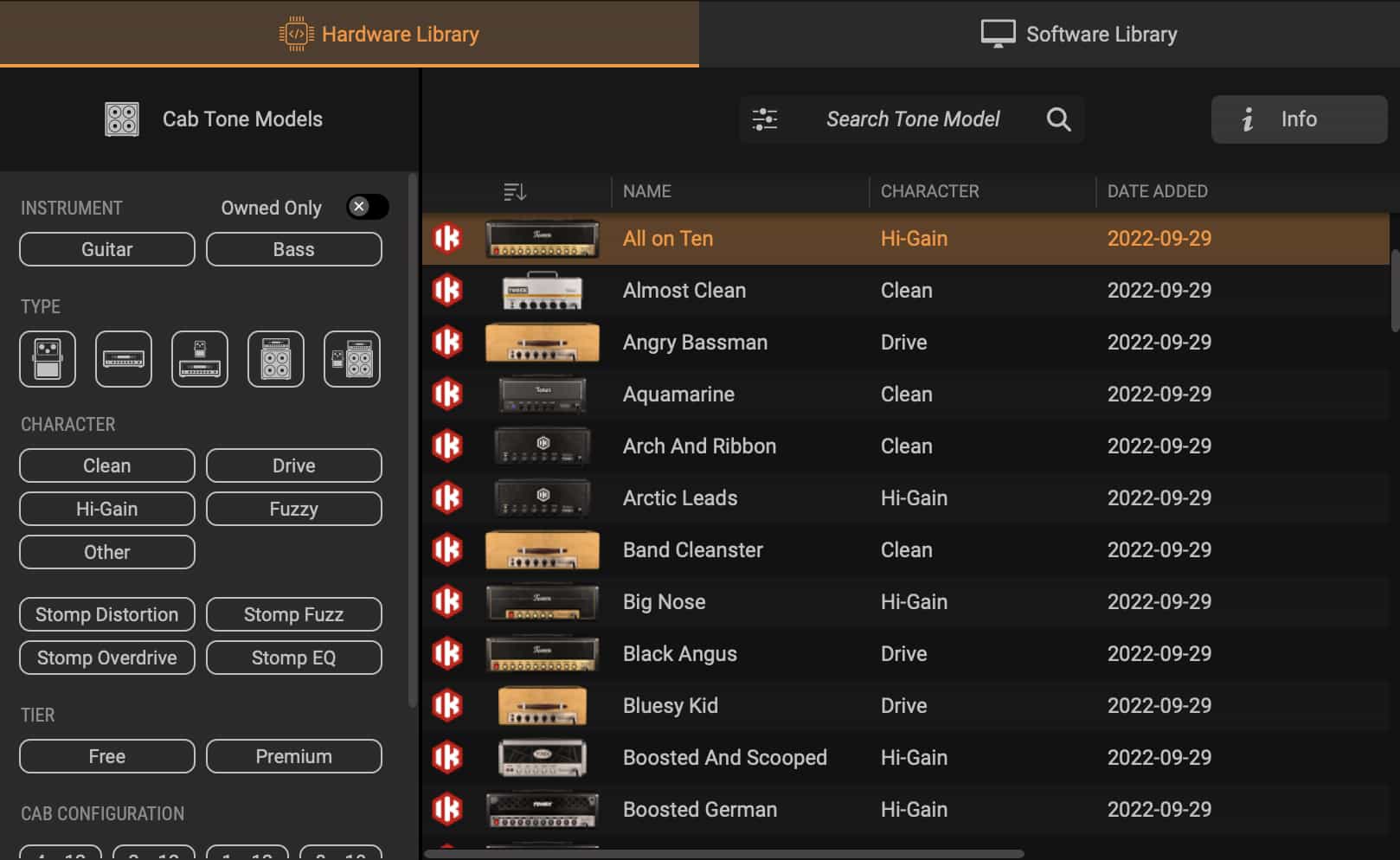
Image source: TONEX
How to Connect Your Hardware for the First Time
Connecting your hardware to the software requires more than just a physical cable; it requires a specific "handshake" between the firmware and the driver. Many users encounter issues because they use "charging-only" USB-C cables. Always ensure you are using a high-quality USB-C data cable .
Before opening the editor, you should check for firmware updates. IK Multimedia frequently releases updates that improve the communication speed between the pedal and the computer. These updates are handled exclusively through the IK Product Manager under the "Hardware" tab. Attempting to use the editor with outdated firmware often results in the "Device Not Found" error.
Once the hardware is connected and the firmware is current, the TONEX software will display a small pedal icon in the top right corner. Clicking this icon or navigating to the Librarian tab will initiate the sync process, pulling the current preset list from your pedal into the software interface.
Understanding the Difference Between the Editor and the Librarian
While often used interchangeably, the Editor and the Librarian serve two distinct purposes within the software. Mastering the workflow requires knowing when to use each tab.
The Librarian Tab is your management center. This is where you organize the 150 slots on the TONEX Pedal or the 20 slots on the TONEX ONE. It features a dual-pane view: your computer's local library on the left and the hardware's memory on the right. You can drag and drop presets between these two panes to reorganize your setlist.
The Editor Tab (or the editing view within the Player) is where you turn virtual knobs. When your hardware is connected, any change you make in the software—such as increasing the Gain, adjusting the Reverb mix, or swapping a Cabinet—is reflected instantly in the hardware's output. This real-time synchronization makes it a premier choice for dialing in tones without having to bend over and tweak physical knobs.
| Feature | Editor Tab | Librarian Tab |
|---|---|---|
| Adjust Gain, EQ, and Volume | Yes | No |
| Drag & Drop Presets to Pedal | No | Yes |
| Modify Noise Gate & Reverb | Yes | No |
| Bulk Import/Export Libraries | No | Yes |
| Real-time Hardware Sync | Yes | Yes |
How to Sync ToneNET Presets Directly to Your Pedal
One of the most impactful features of the TONEX ecosystem is ToneNET , a cloud-based platform where users share their own captures of rare amps and pedals. As of current data, there are over 65,000 models available, ranging from vintage boutique combos to modern high-gain stacks.
The "Cloud-to-Pedal" workflow is a significant advancement in how guitarists build their rigs. Here is the most efficient way to move a cloud preset to your hardware:
- Browse ToneNET: Click the ToneNET tab within the TONEX software. Use the search filters to find specific gear (e.g., "1965 Deluxe Reverb").
- Preview the Tone: Click the "Play" icon on a preset. If your pedal is connected, the audio will process through the hardware, allowing you to hear exactly how it sounds through your actual speakers or headphones.
- Download to Library: Click the download icon to save the preset to your computer's local library.
- Sync to Hardware: Switch to the Librarian tab. Locate the newly downloaded preset in your local library and drag it into an empty slot on the hardware pane.
This process ensures that you aren't just guessing based on a thumbnail; you are auditioning the gear in real-time before committing it to your pedal's memory.
Managing the TONEX ONE Performance Modes via Software
The TONEX ONE offers a remarkably compact form factor, but its small size means many features are hidden behind multi-function knobs. The TONEX Editor is the most efficient way to configure the device's behavior. Specifically, the software allows you to toggle between Stomp Mode and Dual Mode .
In Stomp Mode , the pedal acts like a traditional stompbox—one click turns the effect on or off. In Dual Mode , the pedal switches between two different presets (A and B). Configuring these modes via the hardware requires memorizing LED color codes and button presses, but in the Editor, it is a simple toggle switch in the "Global Settings" menu.
Furthermore, the Editor allows you to set the "Safe Mode" to prevent accidental knob turns during a live performance and to adjust the input trim, which is vital for maintaining consistent gain levels when switching between guitars with active and passive pickups.
What Is New in the TONEX 2.0 Player and Editor?
The release of the TONEX 2.0 Player (currently in public beta) represents a significant step forward for the platform's user interface. The update focuses on speed and visual clarity, addressing many of the navigation complaints from earlier versions.
Key improvements in the 2.0 ecosystem include:
- Smart Search Engine: A new filtering system that allows you to search by specific components, such as "EL34 tubes" or "Open Back Cab," rather than just searching by name.
- Photorealistic Gear View: The legacy list view has been supplemented with high-resolution images of the amps and pedals, making the editing experience feel more intuitive and "analog."
- Enhanced Librarian Performance: Syncing 150 presets now happens in a fraction of the time compared to version 1.0, thanks to optimized data transfer protocols.
These updates ensure that the TONEX Editor remains a top-tier option for professionals who need to manage complex signal chains quickly.
Troubleshooting Common TONEX Editor Connection Issues
Even with a high-quality setup, technical hurdles can occur. Most issues stem from software permissions or hardware registration conflicts.
Why is my device not found?
If the TONEX software fails to see your pedal, the culprit is often the operating system's privacy settings. On macOS, you must ensure that the software has permission to access "Removable Volumes" and "Microphone" (which handles the audio interface portion of the pedal). On Windows, ensure that the IK Multimedia USB driver is correctly installed and that the pedal is not being "captured" by another application, such as a DAW or a web browser using WebMIDI.
How to fix registration issues for second-hand pedals
Buying a used TONEX Pedal is a popular choice, but it can lead to registration locks. If the previous owner did not perform a "License Transfer," you will be unable to access the Editor features. In this case, the original owner must purchase a "License Transfer Credit" from the IK store and remove the serial number from their account. If the seller is unresponsive, contacting IK Multimedia support with proof of purchase is the only path forward.
Dealing with "Auto-Save" conflicts
The TONEX hardware has an internal auto-save feature that remembers changes you make to the physical knobs. However, if you have the Editor open and change a knob on the pedal, the software might prompt you to "Sync" or "Overwrite." To avoid losing your work, always decide whether the Software or the Hardware is the "Master" before you begin a session. Most users find it easiest to make all deep edits in the software and use the hardware knobs only for minor stage adjustments.
Can You Use the TONEX Editor on iPhone or Android?
As of 2026, the full "Librarian" and "Editor" functionality is primarily a desktop experience (Windows/macOS). However, the TONEX iOS app provides a functional mobile alternative. While it does not offer the exact same dual-pane librarian view, it allows you to load Tone Models and tweak parameters via a mobile device connected through a compatible USB interface or the pedal's own USB-C port.
For Android users, official support remains limited. While some users have found success using third-party MIDI controllers or generic USB-OTG connections, the official TONEX Editor experience is not currently optimized for the Android operating system. For the most stable and feature-complete experience, a desktop connection is highly recommended.
Using a mobile device to update firmware is not recommended . A sudden loss of power or connection during a firmware flash can "brick" the hardware. Always use a stable desktop connection for firmware updates.
Frequently Asked Questions
How do I update my TONEX firmware?
Firmware updates are not performed within the TONEX app itself. Instead, open the IK Product Manager , navigate to the "Hardware" tab, and look for your TONEX device. If an update is available, a "Firmware Update" button will appear. Ensure your pedal is connected via USB and do not disconnect it until the process is 100% complete.
Is the TONEX Editor free to use?
Yes, the editor and librarian features are free for all owners of TONEX hardware. When you register your TONEX Pedal or TONEX ONE, the software license is automatically added to your IK Multimedia account. You can then download the software via the Product Manager at no additional cost.
Can I use the Editor without the pedal connected?
You can use the TONEX software in "Player" mode to browse your library and ToneNET without the pedal. However, the "Librarian" tab (for moving presets to hardware) and the real-time "Editor" controls for the pedal's internal DSP require a live USB connection to the hardware.
Why can't I see my User Captures in the Editor?
User Captures must be imported into the TONEX library before they appear in the Librarian. Go to the "Player" tab, click the "Import" icon, and select your .txp files. Once they are in your local library, you can drag them onto the hardware slots in the Librarian tab.
Does the Editor work with the TONEX Capture box?
No. The TONEX Capture is a hardware DI/re-amping box used for creating Tone Models; it does not have internal DSP or presets. The TONEX Editor is specifically designed for the TONEX Pedal and TONEX ONE , which are the playback devices for those models.
Key Takeaways for Mastering the TONEX Editor
- Access via Product Manager: Remember that the editor is a feature within the main TONEX app, not a separate download.
- Keep Firmware Current: Always check the Hardware tab in the IK Product Manager before troubleshooting connection issues.
- Use the Librarian for Organization: The dual-pane view is the most efficient way to manage your 150 hardware slots.
- Audition via ToneNET: Use the real-time preview feature to hear cloud presets through your rig before downloading them.
- Configure TONEX ONE: Use the software to easily toggle between Stomp and Dual modes, avoiding complex hardware button combos.
- Verify Your Cable: Ensure you are using a high-quality USB-C data cable to prevent "Device Not Found" errors.
By integrating the TONEX Editor into your workflow, you transform your hardware from a static pedal into a dynamic, evolving rig that can adapt to any musical scenario.