Home
Home
How to Set Up and Optimize Your TPortstick for Gaming and Streaming
To set up your TPortstick, connect the HDMI dongle to your display, plug the USB power cable into a 5V/1A wall adapter, and insert the 2.4GHz wireless receiver. For streaming, use an HDMI-to-USB capture card to feed the signal into TikTok Live Studio. If your browser fails to detect the device, navigate to
chrome://flags
and disable "Enable Windows.Gaming.Input."
The TPortstick has emerged as a popular choice for enthusiasts looking to bridge the gap between retro gaming and modern streaming ecosystems. Whether you are looking to revisit classic titles or integrate mobile-style gaming into a professional broadcast, understanding the nuances of this hardware is essential. According to 9th Impact , portable gaming sticks offer a longer usable lifespan compared to traditional consoles by focusing on accessibility and vast libraries rather than raw processing power.
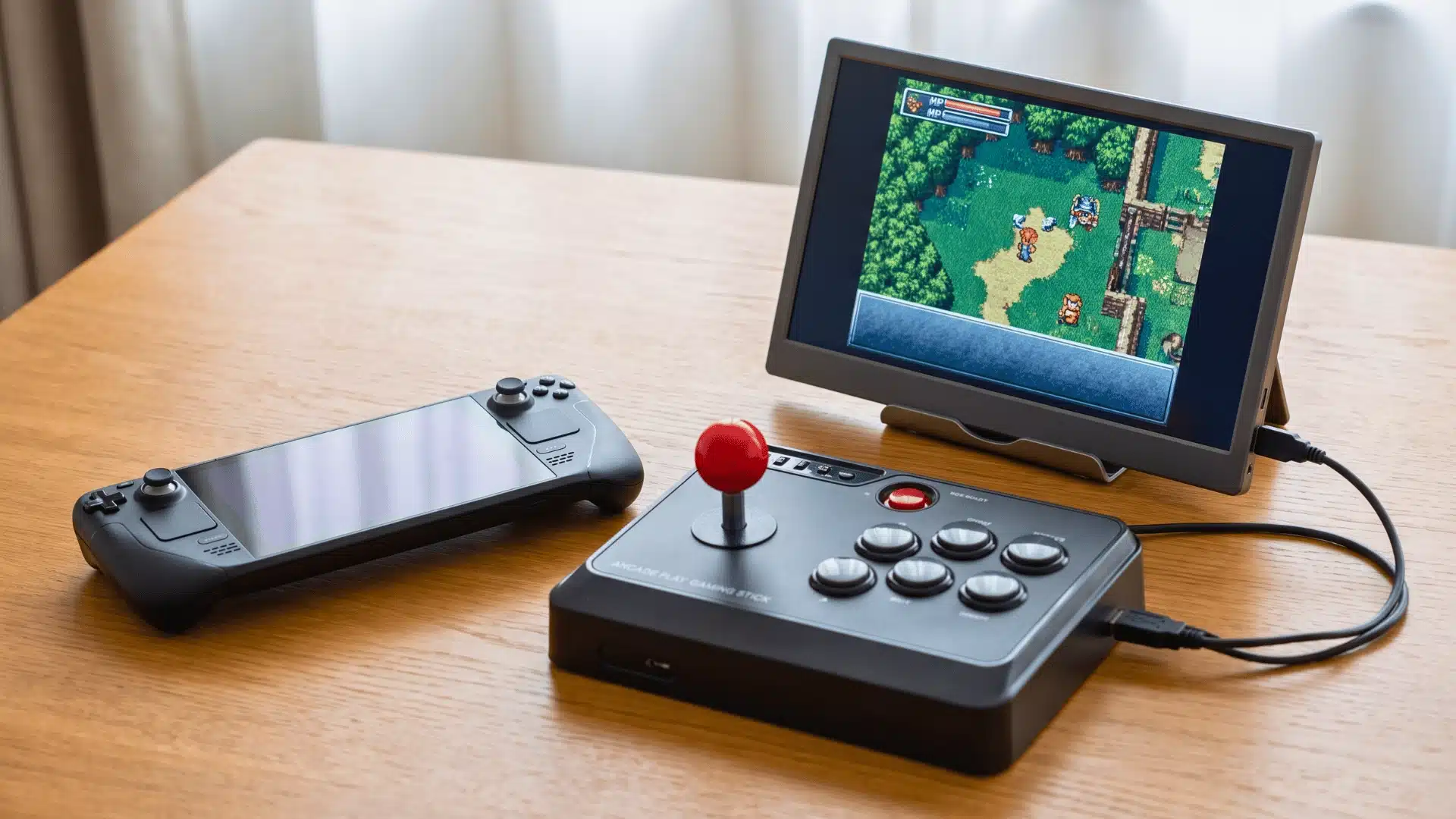
Image source: 9th Impact
What Is Included in the TPortstick Box?
Before beginning the installation, verify that your package contains all the necessary components. Missing a single piece, such as the wireless receiver, can prevent the controllers from functioning entirely. The TPortstick is typically marketed as a "4K Game Stick Lite," though actual resolution performance depends heavily on the source ROMs and your display settings.
It is important to note that while the hardware supports 4K output, the retro games themselves are rendered at their original aspect ratios and resolutions. The stick uses a 2.4GHz frequency for its controllers, which is widely regarded as a top choice for minimizing input lag compared to standard Bluetooth connections found in entry-level peripherals.
How to Connect Your TPortstick to a TV or Monitor
Physical installation is the most straightforward part of the process, yet it is where many users encounter power-related issues. Following a specific sequence ensures the firmware boots correctly without data corruption on the SD card.
- Prepare the HDMI Port: Plug the HDMI extender cable into your TV or monitor first. The TPortstick is often wide enough to block adjacent ports; using the extender prevents physical strain on the TV’s internal hardware.
- Insert the Wireless Receiver: Plug the small 2.4GHz USB dongle into the USB port located on the back or side of the TPortstick. Without this, your controllers will not be able to communicate with the system.
-
Connect the Power Source:
Connect the micro-USB or USB-C end of the power cable to the stick. Connect the other end to a power source.
Pro Tip: While many users plug the USB power directly into the TV, this can cause flickering or crashes. Using a dedicated 5V/1A wall adapter provides a more stable current, which is a top-rated method for preventing mid-game resets.
- Final Insertion: Plug the TPortstick into the HDMI extender. Switch your TV input to the corresponding HDMI channel. You should see a loading screen within 5 to 10 seconds.
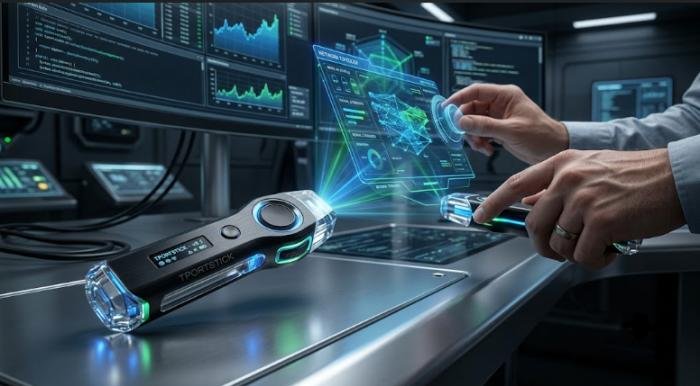
Image source: BetterThisFactsTips
How to Sync Your Controllers and Navigate the Menu
Once the system is powered on, you must sync the controllers. Unlike modern consoles that use a "Pair" button, the TPortstick relies on a pre-coded 2.4GHz handshake. If the LED on the controller is blinking, it is searching for the receiver. A solid light indicates a successful connection.
To navigate the menu effectively, use the D-pad to scroll through the library. Most versions of the TPortstick come preloaded with over 20,000 titles. Finding a specific game manually can be tedious, so look for the "Search" function (usually mapped to the 'Select' or 'X' button depending on the firmware version). You can also save your progress at any time by pressing 'Select + Start' simultaneously to bring up the system menu, where you can choose "Save State."
If you experience lag during navigation, ensure there are no large metal objects or routers placed directly between the stick and your seating position. The 2.4GHz signal is robust but can be susceptible to interference from high-traffic Wi-Fi environments.
Why Your Browser Does Not Recognize the TPortstick and How to Fix It
A common hurdle for power users is the failure of web-based utilities or configuration tools to recognize the TPortstick when connected to a PC. This is rarely a hardware defect and is usually caused by how modern browsers handle gaming inputs. According to technical guides from MaxxStick , Windows often intercepts these signals in a way that hides them from the browser.
The Chrome Flag Solution
If you are trying to use a web-based mapper or scouting tool and the device isn't appearing, follow these steps to bypass the Windows gaming input restriction:
- Open Google Chrome or any Chromium-based browser (like Edge).
-
In the address bar, type
chrome://flagsand press Enter. - In the search box at the top, type "gaming."
- Locate the setting labeled "Enable Windows.Gaming.Input."
- Change the dropdown menu from "Default" or "Enabled" to "Disabled."
- Click the "Relaunch" button at the bottom of the screen.
Disabling this flag allows the browser to access the TPortstick as a generic HID (Human Interface Device), which typically resolves recognition issues immediately. This is a significant advancement for users who need to calibrate their sticks via third-party web apps.
How to Connect TPortstick to TikTok Live Studio for Streaming
Streaming retro gameplay on TikTok has become a major trend, but the TPortstick does not have built-in streaming software. Furthermore, TikTok Live Studio often fails to detect the stick as a direct "Game Capture" source because the stick operates as a standalone computer, not a peripheral for your PC.
The Secondary PC Workflow
To broadcast your gameplay without performance drops, you should treat the TPortstick as a camera source. This requires an HDMI-to-USB capture card. Connect the TPortstick to the "Input" of the capture card, and plug the USB end of the card into your streaming PC. In TikTok Live Studio, select "Add Source" and choose "Camera." Select the capture card from the list.
| Feature | Direct Connection | Capture Card Method |
|---|---|---|
| TikTok Compatibility | Low (Source Not Found) | High (Recognized as Camera) |
| Input Lag | None | Minimal (5-10ms) |
| Resolution Control | Fixed by Stick | Adjustable via Studio |
| Audio Sync | Automatic | May require 100ms offset |
For the best visual quality, set your TikTok Live Studio bitrate to at least 4000 kbps for 720p/60fps streaming. Since retro games feature sharp pixels, low bitrates can cause significant "smearing" during fast movement. This setup is a top-tier option for creators who want to maintain a professional broadcast look while playing on budget-friendly hardware.
How to Use TPortstick with the GameChanger App for Sports Scouting
There is often confusion between the gaming TPortstick and sports-related equipment. However, in the context of digital scouting, the TPortstick is sometimes used as a display bridge for the GameChanger app. By mirroring a mobile device to the TPortstick via an HDMI adapter, scouts can view real-time data on a larger monitor during baseball or softball games.
When syncing with the GCScoutTeam ecosystem, ensure your mobile device is set to "High Performance" mode. If you are using specialized gear like the Under Armour Velocity Pro for tracking, the TPortstick serves as a reliable conduit for displaying velocity metrics and heat maps to coaching staff in the dugout. This multi-step strategy allows for a more collaborative environment than simply huddling around a small smartphone screen.
How to Calibrate Dead Zones and Reduce Input Lag
Competitive players often find the default stick sensitivity to be either too "loose" or too "stiff." Calibrating the dead zones can make a significant difference in precision-heavy games like platformers or shooters. Most TPortstick models allow for input mode switching between XInput (standard controller) and Keyboard Mode (WASD emulation).
Physical positioning also plays a role in performance. As noted in ergonomic setup guides, placing the stick peripheral so your palm applies slight pressure against the keyboard can keep the unit stable during intense sessions. This "Ergo" setup is a popular choice for players who use the stick as a directional input alongside a mechanical keyboard for actions.
TPortstick vs. TK Black Elephant Sticks
It is vital to distinguish the electronic TPortstick from the TK Black Elephant field hockey sticks. Search results often overlap due to the "stick" naming convention. While the TPortstick is a digital HDMI device, TK sticks are physical sports equipment constructed from materials like carbon, fiberglass, and Kevlar.
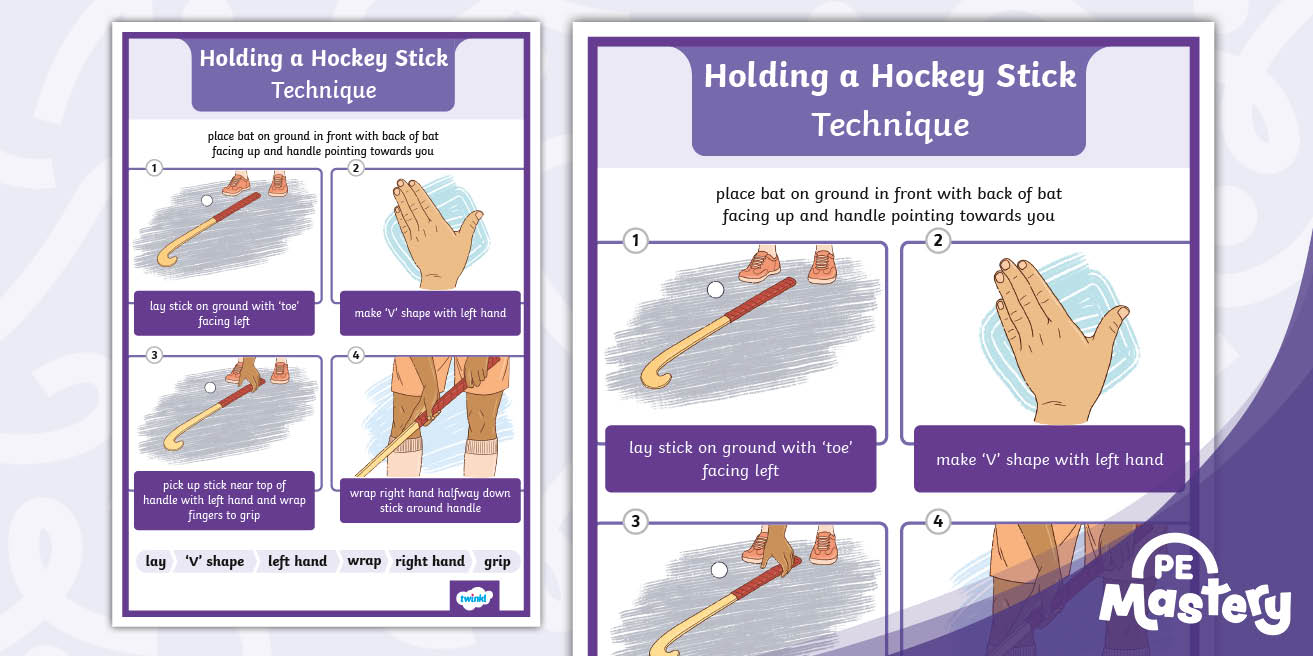
Image source: Twinkl
If you are searching for setup guides and see references to "80% carbon" or "Kevlar reinforcement," you have likely stumbled onto field hockey documentation. The electronic TPortstick is purely plastic and silicon, designed for data processing rather than physical impact. Understanding this distinction prevents the purchase of incorrect accessories or following irrelevant maintenance guides.
Frequently Asked Questions
- Why is my TPortstick screen flickering or turning off randomly?
- This is almost always a power supply issue. Most TV USB ports only output 0.5A, which is insufficient for the TPortstick's internal emulators. To fix this, use a 5V/1A or 5V/2A wall adapter. This provides a consistent current and is widely regarded as one of the best ways to ensure system stability during long gaming sessions.
- Can I add my own games (ROMs) to the TPortstick?
- Yes, most models allow you to add games by removing the microSD card and connecting it to a PC. You will need to place the ROM files in the corresponding emulator folders (e.g., GBA, MAME, or SFC). Be sure to back up the existing files before making changes, as the firmware is sensitive to file structure alterations.
- How do I fix the "Source Not Found" error in TikTok Live Studio?
- TikTok Live Studio cannot "see" the TPortstick via a direct HDMI-to-PC connection because PCs generally have HDMI-out ports, not HDMI-in. You must use an external HDMI-to-USB capture card. Once connected, the TPortstick will appear as a "Camera" source in the Studio settings, allowing you to broadcast the gameplay effectively.
- Why are my controllers lagging or dropping inputs?
- Input lag is usually caused by 2.4GHz interference. Ensure the wireless receiver is not blocked by the TV's body; use the HDMI extender to move the stick away from the back of the screen. Additionally, check your AAA batteries; low voltage can weaken the signal, leading to missed button presses during gameplay.
- Does the TPortstick work on a laptop screen?
- Standard laptops only have HDMI-out ports, meaning they cannot display the TPortstick's signal directly. To use your laptop as a monitor, you will need a capture card and software like OBS or TikTok Live Studio to view the "Camera" feed. This is a common workaround for gamers who travel and want to use their laptop as a portable display.
The Bottom Line
Setting up the TPortstick is a simple process that can be greatly improved with a few technical adjustments. By moving beyond the basic plug-and-play approach, you can achieve a much more stable and professional experience.
- Use a wall adapter (5V/1A) instead of TV USB ports to prevent crashes.
- Disable the Chrome Flag "Windows.Gaming.Input" if the device isn't recognized by web apps.
- Utilize a capture card for streaming to TikTok Live Studio to avoid "Source Not Found" errors.
- Calibrate dead zones (Min 0, Max 75) to improve precision in competitive retro titles.
- Use the HDMI extender to reduce signal interference for the wireless controllers.
- Distinguish between hardware to ensure you aren't following field hockey (TK) guides for an electronic device.
Start by checking your power supply today to ensure your TPortstick is running at its full potential without interruptions.