Home
Home
How to Use a Steam Editor to Customize Your Library and Store Page
A
Steam Editor
typically refers to one of three tools:
SteamEdit
(for renaming local library games), the
Steamworks Visual Description Editor
(for developers managing store pages), or
Steam-Metadata-Editor
(a cross-platform tool for advanced metadata management). To ensure your library edits persist, you must use the
-autofix
flag on Windows or the
-s
flag on Linux to prevent Steam from overwriting your custom
appinfo.vdf
file during updates.
What Is a Steam Editor and What Can It Actually Do?
The term "Steam Editor" is often used by the gaming community to describe several distinct utilities. Depending on whether you are a player looking to clean up a cluttered library or a developer trying to polish a storefront, the tool you need will vary significantly. In the current ecosystem of 2026, these tools have evolved to handle more complex file structures, but their core purpose remains the same: modifying how Steam displays information.
There are three primary categories of editors you will encounter:
- Library Metadata Editors
-
These tools, such as SteamEdit, allow users to modify the local
appinfo.vdffile. This is where Steam stores game titles, sorting names, and launch arguments. These changes are local-only and do not sync to other devices. - Steamworks Store Editors
- Official tools provided by Valve for game developers. These allow for the modification of store page descriptions, images, and regional pricing through a visual interface.
- Save File Editors
- Third-party utilities designed to modify game progress, character stats, or inventory within specific titles. These are often engine-specific, such as tools for Unity or ChoiceScript games.
It is important to understand that library editing is a cosmetic process. It does not change the game files themselves, but rather how the Steam client interprets and displays them. This makes it a popular choice for users who want to remove "TM" symbols, fix all-caps titles, or group sequels together more logically than the default alphabetical sorting allows.
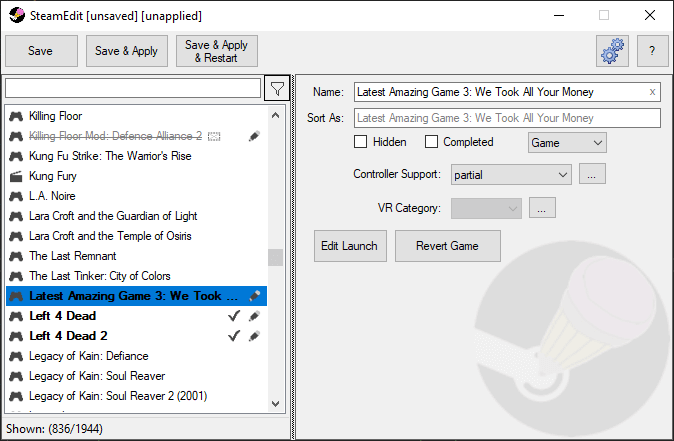
Image source: steamedit.tg-software.com
How to Change Game Titles and Sort Names with SteamEdit
For Windows users, SteamEdit remains a top-rated choice for library management. It is a lightweight utility that requires the .NET Framework 4.5 to function. The tool works by intercepting the Steam client's data and applying your custom labels over the official metadata.
Step-by-Step Windows Customization
- Download and Install: Obtain the latest version (v1.4.1 or newer) from the official site. Ensure you run the application with Administrator privileges to allow it to modify files in the Steam directory.
-
Locate Your Library:
SteamEdit usually auto-detects your Steam installation. If it fails, you will need to manually point it to your
appcachefolder, specifically looking for theappinfo.vdffile. - Edit Game Metadata: Scroll through your list of games. You can change the "Display Name" (what you see in the list) and the "Sort Name" (how Steam determines its alphabetical position). For example, you might change "THE WITCHER 3" to "Witcher 3, The" to ensure it appears under 'W'.
- Save and Restart: Click "Save & Refresh." SteamEdit will close Steam, apply the changes to the metadata cache, and relaunch the client.
Many users find this tool particularly helpful for managing massive libraries where "Super Turbo HD Remix" editions of games end up scattered across the list. By standardizing the sort names, you can keep franchises perfectly aligned.
How to Use Steam-Metadata-Editor on Linux and Steam Deck
While SteamEdit is a Windows-native application, the rise of the Steam Deck has created a massive demand for cross-platform alternatives. Steam-Metadata-Editor is an Electron-based tool that fills this gap, offering compatibility with Linux and macOS.
On the Steam Deck, library customization is slightly more technical due to the read-only nature of the SteamOS file system in certain areas. However, because this tool modifies files within the user's home directory (specifically
~/.local/share/Steam/appcache/
), it does not require disabling the Deck's "read-only" mode.
-issteam
launch argument in the editor. This tells the Steam client to treat the modified entry as a standard Steam application rather than a non-Steam shortcut.
The Steam-Metadata-Editor also allows for advanced JSON editing. This is a significant advancement over basic name changes, as it allows power users to manually add "Release Dates" or "Developer" information to non-Steam shortcuts, making them feel like native parts of the library.
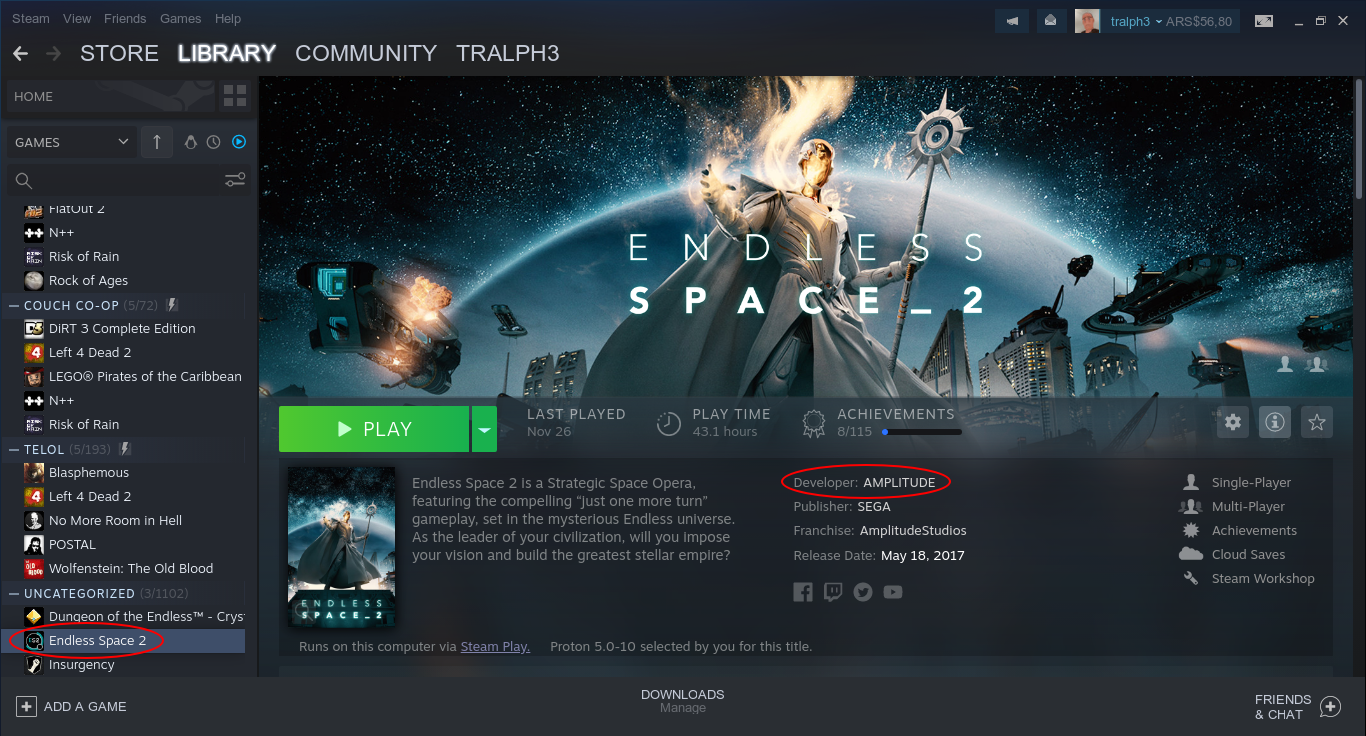
Image source: GitHub
Why Do My Steam Library Edits Keep Disappearing?
A common frustration among users is the "reverting" of their changes. Steam is designed to be a synchronized platform; whenever the client updates or performs a routine check, it compares your local
appinfo.vdf
with the master database on Valve's servers. If it detects a discrepancy, it will overwrite your custom edits with the official data.
The Persistence Protocol
To prevent this, you must implement what community members call the "Persistence Protocol." This involves using specific command-line arguments to ensure your edits are reapplied every time Steam starts.
-
For SteamEdit (Windows):
Create a shortcut to
SteamEdit.exeand add-autofix -forcestartto the Target field in the shortcut properties. Use this shortcut to launch Steam instead of the standard icon. -
For Steam-Metadata-Editor (Linux):
Utilize the
-sor--silentflag in a startup script. This runs the editor in the background, checks for metadata consistency, and fixes any overwrites before the Steam UI fully loads. -
Manual Backup:
Always keep a backup of your modified
appinfo.vdf. If a major Steam client update occurs, the structure of the VDF file might change, requiring a fresh edit.
By using these flags, the editor acts as a watchdog, ensuring that your preferred titles and sorting remain intact regardless of how many times Valve updates their database.
Comparing the Top Steam Library Editing Tools
Choosing the right tool depends on your operating system and how much control you want over the underlying data. Below is a comparison of the most popular options available today.
| Feature | SteamEdit | Steam-Metadata-Editor |
|---|---|---|
| Operating System | Windows Only | Windows, Linux, macOS |
| Interface | Native Windows GUI | Electron / JSON View |
| Persistence Fix |
-autofix
flag
|
-s
silent flag
|
| Best For | Quick name & sort changes | Advanced JSON & Steam Deck |
| Ease of Use | High (Point & Click) | Moderate (Technical) |
Is Using a Steam Editor Safe for Your Account?
Safety is a primary concern for any user modifying their Steam files. It is important to distinguish between
metadata editing
and
memory editing
. Tools like SteamEdit and Steam-Metadata-Editor only touch the
appinfo.vdf
file, which is a cache of text and configuration data. They do not modify game executables (.exe) or dynamic link libraries (.dll).
Because these tools do not interact with game memory or provide an unfair advantage in multiplayer scenarios, they do not trigger Valve Anti-Cheat (VAC) bans. VAC is designed to detect "cheats" that modify the game's code while it is running. Metadata editors are purely cosmetic and function entirely outside of the game's runtime environment.
"Modifying local metadata files for organization is generally considered safe. However, users should always avoid using memory-based tools like Cheat Engine while connected to VAC-secured servers, as those can result in permanent account restrictions."
In summary, you can safely use a Steam editor to organize your library without fear of losing your account, provided you stick to metadata and save file modifications for single-player experiences.
How Developers Can Edit Their Steam Store Page Descriptions
For developers, the "Steam Editor" is the Steamworks Visual Description Editor . This tool was notably updated to provide a real-time preview of how a game's description will appear on both desktop and mobile browsers.
Rules for Store Page Customization
Valve maintains strict guidelines for what can be included in a store description to prevent clutter and misleading marketing. When using the Steamworks editor, keep the following rules in mind:
- No External Links: You cannot link to other storefronts or social media directly within the description text. Use the dedicated "External Links" section of the Steamworks dashboard instead.
- No Fake UI Elements: Developers are prohibited from including images that look like Steam buttons (e.g., a fake "Add to Wishlist" button). This is to ensure a consistent user experience.
- Formatting Limits: While the editor supports basic HTML-like tags for bolding and lists, it does not allow custom CSS or JavaScript.
The visual editor allows you to drag and drop images and see how text wraps around them instantly. This is a significant improvement over older systems that required developers to "save and publish" just to see a minor formatting change.
How to Edit Steam Game Save Files and Progress
The third type of "Steam Editor" involves modifying save files. This is often necessary when a game lacks multiple save slots or when a player wants to recover progress lost due to a crash. For games built on the ChoiceScript engine, the UnityChoiceOfGamesSaveManager is a popular open-source tool.
Manual Save Pathing
Most save editors look for files in the default Steam directory:
C:\Program Files (x86)\Steam\userdata
. However, if you have installed Steam on a secondary drive, you must manually point your editor to the correct path (e.g.,
D:\Steam\userdata
). Each subfolder in
userdata
corresponds to a specific Steam Account ID, and within those, folders are named after the game's AppID.
Using Cheat Engine for Single-Player Games
For games that do not have dedicated save editors, many players turn to Cheat Engine. This tool allows you to find and freeze "4-byte" values—typically used for currency, health, or experience points. While powerful, this should only be used in single-player games. Using such tools in a game like Counter-Strike 2 or Team Fortress 2 will lead to an immediate VAC ban.
Frequently Asked Questions
Can I get banned for using SteamEdit?
No, using SteamEdit is safe. It only modifies local metadata files (appinfo.vdf) used for displaying game titles and sorting in your library. It does not touch game code or server-side data, meaning it does not trigger VAC or other anti-cheat systems.
How do I fix SteamEdit not opening?
Most issues with SteamEdit are related to permissions or missing dependencies. Ensure you have .NET Framework 4.5 installed on your Windows machine. Additionally, try right-clicking the executable and selecting "Run as Administrator" to ensure it has the necessary access to the Steam directory.
Does Steam-Metadata-Editor work on Steam Deck?
Yes, Steam-Metadata-Editor is a top-tier choice for Steam Deck users. Since it is built on Electron, it runs natively in the SteamOS Desktop Mode. It is particularly useful for fixing the metadata of non-Steam games or cleaning up the library view in Gaming Mode.
Why do my game names keep reverting to the original ones?
Steam automatically syncs your local metadata with its servers. To prevent this, you must use the "Persistence Protocol." For SteamEdit, this means adding the
-autofix
flag to your shortcut. This ensures the tool reapplies your changes every time Steam is launched.
Can I change game icons with these editors?
While these tools focus on text-based metadata (names, sort titles, launch arguments), they generally do not handle custom icons. For icons and library art, it is better to use Steam's built-in feature: right-click a game, select "Manage," and then "Set custom artwork."
Key Takeaways for Managing Your Steam Library
- Identify your tool: Use SteamEdit for Windows, Steam-Metadata-Editor for Linux/Steam Deck, and Steamworks for developer store pages.
-
Backup your data:
Always create a copy of your
appinfo.vdfbefore making significant changes. -
Use persistence flags:
Apply
-autofix(Windows) or-s(Linux) to prevent Steam from overwriting your custom titles. - Stay VAC-safe: Only use metadata editors for library organization and save editors for single-player games.
- Check dependencies: Ensure .NET 4.5 is installed for Windows tools to avoid launch failures.
- Developer compliance: Follow Steamworks guidelines by avoiding external links and fake UI buttons in store descriptions.
Start by downloading SteamEdit and renaming a single game to test how the persistence flags work on your specific system configuration.