Home
Home
How to Use a Unity Save Editor Online to Modify Your Game Progress
Master the art of game modification with browser-based tools. Learn to find, decrypt, and edit your Unity save files safely without installing risky software.
A
Unity save editor online
allows you to modify game data like gold, XP, and stats directly in your browser. To use one, locate your save file (typically in
AppData/LocalLow
), upload it to a trusted tool like
SaveEditOnline.com
or
Paradoxie
, change the values, and replace the original file. For encrypted files that appear as gibberish, you may need a Base64 decoder or a specific tool like the
EasySave3 Editor
.
What Is a Unity Save Editor Online and How Does It Work?
A Unity save editor online is a browser-based application designed to parse and modify the data structures used by games built on the Unity engine. Unlike traditional "trainers" or hex editors that require installation, these tools operate within your web browser, offering a safer environment to manipulate game variables. They typically support common formats such as JSON, XML, and various binary structures.
The primary advantage of using an online tool is the "no-install" factor. Downloading executable files (.exe) from unknown sources to modify games carries significant security risks. Online editors mitigate this by processing the file data through scripts that run in a sandboxed browser environment. According to Unity's official documentation , developers use various methods for persistent data, and these online tools are built to recognize those specific patterns.
While these tools are often labeled as "Unity" editors, they are remarkably versatile. Most top-rated options also support games developed in RPG Maker (.rpgsave), Ren'Py (.save), and even Unreal Engine (.sav). They work by scanning the uploaded file for recognizable strings—like "money," "health," or "inventory"—and presenting them in a user-friendly interface where you can simply type in a new value.
3 Top Online Save Editors for Unity Games
Choosing the right tool depends on your specific needs, particularly regarding privacy and the complexity of the save file. Below are three options that rank among the top choices for gamers in 2026.
| Tool Name | Processing Type | File Limit | Key Strength |
|---|---|---|---|
| SaveEditOnline.com | Server-Side | 10MB (Free) | Wide engine support |
| SaveEditor.online | Server-Side | 20MB (Pro) | Clean UI / Ren'Py support |
| Paradoxie (GitHub) | Local-Side | Unlimited | Maximum Privacy |
1. SaveEditOnline.com
This platform is widely regarded as one of the most accessible options for beginners. It features a simple drag-and-drop interface that handles a vast array of file extensions. It is particularly effective for games that store data in plain text or simple JSON formats. However, because it processes files on its servers, users concerned about data privacy might prefer local alternatives.
2. SaveEditor.online
This tool stands out for its polished user interface and specific support for modern Ren'Py and Unity titles. While it offers a free tier, it also includes a "Pro" subscription (starting around $2.50/month) that increases file size limits to 20MB and removes advertisements. It is a strong contender for users who need to edit larger, more complex save files that exceed the limits of other free tools.
3. Paradoxie Save Editor (GitHub)
For those who prioritize security, the Paradoxie editor is a top-tier choice. Unlike server-side tools, this editor uses 100% local processing. This means your save file never leaves your computer; the browser executes the code locally to modify the data. It is open-source and frequently updated to handle new encryption methods used by Unity developers.
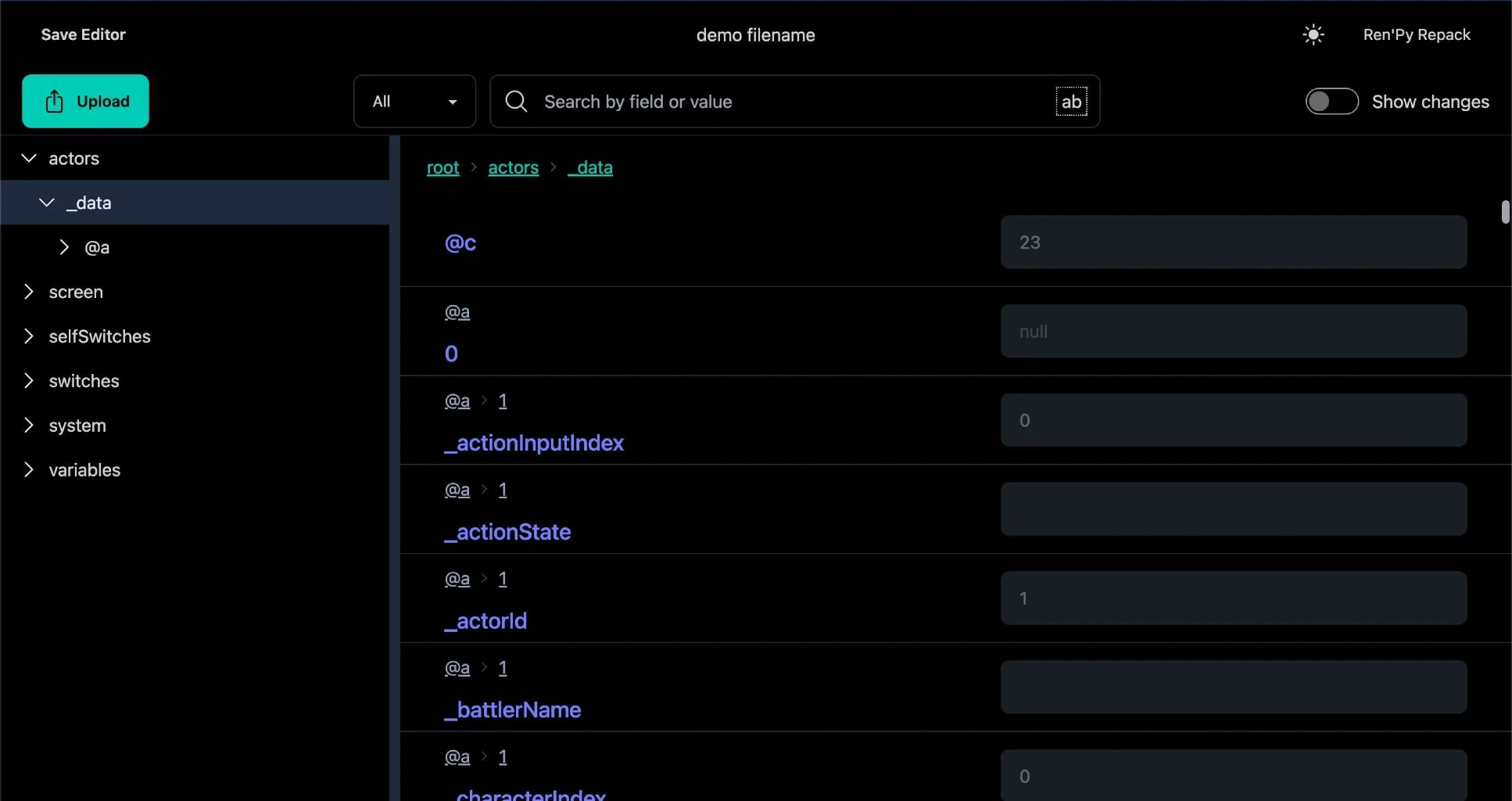
Image source: saveeditor.online
How to Find Your Unity Save Files on Windows and Mac
Before you can use a Unity save editor online, you must locate the specific file the game uses to store your progress. Unity games follow a standard convention, but the exact path varies depending on the operating system and the storefront (Steam vs. GOG).
The Standard Windows Path
Most Unity games store their data in the
AppData
folder. You can quickly access this by pressing
Win + R
and typing
%userprofile%\AppData\LocalLow
. From there, look for a folder named after the game's developer, and then the game title itself. The save file is usually named
save.dat
,
global.save
, or
Player.json
.
Steam-Specific Save Locations
If the game uses Steam Cloud, the files might be tucked away in your Steam installation directory. The common path is:
C:\Program Files (x86)\Steam\userdata\[YourSteamID]\[AppID]\remote
To find the correct
AppID
, you can visit the game's store page on Steam; the number in the URL is the ID you need.
macOS and Linux Locations
On a Mac, Unity games typically store data in the Library folder. Navigate to:
~/Library/Application Support/[Developer]/[Game]
Linux users will generally find their saves in the
.config/unity3d/
directory within their home folder. Knowing these paths is essential, as many online editors cannot "search" your hard drive for you.
Step-by-Step Guide to Editing Your Unity Save File
Modifying a save file is a straightforward process, but it requires precision to avoid corrupting your game data. Follow these steps to ensure a successful edit.
This is the most critical step. Copy your original save file and paste it into a "Backup" folder on your desktop. If the edited file causes the game to crash, you can simply restore the original.
Open your chosen Unity save editor online and drag the save file into the upload zone. The tool will begin parsing the data, which may take a few seconds depending on the file size.
Use the search bar within the editor to find terms like "Gold," "Money," "XP," or "Level." Change the numerical value to your desired amount. Avoid setting values to extreme levels (e.g., 999,999,999) as this can sometimes trigger in-game anti-cheat or overflow errors.
Once you have finished editing, click the "Download" or "Save" button. Take the new file and move it back into the game's save folder, overwriting the existing file (which you have already backed up!).
How to Fix Encrypted Unity Save Files That Look Like Gibberish
Many modern Unity developers use encryption or encoding to prevent easy modification of game data. If you open your save file and see a long string of random characters (e.g.,
SGVsbG8gV29ybGQ=
), the file is likely Base64 encoded or XOR encrypted.
The Base64 and Gzip Workflow
A common technique in Unity development is to take a JSON string, compress it using Gzip, and then encode it in Base64. To edit these files, you must follow a specific decoding workflow:
-
Identify:
If the file ends in
==, it is almost certainly Base64. - Decode: Use a Base64 to Gzip decoder.
- Decompress: Use a Gzip decompressor to reveal the readable JSON text.
- Edit and Reverse: After editing the JSON, you must re-compress it and re-encode it to Base64 before the game will recognize it.
Specific Tools for EasySave3 (ES3)
Many Unity games use a popular plugin called
EasySave3
. These files often have a
.es3
extension and use a specific binary format that generic editors cannot read. In these cases, using a dedicated
EasySave3 Editor
is necessary. These tools are designed to handle the specific headers and data types unique to the ES3 system, such as OdinSerializer data.
Why Some Ren'Py and Unity Saves Fail to Load After Editing
If you have edited a file and the game refuses to load it—or displays a "Corrupted Save" error—you are likely dealing with a digital signature or a checksum. This is a significant advancement in game security designed to ensure data integrity.
In Ren'Py 8.1 and newer, saves are often "signed" with a local security key. When you change even a single digit in the save file, the signature no longer matches the data, and the game rejects it. To fix this, you must use a "Repack" tool or a signature re-signer. These tools take your modified data and generate a new, valid signature that matches your game's specific security key.
Similarly, some Unity games calculate a "Checksum" (a mathematical summary of the file's contents) and store it at the end of the file. If the data changes but the checksum remains the same, the game knows the file has been tampered with. Advanced online editors often attempt to recalculate these checksums automatically, but for some high-security titles, manual recalculation using community-made scripts may be required.
How to Edit Unity Game Saves on Android Devices
Editing saves for mobile Unity games is slightly more complex due to Android's file permission systems. However, it is entirely possible using a desktop browser and a few extra steps.
Accessing the Data Folder
On Android, Unity saves are typically located in:
/Android/data/[com.developer.game]/files/
Recent versions of Android (11+) restrict access to this folder. You may need to use a specialized file manager like "ZArchiver" or connect your phone to a PC via USB to copy the files out.
The Clipboard Method
Some mobile games store their saves as a single long string of text within the game's settings menu (often called a "Transfer Code" or "Save String"). You can copy this string, paste it into a unity save editor online , modify the values, and then paste the new string back into the game. This is often the most reliable way to edit mobile saves without needing root access to your device.
Frequently Asked Questions
Generally, no. For single-player games, developers rarely care if you modify your save files. However, you should never use these tools for multiplayer games or games with online leaderboards, as this can lead to bans. Always disable Steam Cloud synchronization before editing to prevent the game from overwriting your changes with an older version from the cloud.
This usually happens if the file is in a proprietary binary format or is heavily encrypted. Unity games can use various serialization methods like Protobuf or Odin. If a generic editor fails, search for a tool specific to that game or engine version. Additionally, ensure you are uploading the actual save file and not a temporary
.tmp
or
.bak
file.
Directly, no. Consoles encrypt save files using hardware-specific keys. To edit console saves, you typically need a "homebrew" (modded) console to export the decrypted save to a PC. Once decrypted, you can use a Unity save editor online just like a PC file, then re-import it back to the console.
Most free online editors limit uploads to between 10MB and 20MB. This is usually plenty for Unity saves, which are typically just a few hundred kilobytes. If your file is larger, it may contain embedded textures or audio, and you should look for a local-processing tool like the Paradoxie editor on GitHub which has no strict size limits.
While most popular editors are safe, your save file can technically contain your Steam ID or character names. If privacy is a major concern, use tools that offer "Local Processing." This ensures the data stays in your browser's memory and is never transmitted to a third-party server.
Key Takeaways for Successful Save Editing
-
Always create a backup
of your
save.dator.jsonfile before making any changes. -
Identify the save path
using
%userprofile%\AppData\LocalLowfor most Windows Unity games. - Check for encryption if the file looks like gibberish; you may need a Base64 or Gzip decoder.
- Use local-processing tools like Paradoxie for the highest level of data privacy.
- Re-sign Ren'Py 8.1+ files using a repack tool to avoid "Corrupted Save" errors.
- Avoid extreme values to prevent game crashes or anti-cheat triggers.
By following these steps and using the right tools, you can easily customize your gaming experience and overcome difficult hurdles in your favorite Unity titles.