Home
Home
How to Edit .rpgsave Files Without Corrupting Your Game
To edit an
.rpgsave
file, you must locate your game's
save
folder, typically found within the
www
directory of the game installation. Use a trusted tool like
SaveEditor.net
or the
RPGSaveEditor
on GitHub to decode the file, modify variables such as Gold or Level, and re-encode it.
Always create a backup
before making changes, as RPG Maker MV/MZ files are highly sensitive to data structure shifts caused by active plugins.
Modifying your progress in an RPG Maker game can be a double-edged sword. While it allows you to bypass tedious grinding or fix a broken quest state, the underlying data structure of these files is surprisingly fragile. Whether you are playing a classic title or a modern indie release, understanding the mechanics of the
.rpgsave
format is essential for successful modding.
What Is an .rpgsave File and How Does It Work?
The
.rpgsave
extension is the standard save format for games developed using
RPG Maker MV
. It represents a significant shift from previous iterations of the engine. For context, RPG Maker VX Ace utilized
.rvdata2
, while even older versions like RPG Maker 2000 used
.lsd
. The transition to MV brought the engine into the web-standards era, utilizing JavaScript and JSON for data handling.
Technically, an
.rpgsave
file is a serialized JSON (JavaScript Object Notation) string. When the game saves your progress, it takes all current variables—your party's health, inventory, map position, and event switches—and converts them into a long string of text. To keep the file size manageable and slightly obscure the data, the engine often encodes this string using Base64 or a similar serialization method. This is why, if you open the file in a standard text editor like Notepad, you see a "wall of text" that looks like gibberette.
In recent years, the engine evolved again with
RPG Maker MZ
, which uses the
.rmmzsave
extension. While the file extension changed, the core logic remains similar: it is still a serialized JSON object. Most modern editors can handle both formats, but it is important to know which engine your game uses to ensure compatibility. The data you can modify generally falls into these categories:
- Actor Stats: Level, current HP/MP, and experience points.
- Inventory: The quantity of items, weapons, and armor in your bag.
- Currency: The total amount of Gold or specific game currency.
- Switches: Boolean (True/False) triggers that track if a quest is finished or a door is unlocked.
- Variables: Numerical values used by developers to track complex progress, such as affection levels with NPCs.
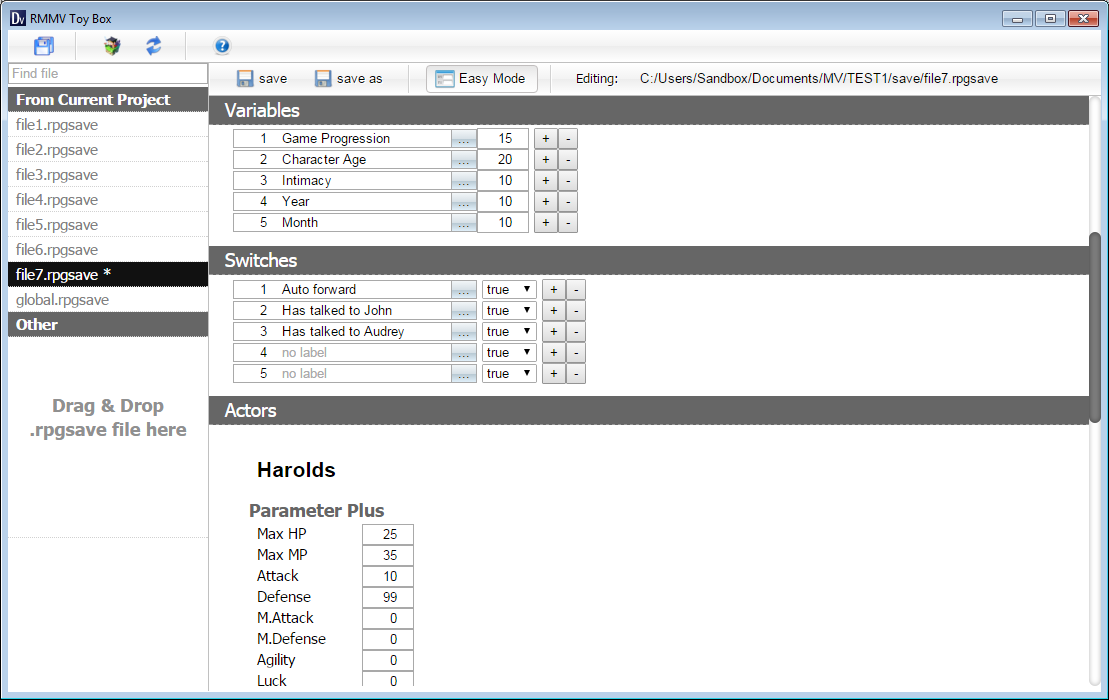
Image source: Dreamsavior Project
Where to Find Your .rpgsave Files on Any Device
Finding the save data is often the hardest part of the process, especially with the variety of distribution platforms like Steam, Itch.io, and JoiPlay for Android. The location depends entirely on how the game was packaged by the developer.
Windows Save Locations
For most Windows games, especially those downloaded directly or via Itch.io, the save files are located within the game's own folder. Look for a folder named
www
, and inside that, a folder named
save
. The path usually looks like this:
If you are playing a Steam version, the path is slightly deeper within your Steam library:
macOS and the "Package Contents" Trick
On macOS, RPG Maker games often appear as a single
.app
file. To find the saves, right-click the game icon and select
"Show Package Contents."
Navigate through
Contents > Resources > app.nw > save
. If the folder is missing, the game might be storing data in the
~/Library/Application Support/
directory under the developer's name.
Android and JoiPlay
Users playing RPG Maker games on Android via the
JoiPlay
interpreter will find their saves in the specific folder they designated for the game during setup. Usually, this is within the
Android/data/
folder or a custom "Games" folder on the internal storage. You will need a file manager with "All Files Access" permissions to move these files to a computer or a web-based editor.
global.rpgsave
versus
file1.rpgsave
. The
global
file usually contains system settings and gallery unlocks, while the numbered files contain your actual gameplay progress. Always edit the numbered file for stat changes.
Which .rpgsave File Editor Should You Use?
Choosing the right tool depends on your technical comfort level and your concerns regarding privacy. There are three primary ways to approach editing.
| Tool Name | Platform | Best For | Privacy Level |
|---|---|---|---|
| SaveEditor.net | Web Browser | Quick stat changes | Medium (Server-side) |
| RPGSaveEditor (GitHub) | Desktop (Local) | Advanced modding | High (Offline) |
| Manual JSON Editing | Text Editor | Total control | High (Offline) |
| F9 Debug Menu | In-Game | Switch toggling | N/A |
Web-Based Editors
Tools like
SaveEditor.net
and
SaveEditOnline
are popular because they require no installation. You simply drag your
.rpgsave
file into the browser, and the site decodes it into a readable list of variables. These are excellent for changing Gold or HP quickly. However, be aware that your save file is technically uploaded to a server, which may be a concern for some users.
Desktop Applications
For those who prefer to keep their data local, the RPGSaveEditor on GitHub is a top-tier choice. Built on the Tauri framework, it runs locally on your machine and offers a more robust interface for navigating complex JSON trees. This is particularly useful for games with hundreds of custom variables that might overwhelm a simple web list.
The In-Game Debug Alternative
Before using an external tool, try pressing F9 while in-game. Many developers leave the built-in RPG Maker Debug Menu enabled. This menu allows you to flip switches and change variable values directly without ever leaving the game. If F9 does nothing, the developer has disabled it, and you will need an external editor.
How to Edit Your Save File Step by Step
Follow these steps to ensure you don't lose your progress. Even a small mistake in a JSON string can render a save file unreadable by the game engine.
-
The Golden Rule of Backups:
Before you even open an editor, copy your
file1.rpgsaveand paste it into a "Safety" folder on your desktop. If the edited file crashes the game, you can simply restore this original. -
Uploading or Opening:
Open your chosen editor. If using a web tool, drag the file into the upload box. If using a desktop tool, use the "Open File" dialogue to navigate to your
www/savefolder. -
Finding the Right Variables:
Search for keywords like
_goldor_hp. In RPG Maker MV, party data is often nested under$gamePartyor$gameActors. If you want to change a specific quest state, you will need to know the ID of the "Switch" the developer used. - Modifying Values: Change the numbers to your desired values. Avoid setting stats to "9999999" as this can sometimes cause overflow errors or UI glitches that prevent the game from loading.
-
Exporting and Replacing:
Download the modified file (it will still be named
file1.rpgsave). Move it back into the game'ssavefolder, overwriting the old version.
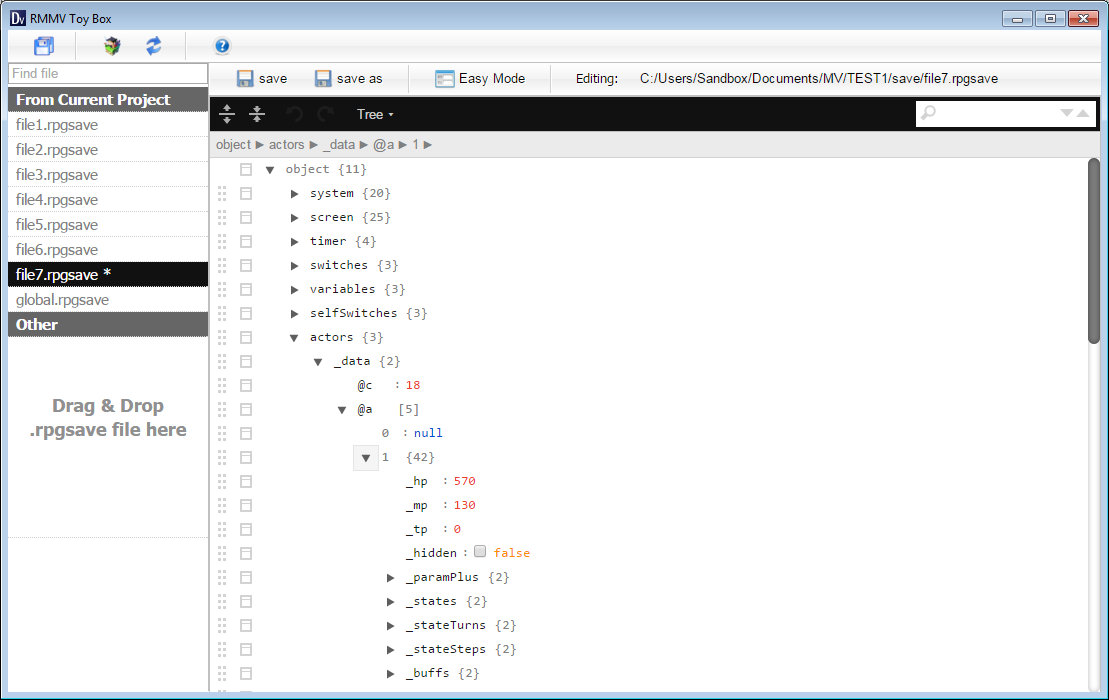
Image source: Dreamsavior Project
Why Your Edited Save File Might Not Load
It is frustrating to spend time editing a file only to receive a "File Corrupted" message. This usually happens due to one of three technical pitfalls that generic guides often ignore.
The Plugin Trap
This is the most common cause of corruption. RPG Maker save files are highly sensitive to the Plugin Manager order. If you add, remove, or reorder plugins (like the popular Yanfly Engine) between the time you saved the game and the time you edited the file, the internal "offset" of the data shifts. When the editor tries to write your new Gold value, it might accidentally overwrite a piece of critical engine data instead. Never change your game's mod/plugin list while in the middle of editing a save file.
The Signature Problem (Ren’Py 8.1+)
While this article focuses on
.rpgsave
, many players also edit Ren’Py
.save
files. Recent versions of Ren’Py (8.1 and newer) have introduced a security signature. If you edit the file, the signature no longer matches the content, and the game will reject the save. You must use a specialized tool that can re-sign the file using the game's
security_keys.txt
.
Encoding and "Box" Characters
If you are manually editing a file in a text editor, you might see small "box" characters. These are often non-printable control characters or specific byte-order marks. Deleting these—or saving the file in ANSI instead of UTF-8 —will almost certainly corrupt the file. The RPG Maker engine expects a very specific encoding to parse the JSON string correctly.
Troubleshooting Platform Specific Errors
Different operating systems handle file permissions differently, which can lead to unexpected crashes after editing.
Fixing the "Read Only" Crash on Mac
On macOS, the system's security features (AppTranslocation) sometimes flag modified files as "Read Only." When the game tries to update your save, it crashes because it doesn't have permission to write to the file. To fix this, right-click your save folder, select
"Get Info,"
and ensure that "Sharing & Permissions" is set to
Read & Write
for your user account. Alternatively, moving the entire game folder out of the
Downloads
or
/private/
directory to your
Documents
folder often resolves this.
Android Permission Issues
On Android 13 and newer, Google has restricted access to the
Android/data/
folder. If you are using an editor on your phone, you may need to use a specialized file explorer like
Shizuku
or
ZArchiver
to grant the editor permission to see the
.rpgsave
files. Without these permissions, the editor will appear to work but will fail to actually save the changes to the disk.
How to Manually Edit .rpgsave Files Without a Tool
If you don't trust online tools and don't want to download software, you can edit these files manually using a bit of technical know-how. This process involves three stages: decoding, editing, and re-encoding.
Step 1: Decoding the Base64
Most
.rpgsave
files are Base64 encoded. You can use a local script or a simple command-line tool to decode the file. In a terminal, you might use a command like
base64 -d file1.rpgsave > file1.json
. This will turn the scrambled text into a readable JSON file.
Step 2: Using a JSON Formatter
Once you have the
.json
file, it will likely be "minified" (all on one line). Open it in a code editor like
VS Code
or
Notepad++
and use a "JSON Format" plugin to add line breaks and indentation. This makes it much easier to find the
"_gold": 500
line and change it to
"_gold": 9999
.
Step 3: Re-encoding
After saving your changes, you must reverse the process. Encode the JSON back into Base64 and rename the extension back to
.rpgsave
. Be extremely careful not to add any extra spaces or newlines at the end of the file, as the RPG Maker engine is notoriously picky about trailing whitespace in save data.
Key Takeaways for Save Editing
- ✓ Always Backup: Never edit your only copy of a save file; corruption is a real risk.
-
✓ Identify the Engine:
Ensure you are using an MV editor for
.rpgsaveand an MZ editor for.rmmzsave. - ✓ Check Plugins: Avoid changing your game's mod list while you have a save file open in an editor.
- ✓ Use UTF-8: If editing manually, always save your files with UTF-8 encoding to prevent character errors.
- ✓ Verify Permissions: On Mac and Android, ensure the game has "Write" access to the save folder after you replace the file.
- ✓ Start Small: Change one variable at a time (like Gold) to verify the file still loads before doing a total overhaul.
For the most reliable results, use a local desktop editor that allows you to see the raw JSON structure while providing a safety net against encoding errors.
Frequently Asked Questions
- Can I use an MV editor for an MZ (.rmmzsave) file?
- While the formats are very similar, it is generally better to use a tool specifically updated for RPG Maker MZ. Some MV editors may not recognize the slightly different header information in an MZ save, which could lead to the tool failing to open the file or, worse, saving it in a format the MZ engine cannot read.
- Is it safe to upload my save to an online editor?
- Most popular online editors process the file in your browser's memory or on secure temporary servers. However, if the game contains sensitive or adult content, or if you are concerned about your data being stored, using a local desktop application like the one found on GitHub is a more private alternative.
- Why does my gold reset to 0 after I edit it?
- This usually happens because the game has a script or plugin that "caps" or overrides the gold variable. For example, a "Hardcore Mode" plugin might check your gold every time you load the game and reset it if it detects an impossible value. To fix this, you would need to find the specific variable the plugin uses to track your "real" gold.
- How do I unlock all CGs or Gallery items?
-
Gallery unlocks are typically stored in the
global.rpgsavefile rather than your individual progress files. You will need to look for "Switches" in the global file that are labeled with terms like "Gallery," "CG," or "Unlock." Setting these boolean values fromfalsetotrueusually does the trick. - Can I edit saves for games played in a web browser?
- Yes, but the process is different. Browser-based games often store save data in your browser's LocalStorage rather than a physical file. You can access this by pressing F12 to open Developer Tools, navigating to the "Application" tab, and looking under "Local Storage." You can edit the values there directly, though it requires a bit more technical knowledge of key-value pairs.