Home
Home
How to Set Up and Optimize a Firestick on Your Hisense TV
To use an Amazon Firestick with a Hisense TV, plug the device into an available HDMI port and connect it to a wall power outlet rather than the TV's USB port for stability. Switch your Hisense TV input to the corresponding HDMI source. If you experience "ghost powering" (the TV turning on by itself), navigate to Settings > System > HDMI-CEC on your Hisense menu and disable the power-sync options. For those seeking a performance boost, the Fire TV Stick 4K Max is widely regarded as a top-tier upgrade over the native Vidaa operating system.
Should You Buy a Hisense Fire TV or Use an External Stick?
When integrating the Amazon ecosystem with Hisense hardware, users typically face two distinct paths: purchasing a television with Fire OS pre-installed or adding an external Fire TV Stick to an existing panel. Both methods offer access to the massive Amazon app library, but they cater to different priorities regarding longevity and convenience.
A Hisense TV with Fire OS built-in, such as the popular U6 series, provides a unified experience. You only need one remote to control both the television settings and the streaming interface. This integration eliminates the need for an extra HDMI cable or power brick, keeping your entertainment center clutter-free. According to Hisense USA , these models are designed to offer a seamless handshake between the hardware and the software, ensuring that features like HDR and audio passthrough work correctly out of the box.
Conversely, using an external Fire TV Stick—specifically the 4K Max variant—is often a highly effective strategy for those who own a Hisense TV running the Vidaa or Google TV operating systems. The primary advantage here is modularity. Smart TV processors often become sluggish after three to four years as apps become more demanding. By using an external stick, you can upgrade the "brains" of your TV for a modest investment of $35 to $45 without replacing the entire panel. Furthermore, external sticks often receive more frequent software updates than built-in TV firmware.
| Feature | Built-in Fire OS (e.g., U6 Series) | External Fire TV Stick 4K Max |
|---|---|---|
| Remote Control | Single remote for all functions | Requires pairing or two remotes |
| HDMI Ports | All ports remain free | Occupies one HDMI port |
| Upgrade Path | Fixed hardware | Easy to replace every 2-3 years |
| Performance | Optimized for specific panel | Ranks among the top for speed |
| Storage | Typically 8GB to 16GB | 16GB (on latest 4K Max models) |
How to Connect a Firestick to Your Hisense TV HDMI Port
Setting up the hardware is a straightforward process, but following a few specific steps can prevent common performance bottlenecks. Most Hisense TVs feature HDMI ports on the side or rear; for wall-mounted units, using the side-facing ports is generally recommended to avoid putting strain on the Firestick's connector.
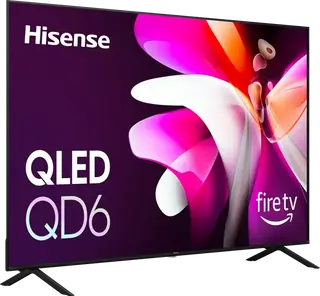
Image source: Hisense-USA
Step 1: Physical Installation. Insert the Firestick directly into the HDMI port. If the space is tight, use the HDMI extender cable included in the Amazon box. This small cable not only helps with fitment but can also improve Wi-Fi reception by moving the stick slightly away from the TV's electromagnetic interference.
Step 2: Powering the Device. While it is tempting to plug the Firestick's USB power cable into the TV's USB port, this is a frequent cause of "low power" warnings and boot loops. Most TV USB ports provide only 0.5 amps, whereas the Firestick 4K Max requires at least 1.0 amp for stable operation. For a consistent experience, always use the included wall power adapter.
Step 3: Switching the Input. Once powered, use your Hisense remote to press the "Source" or "Input" button. Select the HDMI number that corresponds to the port you used. If you do not see a signal, ensure the Firestick is fully seated in the port. As noted in JustAnswer technical support , a loose connection is the most common reason for a "No Signal" error during initial setup.
Why Your Firestick Might Outperform the Native Vidaa OS
Many Hisense models, particularly those sold outside North America, utilize a proprietary operating system called Vidaa. While Vidaa is lightweight and fast, it suffers from a significant "app gap." Major streaming services are usually present, but niche apps, local sports networks, and specialized media players are often missing from the Vidaa store.
Fire OS, being based on Android, offers a remarkably broader selection of software. This includes not only official apps from the Amazon Appstore but also the ability to "sideload" third-party applications. For power users, this freedom is a significant advancement over the closed ecosystem of Vidaa. According to discussions on the r/Hisense community , even a budget Firestick often feels "snappier" and more responsive than the built-in Vidaa interface on mid-range Hisense panels.
The Benefits of Sideloading Apps on Fire OS
Sideloading is the process of installing applications that are not available in the official store. Because Fire OS is built on the Android Open Source Project (AOSP), you can install APK files for tools like Kodi, custom web browsers, or specialized file managers. This level of customization is strictly blocked on Vidaa OS, making the Firestick a top-tier choice for enthusiasts who want to transform their Hisense TV into a versatile media hub.
How to Fix Common Connection and Power Issues
Even with high-quality hardware, technical glitches can occur. One of the most frustrating issues reported by Hisense owners is the "25-minute rule" for black screens. If you plug in a new Firestick and the screen remains black or stuck on the logo, Amazon's official troubleshooting suggests letting the device sit powered on for at least 25 minutes. During this time, the device may be performing critical background updates or completing a complex HDMI handshake with the Hisense panel.
Solving the Ghost Powering Problem with HDMI-CEC Settings
A common complaint in the Hisense community involves "ghost powering," where the TV turns itself back on minutes after being shut down. This is usually caused by a conflict in the HDMI-CEC (Consumer Electronics Control) settings. HDMI-CEC allows the Firestick remote to turn the TV on and off, but sometimes the devices send conflicting signals.
To fix this, go to your Hisense TV's Settings > System > HDMI-CEC (sometimes labeled as "Device Control" or "MHL"). You may need to toggle "CEC Control" off and then back on, or specifically disable the "Auto Power On" feature. This ensures the Firestick only wakes the TV when you explicitly press a button on the remote, rather than during a background software check.
Fixing Dolby Vision Handshake Issues on Hisense A6K Models
Some users of the Hisense A6K series have reported that the Fire TV Cube or 4K Max fails to trigger Dolby Vision, defaulting instead to standard HDR10. This is often an audio/visual handshake bug. A reliable workaround involves a "Hard Restart" sequence: unplug both the TV and the Firestick from the wall for 60 seconds, then plug the TV in first, followed by the Firestick. This forces a fresh identification of the display's capabilities.
How to Pair Your Firestick Remote to Control Hisense TV Volume
One of the best features of the Firestick remote is its ability to control your TV's volume and power. During the initial setup, the Firestick will usually attempt to identify your TV brand automatically. If this fails, you can manually configure it:
- Navigate to Settings on your Firestick home screen.
- Select Equipment Control .
- Choose Manage Equipment > TV > Change TV .
- Select Hisense from the list of manufacturers.
- Follow the on-screen prompts to test the volume and power buttons.
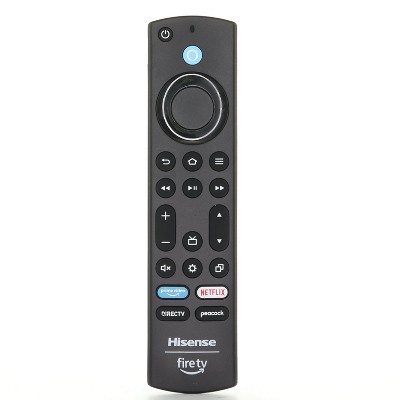
Image source: Target
If the remote becomes unresponsive, a common "Home Button" trick is to hold the Home button for a full 10 seconds while pointing it at the Firestick. This forces the remote into pairing mode and can resolve most connectivity drops between the remote and the stick.
Which Hisense Fire TV Models Offer the Most Value?
If you are in the market for a new television and prefer the Fire OS interface, Hisense offers several models that rank among the top for price-to-performance ratio. The U6 Series is widely considered a strong contender in the mid-range market, offering Quantum Dot color and Full Array Local Dimming, which are features typically reserved for much more expensive sets.
The sweet spot for most users. Includes Fire OS built-in, ULED technology, and excellent contrast for movie watching.
A highly capable budget option. Great for secondary rooms like kitchens or bedrooms where 4K resolution is still desired at a lower cost.
The recommended upgrade for existing Hisense Vidaa TVs. Supports Wi-Fi 6E and offers the smoothest navigation experience.
When shopping, keep an eye on pricing trends. The Fire TV Stick 4K Max is frequently discounted during major sales events. As noted in Amazon community forums , the target price for this upgrade is between $35 and $45; paying the full MSRP is rarely necessary if you can wait for a promotion.
Frequently Asked Questions
Can I use a Firestick on a Hisense Google TV?
Yes, you can absolutely use a Firestick on a Hisense TV that runs Google TV. The Firestick acts as an external source, similar to a gaming console or Blu-ray player. Simply plug it into an HDMI port and switch the TV's input to that port. This is a popular choice for users who prefer the Fire OS interface or want to access specific apps that might not be optimized for the Google TV version on Hisense hardware.
Which HDMI port is best for the Firestick 4K Max?
For the best experience, any HDMI 2.0 or 2.1 port will work for 4K streaming at 60Hz. However, if you are using a soundbar, you should avoid plugging the Firestick into the port labeled ARC or eARC , as that port is specifically designed to send audio from the TV to your sound system. Use HDMI 1 or HDMI 2 for the Firestick, and reserve the eARC port for your audio equipment to ensure high-quality sound passthrough.
Why is my Hisense TV remote not working with the Firestick?
This is usually because HDMI-CEC is disabled on the TV. When CEC is active, the TV remote can send commands through the HDMI cable to control the Firestick. Navigate to your Hisense settings menu, look for "System" or "Inputs," and ensure that HDMI-CEC (or "CEC Control") is toggled to "On." If it is already on, try unplugging the TV from power for a minute to reset the connection.
Does the Firestick support 4K on all Hisense TVs?
The Firestick 4K and 4K Max will only display in 4K resolution if the Hisense TV itself is a 4K panel. If you plug a 4K Firestick into an older 1080p Hisense TV, the device will automatically downscale the resolution to 1080p. To verify your resolution, you can check the Firestick settings under Display & Sounds > Display > Video Resolution .
How do I update the Fire OS on my Hisense TV?
If you have a Hisense TV with Fire OS built-in, updates are handled through the main settings menu. Go to Settings > Device & Software > About and select Check for System Update . Keeping your software current is essential for maintaining app compatibility and fixing known bugs like the HDMI-CEC power loops or Wi-Fi connectivity drops.
Final Recommendations for a Top-Tier Viewing Experience
Integrating a Firestick with your Hisense TV is a highly effective way to enhance your streaming capabilities, whether you are bypassing a limited Vidaa OS or simply looking for a faster interface. By following the optimization steps outlined in this guide, you can ensure a stable and high-quality setup.
- Use wall power: Avoid the TV's USB port to prevent crashes and boot loops.
- Enable HDMI-CEC: This allows for single-remote convenience and fixes most control issues.
- Manage "Ghost Powering": Adjust CEC settings if your TV turns on unexpectedly.
- Upgrade to 4K Max: The extra RAM and storage make it a top-tier choice for performance.
- Apply the 25-minute rule: Be patient during initial setup to allow for background updates.
- Check your HDMI ports: Use side ports for wall mounts and avoid eARC ports for the stick itself.
For most users, a Hisense U6 series panel paired with an external Fire TV Stick 4K Max provides one of the strongest balances of display quality and software versatility available today.