Home
Home
How to Understand and Fix HDCP Content Protection Errors on Your Devices
HDCP (High-bandwidth Digital Content Protection) is a security protocol that prevents unauthorized copying of digital video. If you see a "handshake error" or black screen, follow these steps:
- Power Cycle: Turn off your TV, then your source (Roku/PS5). Wait 60 seconds. Turn the TV on first, then the source.
- Check Cables: Ensure you are using a "Premium High Speed" HDMI cable. Try reversing the ends of the cable.
- Direct Connection: Bypass soundbars or HDMI switches to identify if a middle device is causing the failure.
- Update Firmware: Ensure your smart TV and streaming device are running the latest software versions.
High-bandwidth Digital Content Protection, commonly known as HDCP, is a security protocol developed by Intel Corporation to safeguard digital audio and video content as it travels across connections. Whether you are using HDMI, DisplayPort, or DVI, HDCP acts as a "digital handshake" between your source device—such as a Roku, PlayStation 5, or Blu-ray player—and your display, like a 4K TV or monitor. When this handshake fails, you are often met with a frustrating black screen, a purple tint, or an explicit error message stating that the content is unauthorized.
Understanding HDCP is essential for anyone building a modern home theater or gaming setup. It is not just a simple "on/off" switch; it is a complex layer of encryption that requires every single component in your video chain to be compliant. If even one cable or one legacy receiver fails to meet the required standard, the entire signal may be blocked or downgraded. This guide will explore how to troubleshoot these errors and explain the technical nuances that often catch users off guard.
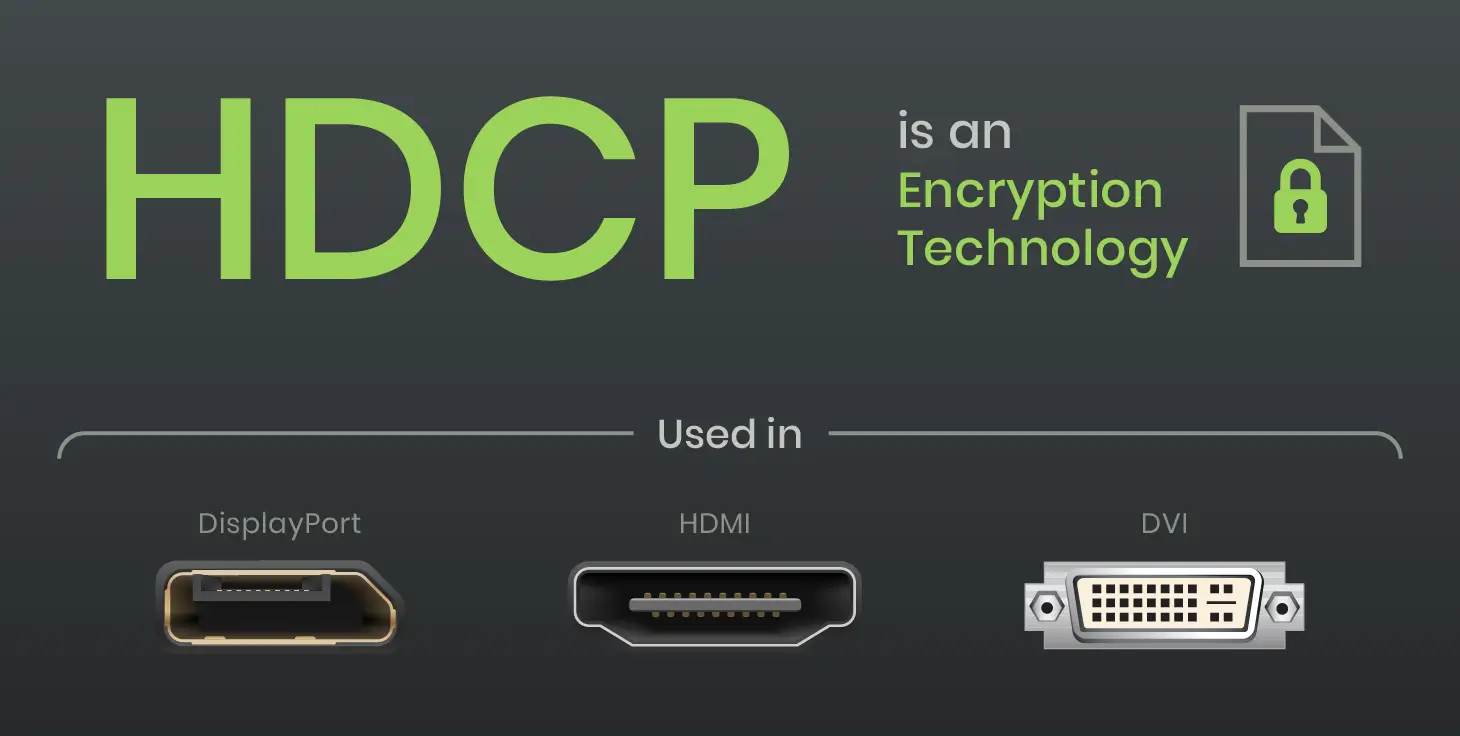
Image source: SC&T
Try These Fast Fixes Before Buying New Hardware
Before you assume your hardware is broken, it is important to realize that many HDCP errors are temporary software glitches. The digital handshake happens in milliseconds, and if the timing is slightly off, the encryption keys won't exchange correctly. According to Roku Support , a specific power cycle sequence is often the most effective way to force a fresh handshake.
The Power Cycle Sequence
The order in which you turn on your devices matters significantly. To reset the handshake, follow this specific sequence:
- Turn off all devices in the chain (TV, Receiver, Streaming Stick).
- Unplug the HDMI cables from both ends of every device.
- Disconnect the power cables from all devices and wait for at least 60 seconds.
- Plug the HDMI cables back in, ensuring they are seated firmly.
- Plug the power back in and turn on the Display (TV/Monitor) first .
- Wait about 10 seconds, then turn on the Receiver or Soundbar (if applicable).
- Finally, turn on the Source device (Roku, PS5, Xbox).
Physical Cable and Port Checks
Static electricity or minor physical shifts can disrupt the sensitive pins in an HDMI cable. Many users find that simply reversing the ends of the HDMI cable—plugging the end that was in the TV into the Roku and vice versa—can clear a handshake error. Additionally, try switching to a different HDMI port on your TV. Not all ports on older 4K TVs support the same HDCP versions; often, only HDMI Port 1 or 2 is fully compliant with HDCP 2.2.
Why Your 4K Monitor Is Stuck in Standard Definition
One of the most confusing aspects of HDCP content protection is the "SD Downgrade Mystery." You might find that your Netflix or Amazon Prime Video app works, but the picture quality looks blurry or pixelated, even though you have a 4K subscription and a high-speed internet connection. This is often due to a partial HDCP failure.
The Level 3 (L3) Security State
In the world of Digital Rights Management (DRM), systems like Widevine use different security levels. If your hardware chain fails the strict HDCP 2.2 handshake required for 4K content but successfully completes the older HDCP 1.4 handshake, the streaming service may trigger a "graceful failure." Instead of blocking the video entirely, it restricts the resolution to 480p or 720p. This L3 state is a common issue for PC users with older graphics card drivers or monitors that lack the necessary encryption hardware for Ultra HD playback.
Bandwidth Bottlenecks and Metadata
HDCP 2.2 requires significantly more metadata exchange than previous versions. If you are using an older "High Speed" cable that was designed for 1080p, it may not have the shielding or bandwidth to carry the 4K video signal and the HDCP 2.2 encryption keys simultaneously. This leads to intermittent black screens or a forced downgrade to standard definition. Upgrading to a "Premium High Speed" (18Gbps) or "Ultra High Speed" (48Gbps) cable is a significant step forward in resolving these resolution caps.
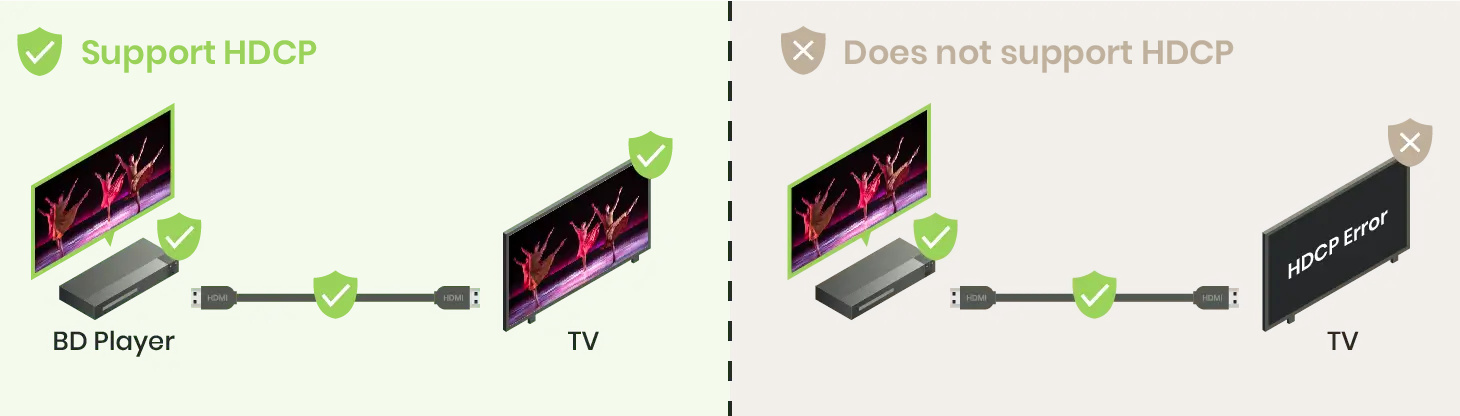
Image source: SC&T
How the HDCP Handshake Process Works Behind the Scenes
To truly troubleshoot HDCP, it helps to understand what is happening inside the silicon. The protocol, managed by Digital Content Protection LLC , involves a three-step process that occurs every time you hit "Play."
Step 1: Authentication
The source device (the "Transmitter") sends a request to the display (the "Receiver"). Both devices exchange Key Selection Vectors (KSVs). These are unique identifiers that prove the device is licensed and authorized to handle protected content. If the KSVs don't match the expected format, the process stops immediately.
Step 2: Encryption
Once authenticated, the devices establish a shared secret key. In HDCP 1.4, this was a 56-bit proprietary encryption. However, modern HDCP 2.2 and 2.3 use industry-standard AES-128 encryption. The video data is scrambled at the source and can only be unscrambled by the specific display that participated in the handshake.
Step 3: Revocation Check
This is the most controversial part of HDCP. The source device checks a "Revocation List" stored in its firmware. If a specific model of TV or capture card has been compromised by hackers to allow piracy, its KSV is added to this list. Even if the hardware is physically perfect, it will be "revoked" and blocked from playing new content until a firmware update (if possible) resolves the security flaw.
The Difference Between HDCP 1.4 and HDCP 2.2
The transition from 1080p to 4K brought a major change in HDCP standards. While HDCP is generally backward compatible, there are strict requirements for high-resolution content. A device that supports HDCP 2.2 can usually play HDCP 1.4 content, but the reverse is not true. If you try to play a 4K HDR movie on a system where one component only supports HDCP 1.4, you will likely see an error or a downgraded 1080p signal.
| Feature | HDCP 1.4 | HDCP 2.2 | HDCP 2.3 |
|---|---|---|---|
| Max Resolution | 1080p / 4K @ 30Hz | 4K @ 60Hz / HDR | 8K / Advanced HDR |
| Encryption Type | Proprietary 56-bit | AES-128 | AES-128 (Enhanced) |
| Release Year | 2009 | 2013 | 2018 |
| Primary Use Case | Blu-ray, HDTV | 4K Streaming, PS4 Pro | PS5, Xbox Series X, 8K |
How to Resolve HDCP Issues on Roku and Amazon Prime Video
Streaming platforms are particularly aggressive with HDCP enforcement because they host high-value licensed content. Roku and Amazon Prime Video are two of the most common places where users encounter these errors.
The Roku "Purple Screen"
Roku devices often display a solid purple screen when a handshake fails. This is a specific visual indicator that the Roku can see the TV, but the TV is not responding to the encryption request. To fix this, go to Settings > Display Type on your Roku and manually select the resolution (e.g., 4K UHD TV) instead of using "Auto Detect." This forces the Roku to maintain a consistent signal rather than constantly renegotiating the handshake.
Amazon Prime "HDCP Unauthorized"
If you see this error while watching in a web browser on a PC, the issue is likely your graphics card driver or a background application. Amazon's web player checks if your GPU is HDCP-compliant. If you have screen-recording software (like OBS) or certain remote desktop tools open, the HDCP handshake will fail as a security precaution. Closing these apps and updating your NVIDIA or AMD drivers ranks among the top solutions for browser-based errors.
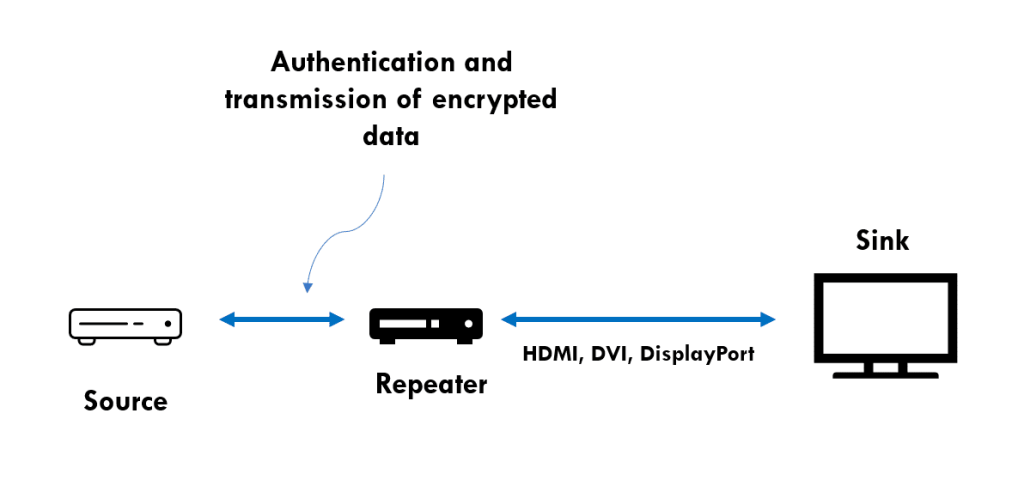
Image source: OTTVerse
How to Disable HDCP on PS5 and Xbox for Gameplay Capture
For gamers and content creators, HDCP can be a significant hurdle. If you connect your console to a capture card like an Elgato, you will likely see a black screen. This is because the capture card is seen as a "recording device," which HDCP is designed to block.
The Capture Card Conflict
To record gameplay, you must manually disable HDCP in the console settings. On a PlayStation 5, go to Settings > System > HDMI and toggle "Enable HDCP" to Off . Once this is done, your capture card will be able to see the game signal. However, there is a major limitation: while HDCP is disabled, you cannot open streaming apps like Netflix, YouTube, or Hulu. The console will display a warning and refuse to launch the app until you re-enable the security protocol.
Xbox and Automatic Toggling
Xbox consoles handle HDCP slightly differently, often attempting to toggle it automatically. However, if you encounter a persistent black screen on your Xbox Series X while using a capture card, you may need to perform a "hard reset" of the console to clear the HDMI cache. This ensures the console isn't trying to send an encrypted signal to a non-compliant capture device.
Why Mobile to HDMI Adapters Fail in Hotels
A frequent complaint involves travelers trying to stream from their iPhone or Android device to a hotel TV using an HDMI adapter. You might see the phone's home screen on the TV, but as soon as you start a movie, the screen goes black while the audio continues to play. This is a classic HDCP handshake failure.
The "Pro-Idiom" Conflict
Many hotel televisions use specialized distribution systems called Pro-Idiom. These systems are designed to prevent guests from tampering with the signal or pirating content. When you introduce a mobile-to-HDMI adapter into this environment, the adapter often lacks the processing power to maintain a stable HDCP handshake through the hotel's complex wiring. Furthermore, many cheap, third-party adapters are not HDCP-certified at all. Using an official Apple or Samsung adapter is a top choice for increasing your chances of success, though it is not a guaranteed fix in all hotel environments.
How to Use Modern Streaming Sticks with Legacy Monitors
If you have an older projector or a high-end plasma TV that lacks HDCP 2.2, you might feel like you're forced to buy new hardware. However, there are ways to maintain interoperability without resorting to piracy. This is particularly important for users who own legacy hardware that is still functionally excellent but technically outdated in terms of security protocols.
The HDMI Splitter Solution
Certain HDMI splitters are known in the AV community as "handshake fixers." These devices sit between your source and your display. When the source device asks for an HDCP 2.2 handshake, the splitter provides it. It then passes the video signal to the legacy display, sometimes down-converting the encryption to HDCP 1.4 or removing it entirely. While manufacturers cannot legally market these as "HDCP strippers," many budget-friendly splitters perform this function as a side effect of their signal-boosting hardware. This is a popular choice for those who want to use a new Roku Ultra with an older 1080p projector.
"HDCP is designed to protect content, but in the real world, it often acts as a barrier to legitimate hardware ownership and interoperability."
What Happened When the HDCP Master Key Was Leaked?
The history of HDCP is marked by a significant security breach. In 2010, the "Master Key" for HDCP 1.x was leaked online. This was not just a single device key; it was the mathematical formula used to generate keys for every HDCP-compliant device in existence. This leak meant that, in theory, anyone with the right technical knowledge could create hardware that perfectly mimicked a licensed TV, effectively bypassing the protection.
This event is why the industry moved so aggressively toward HDCP 2.2. Unlike the 1.x versions, HDCP 2.2 was a ground-up redesign. It moved away from the proprietary (and now broken) key system to industry-standard RSA and AES encryption. This historical context explains why modern 4K devices are so much more "stubborn" about handshakes—the security is much tighter, and the revocation lists are more actively managed to prevent a repeat of the 2010 leak.
Managing Device Limits in Complex Home Theater Setups
For professional AV installers or enthusiasts with complex setups, HDCP introduces a "Topology Limit." The protocol is not designed for infinite expansion. According to AVIXA , the HDCP standard allows for a maximum of 127 devices and a maximum "cascade" depth of 7 levels .
If you are using multiple HDMI splitters, switches, and AV receivers in a single chain, you might hit these limits. Every time the signal passes through a device, it adds a "hop" to the topology. If you exceed seven hops, the source device will refuse to send the signal, even if every device is fully compliant. In large homes using AV-over-IP or HDBaseT to send video over CAT6 cables, managing these limits is a critical part of the system design to ensure consistent playback.
Key Takeaways for Fixing HDCP Errors
- Verify Compliance: Ensure every device and cable in your chain supports the required HDCP version (usually 2.2 for 4K).
- Order Matters: Always turn on your TV first, then your soundbar, and finally your streaming device to ensure a clean handshake.
- Quality Cables: Use "Premium High Speed" certified HDMI cables to prevent bandwidth-related encryption failures.
- Simplify the Chain: If you see an error, bypass your receiver or switch to identify the specific failing component.
- Check Settings: Disable HDCP on gaming consoles only when capturing gameplay, and remember to turn it back on for streaming apps.
- Update Everything: Firmware updates often contain new "Revocation Lists" and handshake bug fixes that can resolve persistent issues.
If you have tried all the steps above and still see a black screen, the most likely culprit is a single non-compliant device or a damaged HDMI cable that needs replacement.
Frequently Asked Questions
Can a cheap HDMI cable cause an HDCP error?
Yes, absolutely. While HDCP is a software protocol, it requires a stable physical connection to exchange encryption keys. Cheap or older cables often lack the necessary shielding or bandwidth (18Gbps or higher) to handle the metadata required for an HDCP 2.2 handshake. If the cable drops even a few bits of data during the authentication phase, the entire signal will be blocked for security reasons.
Does HDCP 2.2 work with older 1080p TVs?
Generally, yes. HDCP is designed to be backward compatible. A modern 4K streaming stick that uses HDCP 2.2 will usually detect that your TV only supports HDCP 1.4 and "down-convert" the signal to 1080p. However, you will not be able to watch 4K content on that TV, as the 4K stream itself is strictly locked behind the HDCP 2.2 requirement.
How do I know if my TV supports HDCP 2.2?
The easiest way is to check the back of your TV near the HDMI ports. Many manufacturers label compliant ports with "HDCP 2.2." If there is no label, check your user manual or the manufacturer's website for your specific model number. Most 4K TVs manufactured after 2015 support HDCP 2.2 on at least one or two of their HDMI inputs.
Why does my screen turn purple on Roku?
The "purple screen of death" is Roku's specific way of indicating an HDCP handshake failure. It means the Roku is sending a signal, but the TV is failing to authenticate the encryption. This is often solved by unplugging the HDMI cable, waiting 30 seconds, and plugging it back in, or by changing the "Display Type" in the Roku settings from Auto to a fixed resolution.
Is HDCP the same thing as HDMI?
No. HDMI (High-Definition Multimedia Interface) is the physical connection—the cable and the port. HDCP (High-bandwidth Digital Content Protection) is the security software that runs over that connection. You can think of HDMI as the pipe and HDCP as the lock on the water flowing through it. You need both to be working correctly to see a picture.
Can I bypass HDCP legally?
In the United States, the Digital Millennium Copyright Act (DMCA) generally prohibits the circumvention of technological protection measures. However, using an HDMI splitter to maintain interoperability with older, legally owned hardware (like a legacy projector) is a common practice in the AV community. The goal should always be hardware compatibility rather than unauthorized copying of content.
Why does my AirPlay show a black screen with audio only?
This is a handshake failure between your mobile device and the receiving Apple TV or Smart TV. AirPlay uses a form of wireless HDCP. If the receiving device is connected to a TV via a non-compliant HDMI cable, the video will be blocked, but the audio (which often has lower security requirements) will still play. Replacing the HDMI cable on the receiving device usually fixes this.
All trademarks, copyrighted content, and quoted material referenced in this article belong to their respective owners. Brief excerpts are used under fair use (17 U.S.C. § 107) for purposes of commentary, criticism, and informational reporting.