Home
Home
How to Register and Log Into Your KHP Content Digital Courseware
khpcontent.com
Redeem access code before logging in.
Chrome 120+ or Edge 118+ recommended.
Mon-Fri: 8am – 10pm CST.
Navigating digital courseware can be a complex process, especially when dealing with proprietary platforms like KHP Content . As the primary digital delivery system for Kendall Hunt Publishing, this portal serves thousands of students across higher education, providing interactive textbooks, lab manuals, and specialized academic tools. Whether you are a first-time user trying to redeem an access code or a returning student facing a login error, understanding the specific technical requirements and registration logic of the platform is essential for a smooth semester.
What Is KHP Content and How Does It Work?
KHP Content is not merely a repository for static PDF versions of textbooks. Instead, it is a highly interactive digital environment designed to facilitate multimedia-rich learning. According to 1EdTech certification data , the platform is built on modern LTI (Learning Tools Interoperability) standards, allowing it to integrate deeply with university systems like Canvas, Blackboard, and Moodle.
Understanding the Interactive Platform
Unlike traditional e-readers, KHP Content focuses on "Student Involvement Tools." These include embedded videos, auto-graded quizzes, and specialized modules like the KHP Diet Tracker. The platform is widely considered one of the more robust options for health, nutrition, and physical education courses because it allows instructors to track student progress through detailed analytics. This means that when you complete a module, your data is often reported directly to your instructor's dashboard, measuring growth and engagement in real-time.
For students, this means the platform is a "live" environment. You aren't just reading; you are participating in a workflow that contributes to your final grade. Because of this complexity, the system has stricter security and browser requirements than a standard website, which is why following the registration protocol exactly is so important.
How to Register Your KHP Content Access Code for the First Time
The most common point of failure for students occurs during the very first interaction with the site. Many users attempt to "Sign Up" or "Log In" using their school credentials before the system knows who they are. To avoid account fragmentation, you must follow a specific sequence.
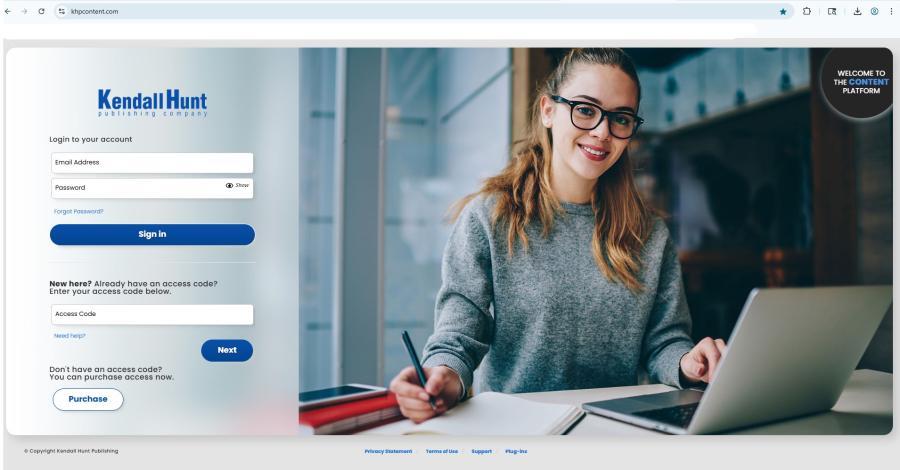
Image source: | Kendall Hunt Support Portal
The Step-by-Step Redemption Process
- Navigate to the Portal: Go directly to www.khpcontent.com . Do not use a search engine to find a generic Kendall Hunt page, as you might end up on the Higher Education commerce site instead of the content portal.
- Enter the Access Code: Locate the "Access Code" field on the main page. This is usually a 12 to 16-character alphanumeric string. Type it exactly as it appears, including any hyphens if present.
- The Blank Field Rule: This is critical. When you enter your access code for the first time, leave the Username and Password fields completely empty . The access code acts as your temporary credential to unlock the registration dialogue.
- Create Your Identity: Once you click "Enter" with the code, the system will prompt you for your email address and personal details. The email address you provide here will become your permanent username for all future sessions.
- Verify and Confirm: Check your inbox for a confirmation email. If you do not see it within five minutes, check your spam or "Promotions" folder. Once confirmed, you can log in using the email and password you just created.
Why You Must Leave the Login Fields Empty During Registration
The "Blank Field Trap" is a unique technical quirk of the KHP Content platform that often confuses new users. Most modern websites require you to click a "Create Account" button before entering a code. KHP Content uses the access code itself as the trigger for account creation.
Avoiding Common Account Creation Errors
If you have already tried to log in and are now stuck in an error loop, the best course of action is to clear your browser's cache and cookies. The platform often "remembers" failed login attempts, which can prevent the access code field from functioning correctly on subsequent tries. By clearing your history, you reset the page to its default state, allowing the "code-only" entry method to work as intended.
Where to Find Your 13-Digit ISBN and Access Code
When contacting support or verifying your course materials, you will frequently be asked for your 13-digit ISBN. It is important to note that Kendall Hunt titles often have multiple ISBNs for the same content—one for the physical book and another for the digital access package.
Locating Codes on Physical and Digital Products
- Physical Textbooks: Look for a 13-digit number starting with "978" or "979" on the back cover above the barcode. If you purchased a bundle, the access code is usually on a printed card shrink-wrapped inside the book.
- Digital Purchases: If you bought access directly through the Kendall Hunt Higher Education website, your ISBN and access code will be in your confirmation email.
- Bookstore Receipts: Many campus bookstores print the access code directly on the register receipt. Do not throw your receipt away until you have successfully logged in.
According to the Kendall Hunt Student Help Portal , providing the correct 13-digit ISBN is the fastest way to get technical assistance, as it identifies the exact version and "section" of the courseware you are using.
Troubleshooting Common KHP Content Login and Payment Errors
Technical friction is common in digital learning environments, but KHP Content has a few specific issues that students encounter more frequently than others. Addressing these early can save hours of frustration.
Resolving Debit Card Rejections
One of the most significant hurdles for students purchasing access directly on the site is the "Payment Declined" error. The KHP Content payment gateway is notably strict. It typically cannot process debit-only transactions . If your card does not have a major credit logo (Visa, Mastercard, Discover, or Amex) or if it is a pre-paid "gift" card, the transaction will likely fail.
Furthermore, the billing address you enter must match the address on your bank statement exactly . Even a minor discrepancy in a zip code or apartment number can trigger a security block. If your card is declined, wait at least 24 hours before trying again to avoid multiple "pending" charges on your account.
How to Fix Browser Compatibility Issues on Chrome and Edge
KHP Content requires modern web technologies to run its interactive modules. If you are using an outdated browser, you may experience "infinite loading" screens or missing buttons.
| Browser | Minimum Version | Recommended Version |
|---|---|---|
| Google Chrome | 120.0+ | Latest Stable |
| Microsoft Edge | 118.0+ | Latest Stable |
| Mozilla Firefox | 119.0+ | Latest Stable |
| Apple Safari | 17.1+ | 17.4+ |
Updating Your Browser for Optimal Performance
If you are using a Chromebook or an older tablet, you may find that the device is no longer capable of updating to these required versions. In such cases, the platform may not function. To check your version in Chrome, click the three dots in the top right corner, go to "Help," and select "About Google Chrome." The browser will automatically check for updates and prompt you to relaunch if a new version is available.
Additionally, ensure that JavaScript is enabled and that you are not using aggressive ad-blockers, which can sometimes interfere with the LTI handshake between the KHP server and your computer.
KHP Content vs. Kendall Hunt Higher Education Portal
A major source of confusion is the existence of two distinct Kendall Hunt websites. Students often try to log into the wrong one, leading to "User Not Found" errors.
| Feature | khpcontent.com | he.kendallhunt.com |
|---|---|---|
| Primary Purpose | Accessing and reading digital books | Buying books and tracking orders |
| Login ID | Your Email Address | User-created Username |
| Key Tools | Diet Tracker, Quizzes, Videos | Shopping Cart, Order History |
| When to use | Daily studying and homework | Initial purchase or returns |
Identifying the Correct Login Page
If your instructor says, "Go to Kendall Hunt to do your homework," they almost certainly mean khpcontent.com . If you are looking for a tracking number for a physical book you ordered, you need the Higher Education Portal . Keeping these two separate in your browser bookmarks will prevent most login-related headaches.
Using KHP Content Within Canvas or Blackboard via LTI Advantage
Many modern universities use "Integrated Access," meaning you don't need to visit the KHP website directly. Instead, the content is embedded inside your school's Learning Management System (LMS).
Navigating Integrated Courseware
KHP Content is LTI Advantage Complete certified. This allows for "Deep Linking," where your instructor can place a link in a Canvas module that takes you directly to Chapter 4 of your textbook. If your course uses this method, do not create a separate account on the KHP website . Doing so can create a "duplicate identity" that prevents your grades from syncing back to the Canvas gradebook.
If you click a link in Canvas and see a "Session Expired" or "Unauthorized" message, it usually means your browser is blocking third-party cookies. Since the KHP content is "inside" the Canvas frame, your browser sees it as a third-party site. You must allow cookies for
khpcontent.com
in your browser settings to fix this.
Maximizing the Interactive Features of Your Digital Textbook
Once you are logged in, the platform offers several tools that rank among the most effective for digital learning. Taking advantage of these can significantly improve your study efficiency.
Utilizing Student Involvement Tools
- Highlighting and Annotating: You can highlight text in multiple colors and add digital sticky notes. These are saved to your profile and can be reviewed in a summary list before exams.
- The KHP Diet Tracker: For nutrition students, this tool is a significant advancement over manual logging. It allows you to input daily food intake and generates professional-grade reports on macronutrients and caloric balance.
- Multimedia Modules: Many KHP titles include "branching" scenarios where your choices determine the outcome of a case study. These are designed to measure a student's growth in critical thinking rather than just rote memorization.
Contacting Kendall Hunt Support During Business Hours
If you have followed all the steps above and still cannot access your content, it is time to contact the official support team. Kendall Hunt provides extensive support hours, particularly during the "Back to School" rush in August and January.
Support Availability and Response Times
You can reach support via the Student Help Portal . Their standard business hours (Central Standard Time) are:
- Monday – Friday: 8:00 AM – 10:00 PM
- Saturday: 9:00 AM – 9:00 PM
- Sunday: 9:00 AM – 10:00 PM
Before calling, have your 13-digit ISBN and your access code ready. If you are experiencing a technical error, taking a screenshot of the error message will help the support agent resolve your issue much faster.
Frequently Asked Questions
- How do I find my KHP Content access code?
- Your access code is typically delivered via email if you purchased digitally, or found on a physical card inside your textbook's shrink-wrap. If you purchased through a campus bookstore, check your printed receipt, as many retailers print the code directly on the proof of purchase.
- Why is my KHP Content access code not working?
- The most common reason is attempting to log in before redeeming the code. Ensure you are entering the code in the "Access Code" field while leaving the username and password boxes empty. Also, verify that you are on khpcontent.com and not the Higher Education commerce site.
- Can I access KHP Content on a mobile device?
- Yes, the platform is accessible via mobile browsers, but there is no dedicated app. You must ensure your mobile browser (like Safari on iOS or Chrome on Android) is updated to the latest version to support the interactive elements and LTI integrations.
- What is the KHP Content diet tracker?
- The Diet Tracker is a specialized tool integrated into Kendall Hunt nutrition and health textbooks. It allows students to log food intake, track physical activity, and generate detailed nutritional analysis reports that can be exported for grading or personal health monitoring.
- How do I reset my KHP Content password?
- Go to the main login page at khpcontent.com and click the "Forgot Password" link. You will need to enter the email address you used during the initial registration. If you do not receive the reset email, check your spam folder or contact support to verify your account email.
- Does KHP Content work offline?
- No, KHP Content is a web-based proprietary system that requires an active internet connection. Because it tracks real-time progress and syncs data with instructor dashboards, you must be online to access your books and complete assignments.
Final Takeaways for KHP Content Users
- Redeem First: Always enter your access code before attempting to log in for the first time.
- Stay Updated: Ensure your browser is updated to at least Chrome 120 or Edge 118 for full compatibility.
-
Check the Portal:
Confirm you are at
khpcontent.comfor courseware and not the Higher Ed store. - Payment Prep: Use a card with a credit logo for purchases; debit-only cards are frequently declined.
- LMS Integration: If your school uses Canvas or Blackboard, always access your content through the school portal first.
- Support Ready: Keep your 13-digit ISBN handy whenever you need to contact technical support.
By following these technical guidelines, you can ensure that your digital courseware remains a helpful tool rather than a source of technical frustration throughout your academic term.