Home
Home
How to Fix Content Moderated Errors When Uploading Images to Grok
If Grok flags your image as "Content Moderated," it is likely due to a visual trigger rather than your text prompt. To resolve this, use the Chat-First Workflow : upload your image to a standard Grok chat, ask it to describe the image, and then click the "Animate" or "Imagine" icon directly from the chat interface. For users on mobile, ensure Spicy Mode is toggled on in settings to reduce sensitivity, though this requires a Premium+ subscription.
Users of xAI’s Grok platform have recently encountered a surge in "Content Moderated" errors, particularly when attempting to upload images for analysis or animation. While Grok was initially marketed as a more "anti-woke" and less restrictive alternative to competitors like ChatGPT or Claude, the reality in 2026 is far more complex. A combination of evolving safety layers and significant legal pressures has resulted in a system that often flags innocent content—ranging from pet photos to standard swimwear—as sensitive.
Understanding why these blocks occur is the first step toward navigating them. According to technical analysis, Grok’s moderation is not a single gatekeeper but a multi-stage network designed to catch violations before they are even visible to the user. This proactive approach, while intended to ensure safety, frequently leads to "false positives" that can stall workflows and frustrate creative users.
Why Does Grok Flag Your Uploaded Images as Sensitive?
Grok’s moderation architecture is notably sophisticated, utilizing what experts describe as a three-stage proactive scan. Unlike older AI models that might only check the final output, Grok evaluates content in real-time. As noted by Archit Jain , a full-stack developer tracking AI safety trends, this "real-time frame analysis" is why users often see an error message while the progress bar is still moving.
The three layers of Grok's safety network include:
- Prompt Submission Scan: The initial text you type is checked against a database of banned keywords and concepts.
- Image Pre-Scan: When you upload a file, the system uses computer vision to identify prohibited objects, textures, or "insinuated" nudity before the AI even processes the request.
- Frame Analysis: For animations or video generations, the system scans individual frames as they are generated to ensure no prohibited content emerges during the creative process.
In recent months, the sensitivity of these filters has increased significantly. This shift is largely attributed to the need to comply with stringent digital safety laws in the UK, the European Union, and California. These regions have implemented strict guidelines regarding AI-generated content, forcing xAI to adopt a "safety-first" posture that errs on the side of caution. Consequently, images that were perfectly acceptable in early 2025 are now frequently caught in the moderation net.
How the Minnesota Legal Ruling Changed Grok Moderation
One of the most significant catalysts for the recent increase in Grok’s moderation strictness is a legal development from late 2025. xAI faced a major legal challenge in Minnesota regarding the potential for its software to be used for "nudification"—the non-consensual creation of sexualized AI content. The ruling against xAI in this jurisdiction has had a ripple effect across the entire platform.
This legal pressure has led to hyper-sensitivity in the visual scan layer. The algorithm is now trained to detect and block anything that could be interpreted as a precursor to non-consensual content. This includes:
- Sheer or Transparent Fabrics: Even if the clothing is not revealing, the "texture" of sheer fabric often triggers a block.
- Minor Skin Exposure: Shadows around collarbones or specific angles of limbs can be misidentified by the AI as prohibited anatomy.
- "Insinuated" Nudity: The system now blocks images that it deems "suggestive," even if no actual nudity is present, to avoid any risk of violating the Minnesota ruling's standards.
This "false positive epidemic" is a direct result of the platform attempting to shield itself from further legal liability. For the average user, this means that innocent photos—such as a person in a nightgown or a dog in a specific pose—may be flagged because the AI's safety threshold has been set to an extremely low tolerance level.
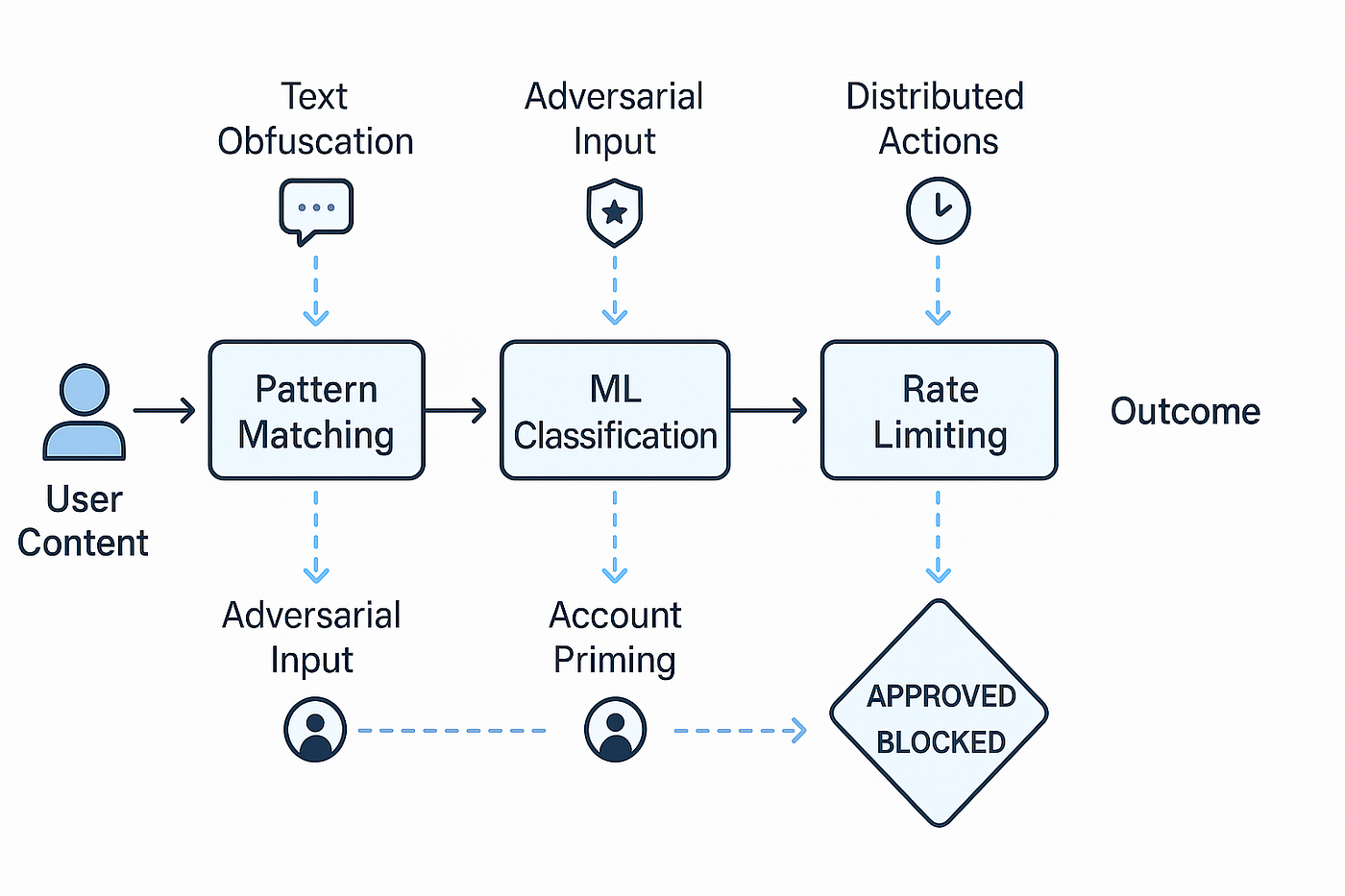
Image source: Faruk Alpay - Medium
Fixing the 16 Percent Progress Bar Stall During Image Processing
A common symptom of Grok’s moderation is the "16% stall." Many users report that when they attempt to animate an uploaded image or generate a new one, the progress bar moves quickly to exactly 16% and then stops, followed by a "Content Moderated" error message. This is not a random glitch; it is a specific technical artifact of the moderation process.
Identifying the Visual Moderation Trigger
When a generation stalls at 16%, it almost always indicates a visual moderation trigger . At this stage of the processing pipeline, the system has completed the text analysis and has begun the initial visual frame generation. If the first few frames generated by the AI—or the uploaded image itself—trigger a safety flag, the process is immediately terminated. This distinguishes it from a prompt-based block, which usually happens at 0% or before the progress bar even appears.
Implementing the Chat-First Workflow
Community members on platforms like Reddit have discovered a highly effective workaround known as the "Chat-First Workflow." This method exploits the fact that the standard Grok text chat has a slightly different moderation threshold than the standalone "Imagine" or "Animate" tools. Follow these steps to bypass the 16% stall:
- Upload to Text Chat: Instead of going directly to the image tool, upload your image into a standard Grok text conversation.
- Request a Description: Ask Grok: "Can you describe this image in detail?" If Grok provides a description, it means the image has passed the initial text-based safety scan.
- Use Inline Tools: Once the image is in the chat, look for the small "Animate" or "Imagine" icons that appear near the image preview. Click these to process the image from within the chat interface.
This method is widely considered one of the most reliable ways to handle images that are being unfairly flagged by the standalone moderation engine. By "introducing" the image to the text AI first, you essentially pre-validate the content through a more lenient filter.
Enabling Spicy Mode to Reduce Content Restrictions
For users seeking more creative freedom, Grok offers a feature known as "Spicy Mode." While it does not completely remove moderation, it significantly relaxes the text generation filters and provides a bit more leeway for visual content. However, accessing this feature requires meeting specific criteria.
Finding the Toggle on the X Mobile App
Currently, Spicy Mode is most easily accessible via the X mobile app (iOS and Android). Many users find that the toggle is missing or hidden on the desktop browser version. To enable it:
- Open the Grok tab in the X app.
- Tap the settings icon (gear) in the top right corner.
- Look for the "Mode" selection and choose "Spicy."
- If the option is missing, ensure your app is updated and your account age is verified.
It is important to note that even with Spicy Mode enabled, the core safety scan for uploaded images remains active. Spicy Mode primarily affects the *output* of the AI, allowing for more edgy or controversial text, but it does not grant a total bypass for the visual filters that protect against non-consensual or explicit imagery.
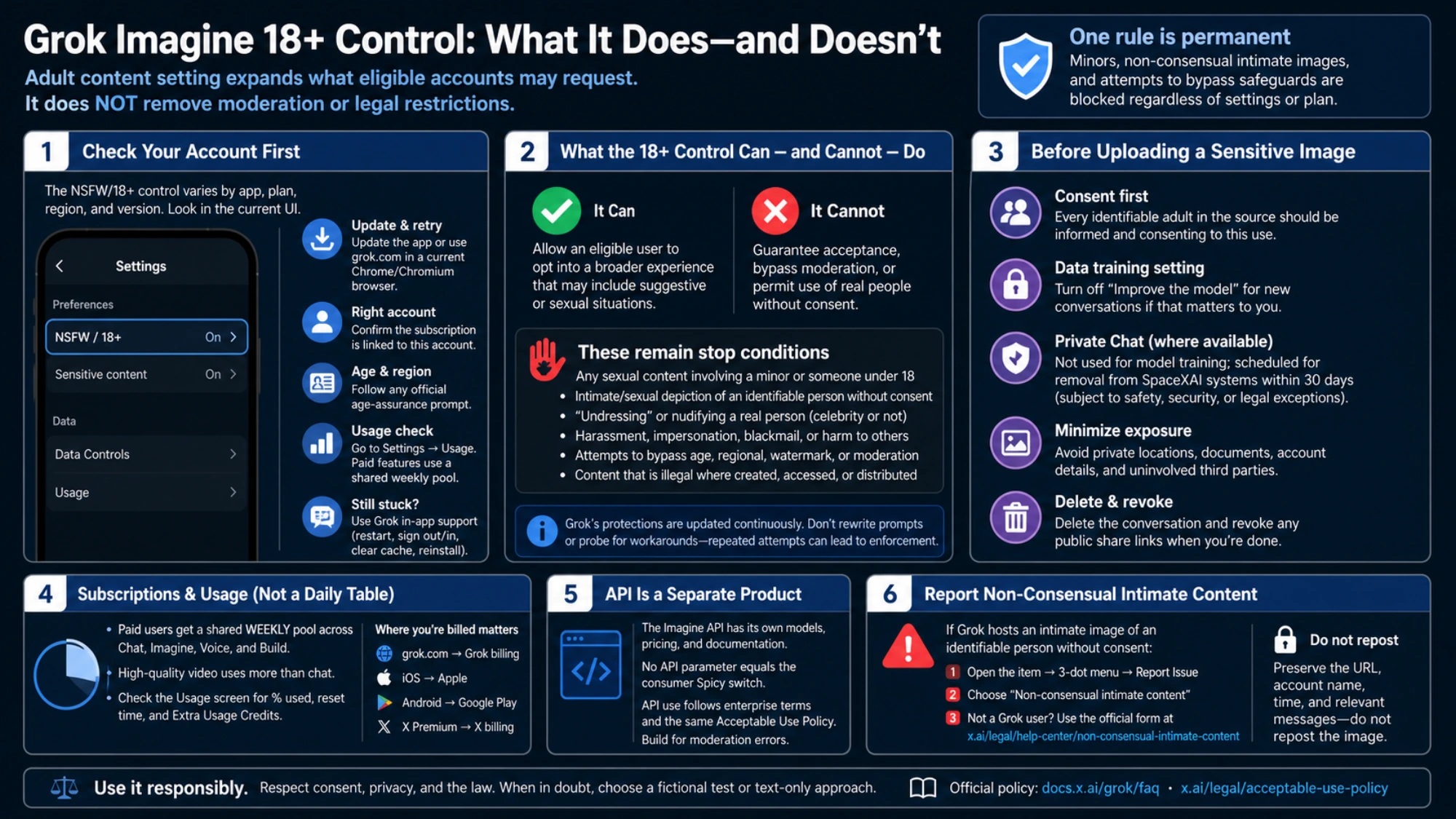
Image source: AI Free API
Common Triggers That Cause False Positive Moderation
One of the most frustrating aspects of "getting content moderated on grok when uploading image" is the lack of clarity on what exactly triggered the block. Through community testing, several "false positive" triggers have been identified that frequently catch users off guard.
| Trigger Category | Common Examples | Why It Gets Flagged |
|---|---|---|
| Animal Anatomy | Dogs, cats, horses | Certain poses or shadows on pets can be misidentified as prohibited human anatomy. |
| Celebrity Names | Elon Musk, Taylor Swift | xAI has implemented strict blocks on generating or modifying images of high-profile figures. |
| Clothing Textures | Silk, lace, sheer fabric | The AI associates these textures with "suggestive" content, leading to immediate blocks. |
| Lighting & Shadows | High-contrast silhouettes | Deep shadows on the body can be interpreted by the frame-scanner as exposed skin. |
If your image falls into one of these categories, you may need to modify the image itself before uploading. For example, brightening the shadows in a photo editor or cropping out a celebrity in the background can often resolve the moderation error.
Advanced Prompt Engineering to Avoid Image Moderation
When the visual moderation isn't the issue, the text prompt often is. Grok’s text filter is sensitive to specific "high-risk" keywords. Instead of fighting the filter, you can use Grok itself to help you write safer, more effective prompts.
Using Grok Chat to Write Your Prompts
A top-tier strategy discovered by power users is to ask the Grok text AI for assistance. You can say: "I want to generate an image of a woman in a graceful, cinematic pose wearing a silk gown. Help me write a prompt that describes this artistically and avoids triggering safety filters for a highly moderated generator."
This approach works because the text AI understands the nuances of its own moderation system. It will often replace risky words with artistic synonyms that convey the same mood without alerting the safety layers. For example:
- Replace "Seductive" with "Ethereal" or "Graceful composition."
- Replace "Sexy" with "Elegant" or "Cinematic lighting."
- Replace "Transparent" with "Layered gossamer" or "Flowing silk."
The Sticker Bug Workaround
An unconventional method used by some in the community is the "Sticker Bug." This involves placing a small, digital "sticker" or overlay (like a small anime character or a simple colored square) on the edge of an image before uploading it. This can sometimes disrupt the frame-analysis filter's ability to categorize the image, allowing it to pass through the initial scan. While not a guaranteed fix, it stands out as a top choice for users dealing with persistent false positives on specific photos.
Troubleshooting the X App vs. Desktop Browser
Sometimes, the "Content Moderated" message is a technical glitch rather than a policy violation. If you are certain your content is safe, try these technical troubleshooting steps:
Other technical fixes include:
- Clearing Cache: In your browser settings, clear the cache and cookies for x.com. Stale data can sometimes cause the moderation flag to "stick" even after you've changed your prompt.
- Check Regional Restrictions: If you are in the EU or UK, your moderation will naturally be stricter due to local AI safety laws. Using a VPN to connect via a US-based server may provide a different moderation experience, though this is subject to xAI’s terms of service.
- Account Standing: While xAI has not officially confirmed "shadowbanning" for image uploads, repeated attempts to bypass filters with truly prohibited content may lead to temporary restrictions on your account's ability to use Grok Imagine.
Frequently Asked Questions
Why is Grok flagging my innocent photos as sensitive?
Grok uses hyper-sensitive filters to avoid legal liability, especially following rulings like the one in Minnesota. These filters often misidentify shadows, pet anatomy, or specific clothing textures (like silk or lace) as "suggestive" or "prohibited." This results in false positives where innocent content is blocked by the proactive safety scan.
Does Spicy Mode apply to uploaded images?
Spicy Mode primarily relaxes the text generation filters, allowing the AI to be more edgy in its responses. While it may slightly lower the threshold for visual generation, it does not bypass the core safety scan for uploaded images. Uploads are still subject to strict computer vision checks to prevent the processing of prohibited content.
How do I bypass the 16% stall on Grok?
The most effective way to fix the 16% stall is the "Chat-First Workflow." Upload your image to a standard Grok chat first, ask the AI to describe it, and then use the "Animate" or "Imagine" buttons within the chat interface. This uses a different moderation layer that is often more lenient than the standalone tool.
Why can't I see the Spicy Mode toggle on my computer?
Spicy Mode is currently a mobile-app exclusive feature for many users. If you are on a desktop browser, the toggle may be hidden or unavailable. Additionally, you must have a Premium+ or SuperGrok subscription and a verified age of 18+ to access the setting.
Will I get banned for too many content moderation errors?
While occasional false positives will not harm your account, repeated and intentional attempts to generate prohibited content (such as NSFW or non-consensual imagery) can lead to temporary or permanent restrictions on your access to Grok's image features. It is always best to work within the guidelines using artistic synonyms.
Final Thoughts and Troubleshooting Checklist
Navigating Grok’s image moderation requires a balance of technical knowledge and creative prompt engineering. While the system has become stricter to meet global legal standards, most users can still achieve their goals by following a structured approach.
- Verify your subscription: Ensure you are on Premium+ or SuperGrok for full feature access.
- Check your platform: Switch to the mobile app if the desktop version is giving you trouble.
- Use the Chat-First method: Pre-validate your images in a text chat before animating them.
- Rephrase your prompts: Use artistic, non-suggestive language to describe your vision.
- Identify visual triggers: Look for sheer fabrics, celebrities, or deep shadows that might cause a 16% stall.
- Stay updated: AI safety laws are evolving, and xAI frequently updates its filters to stay compliant.
By implementing these strategies, you can minimize moderation errors and continue using Grok as a top-tier tool for your creative projects.