Home
Home
How to Find Exact Image Matches Using Google AI Mode and About This Image
To find exact image matches in Google's new AI Mode, you must bypass the "Visual Query Fan-out" feature which prioritizes inspiration over literal matching. Right-click an image in Chrome, select "Search image with Google," and navigate to the "Visual Matches" tab in the sidebar. From there, look for the "Exact Matches" filter. Use the "About this image" tool to verify when the image was first indexed and check for AI-generated metadata.
Understanding the Shift to AI-Driven Visual Search
Visual search has undergone a significant transformation recently. What used to be a simple pixel-matching process has evolved into a sophisticated, multimodal experience. At the heart of this shift is Google AI Mode , a feature powered by the Gemini 2.5 model. This tool is designed to handle complex, conversational queries that combine both images and text.
According to Google's official updates , these changes are intended to make visual exploration more intuitive. Instead of just identifying an object, AI Mode attempts to understand the context. For example, if you take a photo of a specific plant, AI Mode doesn't just tell you the species; it might suggest care tips, local nurseries, or similar landscaping ideas. While this is helpful for discovery, it often complicates the process for users who need a literal, identical match of a specific file.
Why Your AI Search Results Are Broad Instead of Exact
The primary reason users struggle to find exact matches in AI Mode is a technical process known as Visual Query Fan-out . When you submit an image, Gemini 2.5 does not just look for that specific arrangement of pixels. Instead, it breaks the image down into multiple sub-topics and runs several background searches simultaneously.
This "fan-out" approach is a significant advancement for users seeking inspiration. As noted by Android Police , this makes search more conversational and shopping-friendly. However, it creates a conflict for power users. The AI is optimized for "Discovery" (finding things like the image) rather than "Identification" (finding the exact image).
Furthermore, the Shopping Graph plays a massive role here. With over 50 billion product listings refreshed at a rate of 2 billion per hour, Google’s AI often prioritizes commercial results. If your image contains a recognizable product, the AI may "fan out" to show you where to buy similar items, effectively burying the original source of the photograph under a mountain of retail links.
How to Access the Exact Match Filter in Google Lens
To find the original source of a file, you need to step out of the broad AI Mode and into the specific Lens filters. The workflow differs slightly depending on your device, but the goal remains the same: forcing the engine to prioritize pixel-perfect matches.
Step-by-Step for Desktop (Chrome)
Step-by-Step for Mobile (Google App)
- Open the Google App and tap the Lens icon (camera) in the search bar.
- Upload your photo or capture a new one.
- Once the results appear, swipe up to move past the initial AI-generated "Inspiration" and "Shopping" results.
- Tap the "Search" chip . This shifts the focus from multimodal discovery to literal visual matching.
It is important to note that browser choice matters. According to T3's guide to reverse search , Chrome offers the most integrated experience for these filters, whereas browsers like Microsoft Edge may require additional steps or lack the specific "Exact Match" sidebar integration.
What Is the About This Image Tool and How Does It Work?
Once you have found a match, the next step is verification. Google’s "About this image" tool is a transparency feature that provides critical context for any image found in search results. This is particularly useful in an era where AI-generated content is becoming indistinguishable from reality.
The tool provides three key pieces of information:
- Indexing History: You can see when the image was first seen by Google Search. If an image claiming to be from a recent news event was actually indexed three years ago, you can immediately identify it as a miscontextualized file.
- Metadata Analysis: The tool checks for C2PA metadata or other digital watermarks. This can reveal if an image was created or edited using AI tools like Midjourney or DALL-E.
- Contextual Descriptions: You can see how other reputable websites describe the image. This helps you understand if the image is being used truthfully or if it is part of a misinformation campaign.
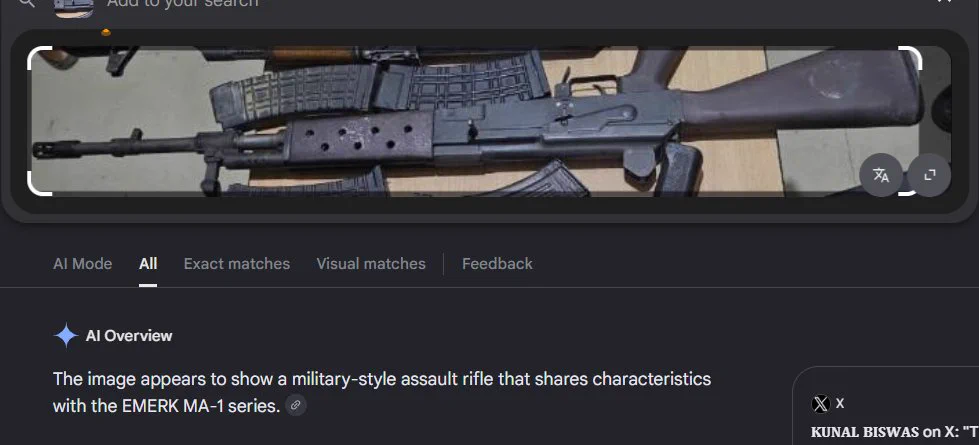
Image source: X
The Verification Stack: A 3-Step Workflow for Power Users
For journalists, researchers, or anyone concerned with digital accuracy, using a single tool is often insufficient. We recommend the Verification Stack , a multi-step strategy that leverages the strengths of each Google search feature.
| Step | Tool | Primary Goal |
|---|---|---|
| 1 | AI Mode (Gemini) | Understand the context and "what" is in the image. |
| 2 | Lens Exact Match | Find the original, highest-resolution source file. |
| 3 | About This Image | Verify the history and check for AI manipulation. |
By following this stack, you move from a broad understanding to a specific source, and finally to a verified conclusion. This workflow is a top-tier option for anyone needing to confirm the authenticity of viral media or unsourced photographs.
How to Use Multimodal Prompts to Refine Your Search
One of the most significant advancements in Gemini 2.5 is its ability to process multimodal prompts . This means you can search with an image and then add text to narrow down the results. This is exceptionally strong for cases where an exact match doesn't exist, but you need something very specific.
For example, you can take a photo of a chair and type, "Find this exact pattern but on a sofa." The AI understands the visual data (the pattern) and the textual instruction (apply it to a sofa). This conversational refining is a major improvement over traditional keyword-only searches. As noted in Synaptic Labs' analysis of Gemini 2.5 , this model excels at understanding the relationship between visual inputs and complex text instructions.
Platform and Browser Differences You Need to Know
The availability of AI Mode and Exact Match features is not uniform across all platforms. Depending on your setup, you may see different options:
- Chrome vs. Edge: Chrome is the primary testing ground for these features. While Edge has its own "Visual Search," it often lacks the deep integration of the "About this image" tool found in the Chrome sidebar.
- Android vs. iOS: On Android, AI Mode is deeply integrated into the "Circle to Search" feature. On iOS, users typically access these features through the Google App or Google Photos.
- Regional Rollouts: AI Mode features often debut in the US first. However, Google has expanded support to include Hindi, Japanese, and Portuguese, reflecting a global push for AI-integrated search.
Troubleshooting Common AI Mode Issues
If you are struggling to get the results you need, consider these common pitfalls and their fixes:
Frequently Asked Questions
You cannot "turn off" AI Mode globally, as it is integrated into the core search engine. However, you can bypass it by selecting the "Search" or "Visual Matches" filters within Google Lens. These filters ignore the AI's "inspiration" and focus on literal pixel matching.
Visual Matches include images that look similar in terms of color, composition, and subject matter. Exact Matches are identical duplicates of the specific file you are searching for, often used to find higher-resolution versions or the original publisher.
No. The "About this image" tool only works for images that have already been indexed by Google on the public web. If you upload a private photo that has never been shared online, the tool will not have any historical data or metadata to display.
This is a common typographical confusion. "al mode" is actually "AI Mode" (Artificial Intelligence Mode). The sans-serif font makes the capital "I" look like a lowercase "l." It refers to the Gemini-powered search features.
Use the "About this image" tool. It can identify if an image contains C2PA metadata, which is a standard used by many AI generators to tag content as machine-made. It will also show you the earliest date the image appeared online, which can help debunk fake "historical" photos.
Key Takeaways
- Identify the typo: Remember that "al mode" is simply "AI Mode" viewed in a sans-serif font.
- Bypass Fan-out: AI Mode broadens results for inspiration; use the "Exact Matches" filter in the Lens sidebar for literal sourcing.
- Use Chrome: The desktop Chrome browser offers the most robust sidebar for switching between AI discovery and exact matching.
- Verify with Metadata: Always check the "About this image" menu to see indexing history and AI-generated tags.
- Stack your tools: Use AI for context, Lens for sourcing, and "About this image" for final verification.
- Refine with text: Use multimodal prompts (image + text) when you need to narrow down broad AI results.
To start mastering these tools, try right-clicking any image in your browser today and exploring the "About this image" tab to see its digital history.