Home
Home
How to Access Google Classrooms and Master the Latest Learning Tools
Google Classroom has transitioned from a simple digital filing cabinet into a highly integrated Learning Management System (LMS) that serves millions of students and educators globally. As of 2026, the platform has incorporated sophisticated artificial intelligence tools and streamlined communication features that make it a top-tier choice for blended learning environments. Whether you are a student trying to submit an assignment before a hard deadline or a teacher organizing multiple sections, understanding the nuances of the current interface is essential for a smooth academic year.
Accessing the platform is generally straightforward, but technical hurdles often arise due to account conflicts or device security settings. This guide provides the necessary steps to navigate the login process, troubleshoot common errors, and leverage the most advanced features introduced in recent updates. By following these best practices, users can ensure they are utilizing the platform to its full potential while maintaining a secure and organized digital workspace.
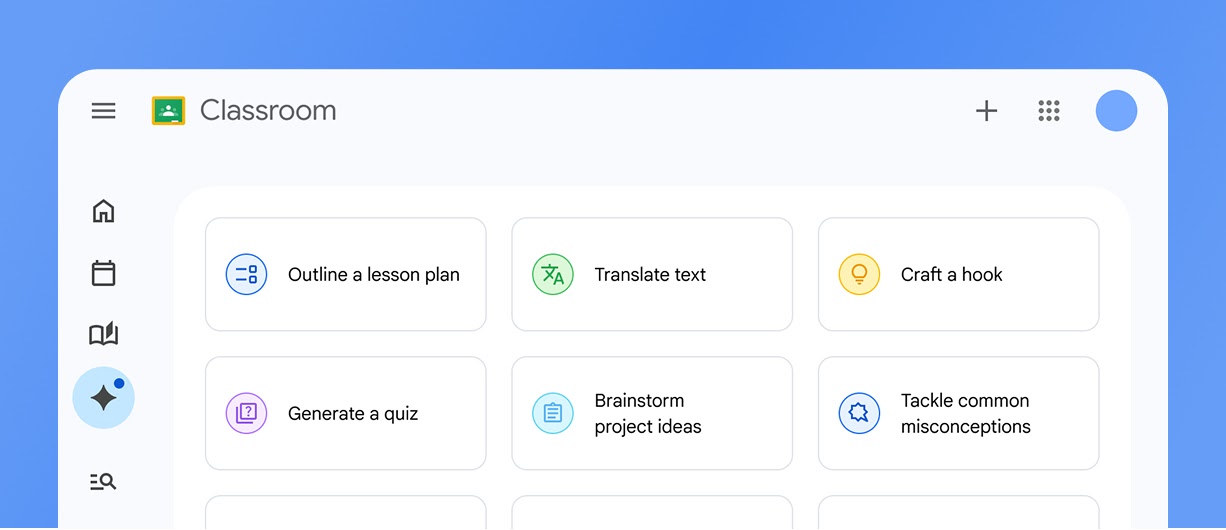
Image source: Google for Education
How to Log In and Access Your Dashboard Right Now
To begin using the platform, the primary entry point is classroom.google.com . While the web interface is accessible from any modern browser, Google Chrome offers the most seamless integration with other Workspace tools. When you arrive at the login page, you will be prompted to enter your credentials. It is vital to distinguish between the two main types of accounts used on the platform.
Understanding Account Types
Most students and teachers use a school-issued Workspace for Education account, which typically ends in
@schoolname.edu
or
@district.org
. These accounts are managed by an IT administrator and come with specific privacy protections and features, such as integrated Google Meet links and advanced grading tools. Alternatively, some independent tutors or small organizations use personal Gmail accounts (
@gmail.com
). While personal accounts are functional, they have lower student limits and lack some of the administrative controls found in the Education editions.
The First-Time Sign-In Process
For those accessing the platform for the first time in the 2026 school year, the process involves a few simple steps:
- Navigate to the Portal: Go to the official login page and click "Go to Classroom."
- Enter Credentials: Input your school email and password. If your school uses a Single Sign-On (SSO) provider like Clever or ClassLink, you may be redirected to their portal first.
- Select Your Role: Upon your very first login, you will be asked to identify as a "Student" or "Teacher." This choice is critical, as teachers have the authority to create classes, while students can only join them.
- Accept Invitations: Any classes you have already been invited to will appear as "cards" on your dashboard. Click "Join" to enter the digital room.
Why You Might See a Permission Denied Error and How to Fix It
One of the most frequent frustrations users encounter is the "Permission Denied" or "You do not have access" error. This usually occurs not because of a wrong password, but due to what is known as an "Account Collision." This happens when your browser is signed into multiple Google accounts simultaneously—such as a personal Gmail and a school account—and the browser defaults to the wrong one when loading the Classroom page.
The Chrome Profiles Solution
Instead of using the account switcher in the top-right corner of the Google homepage, the most effective way to prevent session bleeding is to use Chrome Profiles . By creating a dedicated profile for school work, you isolate your school cookies and history from your personal data. To set this up, click the profile icon in the Chrome browser toolbar (above the webpage area), select "Add," and sign in with your school credentials. This ensures that every tab you open in that window is automatically authenticated for your school Workspace.
Mobile Security Requirements
On mobile devices, users often see a lockout message even after entering the correct password. According to SitesWiki , school accounts often require a mandatory device screen lock. If your phone or tablet does not have a PIN, pattern, or biometric lock (like FaceID) enabled, the Google Classroom app will block access to protect sensitive student data. Enabling a screen lock in your device settings usually resolves this issue immediately.
Settings > Apps > Google Classroom > Storage > Clear Data
. On iOS, you may need to offload and reinstall the app to refresh the session.
How to Join a Class Using a Code or Link
There are three primary ways to enter a new class: a join code, a direct link, or an email invitation. The method used depends entirely on how the teacher has configured the class settings.
The 6-8 Character Rule
The most common method is the class code. These codes are always between 6 and 8 characters long and consist of a mix of letters and numbers. They never contain spaces or special symbols. When entering a code, ensure you are logged into your school account; otherwise, the code will be rejected as "invalid." If you are copy-pasting a code, be careful not to include an accidental space at the end, as the system will read it as an extra character.
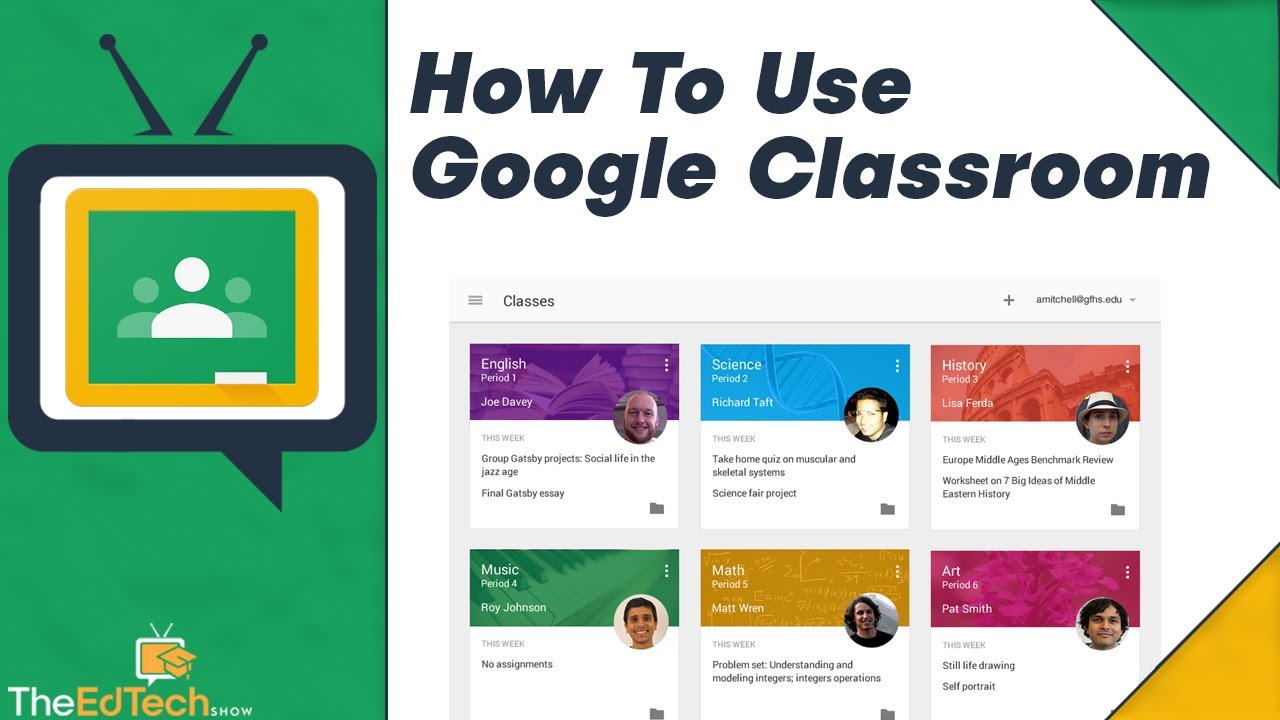
Image source: YouTube
Troubleshooting Invalid Codes
If a code is not working, consider the following possibilities:
-
Account Mismatch:
You are trying to join a school class with a
@gmail.comaccount. - Expired Code: The teacher may have reset the code or disabled joining for that specific class.
- Class Full: While rare, classes have a maximum capacity (typically 250 for personal accounts and much higher for Workspace accounts).
New Features for the 2026 School Year
The 2026 update has introduced several notably innovative tools designed to reduce administrative burden and enhance student engagement. These features leverage the latest advancements in the Google Workspace ecosystem, including deeper integration with Gemini AI.
AI-Powered Practice Sets
One of the most significant advancements is the expansion of AI-powered practice sets. Teachers can now convert existing PDFs or Google Forms into interactive assignments. As students work through problems, the system provides real-time hints and feedback. For example, if a student struggles with a math problem, the AI might suggest a specific "learning skill" or a short video tutorial to help them isolate the variable. This allows for immediate intervention even when the teacher is busy with other students.
Persistent Student Groups and Hard Deadlines
Educators have long requested better ways to manage small-group instruction. The new "Persistent Groups" feature allows teachers to define student cohorts once and reuse them across multiple assignments throughout the semester. Additionally, the introduction of "Hard Deadlines" gives teachers the option to automatically disable the "Turn In" button after a specific time, ensuring that late work policies are strictly enforced by the system rather than requiring manual oversight.
| Feature | Personal Account (@gmail) | School Account (@school.edu) |
|---|---|---|
| Student Limit | Up to 250 | Up to 1,000 |
| AI Practice Sets | Limited / Not Available | Full Access (with license) |
| Meet Integration | Standard Meet | Dedicated Classroom Link |
| Data Privacy | Standard Terms | COPPA/FERPA Compliant |
Differences Between the Web Version and the Mobile App
While the core functionality remains consistent, the mobile app (available on the App Store and Play Store ) includes several unique tools that are not available on the desktop version. Understanding these differences can help you choose the right device for specific tasks.
The Random Student Selector
A hidden gem within the mobile app is the "Random Student Selector," found under the "People" tab. This tool allows teachers to fairly call on students during class discussions. The app tracks who has been called on and who has been absent, ensuring that participation is distributed evenly. This feature is currently exclusive to the mobile interface to facilitate movement around the physical classroom.
Offline Mode and System Requirements
For students with inconsistent internet access, the mobile app offers a robust offline mode. Students can download assignment descriptions and attached files while on Wi-Fi and work on them later. Once they reconnect to the internet, their progress syncs automatically. It is important to note that as of late 2025, the iOS app requires iOS 17.0 or later , meaning older devices may need to use the mobile browser version instead of the dedicated app.
Best Practices for Teachers to Organize a Digital Classroom
Effective organization is the difference between a productive digital environment and a confusing one. Experienced educators often recommend a "less is more" approach to the Stream, which is the main landing page of any class.
The Stream vs. Classwork
A common mistake is allowing every assignment to post an automatic notification to the Stream. This creates a cluttered feed where important announcements get lost. Teachers should adjust their settings to "Hide notifications" on the Stream, using it exclusively for daily greetings, reminders, or discussion prompts. All actual assignments, quizzes, and materials should be housed in the "Classwork" tab.
Topic Tagging and Differentiated Instruction
Using "Topics" in the Classwork tab is essential for navigation. Organizing by "Current Week," "Unit Number," or "Resources" helps students find what they need without scrolling through months of data. Furthermore, teachers can use the "All Students" dropdown when creating an assignment to send modified versions of a task to specific students. This allows for discreet differentiated instruction, where different groups receive materials tailored to their specific learning levels within the same digital space.
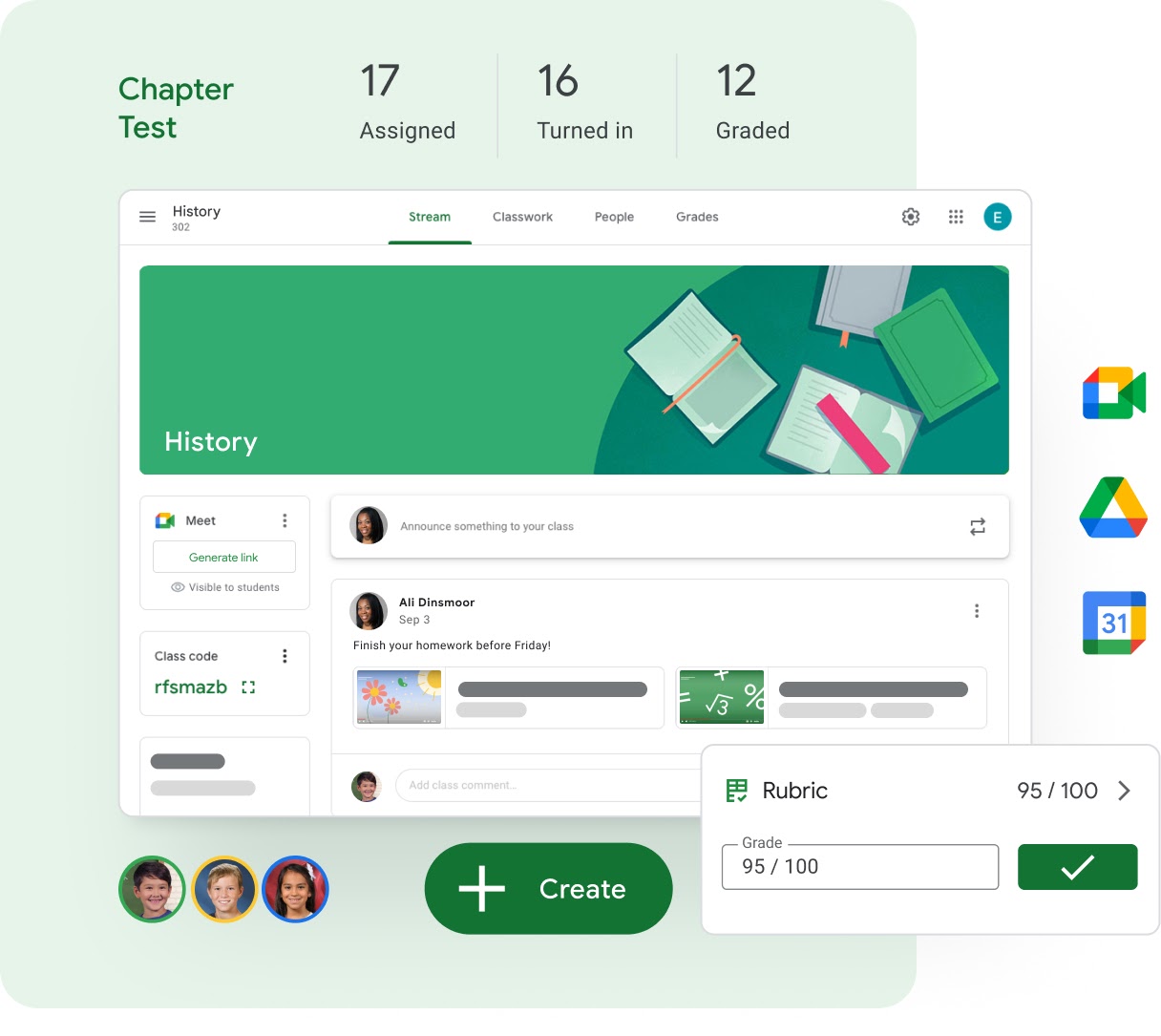
Image source: Trevor Lubinski
Privacy and Security Standards for Schools
Google Classroom is built on the same infrastructure as the rest of Google Workspace, which maintains a 99.9% uptime guarantee. For educational institutions, privacy is a paramount concern. Google has committed to strict standards regarding student data, ensuring that information within the Classroom environment is not used for advertising purposes.
Originality Reports
To maintain academic integrity, the platform includes "Originality Reports." This tool compares student submissions against billions of web pages and over 40 million books. Teachers can enable this for specific assignments, allowing students to check their own work for proper citation before the final submission. This serves as a pedagogical tool to teach students about plagiarism rather than just a punitive measure.
Key Takeaways for Mastering Google Classroom
- Use Chrome Profiles: Prevent "Permission Denied" errors by keeping your school and personal accounts in separate browser profiles.
- Enable Device Locks: Ensure your mobile device has a PIN or biometric lock to satisfy school security requirements for the app.
- Verify Join Codes: Remember that codes are 6-8 characters, alphanumeric, and sensitive to account types.
- Leverage AI Tools: Use Practice Sets for real-time student feedback and automated hints.
- Organize by Topics: Keep the Classwork tab clean by categorizing assignments by week or unit.
- Utilize Mobile-Only Features: Take advantage of the Random Student Selector and Offline Mode on the mobile app.
- Monitor Deadlines: Be aware of "Hard Deadlines" that may prevent late submissions automatically.
Start by setting up a dedicated Chrome Profile today to ensure your next login is completely seamless.
Frequently Asked Questions
- How do I find my Google Classroom join code?
- Join codes are generated by the teacher. You can usually find them on the class syllabus, in a welcome email, or displayed on the board during class. If you cannot find it, you must contact your instructor directly, as support staff cannot provide codes for specific classes.
- Can I use Google Classroom with a personal Gmail account?
- Yes, you can create and join classes with a personal account, but there are limitations. You will not have access to school-specific features like Originality Reports or the integrated Google Meet link. Additionally, you cannot join classes created by a school Workspace account using a personal Gmail address due to security restrictions.
- Why is my class code not working?
- The most common reason is that you are logged into the wrong Google account. Ensure you are using your school email. Other reasons include the teacher disabling the code, the code having expired, or a simple typo (remember, no spaces or symbols are allowed in the 6-8 character code).
- How do I switch between different Google Classroom accounts?
- While you can use the account switcher in the top-right corner, it is highly recommended to use Chrome Profiles. This prevents the browser from getting confused about which account has permission to view specific documents or assignments, which is the leading cause of "Access Denied" errors.
- Is Google Classroom free for teachers?
- Yes, the platform is free for eligible educational institutions and non-profits. There are paid tiers (Workspace for Education Plus) that offer additional features like larger meeting capacities and advanced security analytics, but the core Classroom functionality remains free for schools.
- How do I delete a class I no longer need?
- Teachers can archive a class by clicking the three dots on the class card and selecting "Archive." Once archived, the class is moved to a separate section. To delete it permanently, you must go to the "Archived Classes" folder and select "Delete." Students cannot delete classes; they can only "Unenroll" if the teacher has allowed that option.
All trademarks, copyrighted content, and quoted material referenced in this article belong to their respective owners. Brief excerpts are used under fair use (17 U.S.C. § 107) for purposes of commentary, criticism, and informational reporting. This article is not affiliated with or endorsed by Google LLC.