Home
Home
How to Log In and Use Google Classroom for School or Personal Work
If you are looking for the official platform (often searched as "goggle classroom" ), you can access it directly at classroom.google.com . Google Classroom serves as a centralized hub for blended learning, allowing students and teachers to share assignments, grades, and feedback seamlessly. As of 2026, the platform supports over 150 million users worldwide and maintains a 99% uptime record for educational communities.
Google Classroom has transformed from a simple file-sharing tool into a sophisticated learning management system (LMS). Whether you are a student trying to submit a late assignment, a teacher organizing a new semester, or a parent monitoring progress, understanding the nuances of the platform is essential. This guide provides a deep dive into the 2026 ecosystem, including AI-assisted workflows and critical troubleshooting steps for mobile users.
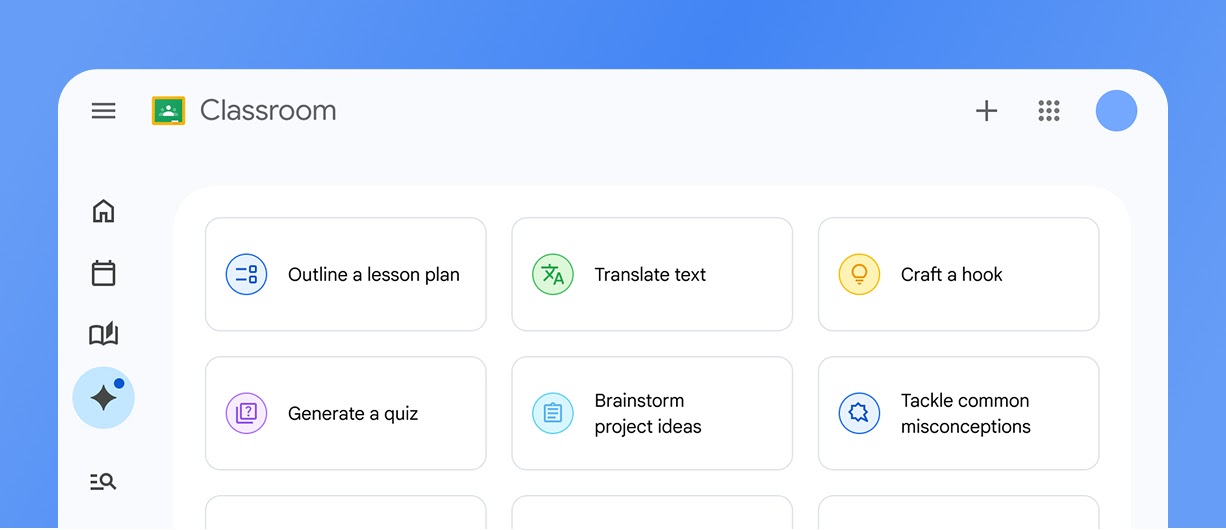
Image source: Google for Education
How to Sign In to Your Google Classroom Account
Logging into Google Classroom is generally straightforward, but account conflicts are the most frequent cause of user frustration. The platform distinguishes strictly between different types of Google identities. To begin, navigate to the official site and enter your credentials. If you are using a school-issued account, it will typically end in
.edu
or a specific school district domain.
School/Workspace Accounts
Issued by an institution. These accounts offer the most robust features, including guardian summaries, advanced originality reports, and integration with school-wide grading systems.
Personal Gmail Accounts
Available to anyone with a standard Google account. While functional for small tutoring groups or clubs, these lack administrative oversight and certain advanced integration features.
A common hurdle is the "Account Toggling" problem. Many users have multiple Google accounts signed in on a single browser. Chrome often defaults to the "Primary" account (usually a personal one), which can lead to an "Access Denied" screen when trying to enter a school classroom. To resolve this, we recommend using Chrome Profiles . By creating a dedicated profile for school work, you isolate the cookies and cache, preventing personal accounts from "hijacking" your educational session. Alternatively, using an Incognito or Private window for school work is a reliable way to bypass these login loops.
How to Fix Common Google Classroom Login Errors
One of the most persistent issues users encounter, particularly on mobile devices, is the "Contact Admin" error. This message often appears even when the username and password are correct. In most cases, this is not a server-side failure but a security protocol requirement. According to technical support data , school Workspace accounts often require a device-level screen lock to be active.
If security settings are not the issue, the problem may lie in the app's local data. For Android users, a deep cache clear often resolves persistent syncing errors. Navigate to Settings > Apps > Manage Apps > Google Classroom > Storage and select Clear All Data . This forces the app to re-authenticate with the Google servers and can fix "Class Not Found" errors that occur despite having a valid invite.
Setting Up the Mobile App on Android and iOS
The mobile experience is a vital component of the modern classroom, allowing students to photograph physical work for submission and receive push notifications for upcoming deadlines. As of August 2026, the system requirements have shifted to ensure compatibility with the latest security patches. The app currently requires Android 8.0+ or iOS 17.0+ to function at full capacity.
While the web version is the primary choice for creating complex rubrics or long-form posts, the mobile app offers unique advantages. For instance, the mobile version allows for offline viewing of previously loaded assignments, which is a significant benefit for students with inconsistent internet access at home. You can download the official versions from the Google Play Store or the Apple App Store.
Image source: Google Play
How to Join a Class as a Student
Joining a class is the first step for any student. There are two primary methods for enrollment, and understanding both ensures you don't miss the first day of instruction. The most common method is the Class Code . This is a 6-7 digit alphanumeric string provided by the teacher. To use it, click the "+" icon on the Classroom homepage and select "Join Class."
The second method is the Email Invitation . Teachers can directly invite students using their school email addresses. In this case, you will receive an email with a "Join" button. Clicking this button automatically enrolls you without the need for a code. Once inside, the "To-do" list becomes your most important tool. It aggregates all assignments across all your classes, categorized by "Assigned," "Missing," and "Done." This bird's-eye view is widely considered one of the most effective ways for students to manage their time.
How to Create and Manage a Class as a Teacher
For educators, Google Classroom acts as a digital headquarters. Setting up a class involves more than just naming it; it requires a strategic approach to organization. When you create a class, Google automatically generates a folder in your Google Drive where all student submissions will be stored. This automated filing system is a major improvement over traditional physical hand-ins.
Teachers should pay close attention to the Stream settings. By default, the Stream allows students to post and comment. In many classroom environments, teachers prefer to restrict this to "Only teachers can post or comment" to keep the focus on announcements. Furthermore, the integration with Google Meet is now a standard feature. Teachers can generate a dedicated video link for each class that remains static, making it easy for students to join virtual sessions without searching for new links every day.
Managing rosters is also simplified through domain-wide syncing. In many districts, classes are pre-populated based on administrative data. However, teachers still have the authority to add co-teachers. This is particularly useful for inclusion classrooms where a general education teacher and a special education teacher need equal access to grade assignments and post materials. According to official Google Support documentation , co-teachers can do almost everything the primary teacher can, except delete the class.
Using Gemini AI to Generate Lesson Ideas and Rubrics
In 2026, the integration of Gemini AI has become a significant advancement for teacher productivity. Gemini can now assist in drafting assignment descriptions and creating detailed grading rubrics. By providing a simple prompt like "Create a rubric for a 10th-grade essay on the industrial revolution," teachers can generate a structured framework that can be imported directly into the Classroom grading tool.
Another notably innovative feature is Practice Sets . This AI-powered tool allows teachers to transform existing content into interactive assignments. As students work through these sets, Gemini provides real-time hints and feedback if they get stuck, acting as a virtual teaching assistant. Furthermore, the Originality Reports feature has been expanded. It now compares student work against a massive database of billions of web pages and over 40 million books, helping maintain academic integrity in the age of generative AI.
How to Organize Your Classwork More Effectively
A common mistake among new users is failing to utilize the "Topics" feature in the Classwork tab. Without topics, the dashboard quickly becomes a cluttered list of files. The standard organization method is to group work by week or by unit (e.g., "Unit 1: Cell Biology"). This allows students to find resources quickly without scrolling through months of history.
For power users, a multi-dimensional organization strategy using #Tags is highly recommended. Since Google Classroom only allows one Topic per assignment, teachers can use hashtags in the assignment title (e.g., "#quiz #unit3") to help students search for specific types of work. This method, combined with the "Practice Sets" mentioned earlier, creates a highly navigable and data-rich learning environment.
What Can Parents and Guardians Actually See?
Privacy is a cornerstone of the Google Classroom experience. It is important to clarify that parents and guardians cannot log in to the Classroom dashboard directly. They do not have access to the Stream or the ability to see other students' work. Instead, they receive Guardian Summaries via email.
These summaries provide a high-level overview of the student's activity, including:
- Missing Work: Assignments that were not turned in by the deadline.
- Upcoming Work: Assignments due today or tomorrow.
- Class Activity: Announcements and recently posted assignments.
This system balances parental involvement with student privacy. Google maintains high standards for data protection, ensuring that student information is never used for advertising purposes. For parents who wish to see the actual work or feedback, the best approach is to sit with the student and have them log in to their account.
Comparing Google Classroom Account Features
The features available to you depend largely on the version of Google Workspace your school uses. While the basic version is free for schools, the "Education Plus" tier offers significantly more power for data analysis and security.
| Feature | Personal Gmail | Workspace Education | Education Plus |
|---|---|---|---|
| Max Class Size | 250 Members | 1,000 Members | 1,000 Members |
| Gemini AI Access | Limited | Standard | Advanced/Priority |
| Originality Reports | None | 5 per class | Unlimited |
| Guardian Summaries | No | Yes | Yes |
| Meet Integration | Standard | Enhanced Security | Premium (Breakouts) |
As shown in the table, the Education Plus tier is a top-tier option for large districts that require unlimited originality reports and advanced Google Meet features like breakout rooms and attendance tracking. However, for the average classroom, the standard Workspace for Education version remains a strong contender that meets almost all pedagogical needs.
Frequently Asked Questions
Key Takeaways for Using Google Classroom Effectively
- Verify your account type before logging in to avoid domain-related access errors.
- Enable a device screen lock (PIN or biometric) on your mobile phone to satisfy school security policies.
- Use the "Assignment" post type for any work that requires a student submission to ensure it appears on To-Do lists.
- Organize by Topics to keep the Classwork tab navigable for students throughout the semester.
- Leverage Gemini AI for drafting rubrics and generating practice sets to save significant administrative time.
- Check the "To-do" list daily if you are a student to stay on top of deadlines across multiple subjects.
- Utilize Chrome Profiles to prevent personal Gmail accounts from interfering with school Workspace sessions.
By implementing these strategies, you can ensure a smoother, more productive digital learning experience for the entire academic year.
All trademarks and copyrighted content referenced in this article belong to their respective owners. Brief excerpts and references are used for informational reporting and educational purposes. This article is not affiliated with or endorsed by Google LLC.