Home
Home
How to Sign In and Use Google Classroom Without Errors
To access Google Classroom , navigate to classroom.google.com or download the official app from the Google Play Store or Apple App Store . For a successful login, you must use your school-issued email address (e.g., student@school.edu ). If you encounter an "Access Denied" error, ensure you are not signed into a personal @gmail.com account, as most school domains restrict access to authorized Workspace users only.
Accessing Your Google Classroom Account Today
Google Classroom serves as the central hub for the Google Workspace for Education ecosystem, connecting millions of students and educators worldwide. As of late 2026, the platform has evolved from a simple file repository into a sophisticated interactive learning environment. Accessing the platform is straightforward, but requires specific credentials provided by an educational institution.
Open your web browser and go to the official URL. If you are using a shared computer, ensure no other Google accounts are currently active to prevent login conflicts.
Input your full school email address. This is typically managed via Google Workspace, meaning your password will be the same one used for school Gmail or Drive access.
First-time users will be asked to identify as a "Student" or "Teacher." This selection is critical as it determines your interface permissions and cannot be easily changed without administrator intervention.
For mobile users, the 2026 version of the app requires Android 8.0 or higher and iOS 17.0 or higher . These requirements ensure that the latest security protocols and AI-driven features, such as Gemini integration, function correctly. According to Google Support , using the most recent version of the app is essential for maintaining synchronization with offline documents.
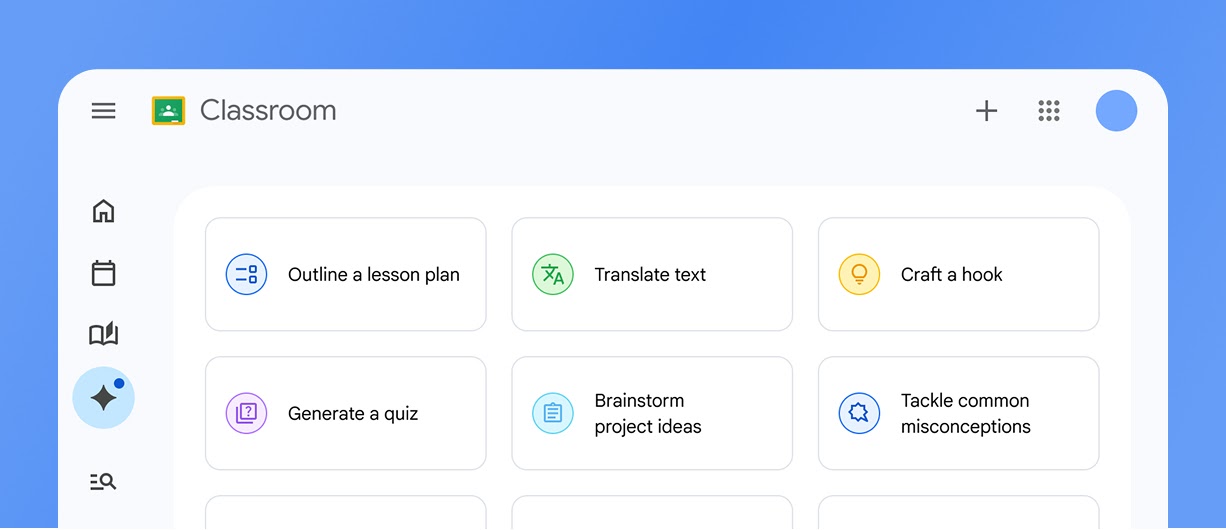
Image source: Google for Education
Common Reasons for Google Classroom Login Failures
Despite its high reliability—boasting a 99% uptime—users frequently encounter hurdles when searching for "google clasroom" or attempting to log in. Most of these issues stem from account management rather than platform instability.
The Access Denied and Domain Admin Errors
The most frequent issue is the "Access Denied" screen. This happens because Google browsers often default to a personal Gmail account. If your school uses a private domain, your personal account will not have permission to view the class materials. To fix this, click your profile icon in the top-right corner and select your school account. If it isn't listed, choose "Add another account."
Mobile users often face the "Domain Admin" error. This is a security feature where the school's Mobile Device Management (MDM) policy requires the device to have a screen lock. If your phone does not have a PIN, pattern, or biometric lock (like FaceID), the school account will refuse to sync to protect sensitive student data.
In households with multiple students sharing one computer, avoid logging in and out constantly. Instead, create separate Chrome Profiles for each child. This keeps their school accounts, bookmarks, and saved passwords completely isolated, preventing the "Account Conflict Loop" where one student's work is accidentally saved to another's Drive.
Clearing App Data for Mobile Fixes
If the mobile app hangs on a white screen or fails to refresh the "Stream," a simple restart may not be enough. You may need to clear the application cache. On Android, navigate to Settings > Apps > Google Classroom > Storage > Clear Data . On iOS, you may need to offload and reinstall the app to clear corrupted temporary files. This process does not delete your assignments, as all data is stored securely in the cloud.
Joining a Class and Locating Your Code
Once logged in, students must connect to their specific subjects. There are three primary methods to join a class, each designed to accommodate different classroom environments.
- Class Codes: The teacher provides a 6-7 digit alphanumeric code. Students click the "+" icon on the Classroom homepage and select "Join Class" to enter it.
- Email Invitations: Teachers can invite students directly via the "People" tab. The student simply clicks "Join" within the automated email.
- Direct Links: A unique URL can be shared via chat or school portals that automatically enrolls the student upon clicking.
If a code is reported as "Invalid," first verify that you are logged into your school account. Codes are domain-specific; a code generated by a school Workspace account will not work for a user logged into a personal @gmail.com account. Additionally, teachers have the authority to deactivate codes once all students have joined to prevent unauthorized access, so you may need to request a new invite link if you are joining late in the semester.
New Features for Teachers in the 2026 Academic Year
The 2024-2026 update cycle has introduced several tools that significantly improve workflow efficiency. These updates move beyond basic file sharing to provide more granular control over the learning experience.
Persistent Student Groups
One of the most requested features, persistent student groups, allows teachers to define small groups (e.g., "Reading Group A" or "Project Team 1") once and reuse them across multiple assignments. Previously, teachers had to manually select individual students for every differentiated task. Now, you can simply select the group name from a dropdown menu, saving hours of administrative time over a school year.
The Excused Grade Toggle
Managing student absences or modified curriculums is now easier with the "Excused" grade option. By clicking the three-dot menu next to a student's grade in the Gradebook, teachers can mark an assignment as excused. This excludes the item from the student's overall GPA calculation and, crucially, syncs this status with most major Student Information Systems (SIS). This ensures that parents and administrators see an accurate representation of the student's progress without manual spreadsheet adjustments.
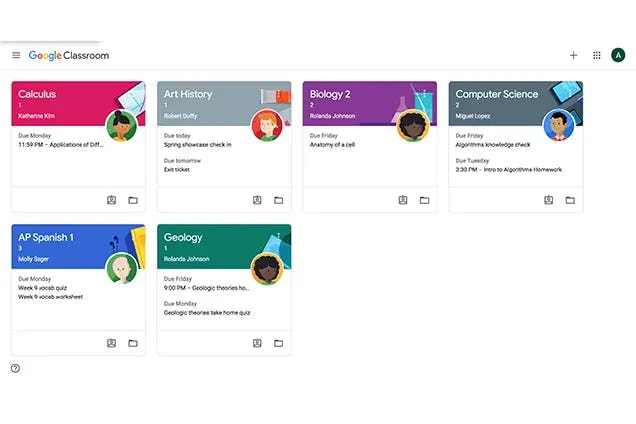
Image source: GetApp Australia
Leveraging Gemini AI for Enhanced Lesson Building
Google has integrated its Gemini AI directly into the Classroom interface, providing educators with a powerful assistant for content creation and student support. This integration is a significant advancement in how digital platforms assist in the pedagogical process.
Interactive Practice Sets
Practice Sets allow teachers to transform static PDFs or Google Forms into interactive assignments. When a student struggles with a specific problem, the AI identifies the concept and provides a "hint" or a relevant YouTube explainer video. This provides immediate scaffolding for students working at home, reducing the "bottleneck" where a student stops working because they are stuck on a single step. Teachers receive detailed analytics showing which problems the class found most difficult, allowing for targeted review in the next lesson.
Gemini for Educators
Within the assignment creator, Gemini can now assist in drafting lesson plans, generating quiz questions based on a provided text, and simplifying complex instructions for younger learners or ESL students. According to Google for Education , these tools are designed to augment the teacher's expertise, not replace it, by handling the time-consuming "first draft" of instructional materials.
Mobile Features for Classroom Management
While the web version is a top choice for heavy grading, the mobile app contains several "hidden" tools that are exceptionally strong for active classroom management. These features are often overlooked by users who only use the platform for submitting work.
The Random Student Selector: Found in the "People" tab on the mobile app, this tool (often called the "Popsicle Stick" tool) ensures equitable participation. It randomly selects a student to answer a question and tracks who has been called on, who was absent, and who needs to be "called later." This data is stored locally to help teachers ensure they aren't unintentionally favoring certain students during discussions.
Mobile Annotations: For teachers using tablets with a stylus, the mobile app allows for direct handwriting on student submissions. You can circle errors, draw diagrams, and write margin notes just as you would on a paper essay. These annotations are saved as a PDF overlay, providing students with rich, personalized feedback that is often more impactful than typed comments.
Comparing Personal Accounts and School Workspace Accounts
It is important to understand that Google Classroom behaves differently depending on the type of account you use. While the core interface remains similar, the administrative and security features vary significantly.
| Feature | Google Workspace (School) | Personal Google Account |
|---|---|---|
| Guardian Summaries | Yes - Automated email updates | No |
| SIS Syncing | Yes - Syncs with school grades | No |
| Originality Reports | Unlimited for most tiers | Limited to 5 per class |
| Storage Limits | Pooled institutional storage | 15GB (shared with Gmail/Photos) |
| Security | Admin-controlled domain | User-managed |
For most users, the Workspace for Education account is a superior option because it includes Originality Reports . This tool compares student work against 40 million books and billions of web pages to ensure academic integrity. In the personal version, this feature is strictly limited, making it less suitable for formal academic environments.
Security and Privacy Standards for Students
Privacy is a primary concern for parents and educators alike. Google Classroom is built on a foundation of data protection that distinguishes it from consumer-facing social media platforms. The platform contains no advertisements, and student data is never used for advertising profiles.
Guardian Access: A common misconception is that parents can log into their child's classroom. For privacy reasons, parents are instead invited to receive "Guardian Summaries." These are daily or weekly emails that outline missing work, upcoming deadlines, and teacher announcements. This allows parents to stay informed without compromising the student's direct interaction with their peers and teacher.
Furthermore, Google Classroom complies with major international privacy standards, including COPPA and GDPR. All uploaded files are stored in Google Drive, which uses industry-standard encryption both in transit and at rest. As noted by Wikipedia , the platform's rapid adoption during the early 2020s was largely due to its ability to provide a secure, scalable environment for remote learning.
Key Takeaways for Using Google Classroom
To get started, log in to your dashboard and archive any old classes from previous semesters to keep your workspace organized and efficient.
Frequently Asked Questions