Home
Home
How to Choose and Use a Leading INI File Editor for Your Needs
In the modern landscape of software development, formats like JSON, XML, and YAML often dominate the conversation. However, the humble INI file remains a cornerstone of configuration management. Whether you are a gamer trying to unlock a hidden resolution setting, a system administrator deploying software, or a developer managing environment variables, having a reliable ini file editor is essential. This guide explores the landscape of these tools, addressing technical hurdles like UAC permissions and cross-platform workflows that are often overlooked.
What Is an INI File and Why Do You Still Need to Edit Them?
The INI (Initialization) file format is one of the oldest configuration standards in the computing world. Introduced with Windows 3.0 in 1990, it served as the primary method for applications to store settings before the Windows Registry became the centralized hub for such data. According to Advanced Installer , while the Registry and modern formats have taken over many roles, INI files persist because of their simplicity and human-readability.
Today, you will find INI files in various environments. They are frequently used in PC gaming to store user preferences, in web development as
.env
files for sensitive credentials, and in legacy enterprise software. Their flat structure makes them easy to parse without the overhead of complex libraries required for XML or JSON.
The Anatomy of the File
Understanding the structure of an INI file is the first step toward editing it safely. The format is remarkably consistent, consisting of three primary elements:
- [Sections]
-
These are headers enclosed in square brackets. They act as containers to group related settings together. For example, a
[Graphics]section might contain all display-related keys. - Properties (Key=Value)
-
This is the core data. A "Key" is the name of the setting, and the "Value" is the data assigned to it. For example,
Resolution=1920x1080. - Comments
-
Comments are used to explain what a setting does. Traditionally, they begin with a semicolon (
;), though some modern parsers also support the hash (#) symbol. Anything following these characters on a line is ignored by the program.
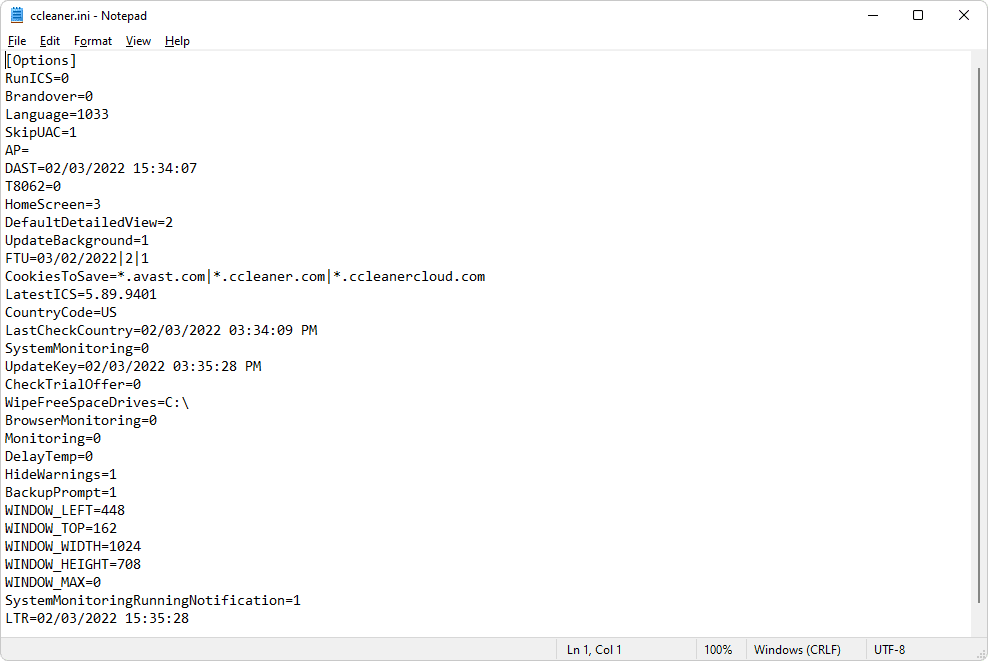
Image source: Lifewire
Top INI File Editors for Windows Users
Windows users have the widest variety of tools available, ranging from basic built-in utilities to specialized development environments. Choosing the right one depends on whether you are performing a quick fix or managing complex configuration sets.
Notepad (The Quick Fix)
Windows Notepad is the most accessible ini file editor . Because INI files are plain text, Notepad can open them without any special configuration. It is ideal for one-off changes where you don't want to install additional software. However, it lacks syntax highlighting, which can make large files difficult to navigate. If you are editing a file with hundreds of lines, the lack of visual distinction between sections and keys can lead to errors.
Notepad++ (The Power User Choice)
Notepad++ is widely regarded as one of the strongest options for Windows users. By navigating to
Language > I > INI
, you can enable syntax highlighting that color-codes sections, keys, and comments. This visual aid is a significant advancement over plain text editors, as it helps prevent accidental syntax errors. Additionally, Notepad++ supports "Find and Replace" across multiple files, which is invaluable for system administrators.
Specialized Tools and IDEs
For those who prefer a dedicated interface, tools like "Ini Editor" available on SourceForge provide a tree-view of sections, making navigation even faster. Developers, on the other hand, often stick to VS Code or Sublime Text. These tools offer "dotted key" support and advanced formatting plugins that can normalize spacing around the equals sign, ensuring the file remains clean and readable for version control systems like Git.
| Tool Name | Platform | Syntax Highlighting | Key Feature | Price |
|---|---|---|---|---|
| Notepad | Windows | No | Pre-installed | Free |
| Notepad++ | Windows | Yes | Plugin Support | Free |
| Sublime Text | Win/Mac/Linux | Yes | Multiple Cursors | Paid/Trial |
| Ini Editor | Windows | Yes | Tree-view Navigation | Free |
How to Edit INI Files on Android Devices
Mobile configuration management has become increasingly common, particularly among the gaming community and power users who tweak system settings. Android's open file system allows for direct manipulation of application data, provided you have the right tools.
The "INI File Editor: File Opener" available on Google Play is a popular choice for mobile users. It offers a clean interface for viewing and editing, and it even includes a feature to convert INI data into PDF format for documentation purposes. Another notable mention is the Coobbi INI Opener, which focuses on a lightweight, no-frills experience for quick edits.
/Android/data/[package.name]/files/
. Note that on newer versions of Android (11 and above), you may need a specialized file manager with "All Files Access" permissions to reach these directories.
Are Online INI Editors Safe for Sensitive Configuration Files?
Online tools like Encode64 and FlipperFile offer the convenience of formatting and viewing INI files without installing software. These tools are excellent for normalizing spacing or converting INI data to JSON for web applications. However, they come with a significant security caveat.
Many INI-formatted files, specifically
.env
files used in development, contain highly sensitive information such as API keys, database passwords, and secret tokens. While some online tools claim to process data entirely on the client side (meaning the data never leaves your browser), there is always a residual risk. As noted by security experts, highly sensitive configuration should ideally stay in local tooling to prevent accidental data exposure. If you must use an online tool, ensure it is for non-sensitive data like game settings or UI configurations.
How to Fix Common INI Editing Errors and Access Denied Issues
One of the most frustrating hurdles when using an
ini file editor
is the "Access Denied" error. This typically happens when you try to save a file located in a protected system folder, such as
C:\Program Files
or
C:\Windows
. This is a result of User Account Control (UAC), a security feature designed to prevent unauthorized changes to the operating system.
The Administrator Workflow
To bypass UAC restrictions, you cannot simply open the file and click save. Instead, follow this workflow:
- Search for your editor (e.g., Notepad or Notepad++) in the Start menu.
- Right-click the application icon and select "Run as Administrator."
-
Once the editor is open, use
File > Opento navigate to the INI file. - Make your changes and save. The elevated permissions will allow the editor to overwrite the protected file.
The "Desktop Shuffle" Method
If you find the Administrator workflow cumbersome, you can use the "Desktop Shuffle." Copy the INI file from its original folder and paste it onto your Desktop. Edit the file on your Desktop (where you have full permissions), save it, and then drag it back to the original folder. Windows will prompt you for a single administrative confirmation to overwrite the file, which is often easier for casual users.
"When a program fails to launch after an edit, it is often due to a corrupted configuration. A reliable strategy is to rename the existing INI to
.old
. This forces the application to generate a fresh default file upon the next launch." —
Technical Insight from Imatest Documentation.
Advanced Tips for Gaming and System Administration
For those using an
ini file editor
in professional or high-performance contexts, basic editing is just the beginning. In the gaming world, INI tweaks are a staple for improving the experience of older titles. Users often modify keys like
FOV
(Field of View),
bBorderlessWindow
, or
iPresentInterval
(to toggle VSync) to achieve performance levels that the in-game menus don't allow.
Automation with WiseScript
System administrators often need to modify INI files across hundreds of machines simultaneously. Tools like WiseScript allow for precise modification during software deployment. According to the
Broadcom Community
, scripting allows you to delete specific keys by leaving the value blank (
KeyName=
) or even remove entire sections. This level of automation ensures consistency across an enterprise environment that manual editing could never match.
Version Control Best Practices
If you are a developer managing
.env
files, pay close attention to line endings. Windows uses
CRLF
(Carriage Return Line Feed), while Linux and macOS use
LF
(Line Feed). Mixing these in a shared repository can create "diff noise," making it hard to see actual configuration changes. Most top-rated editors allow you to normalize these line endings to a single standard, which is a significant step forward for team collaboration.
config.ini.bak
) before making changes.
;
) to comment out old values rather than deleting them.
=
sign unless the specific application requires it.
Frequently Asked Questions
Can I open and edit an INI file in Microsoft Excel?
Yes, you can import an INI file into Excel as a text file. However, Excel is not a recommended ini file editor because it may struggle to maintain the specific bracketed section structure when saving. If you use Excel to view the data, it is best to export it back to a plain text editor like Notepad++ to ensure the syntax remains intact before using it with an application.
What is the maximum size limit for an INI file?
In legacy Windows environments, the
GetPrivateProfileString
API had a limit of 32KB for INI files. While modern applications and editors can handle files much larger (often up to several megabytes), keeping INI files small is a best practice for performance. If a configuration file exceeds 5MB, it may be a sign that the data should be stored in a database or a more robust format like JSON.
Is there a difference between .ini and .cfg files?
Functionally, there is often no difference. Both extensions are used for configuration files, and many
.cfg
files follow the exact same
[Section] Key=Value
syntax as INI files. You can use the same editors for both. The choice of extension usually depends on the developer's preference or the specific software's requirements.
Why does my program overwrite my INI changes every time I close it?
This happens because many applications load the INI file into memory when they start and only write back to the file when they close. If you edit the file while the program is running, the program will overwrite your manual changes with its cached settings upon exit. Always close the application completely before using an ini file editor .
How do I add a comment that won't be deleted by the program?
Use a semicolon (
;
) at the very beginning of the line. Most well-behaved applications will ignore these lines and preserve them. However, some poorly coded applications may strip comments when they rewrite the file. If your comments are being deleted, it is a limitation of the software's internal parser rather than the editor you are using.
The Bottom Line on Managing Configuration Files
Managing INI files effectively requires a balance between using the right tools and understanding the underlying system permissions. Whether you are performing a simple tweak or managing an enterprise deployment, these takeaways will ensure your configurations remain stable and secure.
- Choose the right tool for the job: Notepad for speed, Notepad++ for clarity, and specialized mobile apps for on-the-go tweaks.
-
Prioritize security
by keeping sensitive
.envfiles away from online formatters and using local editors instead. - Master UAC permissions by running your editor as an Administrator to avoid the common "Access Denied" save errors.
- Leverage syntax highlighting to reduce human error, especially when dealing with large configuration sets or legacy software.
-
Always backup
your original files before editing; a simple
.bakextension can save hours of troubleshooting if a setting goes wrong. - Understand the syntax of sections, keys, and comments to ensure your changes are correctly parsed by the application.
- Normalize your environment by checking line endings (CRLF vs LF) to maintain clean version control history.
Start by downloading a dedicated editor like Notepad++ to see how syntax highlighting can immediately clarify your most complex configuration files.