Home
Home
How to Edit a JAR File Using Leading JAR Editors and Tools
To edit a JAR file, you must understand that it is a compressed archive containing compiled Java bytecode. For
simple text or message changes
, use a
Jar String Editor
to modify the constant pool without decompiling. For
logic changes
, you must unpack the JAR, use a decompiler like
CFR
or
Fernflower
to turn bytecode back into source code, edit the
.java
files, and then recompile and repack the archive using the
jar
command-line tool.
Java Archive (JAR) files are the backbone of the Java ecosystem, serving as the primary format for distributing libraries, applications, and Minecraft mods. However, unlike a standard text document or a configuration file, a JAR is not designed for direct editing. It is a binary format containing compiled
.class
files that are unreadable to standard text editors.
In this guide, we will explore the methodologies required to modify these files safely. Whether you are a Minecraft administrator looking to translate plugin messages or a developer needing to patch a legacy library, choosing the right jar editor workflow is essential to avoid corrupting the archive or triggering runtime errors.
How to Choose the Right JAR Editor for Your Task
The first step in editing a JAR is determining the scope of your changes. Not every modification requires a full decompile-recompile cycle, which is often prone to errors. By matching your specific needs to the appropriate tool, you can save hours of troubleshooting.
Understanding the Different Types of JAR Editing Tools
There are three primary categories of tools used to interact with JAR files:
- String Editors: These tools target the "constant pool" within the bytecode. They allow you to change hard-coded strings (like error messages or URLs) without touching the actual logic. This is widely considered a top choice for Minecraft modders.
- Decompilers & IDEs: For logic changes, you need to see the source code. Tools like JD-GUI or IntelliJ IDEA's built-in Fernflower engine translate bytecode back into readable Java.
- Online JAR Editors: Web-based tools like JAR Tools provide a quick way to view and modify files without installing local software, though they come with security considerations.
Comparison Matrix for JAR Editing Solutions
| Tool Category | Best For | Difficulty | Java Version Support |
|---|---|---|---|
| String Editor | Minecraft plugins, UI text | Low | Universal |
| CFR Decompiler | Modern Java (14+) features | Medium | High (Java 17+) |
| VS Code + JarEditor | Rapid local development | Medium | Dependent on JDK |
| IntelliJ IDEA | Complex logic patching | High | All Versions |
How to Edit a JAR File Without Decompiling Using a String Editor
If your goal is to change a specific message, a "String Editor" is a highly effective tool. This method bypasses the most difficult part of Java modification: recompilation. When you recompile a JAR, you must ensure you are using the exact same Java version and dependencies as the original developer, or the file will fail to run.
The Benefits of Modifying the Constant Pool
Every
.class
file contains a constant pool—a table of literal values used in the code. A string editor allows you to swap one literal for another of the same type. Because you aren't changing the structure of the code, the risk of breaking the JAR is significantly lower. This method is exceptionally strong for localizing software or changing hard-coded configuration values.
Step-by-Step Guide for Minecraft Plugin Tweaks
- Upload the JAR: Open your string editor of choice and load the plugin file.
- Search for Strings: Use the search function to find the specific text you want to change (e.g., "You do not have permission").
- Apply Changes: Type the new text into the replacement field.
- Save and Repack: The tool will generate a new JAR file with the modified constant pool.
The Professional 4-Step Workflow to Edit and Recompile a JAR
When you need to change how a program functions—such as fixing a bug or adding a new feature—you must follow the full development lifecycle. This process is more complex but offers total control over the application.
Step 1: Unpacking the Archive Safely
A JAR file is technically a ZIP archive with a specific internal structure. You can use standard tools like 7-Zip or WinRAR to extract the contents. However, using the command line is often more reliable for maintaining file permissions:
jar xf your-file.jar
This command extracts all files into the current directory. Pay close attention to the
META-INF
folder, which contains the manifest file—the most critical component for making the JAR executable.
Step 2: Choosing a Decompiler Engine (CFR vs. Fernflower)
Once extracted, you will see
.class
files. To edit them, you must decompile them into
.java
files. In recent years,
CFR
has emerged as a leading choice because it handles modern Java features like lambdas and switch expressions better than older tools like JD-GUI.
Fernflower
, used by JetBrains, is widely regarded as one of the most analytically accurate decompilers available today.
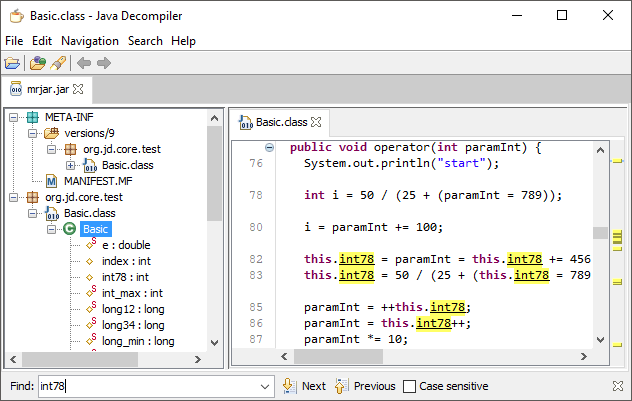
Image source: java-decompiler.github.io
Step 3: Modifying the Source and Handling Dependencies
After decompiling, you can open the
.java
files in any text editor. However, this is where most users fail. If the JAR relies on external libraries (dependencies), you must have those libraries present on your
classpath
during recompilation. If you are editing a Minecraft plugin, you will likely need the Spigot or Paper API JARs available locally.
Step 4: Recompiling and Repacking the JAR
Once your edits are complete, use the
javac
command to turn the
.java
files back into
.class
files. Finally, repack the archive. A common mistake is forgetting to include the original manifest. Use this template to ensure success:
jar cmf META-INF/MANIFEST.MF modified-file.jar -C bin/ .
This command tells the JAR tool to use the existing manifest and include all files from the
bin
directory.
How to Edit JAR Files Directly in VS Code or IntelliJ IDEA
For developers who prefer a graphical interface, modern IDEs offer extensions that automate the unpack-edit-repack cycle. This is a significant advancement over manual command-line workflows.
Using the JarEditor Extension in VS Code
The
JarEditor extension
for Visual Studio Code allows you to open a JAR file as if it were a folder. When you click a
.class
file, the extension decompiles it on the fly. When you save your changes, the extension handles the recompilation and updates the archive in the background. This ranks among the top methods for quick patches because it minimizes the risk of manual errors during the repacking phase.
Leveraging IntelliJ IDEA’s Built-in Fernflower Decompiler
IntelliJ IDEA provides a top-tier experience for viewing JAR contents. By simply dragging a JAR into the project view, you can browse the decompiled source. While IntelliJ doesn't support "direct" editing of the JAR archive, you can "Attach Sources" or create a new project using the decompiled code to perform complex refactoring. This is a popular choice for professional developers who need to understand deep logic before making a change.
Why Your Edited JAR File Won't Launch and How to Fix It
It is common to encounter errors after editing a JAR. Most of these issues stem from the metadata or the environment rather than the code itself. Understanding these pitfalls is essential for any successful modification.
Solving the Manifest Mystery and Main-Class Errors
The
MANIFEST.MF
file located in the
META-INF
folder tells the Java Virtual Machine (JVM) which class contains the
main
method. If you repack the JAR and lose this file, or if the file is formatted incorrectly, you will receive a "Could not find or load main class" error. Always verify that the
Main-Class: com.example.Main
attribute is present and that there is a blank line at the end of the file.
Addressing Version Mismatch and LinkageError Issues
Java is generally backward compatible but not forward compatible. If you recompile a JAR using Java 21, but the server running the JAR only has Java 8 installed, you will encounter a
java.lang.UnsupportedClassVersionError
. According to community wisdom on StackOverflow, this is the most frequent cause of failure for edited Minecraft plugins. Always check the target version using
javap -v ClassName.class
before you begin your work.
Is It Safe to Use an Online JAR Editor?
Online tools offer convenience, but they introduce significant security risks. When you upload a JAR to a web-based jar editor , you are sending your compiled code to a third-party server. For open-source Minecraft mods, this may be acceptable, but for proprietary business logic or applications containing sensitive API keys, it is a risk that should be avoided.
Evaluating Privacy and Data Retention Policies
Before using an online tool, check their data retention policy. Some tools store uploaded files for debugging or analysis. If your JAR contains intellectual property, a local workflow using VS Code or IntelliJ is a much safer alternative. For one-off, non-sensitive edits, online tools like JAR Tools provide a remarkably smooth user experience, but they should be used with caution.
Frequently Asked Questions
Can I edit a .class file directly in Notepad?
.class
file is a binary format. Opening it in a text editor like Notepad will display garbled characters and, if you attempt to save it, you will likely corrupt the binary structure, making the file unrunnable. You must use a decompiler or a dedicated bytecode editor.
What is the top JAR editor for Minecraft plugins?
How do I find the Java version of a JAR file?
javap
tool included with the JDK. Run the command
javap -v FileName.class | findstr "major"
. A major version of 52 corresponds to Java 8, while 61 corresponds to Java 17.
Why are variable names missing after I decompile a JAR?
-g
flag), the decompiler has to guess the names, often resulting in
var1
,
var2
, etc.
Is there a free JAR editor for macOS or Linux?
jar
and
javac
tools are also available on all major operating systems.
Key Takeaways
- Identify your goal: Use a String Editor for text changes and a full Decompiler for logic changes.
- Backup everything: Always keep a copy of the original JAR before attempting any modifications.
-
Check Java versions:
Ensure your
javaccompiler version matches the target environment to avoidLinkageError. -
Protect the Manifest:
The
META-INF/MANIFEST.MFfile is essential for executable JARs; never lose it during the repacking process. - Prioritize security: Use local IDE tools for sensitive or proprietary code instead of online editors.
- Use modern decompilers: Choose CFR or Fernflower for the most accurate representation of modern Java code.
By following these structured workflows, you can successfully modify Java archives while maintaining the stability and security of your applications.
All trademarks and copyrighted content referenced in this article belong to their respective owners. This guide is for informational purposes only.