Home
Home
How to Choose and Use an SRT File Editor to Fix Subtitles Fast
An SRT file editor is essential for correcting subtitle timing, fixing text errors, and ensuring compatibility with media players like Plex. For quick, no-install fixes, Captioner.io offers excellent privacy, while Subtitle Edit (Nikse) stands out as a top choice for Windows users needing advanced synchronization and merging features. Always ensure your files are saved in UTF-8 encoding to prevent display issues on smart TVs and streaming platforms.
What Is an SRT File Editor and Why Do You Need One?
The SubRip Subtitle (SRT) format is the most widely supported subtitle format in the digital video landscape. At its core, an SRT file is a simple text document containing four components: the sequence number, the start and end timecodes (formatted as
hours:minutes:seconds,milliseconds
), the subtitle text, and a blank line indicating the end of the entry. While you can technically open these files in basic text editors like Notepad or TextEdit, doing so is often inefficient and prone to errors.
Dedicated SRT editors provide a layer of validation that basic text editors lack. According to technical documentation, basic editors do not verify timestamp logic, meaning a user could accidentally set an end time that occurs before a start time, causing the subtitle to vanish or crash the media player. Furthermore, professional editors offer real-time video previews, allowing you to see exactly how the text overlays on the footage as you make adjustments.
Another critical reason to use a specialized tool is encoding management. Many generic text editors default to ANSI or local system encoding. When these files are loaded into modern media servers like Plex, they often result in "unknown language" errors or garbled characters. A dedicated SRT file editor ensures the file is saved with the correct Byte Order Mark (BOM) and UTF-8 encoding, which is the industry standard for cross-platform compatibility.
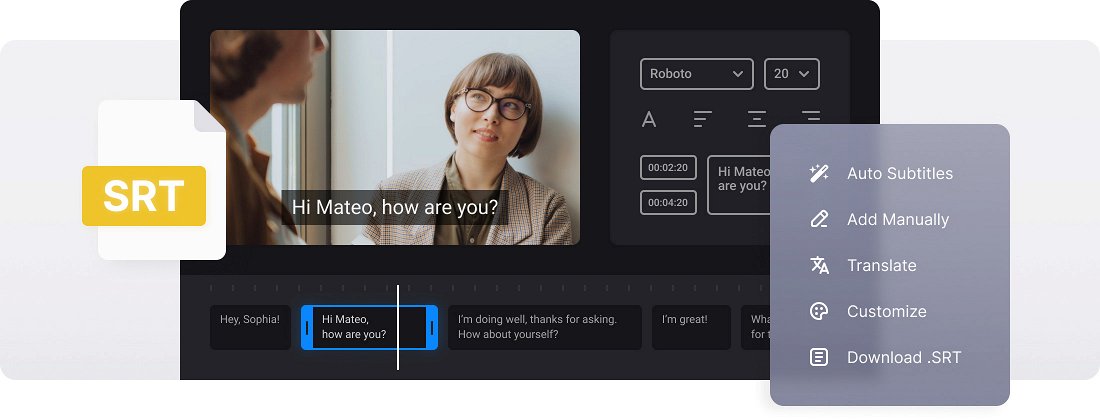
Image source: Clideo
Best Online SRT Editors for Quick Fixes Without an Account
For many users, installing heavy software for a one-time subtitle correction is unnecessary. Browser-based tools have evolved significantly, offering features that rival desktop applications. These tools are particularly useful for social media managers and casual viewers who need to fix a drifting subtitle track quickly.
Happy Scribe for AI-Assisted Transcription
Happy Scribe ranks among the top options for users who need to generate subtitles from scratch or clean up messy AI transcripts. Their editor features a side-by-side view of the video and the text blocks. While AI-generated subtitles typically hover around 85% accuracy, Happy Scribe's interface makes it easy to reach the 99% accuracy threshold required for professional use by highlighting low-confidence words.
Editsub for Browser-Based Text Tweaks
If your primary goal is to change the text without touching the timing, Editsub is a highly recommended choice. It is a lightweight, no-signup tool that allows you to upload an SRT file and edit the text in a grid format. It is particularly effective for correcting spelling errors or changing character names across an entire film using its find-and-replace function.
Captioner.io for Enhanced Privacy
Privacy is a major concern when working with unreleased or sensitive video content. Captioner.io stands out for its local browser processing. Unlike many other online tools that upload your video to a remote server, Captioner.io processes the data locally on your machine. This ensures that your video never leaves your device, making it a top-tier option for corporate or private projects.
| Tool Name | Price | Privacy Level | AI Features | Video Preview |
|---|---|---|---|---|
| Happy Scribe | Freemium | Standard (Cloud) | High (Auto-transcribe) | Yes |
| Editsub | Free | Standard (Cloud) | None | No |
| Captioner.io | Free | High (Local) | Minimal | Yes |
Professional Desktop Software for Power Users and Complex Projects
When dealing with complex issues like frame rate drift or bulk merging of files, desktop software offers a level of control that web tools cannot match. These programs are designed for power users who need to manage thousands of lines of dialogue with millisecond precision.
Subtitle Edit (Nikse) as the Industry Standard
Widely regarded as one of the best free, open-source tools available, Subtitle Edit by Nikse is the community favorite for Windows users. It offers a comprehensive suite of features, including visual sync, auto-translation via Google Translate or DeepL, and a robust OCR (Optical Character Recognition) engine for converting image-based subtitles (like those on DVDs) into text-based SRT files. Its "Gold Standard" status in communities like r/VideoEditing is well-earned due to its frequent updates and deep technical capabilities.
Subtitle-editor.org for Linux and Waveform Editing
For Linux users, Subtitle-editor.org provides a notably innovative approach to timing. It utilizes audio waveforms to help users "see" the sound. By identifying the peaks in the audio track, editors can snap subtitle start times exactly to the moment a person begins speaking. This method is significantly faster than the traditional "listen and press a button" approach used in older software.
How to Edit SRT Files on Android and iOS Devices
Mobile creators often need to adjust subtitles directly on their phones before uploading to platforms like TikTok or Instagram. While the small screen makes precision difficult, several apps have optimized the experience for touch interfaces. SRT File Maker is a popular choice on Android, offering a simplified timeline where users can drag subtitle blocks to adjust their duration.
On iOS, the workflow often involves using cloud-based editors through the Safari browser, though dedicated apps like Subtitle Pro offer offline capabilities. The key challenge on mobile is the export process; creators must ensure that the mobile editor doesn't strip the UTF-8 encoding, which can happen when sharing files through certain messaging apps that compress data.
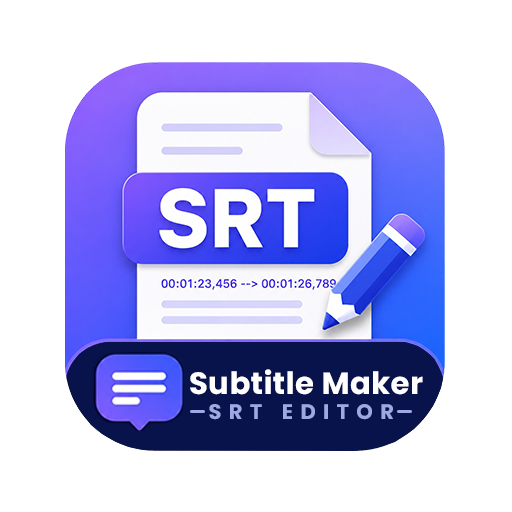
Image source: Google Play
How to Fix the Logic Problem When Merging Subtitle Entries
One of the most common technical hurdles users face is merging two separate subtitle entries into one. This often happens when a single sentence is split across two blocks, making it difficult for the viewer to read. Manually editing this in Notepad is a nightmare because it requires recalculating the end time of the first block to match the end time of the second block, then deleting the second block entirely.
Professional editors solve this logic problem with a single click. In Subtitle Edit, for example, you can highlight two rows and use the "Merge Lines" command. The software automatically combines the text and sets the new duration to cover the entire span of both original entries. This ensures that the flow of dialogue remains natural and that no gaps appear in the subtitle sequence.
Visual Syncing Techniques Using Audio Waveforms
Visual syncing is a significant advancement over manual timestamp entry. By generating a waveform of the video's audio, you can visually align the subtitle blocks with the spikes in sound that represent speech. This is particularly useful for fixing "drift," where subtitles slowly fall out of sync over the course of a long movie.
A popular technique is the Two-Point Sync . You align the very first subtitle with the first spoken word, then jump to the end of the film and align the final subtitle with the last spoken word. The editor then calculates the linear offset for every subtitle in between, effectively fixing the sync for the entire video in under two minutes. This method is exceptionally strong for correcting files that were created for a different frame rate (e.g., converting a 25fps subtitle to work with a 23.976fps video).
Troubleshooting Common Subtitle Errors in Plex and Media Players
Even a perfectly timed SRT file can fail to work if it doesn't meet the specific requirements of your media player. Plex, in particular, is notorious for being picky about file naming and encoding.
Solving the Encoding and Naming Crisis
According to Plex community experts , the most frequent cause of subtitles not appearing is incorrect naming. Plex requires a specific format to recognize external subtitles. The file should be named exactly like the video file, followed by the language code. For example:
-
Video:
Gladiator (2000).mkv -
Subtitle:
Gladiator (2000).en.srt
Furthermore, if your subtitles show strange symbols (like "é" instead of "é"), the file is likely saved in Western European (Windows-1252) instead of UTF-8 . To fix this, open your SRT file editor, go to "Save As," and ensure the encoding dropdown is set to "UTF-8" or "UTF-8 with BOM."
Video Playback and Codec Workarounds
If your editor crashes when loading a video, it is usually a codec conflict. Modern video formats like H.265 (HEVC) require specific decoders that aren't always included in Windows by default. As mentioned in the Subtitle Edit help files , switching your video player to the "MPV" setting within the software options is a highly impactful fix, as MPV includes its own internal codecs and rarely relies on system-wide drivers.
Professional Standards for Readability and Timing
Creating subtitles isn't just about accuracy; it's about readability. Professional organizations like Netflix and the BBC have strict standards to ensure viewers aren't overwhelmed by text. When using an SRT file editor, you should keep two metrics in mind:
- Characters Per Second (CPS): Most experts recommend a limit of 15 to 20 characters per second. If a subtitle has too much text for its duration, the viewer won't have time to process it. Modern editors like Happy Scribe will flag rows that exceed this limit in red.
- Characters Per Line (CPL): To prevent the text from covering too much of the screen, keep each line under 42 characters. If a line is longer, use your editor to insert a line break or split the entry into two separate cues.
- Minimum Duration: A subtitle should stay on screen for at least 1 second, even if it's just a one-word response like "Yes." Anything shorter is perceived as a flicker by the human eye.
Frequently Asked Questions
How do I edit an SRT file without changing the timestamps?
To edit only the text, you can use a simple grid-based editor like Editsub or even a standard text editor like Notepad. In a dedicated SRT file editor, look for a "Text Only" or "List View" mode. This allows you to click into the text field and type your changes while the start and end times remain locked. This is a popular choice for correcting typos in a file that is already perfectly synced.
What is a top-rated free SRT editor for Windows 11?
Subtitle Edit (Nikse) is widely considered one of the strongest options for Windows 11. It is free, open-source, and updated frequently to support the latest video formats. It handles everything from basic text editing to advanced tasks like OCR and visual syncing. For users who prefer a simpler interface, the web-based Captioner.io is also an excellent choice that requires no installation.
How can I merge two SRT files into one?
Merging two separate SRT files (for example, if a movie is split into two video files) is best done in desktop software. In Subtitle Edit, you can go to Tools > Append Subtitle . You load the first file, then select the second. The software will ask if you want to add a time offset to the second file, which you should set to the exact duration of the first video part to ensure the timing remains correct.
Why are my subtitles out of sync after 20 minutes?
This is usually caused by a frame rate mismatch. If your video is 23.976 fps but your subtitle file was created for a 25 fps version, the timing will slowly drift further apart as the video plays. You can fix this by using the "Change Frame Rate" tool in a professional SRT editor, which mathematically scales all timestamps to match the new speed.
Is it safe to upload my video to an online SRT editor?
It depends on the tool. Most online editors upload your file to their servers for processing, which may pose a risk for sensitive content. If privacy is a priority, use a tool like Captioner.io, which processes the video locally in your browser, or stick to desktop software like Subtitle Edit where the files never leave your hard drive.
Key Takeaways
- TOOL CHOICE Use online editors for quick text fixes and desktop software for complex sync issues.
- PRIVACY Opt for local processing tools like Captioner.io if you are working with sensitive or unreleased footage.
- COMPATIBILITY Always save your files in UTF-8 encoding to ensure they work on Plex, VLC, and Smart TVs.
- SYNCING Use audio waveforms to visually align subtitles with speech for much higher precision than manual entry.
- READABILITY Keep your subtitles under 20 characters per second and 42 characters per line for a professional viewing experience.
-
PLEX FIX
Follow the
MovieName (Year).Language.srtnaming convention to avoid detection errors.
Download Subtitle Edit today or try a browser-based tool to start perfecting your video captions immediately.