Home
Home
How to Choose and Use a Top-Tier MP4 Metadata Editor for Your Video Library
An MP4 metadata editor allows you to modify internal tags like Title, Artist, and Year without re-encoding the video. For Windows users, MP3Tag and VideoProc Converter AI are among the top choices for bulk editing. Mac users typically prefer Subler for its ability to handle Apple-specific tags. If you prioritize privacy, modern WebAssembly (WASM) tools like MetadataKit process files locally in your browser, ensuring your videos are never uploaded to a server.
Understanding Video Metadata and Why You Should Edit It
Video metadata is the "data about data" stored within your video files. While we often focus on the visual quality of an MP4, the hidden information inside the file determines how media players, servers, and operating systems organize and display your content. According to technical standards, MP4 files use a specific "box" or "atom" structure to store this information, ranging from basic titles to complex GPS coordinates and binary cover art.
Defining the Atom Structure in MP4 Files
Unlike simple text files, an MP4 is a container based on the ISO Base Media File Format. It consists of various "atoms" (also known as boxes). The most critical for metadata are the
moov
atom, which contains the movie header and metadata, and the
mdat
atom, which holds the actual video and audio streams. A high-quality
mp4 metadata editor
works by modifying the
moov
atom without touching the
mdat
atom, ensuring that your video quality remains 100% intact.
The Technical Difference Between Audio and Video Tags
Many users assume that video tagging is identical to MP3 tagging. However, while MP3s use the standardized ID3 format, MP4 metadata is more complex. It can include specific "atoms" for iTunes-style tags, chapter markers, and even forensic data about the camera settings used during filming. This complexity is why a dedicated video tag editor is often necessary rather than relying on basic audio tools.
Re-encoding vs Header Rewriting
A significant pitfall in video management is using software that re-encodes the entire video just to change a title. Re-encoding involves decompressing and re-compressing the video, which inevitably leads to quality loss and takes significant time. A professional-grade editor performs "header rewriting," which is a near-instant process that preserves the original bitstream. Always look for tools that specify "stream copying" or "no re-encoding" to maintain the integrity of your library.
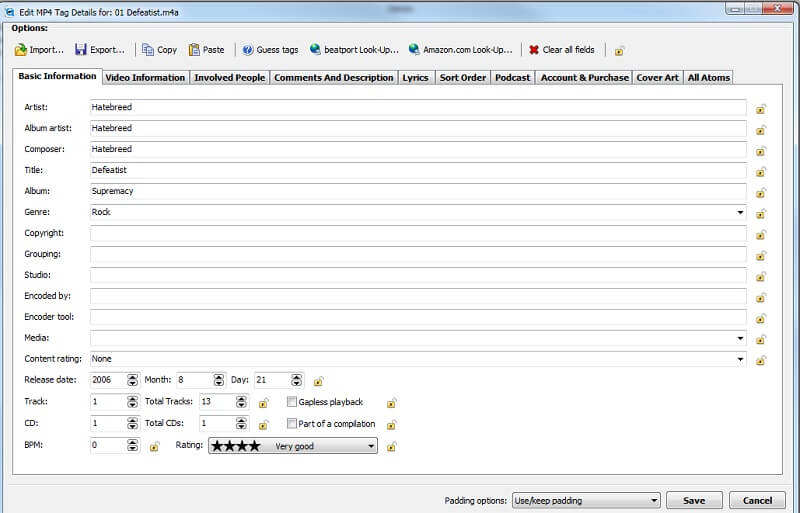
Image source: Vidmore
Editing MP4 Metadata on Windows Using Native Tools
For many Windows users, the first line of defense is the built-in File Explorer. Windows provides a surprisingly robust set of native tools for editing basic MP4 properties without requiring third-party software. This is ideal for quick fixes on single files, such as correcting a misspelled title or adding a year to a home movie.
Using the Details Tab in File Explorer
To edit metadata natively on Windows 10 or 11, follow these steps:
- Right-click the MP4 file and select Properties .
- Navigate to the Details tab.
- Click on the value field next to a property (like "Title" or "Genre") to type in new information.
- Click Apply and then OK to save the changes.
This method is effective because it writes directly to the file's header. However, it is not without its flaws. Users frequently report a bug where Windows refuses to save changes if the file is marked as "Read-Only" or if it is currently being indexed by a background process.
Recognizing Native Limitations with MKV and AVI
While Windows handles MP4 files well, it faces significant limitations with other containers. For instance, Windows File Explorer cannot natively edit metadata for MKV (Matroska) or AVI files. This often leads to frustration for users who have mixed libraries. If you find that the "Details" tab is blank or uneditable, it is likely because the file format is not natively supported for metadata writing by the OS, necessitating a more specialized tool like MP3Tag .
Top MP4 Metadata Editors for Mac and Apple Users
The Apple ecosystem has its own set of requirements for metadata. For a video to appear correctly in the Apple TV app or on an iPad, it must adhere to specific "iTunes-style" tagging conventions. This includes specific atoms for "Media Kind" (Movie vs. TV Show) and high-resolution artwork injection.
Why Subler Stands Out for Apple Ecosystem Users
For Mac users, Subler is widely regarded as a top choice. It is an open-source tool specifically designed for M4V and MP4 files. Its primary strength lies in its ability to "mux" subtitles and chapter tracks into a file while simultaneously pulling metadata from online databases like TheMovieDB. Because Subler focuses on header manipulation, it avoids the quality loss associated with re-encoding, making it a favorite among Plex and Apple TV enthusiasts.
Automated Options for Large Movie Libraries
If you are managing a library of thousands of files, manual entry is not feasible. Tools like VideoDrive or MetaDoctor offer a more automated experience, functioning similarly to how iTunes once managed music. These tools can scan your file names, match them against professional databases, and automatically inject posters, cast lists, and plot summaries into the MP4 atoms. This level of automation is a significant advancement for home media collectors.
Online MP4 Metadata Editors That Prioritize Privacy
In recent years, the rise of WebAssembly (WASM) has transformed how we handle files online. Previously, using an online editor meant uploading your private videos to a third-party server, which posed a significant privacy risk. Today, a new generation of tools allows for local browser processing.
The Role of WebAssembly in Local Browser Editing
Tools like MetadataKit and Artplayer utilize WASM to run the editing logic directly on your computer's CPU, even though you are using a website. When you "upload" a file to these sites, the data never leaves your browser. This makes them an excellent choice for removing sensitive GPS coordinates or personal information from phone videos before sharing them on social media.
Comparing Server-Side and Client-Side Tools
Processes files locally. High privacy. Best for single, large files where uploading is impractical.
Requires file upload. Good for small clips, but poses a privacy risk for personal content.
Fixing Metadata That Will Not Show Up in Plex or Kodi
A common frustration for media server users is the "Junk Name" problem. You might name a file "The Matrix (1999).mp4," but Plex displays it as "THE_MATRIX_DVDRIP_XVID." This happens because Plex is reading the internal "Title" tag rather than the filename.
Resolving the Junk Name Problem in Media Servers
To fix this, you have two options. First, you can use a batch mp4 metadata editor to clear the internal "Title" field entirely. When this field is empty, Plex defaults to the filename. Alternatively, you can adjust your Plex settings to ignore local metadata:
- Open Plex and go to Settings > Agents .
- Under "Movies" and "Shows," find the Local Media Assets agent.
- Uncheck it or drag it to the bottom of the priority list.
Using Advanced Scripts for Professional Metadata
For power users, the "edrikk" scripts for MP3Tag are a notable innovation. These scripts allow the software to query the iTunes API or Amazon's database to pull in professional-grade metadata, including high-resolution cover art and parental ratings. This workflow ensures that your self-hosted library looks as polished as a commercial streaming service.
Powerful Desktop Software for Bulk Video Tagging
When dealing with hundreds of episodes of a TV show, you need a tool that supports batch processing and pattern matching. Several desktop applications stand out for their ability to handle high volumes of data efficiently.
VideoProc Converter AI for Multi-Format Support
VideoProc Converter AI ranks among the top options for users who need a "universal" solution. While many editors only support MP4, VideoProc supports over 370 input formats. It allows you to edit the basic metadata (Title, Artist, Genre, Comment) as part of a larger workflow that might include trimming or converting the video. According to recent reviews, its ability to handle 4K metadata without lag makes it a strong contender for modern content creators.
Using MP3Tag for Batch Video Management
Despite its name, MP3Tag is an exceptionally strong video tagger. It supports the MP4 container and allows for powerful "Filename to Tag" and "Tag to Filename" conversions. For example, if your files are named
ShowName_S01E01_Title.mp4
, you can use a simple placeholder string to automatically populate the Series, Season, Episode, and Title tags for an entire folder in seconds.
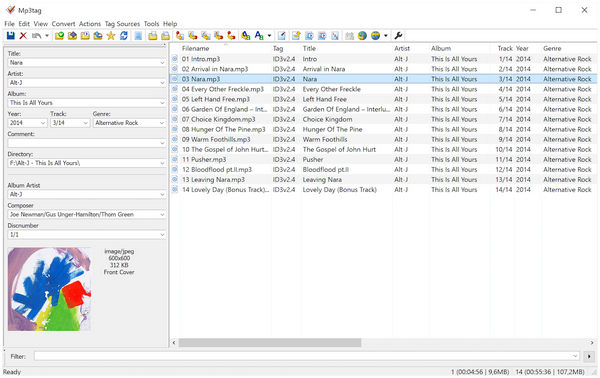
Image source: AnyMP4
Advanced Command Line Tools for Automation and Power Users
For those comfortable with a terminal, command-line interface (CLI) tools offer a level of control that GUI applications cannot match. These tools are essential for developers or users looking to automate their media workflows via scripts.
FFmpeg for Metadata Sanitization and Header Control
FFmpeg is a premier tool for metadata manipulation. It can strip all existing metadata—a process known as sanitization—which is useful if a file contains corrupted tags or private tracking data. To strip all metadata while keeping the video and audio streams identical, use the following command:
If you want to add a specific title to a file, the command is equally straightforward:
Using AtomicParsley and ExifTool for Forensic Data
ExifTool is widely considered one of the most comprehensive metadata tools available, supporting over 18,000 different tag types. It is particularly useful for reading forensic data, such as the exact GPS coordinates where a video was filmed or the specific lens settings used. For Linux and Mac users, AtomicParsley is another powerful CLI tool specifically optimized for injecting iTunes-style atoms into MP4 files, often used in automated "ripping" pipelines.
Which MP4 Metadata Editor Should You Choose?
Choosing the right tool depends on your specific needs, your operating system, and the size of your library. The following table provides a comparison of the top-rated tools discussed in this guide.
| Tool Name | OS Support | Price | Batch Support | Best For |
|---|---|---|---|---|
| Subler | macOS | Free | Limited | Apple TV / iOS users |
| MP3Tag | Windows / Mac | Free/Paid | Excellent | Bulk library management |
| VideoProc AI | Windows / Mac | Paid | Good | Multi-format conversion |
| MetadataKit | Web (WASM) | Free | None | Privacy-conscious users |
| FFmpeg | All (CLI) | Free | Scriptable | Automation & Power users |
moov
atom, making the file unplayable.
Frequently Asked Questions
- Does changing metadata reduce video quality?
-
No, as long as you use a tool that performs header rewriting rather than re-encoding. Tools like Subler, MP3Tag, and FFmpeg (with the
-c copyflag) only modify the text and image data in the file's header, leaving the video stream untouched. - Can I edit MKV metadata the same way as MP4?
- Not natively in Windows. While MP4 is widely supported, MKV files require specialized tools like MKVToolNix. However, some cross-platform editors like MP3Tag can handle both formats, providing a unified interface for your entire library.
- How do I remove GPS coordinates from my phone videos?
- The most effective way is to use a WASM-based online editor like MetadataKit or a CLI tool like ExifTool. These tools can specifically target and strip the "Location" or "GPS" tags without affecting other metadata like the creation date.
- Why does VLC show different information than Windows Explorer?
- VLC reads the internal metadata atoms (like the "Title" tag) directly from the file. Windows Explorer often relies on a combination of file properties and its own indexing database. If they disagree, the information in VLC is typically what is actually written inside the file.
- Is there a free MP4 metadata editor for Android?
- There are several niche apps on the Google Play Store, but for serious library management, desktop tools are highly recommended. Mobile apps often struggle with large file sizes and may not support advanced tagging features like chapter markers.
Final Takeaways for Managing Your Video Library
- Prioritize header rewriting to ensure your video quality remains 100% intact during the editing process.
- Use Subler for Apple devices to ensure your movies and TV shows display correctly with posters and metadata in the Apple TV app.
- Leverage MP3Tag for bulk edits , especially when you need to rename files based on tags or vice versa.
- Choose WASM-based online tools for single-file edits if you are concerned about privacy and do not want to upload videos to a server.
- Fix Plex naming issues by either clearing the internal "Title" tag or adjusting the "Local Media Assets" agent priority in your server settings.
- Master basic FFmpeg commands if you need to automate metadata tasks or sanitize files as part of a technical workflow.
Start by auditing a small section of your library with a tool like MP3Tag to see how much cleaner your media server looks with proper metadata.