Home
Home
How to Choose and Use a Top MP3 File Info Editor for Your Music Library
Why Your Music Metadata Matters More Than You Think
There is a specific kind of frustration that occurs when you load a carefully curated playlist onto a new device, only to see a wall of "Unknown Artist" and "Track 01" entries. This happens because music players do not actually read the filename of your MP3; they read the ID3 tags embedded within the file. These tags act as the "digital DNA" of your audio, carrying essential information like the album name, release year, and high-resolution cover art.
Metadata is not just about aesthetics; it is the foundation of library organization. Modern streaming services and local media players like Plex or Roon rely on these tags to group albums correctly and fetch artist biographies. According to industry standards, core metadata fields include Title, Artist, Album, Genre, Year, and Track Number. Without these, your library becomes a chaotic digital junk drawer.
Understanding the difference between ID3 versions is crucial. ID3v1 was the original standard, limited to just 30 characters per field. ID3v2.3 and v2.4 are the modern successors, allowing for much larger data sets and embedded images. However, as many audiophiles have discovered, the "newest" version isn't always the most compatible. Many hardware players, particularly car head units, struggle to read ID3v2.4, making a dedicated mp3 file info editor an essential tool for fixing these discrepancies.
Which MP3 File Info Editor Should You Use?
Choosing the right tool depends on the size of your library and your specific needs for privacy and automation. While basic editing can be done within Windows File Explorer or macOS Finder, these methods lack the batch processing power required for large collections.
| Platform | Recommended Tool | Batch Support | Privacy Level |
|---|---|---|---|
| Windows / Mac | Mp3tag | Excellent | High (Local) |
| Online / Browser | Banger.show | Single/Small Batch | High (Local Processing) |
| iOS / Android | Evertag | Good | Medium (Cloud Sync) |
| Android (Auto) | Automatic Tag Editor | Automated | Low (Database Lookup) |
The Desktop Powerhouse: Mp3tag for Windows and Mac
Widely regarded as a leading choice for professionals, Mp3tag offers a level of control that few competitors match. It supports over 30 audio formats, including FLAC, OGG, and MP4. For Mac users, it is important to note that the software requires macOS 12.0 or later and performs exceptionally well on Apple Silicon chips.
What sets this tool apart is its ability to connect to online databases like Discogs and MusicBrainz. Instead of typing in every track name, you can select an entire album and have the software fetch the correct data and high-quality artwork automatically. This "Auto-Tagging" feature can save hours of manual labor for collectors with thousands of tracks.
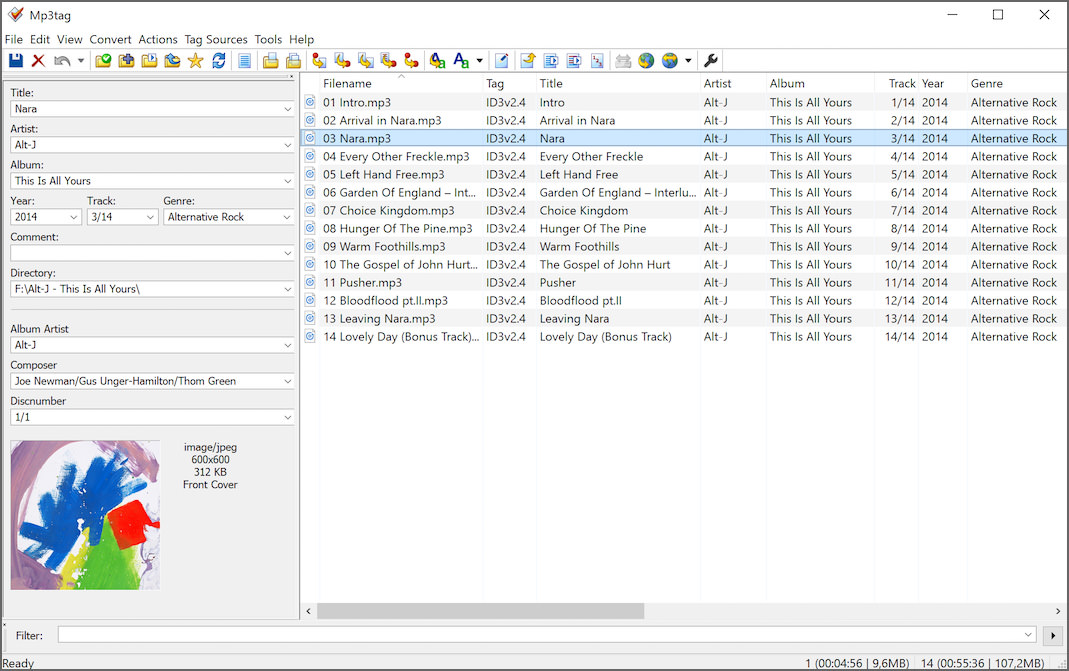
Image source: Geckoandfly
The Privacy-First Online Choice: Banger.show
Many users are hesitant to upload their private music files to a random server just to edit a tag. This is where Banger.show stands out. Unlike traditional online editors that upload your data, this tool uses local browser processing. The audio file never leaves your computer; the browser simply acts as the interface for the editing engine. This makes it an excellent choice for quick, single-track edits where you don't want to install heavy software.
The Mobile Manager: Evertag for iOS and Android
For those who manage their music directly on a smartphone, Evertag is a highly recommended option. It allows you to edit files stored directly on your device or within cloud services like Dropbox and iCloud. This is particularly useful for DJs who need to update metadata on the go before a set.
How to Edit MP3 Metadata in Seconds
Editing metadata doesn't have to be a technical chore. Most modern editors follow a similar workflow that prioritizes speed and accuracy. Whether you are fixing a single typo or re-tagging an entire discography, the process generally follows three main steps.
- Load the Files: Drag and drop your audio files into the editor interface.
- Fetch or Input Data: Use an auto-tagger to pull data from MusicBrainz or manually type the fields.
- Embed and Save: Ensure the "Save" command is executed to write the data directly into the file's header.
Adding Album Art That Actually Shows Up
One of the most common complaints is album art that looks fine on a PC but disappears on a mobile phone or car display. To avoid this, follow the industry standards for embedded imagery. According to Soundtools.io , you should aim for square images between 500x500 and 1400x1400 pixels. Images larger than 1000px can occasionally crash the software on older car stereos, so a "sweet spot" of 600x600 is often recommended for maximum compatibility.
Why Your Car Stereo Isn't Showing Song Info
If your music library looks perfect on your computer but shows "No Data" in your vehicle, you are likely facing an ID3 Version Conflict . Most car head units are built on older firmware that was designed around the ID3v2.3 standard. While ID3v2.4 is technically superior (supporting multiple values per tag and better character encoding), it is not as widely supported in the automotive industry.
The ID3v2.3 vs. v2.4 Dilemma
To fix this, go into your mp3 file info editor's settings and look for "Tag Saving Options." Force the software to save tags as ID3v2.3 ISO-8859-1 or UTF-16 . This simple change solves roughly 90% of car stereo display issues. Additionally, ensure your album art is a "Baseline JPEG" rather than a "Progressive JPEG," as many older decoders cannot process the latter.
Character Encoding and "Mojibake"
If you see strange symbols or "broken characters" (known as mojibake) in your artist names, it is a sign of character encoding errors. This often happens with international music. Using a tool like Evertag or Mp3tag to convert these tags to UTF-16 will typically resolve the issue, allowing non-Latin characters to display correctly across all devices.
The Truth About WAV Files and Metadata
WAV files are a source of constant headache for metadata enthusiasts. While WAV is a high-quality lossless format, it was never designed to hold metadata in the same way that MP3 or FLAC files were. While some editors can "force" tags into a WAV file using a RIFF INFO chunk, many players will simply ignore them.
"WAV files often lose their album art and extended tags when moved between different applications because there is no single, universally accepted standard for embedding metadata in the WAV container."
For audiophiles who want lossless quality without the metadata headaches, FLAC (Free Lossless Audio Codec) is a significantly better choice. FLAC supports robust metadata, including high-resolution album art and custom tags, while maintaining the exact same audio fidelity as a WAV file. Most top-tier editors, including Mp3tag and OneTagger, handle FLAC metadata with ease.
Advanced Workflows for Large Music Libraries
For collectors with tens of thousands of tracks, manual editing is impossible. Power users rely on automation and scripting to maintain library integrity. This is where the advanced features of a desktop mp3 file info editor become indispensable.
Using Action Groups to Clean Up Messy Libraries
Action Groups in Mp3tag allow you to perform complex string manipulations across thousands of files at once. Common workflows include:
- Case Conversion
- Automatically changing "ALL CAPS TITLES" to "Title Case" for a cleaner look.
- Filename-to-Tag
- If your files are named "01-Artist-Song.mp3," you can use a template to extract that information and populate the metadata fields automatically.
- Tag-to-Filename
- Once your tags are perfect, you can rename your entire hard drive's music folder structure based on those tags (e.g., /Artist/Album/Track - Title.mp3).
DJ-Specific Metadata Hacks
Professional DJs often use "non-standard" fields to help with track selection during a live set. For example, many use the Composer field to store a star rating (1-5) or the Remixer field to note the "Energy Level" or "Mood" of a track. Since software like Serato and Rekordbox can filter by these fields, this metadata strategy allows for much faster library navigation under pressure.
Frequently Asked Questions
How do I edit MP3 tags on Windows 11 without downloading software?
You can perform basic edits by right-clicking an MP3 file, selecting Properties , and navigating to the Details tab. From there, you can click on fields like "Title" or "Contributing Artist" to type in new information. However, this method does not support batch editing or fetching album art from the internet, making it less efficient for more than one or two files.
What is a top-rated free MP3 tag editor for Mac?
While the Mac version of Mp3tag is a paid product, Kid3 is a highly capable free alternative. It supports a wide range of formats and allows for batch tagging. Another option is using browser-based tools like Banger.show, which work perfectly on macOS without requiring any installation or payment.
Can I edit MP3 metadata online without uploading the file?
Yes, tools like Banger.show use modern web technologies (WebAssembly) to process audio files locally within your browser. This means the file stays on your hard drive, ensuring your privacy and significantly speeding up the process since you don't have to wait for a large audio file to upload to a server.
Why does my album art disappear when I move files to my phone?
This usually happens if the artwork was not embedded into the MP3 file itself. Some media players only look for a "folder.jpg" file in the same directory. If you move the MP3 but leave the JPG behind, the art disappears. Use a dedicated editor to ensure the image is written directly into the ID3 tag header of the audio file.
Does editing a tag reduce the audio quality of the MP3?
No, editing metadata does not touch the audio stream. Metadata is stored in a "wrapper" or "header" at the beginning or end of the file. When you change a tag, the editor only modifies this small section of data. The actual compressed audio data remains bit-for-bit identical, so there is no loss in sound quality.
Key Takeaways for Managing Your Music Library
- Prioritize ID3v2.3 for the best compatibility across car stereos and older hardware.
- Use Mp3tag for large-scale batch processing and automated database lookups.
- Choose local browser tools like Banger.show if you have privacy concerns about uploading files.
- Keep album art square and ideally between 600x600 and 1000x1000 pixels.
- Switch to FLAC if you want lossless audio with reliable, embedded metadata support.
- Embed artwork directly into the file header rather than relying on external JPEG files.
- Leverage Action Groups to automate repetitive tasks like case correction and filename renaming.
Start by downloading a dedicated editor and testing a single album to ensure your settings match your favorite playback device.