Home
Home
How to Choose and Use a Leading MP3 Information Editor for Your Music Library
An mp3 information editor is essential for organizing digital music by fixing ID3 tags, embedding album art, and ensuring compatibility with hardware like car stereos. For large libraries, Mp3tag (Windows/Mac) ranks among the top choices due to its batch processing and automation capabilities. If you need a quick, no-install fix, TagMP3.net is a popular choice for single files. To ensure your music displays correctly in older vehicles, always use ID3v2.3 tags and keep album art under 500x500 pixels.
What Is an MP3 Information Editor and Why Do You Need One?
At its core, an mp3 information editor is a specialized software tool designed to modify the metadata embedded within audio files. This metadata, commonly known as ID3 tags, acts as a digital passport for your music. Without it, a file named
track01.mp3
remains an anonymous piece of data. With proper tagging, that same file displays the artist's name, the album title, the release year, and even the high-resolution cover art across all your devices.
The evolution of these tags is significant. ID3v1 was the original standard, offering a mere 128 bytes of space at the end of a file—barely enough for a 30-character title. Modern libraries rely on ID3v2 (specifically v2.3 and v2.4), which allows for extensible frames. These frames can store everything from synchronized lyrics to BPM (Beats Per Minute) and complex digital fingerprints. According to documentation from Mp3tag , professional tools are necessary to handle these advanced fields, as standard file explorers often lack the depth to edit "Publisher" or "Encoder" information accurately.
Beyond basic organization, metadata is critical for searchability. In a library of 10,000 tracks, finding a specific remix or a live recording is nearly impossible without standardized tags. An mp3 information editor allows you to apply "Batch Editing," where you can select an entire folder and apply the same artist name or genre to every file simultaneously, saving hours of manual labor.
Which MP3 Information Editor Is Right for You?
Selecting the appropriate tool depends heavily on your library size, your technical comfort level, and your specific hardware needs. While many users start with built-in tools like Windows File Explorer, they quickly encounter limitations when trying to edit multiple files or embed high-quality artwork.
Desktop Software for Power Users
For those managing thousands of tracks, desktop applications remain the gold standard. Mp3tag is widely regarded as one of the most capable tools available for both Windows and Mac. It supports a vast array of formats, including MP3, FLAC, WAV, and even specialized audiophile formats like DSF. Its strength lies in its ability to pull data from online databases like Discogs and MusicBrainz, automatically filling in missing details based on the album's catalog number.
Another strong contender is
MusicBrainz Picard
. Unlike other editors, Picard uses "acoustic fingerprinting." It analyzes the actual audio waveform of a song to identify it, even if the file has no tags at all. This is particularly useful for identifying obscure tracks or files with generic names like
audio_export_final.mp3
.
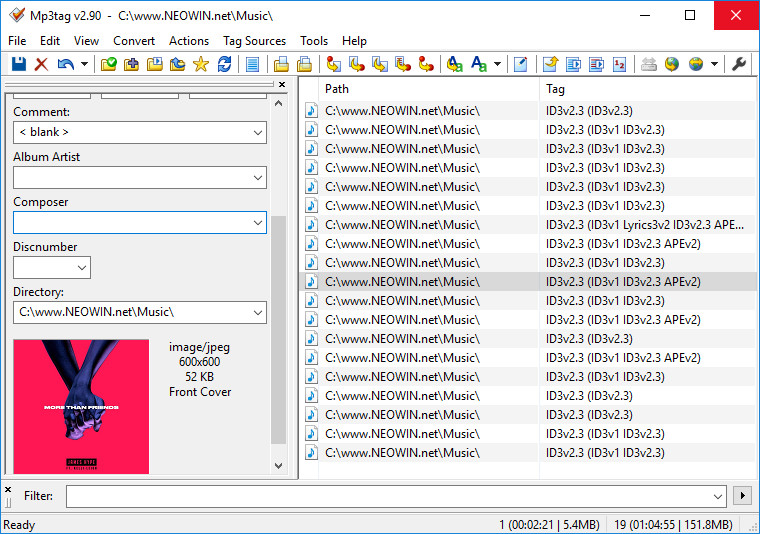
Image source: Neowin
Online Tools for Quick Fixes
If you only need to fix a single podcast episode or a voice memo, downloading a full suite might be overkill. Online editors like TagMP3.net allow you to upload a file, edit the fields in your browser, and download the result. These tools are convenient but come with caveats regarding privacy and file size limits. They are a top choice for casual users but are rarely suitable for professional DJs or archivists.
Mobile Apps for On-the-Go Editing
For Android users, the Smart MP3 Tag Editor stands out as a top-rated mobile option. It allows you to fix metadata directly on your phone's storage or SD card. This is particularly useful for users who download music directly to their devices and want to keep their mobile players (like Poweramp or BlackPlayer) looking clean without transferring files back to a PC.
| Tool Name | Platform | Batch Editing | Auto-Tagging | Best For |
|---|---|---|---|---|
| Mp3tag | Win / Mac | Yes (Advanced) | Yes (Discogs/MusicBrainz) | Audiophiles & DJs |
| MusicBrainz Picard | Win / Mac / Linux | Yes | Yes (Acoustic ID) | Identifying unknown tracks |
| TagMP3.net | Web Browser | No | No | Single file quick fixes |
| Smart MP3 Tag Editor | Android | Yes | Yes | Mobile-only users |
| TagScanner | Windows | Yes | Yes | Large library restructuring |
How to Fix MP3 Metadata That Won't Show Up in Your Car
One of the most common frustrations for music lovers is when a perfectly tagged library fails to display correctly on a car's dashboard. You might see "Unknown Artist," missing album art, or even files that refuse to play. This is rarely a fault of the file itself and usually a result of firmware limitations in the vehicle's head unit.
The ID3v2.3 vs. ID3v2.4 Conflict
While ID3v2.4 is the most recent standard, many car stereos manufactured between 2016 and 2024 still rely on the older ID3v2.3 specification. The newer v2.4 uses a different synchronization scheme that older firmware cannot parse. According to community insights from the Audacity Forum , forcing your mp3 information editor to save tags in v2.3 format (specifically using ISO-8859-1 or UTF-16 encoding) resolves display issues in over 90% of cases.
Album Art Constraints
Modern smartphones can handle 2000x2000 pixel images with ease, but car displays often have strict memory limits. If your embedded album art is too large—either in resolution or file size—the car's system may skip the metadata entirely to prevent a crash. A top-tier strategy for car compatibility is to resize all cover art to 500x500 pixels and ensure the image file size is under 200KB. Most desktop editors allow you to "Adjust Cover" during the batch saving process to automate this.
Format Mismatch and Vorbis Comments
If you are using FLAC files in your vehicle, be aware that they do not use ID3 tags. Instead, they use Vorbis Comments . Some users mistakenly try to force ID3 tags into a FLAC container, which can lead to file corruption or playback errors. A high-quality editor will automatically detect the file container and apply the correct tagging standard, but it is always worth verifying that your car supports FLAC before spending hours tagging a high-resolution library.
How to Automate Your Workflow with Batch Editing and Regex
For those with massive collections, editing one file at a time is not feasible. Automation is where a professional mp3 information editor truly earns its place. By using advanced techniques like Regular Expressions (Regex) and Action Groups, you can clean up thousands of files in seconds.
Using Regular Expressions (Regex)
Regex is a sequence of characters that forms a search pattern. In Mp3tag, you can use Regex to strip unwanted text from filenames or tags. For example, if your library is full of tracks ending in
(Official Video)
or
[Remastered 2026]
, you can use a simple expression to find and remove these strings across your entire library.
Example:
The pattern
\s\[.*\]
will find any text inside square brackets preceded by a space and allow you to replace it with nothing, instantly cleaning your track titles.
Action Groups in Mp3tag
Action Groups allow you to chain multiple commands together. You can create a "Clean Up" action that performs the following steps in one click:
- Case Conversion: Change all titles to "Mixed Case" (e.g., "song title" becomes "Song Title").
- Remove Leading Zeros: Change "01. Track" to "1. Track".
- Format Tags: Move the "Featured Artist" from the Title field to the Artist field.
- Remove Unwanted Fields: Delete "Comment" or "Encoded By" tags that clutter your player.
Advanced Metadata Hacks for DJs and Audiophiles
DJs and audiophiles often have needs that go beyond the standard Artist/Title fields. They require metadata that helps them perform or manage high-fidelity playback systems. A top-rated editor allows you to repurpose obscure tag fields for creative organization.
Many DJs use the "Composer" or "Grouping" fields to store energy ratings (1-5) or mood descriptors (e.g., "Dark," "Uplifting"). Software like Serato or Rekordbox can then create "Smart Crates" based on these custom tags, allowing for seamless set building.
As noted by Wide Angle Software , tools like Music Tag use a database of over 35 million songs to identify tracks. This is a top choice for digitizing old vinyl rips where the original file info is lost.
For those using 4K monitors, modern editors like Mp3tag v3.34 now support 200% UI scaling. This ensures that managing thousands of rows of data doesn't result in eye strain, a small but vital feature for professional workflows.
Privacy Risks of Using Online MP3 Editors
While online tools are convenient, they present specific risks that users should consider. When you use a web-based mp3 information editor, you are uploading your files to a third-party server. For most, this is a minor inconvenience, but for professionals, it can be a deal-breaker.
- The Upload Dilemma
- If you are working with unreleased tracks, sensitive recordings, or client work, uploading to a site like TagMP3.net exposes your data to potential breaches. Local desktop tools process everything on your machine, ensuring 100% privacy.
- Data Retention Policies
- Many online tools claim to delete files after 24 hours, but verifying these claims is difficult. Furthermore, the terms of service may grant the site limited rights to analyze your metadata for advertising purposes.
- Bandwidth Constraints
- Uploading a 500MB FLAC album just to change a genre tag is inefficient. Desktop tools perform these edits instantly without consuming any data, making them a more sustainable choice for large-scale projects.
Step-by-Step Guide to Cleaning Your First Album
If you are new to metadata management, follow this workflow to ensure your library remains clean and compatible across all devices.
Before running any batch actions or Regex commands, copy your music folder to an external drive. Batch editing is powerful, but a single mistake in a "Replace" command can rename thousands of files incorrectly. Always have a recovery point.
Open your chosen mp3 information editor and drag your album folder into the main window. The software will scan the files and display the current (often messy) metadata in a grid format.
Select all tracks and use the "Tag Sources" menu to search Discogs or MusicBrainz. Match your files to the correct release. This will automatically pull the official tracklist, year, and genre, ensuring your library matches professional standards.
Find a high-quality cover image. If the tool pulls a 2000x2000 image, use the "Adjust Cover" tool to downscale it to 500x500. This ensures the art will show up on your phone, car, and desktop player without issue.
Click the "Save" icon to write the tags directly into the files. Open the folder in a standard player like VLC or Windows Media Player to verify that the changes have taken effect and the artwork is visible.
Frequently Asked Questions
What is a top-rated free MP3 tag editor for Windows 11?
For Windows 11 users, Mp3tag and TagScanner are widely considered the strongest free options. Mp3tag offers a clean, spreadsheet-like interface that integrates perfectly with the modern Windows UI, while TagScanner is highly effective for users who need to restructure their entire folder hierarchy based on metadata (e.g., moving files into Artist/Album folders automatically).
Why is my album art not showing up on my smartphone?
This is usually caused by one of three things: the image resolution is too high (over 1000x1000), the image format is not supported (stick to JPEG), or the player's cache hasn't updated. Try resizing the art to 500x500 pixels using an mp3 information editor and then clearing the cache of your music app to force a rescan.
Can I edit MP3 tags online without downloading software?
Yes, tools like TagMP3.net allow for browser-based editing. However, these are best suited for single files. For batch editing or privacy-sensitive tracks, a local desktop application is a much more secure and efficient choice. Online tools also often have file size limits that prevent the editing of large FLAC or WAV files.
Does Windows 11 have a built-in metadata editor?
Windows has a basic editor built into File Explorer. You can right-click a file, select "Properties," and go to the "Details" tab to edit fields like Title and Artist. However, this method is extremely slow for multiple files and often fails to save album art correctly, which is why dedicated editors are highly recommended.
What is the difference between ID3v2.3 and ID3v2.4?
ID3v2.3 is the older, more compatible standard used by most car stereos and legacy hardware. ID3v2.4 is the modern version that supports multiple values per tag (e.g., two different genres) and better text encoding. While v2.4 is technically superior, v2.3 remains a top choice for users who need their music to work across all possible devices.
Key Takeaways for Managing Your Music
- Use Desktop Tools: For any library larger than 50 files, desktop software like Mp3tag provides the necessary speed and automation.
- Prioritize ID3v2.3: Stick to this version for maximum compatibility with car head units and older portable players.
- Optimize Artwork: Keep cover art at 500x500 pixels to ensure it displays correctly on all screens without slowing down your device.
- Leverage Automation: Use Regex and Action Groups to handle repetitive tasks like case conversion and string removal.
- Protect Your Privacy: Avoid uploading sensitive or unreleased recordings to online editors; keep your processing local.
- Always Backup: Never perform batch edits without a secondary copy of your music library to prevent accidental data loss.
Start by downloading a local editor and testing your workflow on a single album before applying changes to your entire collection.