Home
Home
How to Edit M4A Files Online and on Desktop Without Losing Audio Quality
Editing M4A files—a format commonly used by iPhones, Zoom recordings, and voice memos—often presents a unique challenge. Unlike the ubiquitous MP3, M4A (which uses the AAC codec) is sensitive to re-compression. Every time you save an edit in a standard editor, you risk "accumulated compression damage," where the audio loses its crispness and develops a muddy, underwater sound.
Whether you are a podcaster cleaning up a Zoom interview or a musician trimming a demo, choosing the right M4A editor is about balancing convenience with acoustic integrity. In this guide, we explore the top-tier solutions for online, desktop, and mobile editing, while providing professional techniques to ensure your final export sounds as clear as the original recording.
What Is the Fastest Way to Edit M4A Files Online?
For most users, downloading heavy software to perform a simple trim is unnecessary. Modern browser-based editors have evolved to support over 43 audio formats, providing a desktop-like experience within Chrome or Firefox. These tools are particularly useful for one-off tasks or when working on public computers.
These platforms stand out as top choices for creators. They offer AI-driven features like background noise removal that can strip away wind or traffic noise from a voice recording in seconds. According to Flixier , their cloud-based processing ensures that even complex edits don't tax your local hardware.
If you need a full Digital Audio Workstation (DAW) experience in your browser, AudioMass is a remarkable option. It provides a visual waveform, multi-track capabilities, and real-time effects without requiring an account or subscription.
For sensitive recordings, HappyScribe offers 256-bit SSL encryption. Their system is designed to auto-delete files after processing, making it a highly recommended choice for legal or medical transcriptions that require a quick trim.
While online tools are fast, they typically work by decoding your M4A to a lossless format in the cloud, performing the edit, and then re-encoding it back to M4A or MP3. For 90% of users, this quality shift is imperceptible. However, if you are working on a professional broadcast, you may prefer the desktop methods described below.
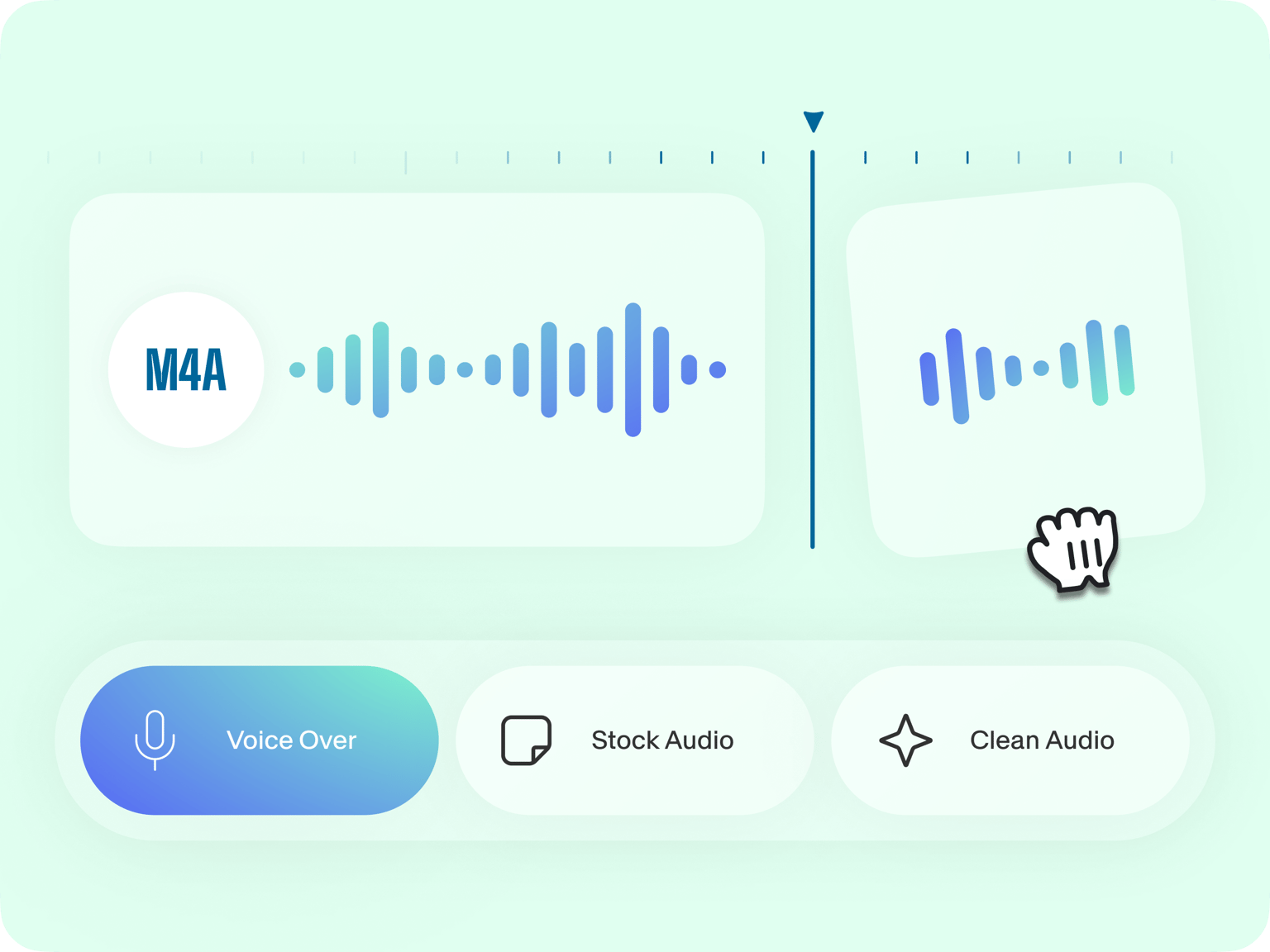
Image source: VEED
How to Edit M4A Files in Audacity Without Quality Loss
Audacity is widely regarded as one of the strongest free audio editors available, but it does not support M4A files natively due to licensing restrictions on the AAC codec. To work with M4A, you must bridge this gap using the FFmpeg library.
Installing the FFmpeg Library for M4A Support
Without FFmpeg, Audacity will throw an error message stating it cannot recognize the file type. To fix this:
- Download the FFmpeg v2.2.2 (or higher) library compatible with your OS.
- Open Audacity and navigate to Edit > Preferences > Libraries .
- Click "Locate" next to the FFmpeg Library and point it to the downloaded file.
- Restart Audacity. You can now drag and drop M4A files directly into the timeline.
Using Custom FFmpeg Export to Maintain Bitrate
A common complaint among Audacity users is that M4A exports often sound "muddy" even at high bitrates. This is frequently due to the default encoder settings. According to discussions on the Audacity Forum , using the "Custom FFmpeg Export" option provides significantly better results.
aac
codec. This bypasses the standard export limitations and allows for a cleaner encode.
For power users, you can use the following command line within the Audacity export dialog to ensure the highest possible fidelity:
Why Does Your M4A File Sound Worse After Editing?
The M4A format is a "lossy" container. This means that to save space, it discards audio data that the human ear is less likely to hear. The problem arises during the "Re-encoding" phase. Most editors function like this: M4A (Compressed) → PCM (Uncompressed for editing) → M4A (Re-compressed for saving).
This second round of compression is where the damage occurs. It is similar to taking a photo of a printed photograph; the colors and sharpness will never match the original. This is known as "accumulated compression damage."
To avoid this, you should look for a lossless M4A editor . Tools like MP3DirectCut (when configured with AAC plugins) attempt to cut the file at the "frame" level without decoding the audio data. This ensures that the audio quality remains exactly the same as the source, as no new compression is applied. However, this method is less flexible for adding effects or fades, as those operations inherently require re-encoding.
Which Mobile Apps Actually Work for Precise M4A Cutting?
Editing on the go is a common requirement for journalists and field recorders. However, the mobile app market is flooded with "trimmers" that are often inaccurate or laden with intrusive ads. Community insights from platforms like Reddit suggest a divide in user experience.
- Timbre: Often cited for its clean interface and ability to join or convert files quickly. However, many users report that the "cut points" are not frame-accurate, leading to small bits of audio being left at the start or end of a clip.
- Video2me: While the interface is less modern, it is frequently recommended for higher precision tasks. It handles the M4A container more reliably when performing simple splits.
- iOS Native Tools: For iPhone users, the built-in Voice Memos app offers a surprisingly robust "Trim" feature that is optimized for M4A. It is often a safer choice for privacy than third-party apps.
How to Fix M4A Compatibility Issues in Ableton and Other DAWs
Professional music producers often run into a wall when importing M4A files into Digital Audio Workstations (DAWs) like Ableton Live or FL Studio. This is particularly common with M4A files generated by Zoom or specialized call-recording software.
The issue usually stems from the "header" of the M4A file. Zoom, for instance, uses a specific variant of the AAC codec that lacks certain metadata tags that DAWs require to calculate the waveform. To solve this, the most stable workflow is the Conversion Stack :
- Use a tool like VLC Media Player or Audacity to convert the M4A to a 24-bit WAV file.
- Ensure the sample rate (e.g., 44.1kHz or 48kHz) matches your DAW project settings.
- Import the WAV file instead of the M4A.
Once inside the DAW, remember to adjust the Clip Gain before it hits your mixer faders. This ensures you maintain a clean signal path and prevents digital clipping during the mixing process, a technique highlighted by SoundBridge as essential for professional results.
Advanced Techniques for Professional Sounding Edits
To make your edits sound invisible—meaning the listener cannot tell where a cut was made—you must follow two industry-standard rules: the Zero-Crossing Rule and the 5ms Crossfade Rule.
The Zero-Crossing Rule
If you cut an audio clip in the middle of a wave's peak or trough, the speaker diaphragm will suddenly jump back to the center position, causing an audible "click" or "pop." To prevent this, always zoom in and make your cut at the Zero-Crossing —the exact point where the waveform line crosses the center horizontal axis (0dB).
The 5ms Crossfade Rule
Even with zero-crossing cuts, the transition between two different audio clips can sound jarring. Professional editors apply a tiny crossfade (usually between 5ms and 20ms) at every edit point. This "smooths" the transition, making the edit point virtually undetectable to the human ear.
Normalization Strategy
Many beginners normalize their audio (boosting the volume to a standard peak) before editing. This is a mistake. Normalizing early boosts the "noise floor"—the background hiss—making it harder to clean up later. Always normalize as the very last step after you have trimmed the silence and removed unwanted noises.
Comparison of Top M4A Editing Solutions
| Tool Name | Platform | Lossless Support | AI Features | Best For |
|---|---|---|---|---|
| VEED | Online | No (Re-encodes) | Yes (Noise Removal) | Social Media & Quick Trims |
| Audacity | Desktop | Partial (via FFmpeg) | No | Podcasting & Pro Editing |
| AudioMass | Online | No | No | Visual Waveform Editing |
| Video2me | Mobile | Yes | No | Mobile Precision |
| MP3DirectCut | Desktop | Yes | No | Pure Lossless Cutting |
The Bottom Line on M4A Editing
- Choose Online Tools for convenience and AI-powered speech enhancement when quality loss is not a primary concern.
- Install FFmpeg for Audacity if you need a high-performance desktop environment for long-form projects like podcasts.
- Prioritize Lossless Editors like MP3DirectCut if you must maintain the exact original audio fidelity without re-compression.
- Apply Zero-Crossing Cuts and 5ms crossfades to eliminate clicks and pops at your edit points.
- Convert to WAV for professional DAW work to avoid compatibility issues with Zoom or iPhone M4A files.
- Normalize Last to ensure you aren't unnecessarily boosting background noise during the editing process.
Select the tool that matches your specific output requirement, whether it is a quick social media clip or a professional broadcast recording.
Frequently Asked Questions
- Can I edit M4A files in Windows Media Player?
- No, Windows Media Player is primarily a media player and does not include audio editing capabilities. To edit M4A files on Windows for free, you should use Audacity (with FFmpeg) or a browser-based tool like AudioMass.
- Is M4A better than MP3 for editing?
- M4A (AAC) generally offers better sound quality than MP3 at the same bitrate. However, because it is a lossy format, it is not "better" for editing in the sense of quality retention. For the best editing results, converting to a lossless format like WAV or FLAC is recommended before performing complex processing.
- How do I merge two M4A files for free?
- You can merge M4A files easily using online tools like Flixier or VEED. Simply upload both files, place them side-by-side on the timeline, and export the result. For a desktop solution, Audacity allows you to import multiple files and align them end-to-end.
- Why is my M4A file not opening in Audacity?
- This is almost always due to a missing FFmpeg library. Audacity requires this external library to decode the AAC data inside the M4A container. Once you install and link FFmpeg in the Audacity Preferences, the file should open without issue.
- Are online M4A editors safe for private recordings?
- Most reputable tools like HappyScribe use 256-bit SSL encryption and have policies to delete files after a set period. However, for extremely sensitive or confidential data, using an offline desktop editor like Audacity is the safest way to ensure your data never leaves your local machine.
- How do I remove background noise from an M4A?
- The most effective way for beginners is to use AI-enhanced tools like VEED or Adobe Podcast. These tools use machine learning to identify and remove non-speech sounds. In Audacity, you can use the "Noise Reduction" effect by providing a "Noise Profile" from a silent section of your recording.