Home
Home
How to Create an Instagram Post That Actually Reaches New Followers
To maximize reach in 2026, use Reels for discovery and Carousels for engagement . The ideal Instagram post size is 1080 x 1350 pixels (4:5 ratio) , which occupies the most screen real estate. For carousels, leverage the new 20-slide limit and place your most engaging content on Slide #2 to trigger the algorithm's re-exposure mechanism.
In the rapidly evolving landscape of social media, the definition of a standard "Instagram post" has shifted from simple photo sharing to a complex, multi-format ecosystem. As we navigate 2026, the platform's algorithm has become more sophisticated, prioritizing content that not only captures attention but sustains it. Whether you are a brand manager or a creator, understanding the nuance between a static image, a carousel, and a Reel is essential for growth.
Success on Instagram no longer relies on high-frequency posting. Instead, it requires a strategic blend of high-quality visuals, SEO-optimized captions, and technical precision. According to expert analysis , the platform now distinguishes heavily between "cold" discovery and "warm" community building, making your choice of post format the most critical decision in your content calendar.
What Are the Different Types of Instagram Posts You Can Create?
Instagram has moved far beyond its origins as a square-photo app. Today, the feed is a hybrid stream of various content types, each serving a distinct psychological purpose for the viewer. Understanding these formats allows you to tailor your message to the specific way users consume media.
| Format | Primary Goal | Max Limit | Ideal Audience |
|---|---|---|---|
| Single Photo | Community Connection | 1 Image | Warm (Followers) |
| Carousel | Education / Depth | 20 Slides* | Warm/Engaged |
| Reels | Viral Discovery | 90 Seconds | Cold (Non-followers) |
| Live Replay | Authority / Trust | 4 Hours | Super-fans |
*Note: The 20-slide carousel limit is a rolling update; some accounts may still be restricted to 10 slides as of late 2026.
Why You Should Use Reels for Discovery and Photos for Community
The 2026 algorithm treats Reels and static posts as two different tools in your marketing shed. Reels are distributed primarily through the "Explore" and "Reels" tabs, making them a top-tier choice for reaching people who do not yet follow you. They act as the "top of the funnel," introducing your brand to a global audience through short, punchy, and often music-driven content.
Conversely, single photos and carousels appear most prominently in the main feed of your existing followers. These formats are widely considered among the most effective for deepening relationships. When a follower sees a high-quality photo, they are more likely to read a long-form caption, leave a thoughtful comment, or save the post for later reference. This "warm" engagement is what builds long-term brand loyalty.
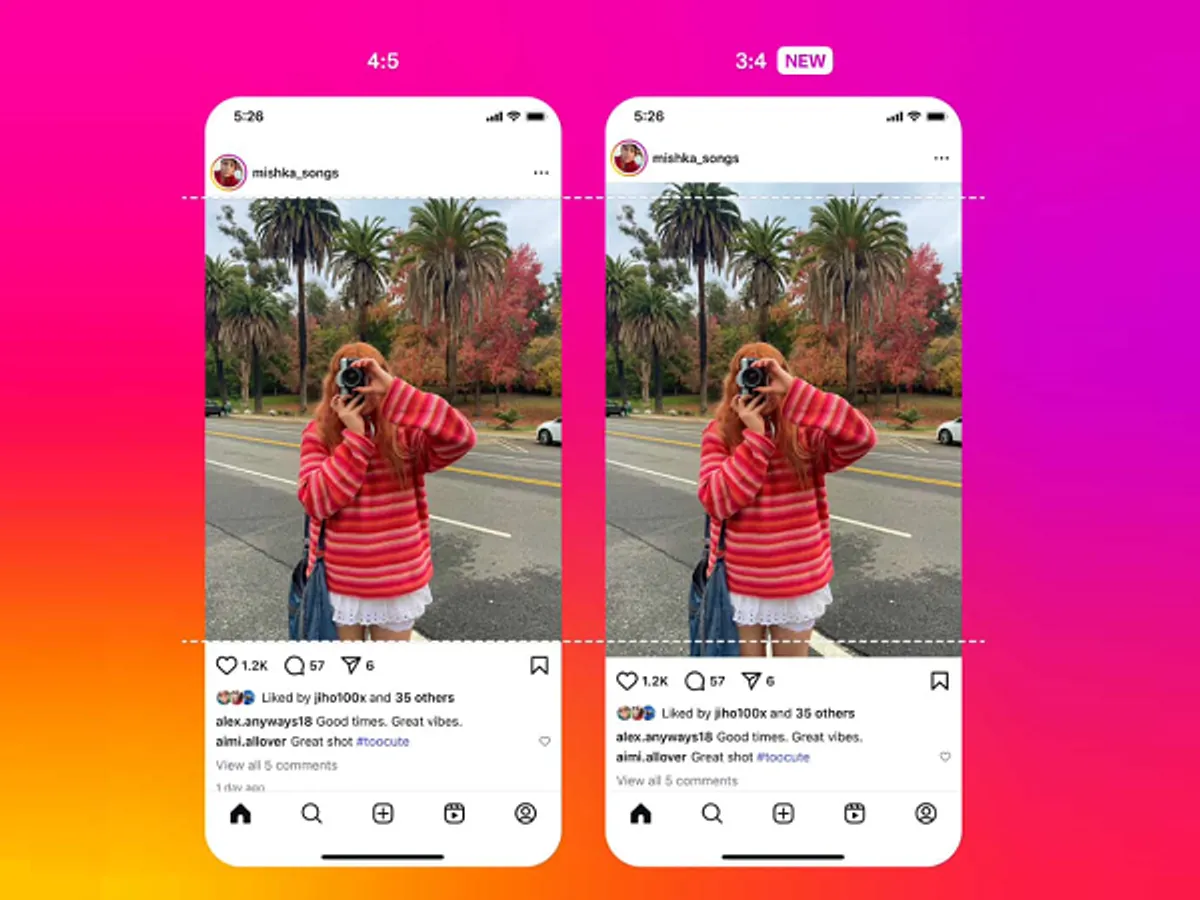
Image source: Social Media Today
How the New 20-Slide Carousel Limit Changes Your Storytelling
One of the most significant advancements in recent months is the expansion of the carousel limit. Moving from 10 to 20 slides allows for much deeper storytelling. You can now create comprehensive "mini-magazines," detailed step-by-step tutorials, or extensive event recaps without forcing users to click a link in your bio. According to Sprout Social , carousels often generate higher engagement rates because they encourage users to spend more time interacting with a single piece of content.
When to Use Live Video Replays as Feed Posts
Live video remains a powerful tool for real-time interaction, but its value extends far beyond the broadcast. Instagram allows you to share Live replays directly to your feed for up to 30 days. This is a highly impactful way to preserve high-value Q&A sessions, product launches, or behind-the-scenes tours. By turning a Live session into a permanent feed asset, you provide value to followers who couldn't attend the live event, effectively doubling your content's lifespan.
Technical Specifications for Every Instagram Post Format
Technical errors are a common reason for poor post performance. If your image is blurry or cropped awkwardly, the algorithm may deprioritize it, and users will likely scroll past. Adhering to the "1080px Rule" is non-negotiable: always ensure your content is at least 1080 pixels wide to maintain clarity after Instagram's aggressive compression.
Instagram compresses every upload. To combat this, always export your files at a width of 1080px. If you upload a 4000px image, the downscaling process often introduces artifacts. Starting closer to the target resolution keeps your brand assets sharp.
Effective Aspect Ratios for Maximum Screen Real Estate
While square (1:1) posts are the classic choice, they are no longer the most effective. The 4:5 vertical ratio (1080 x 1350 px) is widely regarded as a top-tier option because it occupies approximately 20% more physical screen space than a square post. In a fast-scrolling environment, taking up more "real estate" gives the user more time to process your visual hook, significantly increasing the likelihood of a stop-and-engage action.
Using Vector Files to Keep Your Brand Assets Sharp
When designing posts in tools like Design.com or Adobe Express, the quality of your source files matters. For logos and icons, using vector formats (SVG or EPS) ensures that your branding remains crisp regardless of the final export size. Many creators make the mistake of using low-resolution PNGs, which become pixelated when layered over high-definition photos. A sharp, professional visual identity is a key trust signal for modern audiences.
How to Post to Instagram from Your Phone or Desktop
While Instagram began as a mobile-only platform, the desktop experience has matured significantly. Professional social media managers often prefer the desktop workflow for its precision and ease of file management, while creators on the go rely on the mobile app's native editing features.
Step-by-Step Instructions for Mobile Uploads
The mobile app remains the most feature-rich environment for posting, offering access to the latest filters, trending music, and interactive stickers.
- Open the App: Tap the "+" icon at the bottom center (or top right, depending on your UI version).
- Select Content: Choose "Post" from the bottom menu. Select one photo or tap the "Multiple" icon for a carousel.
- Edit and Filter: Apply filters or use the "Edit" tab to adjust brightness, contrast, and saturation.
- Write Your Caption: Include relevant keywords and 3-5 targeted hashtags.
- Tag and Locate: Tag relevant accounts and add a location to increase local discoverability.
- Share: Tap "Share" to go live.
How to Post from a PC or Mac Using the Browser Version
Posting from a computer is a strong contender for the most efficient workflow when handling professional photography. Simply navigate to Instagram.com, log in, and click the "Create" button (represented by a plus sign in a square). You can drag and drop files directly from your folders. However, be aware that the desktop browser version currently lacks certain mobile-only features, such as the ability to add trending audio to static posts or use specific augmented reality filters.
Using Meta Business Suite for Professional Desktop Scheduling
For brands managing multiple accounts, Meta Business Suite is an excellent choice. It allows for bulk uploading and, more importantly, scheduling. You can use the "Optimal Times" feature to see when your specific audience is most active, ensuring your post hits the feed at the moment of peak engagement. This level of planning is a significant step forward from the "post and pray" methods of the past.
Advanced Strategies to Beat the Instagram Algorithm
Once you have mastered the technical basics, you must focus on the psychological triggers that drive the algorithm. Instagram does not just look at likes; it looks at "dwell time" and "repeat exposure."
Did you know Instagram often shows a carousel to a user twice? If a follower scrolls past your first slide, the algorithm may show them the same post later, but starting on Slide #2 . This is why your second slide should be just as—if not more—visually arresting than the first.
How to Use AI Tools to Generate Post Ideas and Images
The integration of generative AI has notably innovative implications for content creation. Platforms like Canva now offer "Magic Studio," where you can generate a complete post layout from a simple text prompt. This workflow saves hours of design time:
Why Lighting and Framing Still Matter in an AI World
Despite the rise of AI, authentic photography remains a top-performing content type. Expert advice from the Mojo App team suggests that natural lighting is the single most important factor in post quality. Facing a window during the "golden hour" provides a soft, flattering glow that AI still struggles to replicate perfectly. Furthermore, consistent framing—such as always using a 4:5 vertical crop—creates a cohesive "grid aesthetic" that encourages profile visitors to hit the follow button.
Troubleshooting Common Instagram Post Failures
Few things are more frustrating than a post that fails to upload or looks distorted after sharing. Most of these issues stem from technical mismatches between your file and Instagram's requirements.
- File Size Errors: Instagram has a limit for video files (typically 4GB) and high-res photos. If your upload hangs, try reducing the file size without sacrificing the 1080px width.
- Aspect Ratio Rejection: If you try to post a very tall or very wide image, Instagram will force a crop. Always pre-crop to 4:5 or 1:1 to maintain control over the composition.
- App Cache Issues: If the "Share" button is unresponsive, your app cache may be full. Clearing the cache in your phone settings or reinstalling the app often resolves persistent posting glitches.
- Shadowban Myths: If your reach drops suddenly, it is rarely a "shadowban." More often, it is a result of using banned hashtags or a shift in algorithm preferences. Check your "Account Status" in settings to see if you have any actual community guideline violations.
Frequently Asked Questions
The most effective size is 1080 x 1350 pixels, which corresponds to a 4:5 vertical aspect ratio. This format is widely regarded as a top choice because it covers more of the user's screen than a traditional square post, leading to higher engagement rates and better visibility for your content's details.
To post multiple photos with different original ratios, you must first select a "base" ratio. Instagram usually forces all photos in a carousel to match the aspect ratio of the first image selected. To avoid awkward cropping, use a third-party "No Crop" app or a design tool like Canva to place your images onto a standard 1080x1350 canvas before uploading.
Blurriness is usually caused by Instagram's compression algorithm. This happens if your original file is too small (under 1080px wide) or excessively large (causing the algorithm to downsample aggressively). For the sharpest results, export your images as high-quality JPEGs at exactly 1080px wide and ensure you have a strong internet connection during the upload process.
Yes, you can schedule posts for free using the native Instagram app (for professional accounts) or the Meta Business Suite on desktop. This allows you to plan your content days or weeks in advance, ensuring you post at the most impactful times for your specific audience without needing expensive third-party tools.
Strategic thinking has shifted away from using the maximum 30 hashtags. In 2026, the consensus among experts is to use 3 to 5 highly relevant, niche-specific hashtags combined with a keyword-rich caption. Instagram's search functionality now functions more like a traditional search engine, prioritizing SEO keywords over hashtag quantity.
Key Takeaways for Instagram Success
Mastering the Instagram post in 2026 requires a balance of technical precision and creative strategy. Here are the essential steps to ensure your content performs at its peak:
- Prioritize the 4:5 vertical ratio to maximize your presence in the user's feed.
- Leverage the 20-slide carousel limit for educational or deep-dive storytelling.
- Optimize Slide #2 in every carousel to take advantage of algorithmic re-exposure.
- Maintain a 1080px width for all uploads to prevent quality loss during compression.
- Use Reels for new discovery and static posts to nurture your existing community.
- Integrate AI tools into your workflow to speed up design and caption generation.
- Focus on SEO keywords in your captions rather than relying solely on hashtags.
Start by auditing your recent posts to see which aspect ratio you've been using, and try switching to a 4:5 vertical format for your next upload to see the difference in engagement.