Home
Home
How to Download and Master the Pinterest App on Any Device
Pinterest is often mistaken for a social media platform, but it functions more accurately as a visual search engine. Whether you are planning a home renovation, looking for dinner inspiration, or curating a new wardrobe, the Pinterest app serves as a digital scrapbook for the modern age. Unlike platforms focused on real-time updates, Pinterest is designed for future planning and personal discovery.
Image source: Pocket-lint
Where Can You Download the Official Pinterest App?
Accessing Pinterest is straightforward across virtually all modern hardware. The platform has expanded its reach to ensure that users can sync their inspirations across mobile, desktop, and even wearable devices.
iOS, iPadOS, and visionOS
For Apple users, the Pinterest app requires iOS 16.0 or later. It is highly optimized for the iPad, taking advantage of the larger screen real estate for grid-based browsing. Notably, Pinterest has also introduced support for visionOS , allowing users to browse pins in a spatial computing environment. You can also perform basic interactions via the Apple Watch companion app, which is useful for quick notifications or viewing recently saved items.
Android and Pinterest Lite
The standard Android app is available on the Google Play Store. However, for users with limited storage or slower internet connections, Pinterest Lite is an excellent choice. It offers the core functionality of saving and browsing pins while maintaining a significantly smaller file size. While it lacks some of the high-end visual search animations, it remains a top-rated option for efficiency.
Windows and Desktop
While many users prefer the browser experience, the official Pinterest app for Windows (available in the Microsoft Store) offers a more integrated feel. It allows for native desktop notifications and a dedicated window that doesn't get lost among dozens of browser tabs.
Image source: Microsoft Store
Pinterest App vs. Pinterest Lite vs. Browser — Which Should You Use?
Choosing the right way to access Pinterest depends on your hardware and how you intend to use the platform. While the standard app is widely considered one of the best ways to experience the full feature set, there are specific scenarios where the Lite version or a mobile browser might be preferable.
| Feature | Standard App | Pinterest Lite | Mobile Browser |
|---|---|---|---|
| Visual Search (Lens) | Full Support | Limited | Basic |
| Storage Impact | High (~150MB+) | Very Low (~2MB) | None |
| Offline Access | Partial (Cached) | Minimal | None |
| Creator Tools | Full Suite | Basic | Limited |
The "App Loop" Problem
A common frustration for mobile users is the "app loop," where clicking a Pinterest link in a browser automatically forces the app to open. While this is intended to be helpful, it can be disruptive if you prefer the browser's multi-tab capabilities. To fix this on Android, you can go to Settings > Apps > Pinterest > Open by default and disable the "Open supported links" toggle. On iOS, long-pressing a link and selecting "Open in new tab" typically bypasses the automatic app launch.
How to Use Pinterest Lens for Visual Discovery
Pinterest Lens is a notably innovative tool that turns your smartphone camera into a search bar. Instead of typing keywords, you can point your camera at a real-world object to find similar items or styling ideas.
Step-by-Step: Using the Lens Camera
- Open the Pinterest app and tap the search icon (magnifying glass).
- Tap the camera icon located at the end of the search bar.
- Point your camera at an object (e.g., a pair of shoes, a plant, or a piece of furniture).
- Tap the shutter button or allow the app to scan automatically.
- Browse the results to find where to buy the item or how to incorporate it into your home.
Inclusive Search Filters
Pinterest has set a high standard for inclusivity in visual search. When searching for beauty or fashion inspiration, you can use the Skin Tone Ranges and Hair Patterns filters. These tools allow you to narrow down results to see content that specifically reflects your own appearance, making the discovery process far more personalized and useful.
How to Fix Common Pinterest App Problems and Bugs
Even the most well-maintained apps encounter technical hurdles. Based on community feedback and user reviews, there are several recurring issues that users face in 2026.
Managing the "AI Content" Saturation
Many users have reported an influx of AI-generated images that can sometimes clutter the feed. While Pinterest's algorithm is highly adaptive, it may take time to filter these out. To clean up your feed, consistently use the "Not Interested" feature. Tap the three dots on an AI-heavy pin and select "Not interested in this Pin." Over time, this signals the algorithm to prioritize human-created photography and art.
Stopping Accidental Sharing
A frequent UI complaint involves the pop-up that appears immediately after downloading an image. In some versions of the app, the "Share to Contacts" buttons are placed very close to the download confirmation, leading to accidental messages being sent to random contacts. To avoid this, wait a full second after the download completes before tapping anywhere else on the screen, or use the mobile browser version for downloads to bypass the app's specific sharing UI.
Fixing Ghost Notifications
If you see a notification badge on your home screen but find no new activity in the app's notification tab, you are experiencing a "ghost notification." This is often caused by a sync delay between the server and your device. Clearing the app cache (found in the app's internal settings under "Privacy and Data") usually resolves this discrepancy.
How to Optimize Your Pinterest Profile for Maximum Reach
If you use Pinterest for business or content creation, simply having an account isn't enough. You must treat your profile like a landing page for a search engine.
- Profile SEO
- Instead of just using your name, include keywords in your "Display Name." For example, "Sarah Jenkins | Easy Vegan Recipes" is far more discoverable than just "Sarah Jenkins."
- Claiming Your Content
- Verify your website and link your Instagram or YouTube accounts. This ensures that any pin saved from your platforms is attributed to you, providing valuable analytics and brand authority.
- Optimal Image Dimensions
- For 2026, the standard pin ratio remains 2:3 (e.g., 1000 x 1500 pixels). Profile pictures should be at least 165 x 165 pixels, and board banners should be 800 x 450 pixels for the best visual impact.
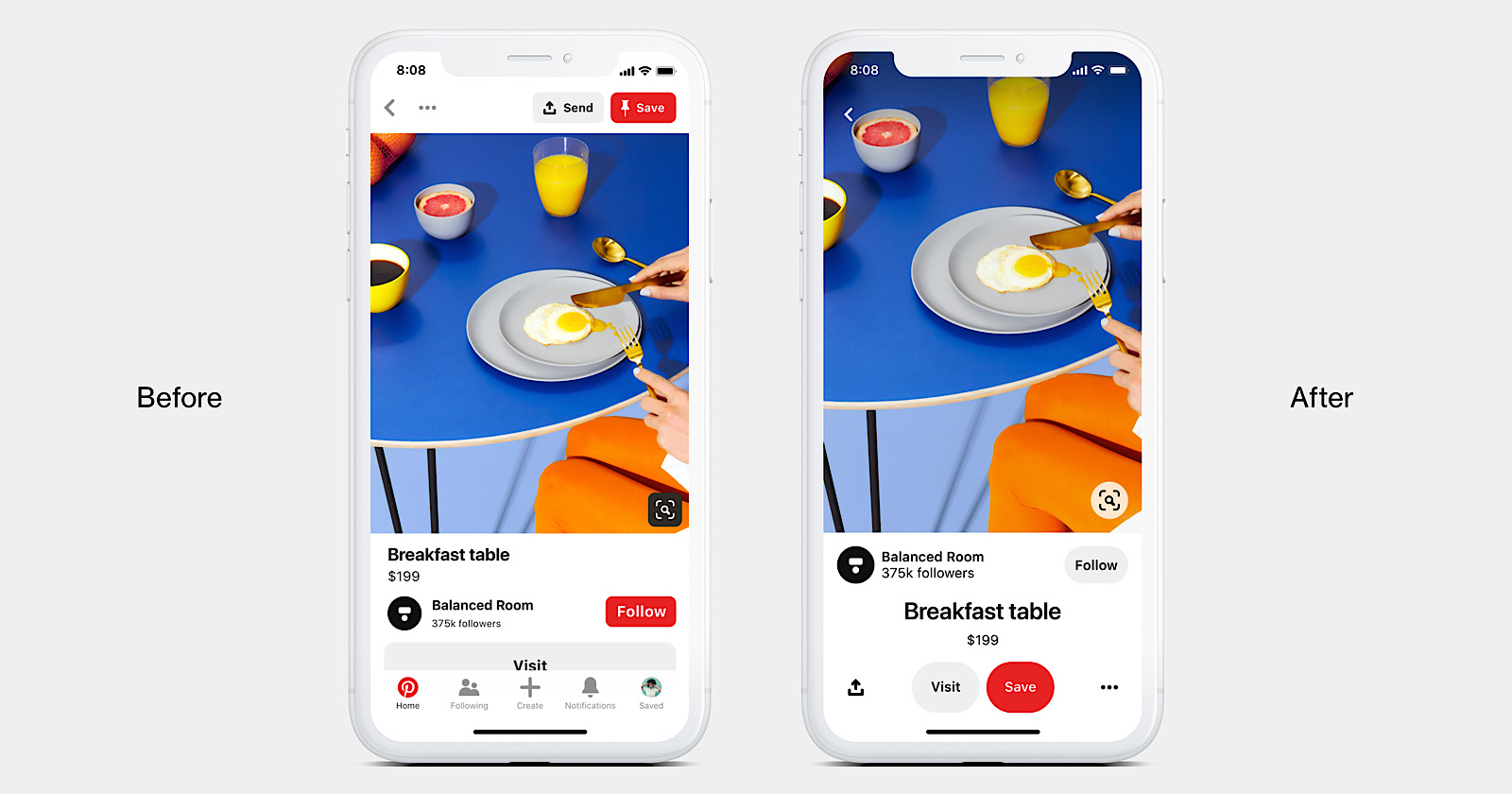
Image source: Search Engine Journal
Advanced Strategies for Content Creators
Moving beyond basic pinning requires a strategic approach to content distribution. Successful creators on the platform utilize specific workflows to maximize their impressions.
Content Atomization
Don't just create one pin for a blog post. Practice "atomization" by breaking a single piece of content into multiple unique pins. If you wrote an article about "10 Tips for Small Gardens," you should create a separate pin for each tip, plus a summary pin. This increases your chances of appearing in various search queries.
The "No Face" Rule
Data-backed insights from the creator community suggest that in certain niches like home decor and DIY, pins that do not feature human faces often perform better. This is because users prefer to envision themselves in the scene. While fashion and lifestyle pins still benefit from human models, try testing faceless imagery for your product or interior design pins to see if repin rates increase.
Implementing Rich Pins
Rich Pins are a highly impactful feature that automatically syncs information from your website to your pins. There are three main types:
- Article Pins: Automatically show the headline, author, and story description.
- Product Pins: Include real-time pricing, availability, and where to buy.
- Recipe Pins: Display ingredients, cooking times, and serving sizes directly on the pin.
Understanding Privacy and Data Usage in the App
As with any major platform, understanding how your data is handled is crucial. Pinterest is transparent about its data collection, but users should be aware of the specific identifiers tracked by the app.
According to the App Store privacy labels , Pinterest may collect data regarding your location, purchase history, and contact information. Interestingly, the app also collects data about your "surroundings" when using visual search features, though this is typically used to improve the accuracy of the Lens tool rather than being linked directly to your identity for advertising.
For parents, Pinterest offers age assurance features and parental controls for users aged 13-17. These settings limit who can message the minor and restrict certain types of content from appearing in their feed.
Frequently Asked Questions
Is the Pinterest app free to use?
How do I stop Pinterest from opening the app automatically?
Can I use Pinterest without an account?
Why is my Pinterest app running slowly?
How do I delete a board on the mobile app?
What is the difference between a Pin and a Board?
The Bottom Line
Mastering the Pinterest app allows you to transform a simple collection of images into a powerful engine for personal and professional growth. By understanding the technical nuances of the platform, you can avoid common pitfalls and maximize your discovery potential.
- Choose the right version of the app (Standard vs. Lite) based on your device's performance capabilities.
- Leverage Pinterest Lens for real-world visual search to find products and styling inspiration instantly.
- Optimize your profile with keyword-rich display names to improve your visibility in search results.
- Clean your feed regularly by using the "Not Interested" tool to filter out unwanted AI-generated content.
- Implement Rich Pins if you are a creator to ensure your content stays updated and provides value to users.
- Maintain board organization by moving relevant collections to the top of your profile seasonally.
Start by auditing your current profile today and updating your display name to include at least one relevant keyword for your niche.