Home
Home
How to Drop a Pin on iPhone and Share Your Exact Location
To drop a pin on your iPhone using Apple Maps, simply touch and hold any spot on the map until a purple marker appears. Once dropped, you can tap the pin to see the address, get directions, or share the location via the iOS Share Sheet. If the pin isn't exactly where you want it, tap "Move" to drag the map and align the marker with precision.
Whether you are trying to meet a friend in a crowded park, mark a specific parking spot in a massive lot, or save a hidden trailhead for later, knowing how to drop a pin on your iPhone is an essential skill. While the basic gesture is simple, modern navigation apps offer deep features for refining precision and sharing locations across different platforms, including Android.
How to Drop a Pin in Apple Maps in Seconds
Apple Maps is the native navigation tool for iOS, and it has evolved into a highly capable platform. Dropping a pin here is the foundation for most location-based tasks on your device.
The Core Gesture: Touch and Hold
The standard way to mark a location is the "Touch and Hold" mechanic. Open the Maps app and navigate to the general area you want to mark. Press and hold your finger on the specific spot until a purple marker drops onto the screen. According to Apple Support , this gesture has remained the consistent standard across iOS versions, including the latest updates in 2026.
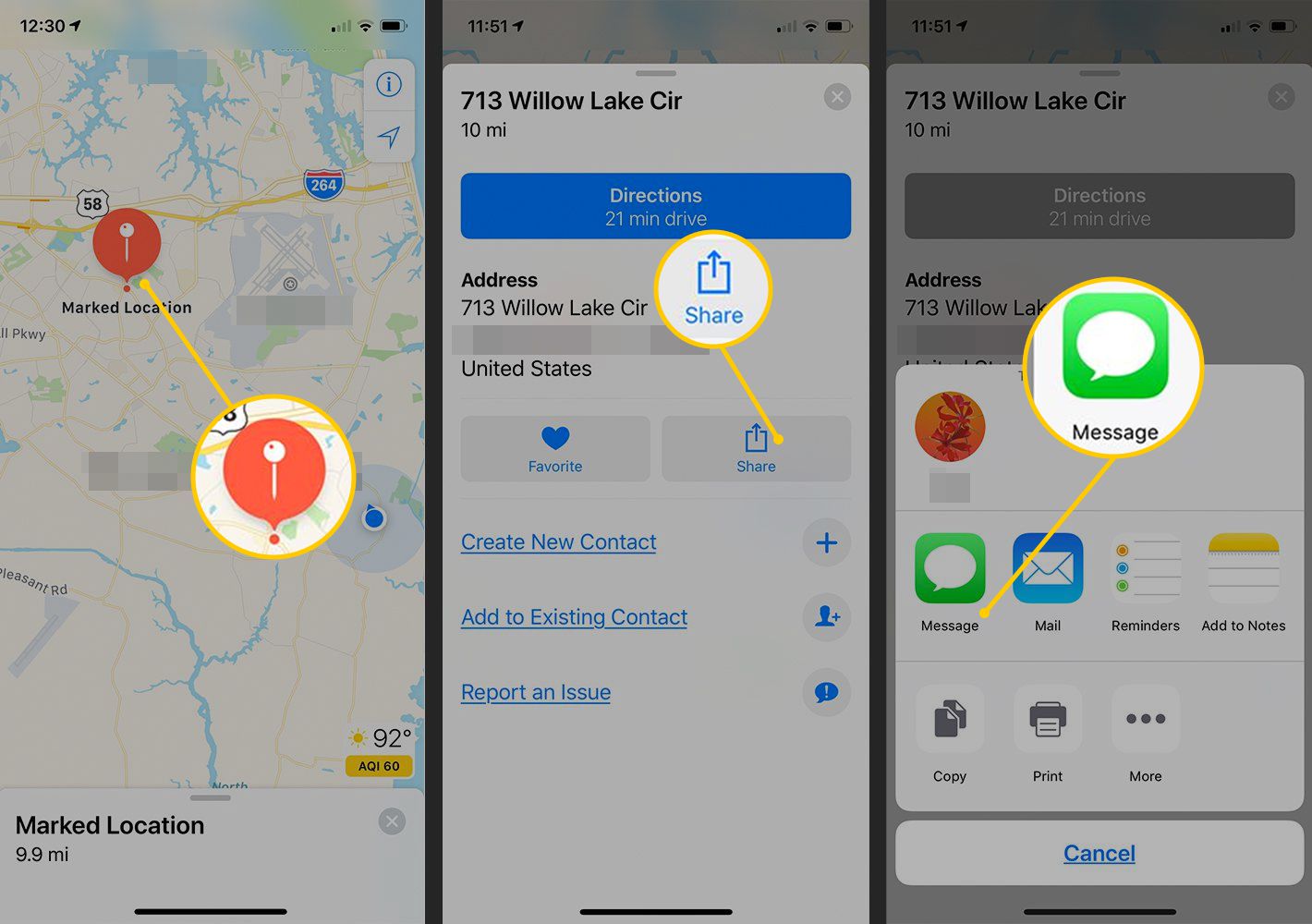
Image source: Lifewire
Refining the Placement
Sometimes your finger might miss the exact spot, especially if you are zoomed out. Once the pin is dropped, a menu will slide up from the bottom. Tap the "Move" button. This allows you to drag the map underneath the pin rather than dragging the pin itself, which provides much higher accuracy for specific coordinates. This is particularly useful for marking spots that don't have a formal street address.
Identifying Pin Colors
Apple Maps uses a color-coded system to help you distinguish between different types of markers. Understanding these can help you navigate your map more effectively:
- Purple: A pin you dropped manually by touching and holding.
- Red: A location that appeared as a result of a search query.
- Green: Your designated starting point for navigation.
- Blue: Your current real-time location (the pulsing dot).
How to Share Your Dropped Pin with Other People
Dropping a pin is often just the first step; the real value comes from sharing that location with others. The iOS Share Sheet makes this process relatively seamless for fellow iPhone users, though cross-platform sharing requires a bit more care.
Using the iOS Share Sheet
Once you have dropped your pin, follow these steps to send it:
Sending a Pin to an Android User Without Errors
A common frustration among iPhone users is the "blank file" error. When you send an Apple Maps link via iMessage to an Android user, the recipient often sees a white screen or a file they cannot open. This happens because Android devices cannot natively interpret Apple's proprietary map links.
To ensure reliability, many users on StackExchange suggest two primary workarounds:
- Share via Email: When you select "Mail" from the Share Sheet, Apple Maps often generates a universal Google Maps link and a vCard that Android devices can read more easily.
- Use Google Maps: If you know the recipient is on Android, dropping the pin in the Google Maps app (available on iPhone) and sharing from there is a highly effective way to ensure they can open the link without issues.
Why Does My Dropped Pin Keep Moving to the Wrong Address?
One of the most frequent complaints regarding Apple Maps is a behavior known as "address snapping." You might try to drop a pin in the middle of a park, but the app automatically shifts it to the nearest street address or building.
Apple Maps is designed primarily for vehicle and pedestrian navigation to known addresses. Because of this, the software's algorithm often "snaps" a user-dropped pin to the nearest mapped road or structure to make routing easier. While helpful for finding a house, it is frustrating for off-road locations.
The Off-Road Problem
If you are in a large parking lot, a forest trail, or a festival ground, Apple Maps may struggle to keep the pin exactly where you placed it. User reports on Reddit confirm that even if you manually move the pin, the routing engine might still direct the recipient to the "closest road" rather than the pin's actual coordinates.
The Google Maps Workaround
For high-precision "off-road" needs, Google Maps ranks among the top choices. Unlike Apple Maps, Google Maps allows for "point-to-point" navigation that doesn't always require a street address. If you are meeting someone at a specific tree in a park, Google Maps is more likely to maintain that exact coordinate during the sharing process.
How to Drop a Pin in Google Maps on Your iPhone
Many iPhone users prefer Google Maps for its robust database and cross-platform reliability. The process is similar to Apple Maps but offers different data points.
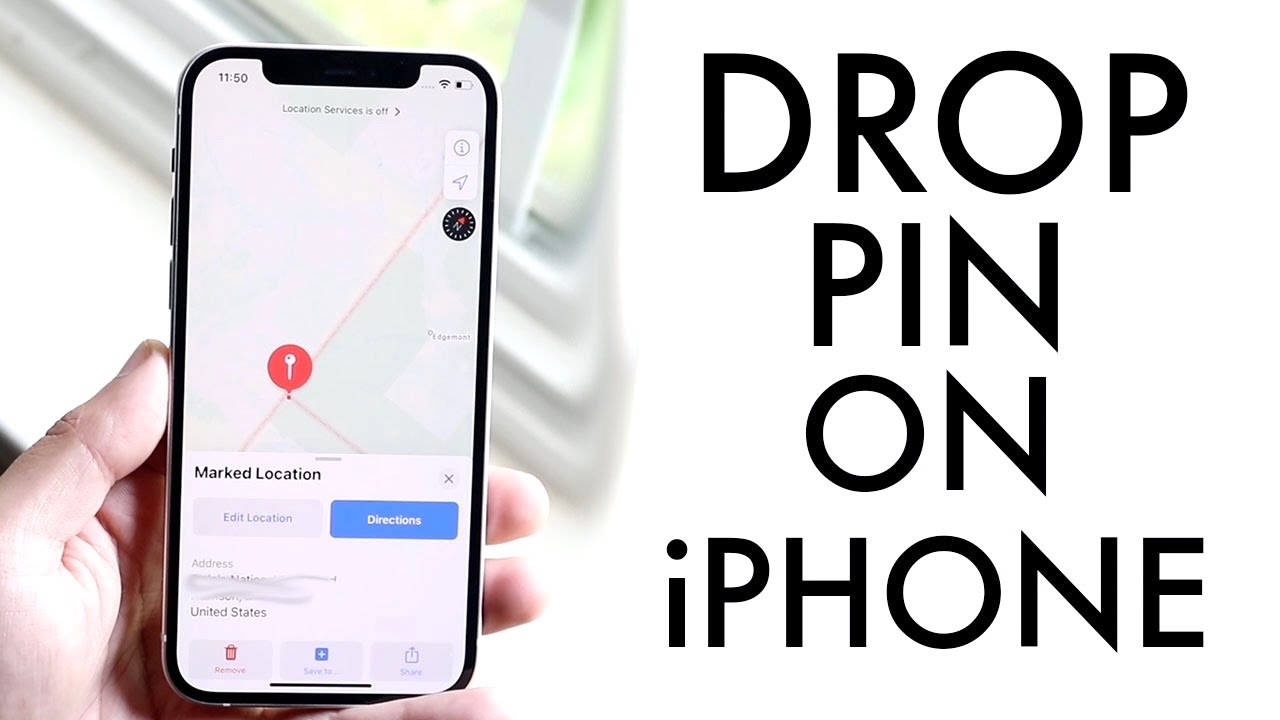
Image source: YouTube
Extracting Raw Coordinates
One of the strongest features of Google Maps on iOS is the ability to see and copy raw Latitude and Longitude coordinates. When you touch and hold to drop a pin, the coordinates appear in the search bar or the info panel at the bottom. Tapping these coordinates allows you to copy them to your clipboard. Sharing raw coordinates is a fail-proof way to communicate a location, as every mapping app on earth can interpret them.
Why Coordinates Matter
Coordinates (e.g., 34.0522° N, 118.2437° W) are the universal language of geography. If you are in an area with poor data or no mapped roads, sending these numbers ensures that the recipient can find you regardless of which app they use. This is a top-tier strategy for hikers and outdoor enthusiasts.
How to Drop a Pin in WhatsApp for Quick Sharing
WhatsApp is one of the most popular ways to share locations globally, especially for international travelers who want to avoid high data costs or SMS fees. The app has a built-in mapping interface that works seamlessly on iPhone.
The Chat Interface
To share a location in WhatsApp:
- Open a chat and tap the "+" icon next to the text input field.
- Select "Location."
- You will see a map with your current location. You can either tap "Send Your Current Location" or use the search icon to find a different spot.
Live Location vs. Static Pin
WhatsApp offers a "Live Location" feature, which tracks your movement in real-time for a set period (15 minutes, 1 hour, or 8 hours). This is different from a "Dropped Pin," which is a static marker. Use Live Location if you are walking toward a meeting point; use a static pin if you are marking a specific stationary spot like a restaurant entrance.
Comparison: Which App Should You Use to Drop a Pin?
Choosing the right app depends on your specific needs and who you are sharing with. The table below compares the three most popular options for iPhone users.
| Feature | Apple Maps | Google Maps | |
|---|---|---|---|
| Precision | Good (Snaps to roads) | Excellent (Coordinate-based) | Moderate |
| Android Compatibility | Low (Blank file risk) | High (Universal links) | High (In-app viewing) |
| Siri Integration | Native / Seamless | Limited | None |
| Offline Use | Yes (Downloadable) | Yes (Downloadable) | No |
| Best For | Driving & CarPlay | Hiking & Off-road | Quick Social Meets |
How to Delete or Clear Dropped Pins
Over time, your map can become cluttered with old pins. Cleaning them up is a simple process that helps keep your interface organized.
Removing a Single Pin
To remove a pin you just dropped, tap on the pin to open its information card. Look for the "Remove Pin" or "Delete" option (usually represented by a trash can icon or found under the "More" menu). Once tapped, the purple marker will disappear instantly.
Clearing Map History
If you have searched for many locations, they may appear as recent suggestions. To clear these, go to the search bar, swipe up to see your history, and swipe left on individual entries to delete them. This ensures that your "Recents" list only contains locations you actually need.
Frequently Asked Questions
If the touch-and-hold gesture isn't working, first ensure that your screen is clean and responsive. More importantly, check your Location Services permissions. Go to Settings > Privacy & Security > Location Services and ensure that Maps is set to "While Using the App." If permissions are restricted, the app may prevent you from interacting with the map effectively.
Yes, you can label a dropped pin to make it easier to find later. After dropping the pin in Apple Maps, tap the "Add to Guides" or "Favorites" button. Once saved, you can edit the name to something descriptive like "My Parking Spot" or "Secret Picnic Spot." This is a highly recommended practice for locations you plan to visit frequently.
The act of dropping a pin itself does not use data, as it is a local interaction with the app's interface. However, loading the map tiles around the pin and sharing that pin with someone else will require an internet connection. If you are in a remote area, consider downloading offline maps in advance so the visual map remains visible even without a signal.
The most reliable way to send a pin to an Android user is to use the Google Maps app on your iPhone. Drop the pin, tap share, and send the link via text. If you must use Apple Maps, choose the "Share via Email" option, as this generates a more compatible link than the direct iMessage share, which often fails on non-Apple devices.
Native Apple Maps and Google Maps generally only allow one "active" dropped pin at a time. If you drop a second pin, the first one will usually disappear unless you have saved it to your Favorites or a custom Guide. To mark multiple spots, save each one as a favorite as you go to keep them all visible on the map simultaneously.
Dropping a pin is a fundamental tool for modern navigation, but doing it effectively requires choosing the right app for the right situation. Here are the key takeaways for mastering location sharing on your iPhone:
- Touch and hold any spot in Apple Maps to drop a purple pin instantly.
- Use the "Move" feature to refine the pin's placement for better precision.
- Switch to Google Maps for off-road locations to avoid the "address snapping" issue.
- Share via Email or Google Maps when sending locations to Android users to prevent link errors.
- Save pins to Favorites if you need to mark multiple locations or find them again later.
- Check permissions in Settings if you find yourself unable to drop or share pins.
Next time you are heading to a large event or exploring the outdoors, try dropping a pin in Google Maps and copying the raw coordinates for the most reliable sharing experience possible.