Home
Home
How to Download and Restore the Samsung Photo Editor APK on Your Galaxy Device
The Samsung Photo Editor APK is the core engine behind the editing tools in your Galaxy Gallery app. If your "Edit" icon is missing or the app fails to launch, you can manually restore it by downloading the official signed APK from APKMirror . For Android 14 (One UI 6) users, ensure you download version 3.4.x or higher . If the app won't install, you must first uninstall previous updates via Settings > Apps > Photo Editor > Three-dot menu > Uninstall updates .
For many Galaxy users, the native photo editor is a vital tool for daily content creation. Unlike third-party apps that require heavy subscriptions, the Samsung Photo Editor provides professional-grade features like Object Eraser and Generative AI Edit directly within the system framework. However, system updates or carrier-specific software configurations can sometimes cause this essential tool to disappear or malfunction.
In this guide, we will explore how to safely acquire the Samsung Photo Editor APK, troubleshoot installation failures, and unlock hidden features that many users overlook. Whether you are trying to fix a "missing icon" bug or simply want to ensure you have the latest AI-powered tools, this deep dive provides the technical clarity needed to manage your device's imaging capabilities.

Image source: APKMirror
Where to Find a Safe Samsung Photo Editor APK Download
Finding a reliable source for system APKs is critical for device security. Because the Photo Editor requires deep system permissions to access your media storage and interact with the Gallery framework, installing a "modded" or unverified version can expose your personal data to significant risks.
Identifying the Right Version for Your One UI Build
Samsung maintains several branches of the Photo Editor simultaneously to support different versions of Android and One UI. According to version history data , the compatibility generally breaks down as follows:
Trusted Repositories for Verified APK Files
To ensure the integrity of your installation, you should only use repositories that verify cryptographic signatures. The APK signature must match the one issued by Samsung Electronics Co., Ltd. If the signatures do not match, Android's Package Installer will block the installation to prevent malware injection.
- Galaxy Store: This is the primary official source. If the app is missing, search for "Photo Editor" in the Galaxy Store. If it says "Installed" but you can't find it, an APK sideload may be necessary.
- APKMirror: Widely regarded as a top-tier choice for safe APK hosting. They manually verify every upload against official signatures.
- APKLinker: A reliable alternative that provides detailed metadata on target SDK versions and architecture (usually arm64-v8a).
Expect the file size to range between 70MB and 121MB . If you encounter a file significantly smaller (e.g., 5MB), it is likely a downloader stub or a malicious wrapper and should be discarded immediately.
How to Install the APK and Fix Common Setup Errors
Installing a system APK is slightly more complex than installing a standard app from the Play Store. Because the Photo Editor is a "system-privileged" application, the Android OS protects it from being easily overwritten.
Enabling Unknown Sources in One UI 6
Before you can open the downloaded APK file, you must grant your browser or file manager permission to install apps. In One UI 6, this is found under Settings > Security and Privacy > Install unknown apps . Toggle the switch for the app you used to download the APK (e.g., Chrome or My Files).
Solving the App Not Installed Error
The most common frustration users face is the "App Not Installed" message. This typically happens for two reasons:
- Version Downgrade: Android prevents you from installing an older version of an app over a newer one. If you have v3.4.26 and try to install v3.4.20, it will fail.
- Signature Conflict: If you previously installed a "modded" version, the official Samsung APK will not install over it.
The Fix: Go to Settings > Apps , find "Photo Editor," tap the three dots in the top right, and select "Uninstall updates." This resets the app to the factory version, allowing you to then install the specific APK version you desire.
The Carrier Disappearance Fix for Missing Icons
In some regions, particularly with carriers like AT&T or Sprint, the Photo Editor icon may be hidden from the standard app drawer or the Gallery menu. Community wisdom from forums like Android Central suggests a clever workaround: select a photo in your Gallery, tap the "Share" icon, and look for "Photo Editor" in the list of apps. If it appears there, the app is functional but simply hidden from the UI. Sideloading the latest APK often forces the system to re-register the activity and restore the "Pencil" icon in the Gallery.
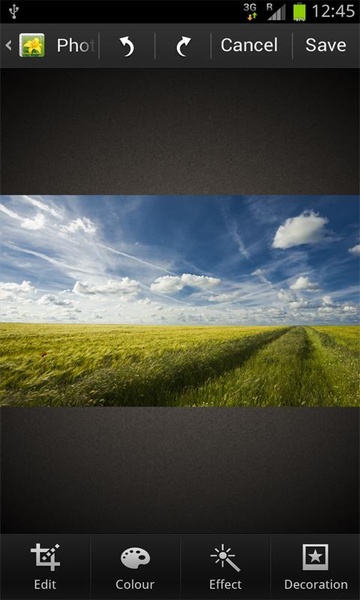
Image source: Samsung Photo Editor
Can You Use the Samsung Photo Editor APK on Non-Samsung Phones?
A frequent question among Pixel and GrapheneOS users is whether they can enjoy Samsung's Object Eraser by simply sideloading the APK. Unfortunately, the answer is generally no, due to deep architectural dependencies.
The Framework Dependency and System Libraries
The Samsung Photo Editor is not a standalone application. It relies on the Samsung Experience Service and the Samsung Gallery Framework . These are proprietary system libraries (shared objects or .so files) that are only present in Samsung's version of Android (One UI). When you attempt to run the APK on a Pixel device, the app looks for these libraries, fails to find them, and crashes immediately or refuses to install.
According to discussions on the GrapheneOS forums, even with "Sandboxed Google Play Services," the Samsung framework remains a hard requirement. The app is hard-coded to communicate with the Samsung Account and Galaxy AI cloud servers, which verify the device's hardware ID before processing advanced edits.
Better Alternatives for Pixel and GrapheneOS Users
If you are not on a Galaxy device, trying to force the Samsung Photo Editor to work is often a futile effort. Instead, consider these functional equivalents:
- Google Photos: Now offers Magic Eraser to most users (sometimes requiring a Google One subscription).
- Snapseed: A powerful, free editor from Google that offers "Healing" tools similar to the Object Eraser.
- Adobe Lightroom Mobile: Ranks among the top choices for professional HSL and RAW control on any Android device.
How to Use Advanced Galaxy AI Features in the Editor
Once you have successfully updated your Samsung Photo Editor APK to a version compatible with One UI 6.1 or later, you gain access to a suite of tools that stands out as a top choice for mobile photographers.
Mastering the Object Eraser and Reflection Removal
The Object Eraser has evolved significantly. To use it, tap the "Four Circles" icon in the editor and select "Object Eraser." While most users know how to tap an object to remove it, the "Erase Reflections" and "Erase Shadows" tools are notably innovative. These use machine learning to identify non-solid artifacts in a photo—like the glare on a window or a harsh shadow across a face—and neutralize them without blurring the underlying texture.
Generative Edit Capabilities and the 12MP Limit
Generative Edit allows you to circle an object, move it to a different part of the frame, and let AI fill in the gap. However, there are two critical limitations to keep in mind:
- The 12MP Limit: If you edit a 50MP or 200MP photo using Generative Edit, the final output will be downscaled to 12MP. This is due to the massive computational power required for AI generation.
- The AI Watermark: Samsung adds a small star-cluster watermark to the bottom-left corner of any image modified with generative AI. This is a policy designed to ensure transparency in AI-generated content.
Where to Find Hidden Collage and Meme Making Tools
One of the biggest complaints after recent One UI updates is the apparent removal of the collage maker. Users often search the individual photo editor for these tools, only to find them missing. This is a classic case of feature relocation rather than removal.
Navigating the Album View for the Create Menu
To find the collage, GIF, and movie-making tools, you must be in the
main Album view
of the Gallery app, not inside a specific photo's edit screen.
Follow these steps:
- Open the Samsung Gallery app.
- Long-press to select multiple photos.
- Tap the "Create" button (usually found at the bottom or under the "More" three-dot menu).
- Select "Collage," "Highlight reel," or "GIF."
This "Create" menu is the hub for multi-image processing, while the Photo Editor APK handles single-image manipulation. Distinguishing between these two interfaces will save you significant time when trying to build memes or social media grids.
Pro Tips for a Non-Destructive Editing Workflow
The Samsung Photo Editor is a highly capable tool for those who understand how to preserve their original data. By default, tapping "Save" will overwrite your original photo, which can be problematic if you later decide you don't like the edit.
Why You Should Always Use Save as Copy
To maintain a non-destructive workflow, always tap the three-dot menu in the editor and select "Save as copy." This creates a new file with your edits while leaving the original high-resolution file untouched. This is especially important for photos taken in Pro Mode or Expert RAW, as the native editor may strip some metadata during a standard save.
Using Color Mix for Professional Results
Hidden within the "Tone" settings is the Color Mix tool. This is essentially an HSL (Hue, Saturation, Luminance) controller. It allows you to select a specific color—like the blue of the sky or the green of the grass—and adjust it independently of the rest of the image. Many users find this tool to be an excellent alternative to paid apps like Lightroom for quick, impactful adjustments to landscape photography.
How Samsung Photo Editor Compares to Galaxy Enhance-X
Samsung offers two distinct apps for photo manipulation. While the Photo Editor APK is built into the Gallery, Galaxy Enhance-X is a separate download from the Galaxy Store that focuses on AI-driven restoration.
| Feature | Photo Editor (Native) | Galaxy Enhance-X (AI Suite) |
|---|---|---|
| Object Removal | Yes (Object Eraser) | No |
| AI Upscaling (2x/4x) | No | Yes |
| Reflection Removal | Yes | Yes (Advanced) |
| Filters & Stickers | Extensive | Minimal |
| Face Restoration | Basic Smoothness | Advanced AI Face Fix |
| HDR Boost | Manual Sliders | One-tap AI Optimization |
For most users, the Photo Editor APK is the top-performing choice for creative edits, while Enhance-X is better suited for fixing "broken" photos that are blurry, low-resolution, or poorly lit.
Frequently Asked Questions
Final Checklist for Managing Your Samsung Photo Editor
The Samsung Photo Editor remains a top-tier option for mobile editing, offering a balance of ease-of-use and powerful AI capabilities. To keep it running perfectly, follow these key takeaways:
- Verify your version: Ensure you are using v3.4 or higher for the best experience on Android 14.
- Use trusted sources: Only download signed APKs from APKMirror to protect your device.
- Fix install errors: Always "Uninstall updates" before sideloading if you encounter errors.
- Preserve originals: Use the "Save as copy" feature to maintain a non-destructive workflow.
- Explore hidden menus: Look in the Gallery's "Create" menu for collage and GIF tools.
- Leverage AI: Use Reflection and Shadow erasers to clean up complex shots.
- Check framework: Remember that this APK will not work on non-Samsung hardware like Pixel or Motorola.
By following these steps, you can ensure your Galaxy device remains a highly impactful tool for all your photographic needs.
All trademarks, copyrighted content, and quoted material referenced in this article belong to their respective owners. Brief excerpts are used under fair use (17 U.S.C. § 107) for purposes of commentary, criticism, and informational reporting. This article is not affiliated with or endorsed by Samsung Electronics.