Home
Home
How to Choose and Use a Top Windows Photo Editor for Windows 10
For most users, the built-in Microsoft Photos stands out as a top choice for quick AI-driven edits and privacy. If you require a comprehensive all-in-one suite with batch processing, PhotoScape X is highly recommended. For professional-grade layering and complex manipulation, GIMP remains a leading open-source contender. Users on restricted machines should consider PhotoDemon , a powerful portable option that requires no installation.
Navigating the landscape of digital imagery on Windows 10 can be overwhelming. With a plethora of options available in the Microsoft Store and across the web, identifying the right tool for your specific workflow is essential. Whether you are a hobbyist looking to remove a stray tourist from a vacation photo or a professional photographer managing a massive library of RAW files, the "right" editor is defined by your hardware capabilities and your creative needs.
As of 2026, Windows 10 remains a robust platform for photography, supported by both legacy stability and modern AI advancements. This guide moves beyond simple listicles to provide technical solutions for app crashes, privacy-focused AI workflows, and specialized tools for accessibility and performance.
What Is a Top Built-in Windows Photo Editor for Windows 10?
The default Microsoft Photos app has evolved significantly, moving from a basic file viewer to a capable editor that handles many daily tasks with ease. For users who value integration and speed, it is often the first and only tool needed. According to Microsoft Support , the app provides a streamlined "Markup" toolbar featuring two pens, a highlighter, and various shapes for quick annotations.
Efficiency in Microsoft Photos is largely driven by keyboard shortcuts. Pressing
Ctrl + E
immediately launches the editor, while holding the
Spacebar
allows you to toggle between your current edits and the original file for an instant comparison. These small touches make it a premier choice for rapid iterations.
Why Local AI Features Make Microsoft Photos a Privacy Winner
One of the most significant advancements in the Photos app is the integration of local AI processing. Features like Generative Erase , Background Blur , and Background Removal allow for sophisticated edits that previously required professional software. Unlike cloud-based competitors such as Canva or Adobe Express, Microsoft Photos performs these tasks locally on your device's CPU or NPU.
This local processing is a major privacy advantage. Your personal photos never leave your machine to be processed on a remote server, mitigating risks associated with data breaches or unauthorized data training. This makes it one of the strongest options for users handling sensitive or private imagery. Furthermore, the "Generative Erase" tool is notably effective at filling in textures after removing objects, often rivaling paid alternatives in quality.
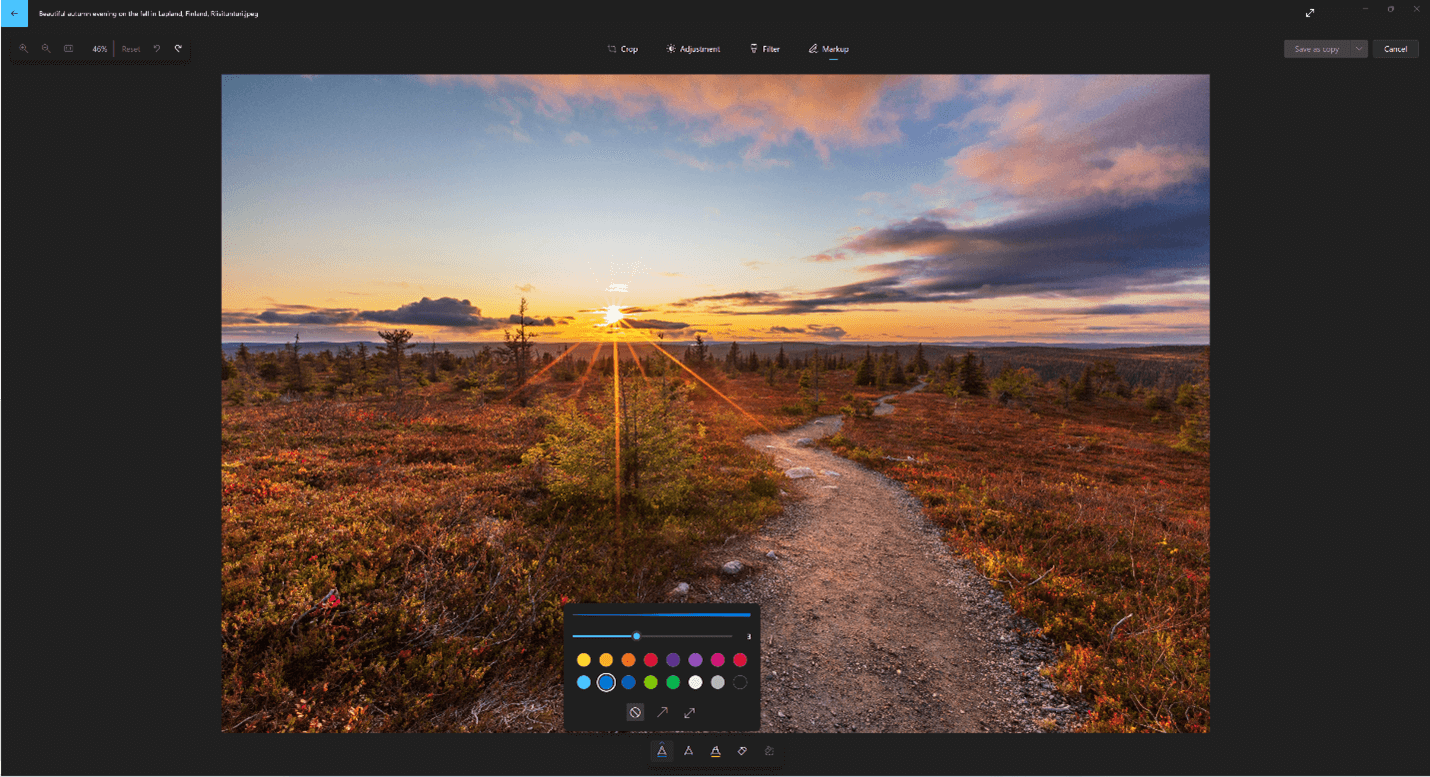
Image source: Microsoft Support
How to Fix the Windows 10 Photos App When It Will Not Open
Despite its utility, the Photos app is not immune to technical failures. In recent months, a widespread issue has been reported where the app—along with other system tools like Phone Link—simply fails to launch. This "launch crisis" can be frustrating, but several technical solutions exist to restore functionality without needing a full OS reinstall.
Navigate to Settings > Apps > Apps & Features . Locate Microsoft Photos, select "Advanced options," and try the "Repair" button. If that fails, use "Reset" to clear the app's cache and data.
Open Command Prompt as Administrator and run
sfc /scannow
followed by
DISM /Online /Cleanup-Image /RestoreHealth
. These commands check for and repair corrupted system files that may be preventing the app from initializing.
If the app is missing or broken, use the following PowerShell command (Admin):
Get-AppxPackage -allusers Microsoft.Windows.Photos | Foreach {Add-AppxPackage -DisableDevelopmentMode -Register "$($_.InstallLocation)\AppXManifest.xml"}
.
The "Old School" Fail-Safe: Restoring the Windows 7 Photo Viewer
For users who prioritize speed over modern AI features, the classic Windows Photo Viewer from the Windows 7 era remains a popular choice. It is exceptionally lightweight and opens almost instantly, even on older hardware. While it is hidden in Windows 10, it can be re-enabled via a Registry edit. According to community insights on Spiceworks , this is a reliable fallback when the modern UWP app is unstable.
HKEY_LOCAL_MACHINE\SOFTWARE\Microsoft\Windows Photo Viewer\Capabilities\FileAssociations
. You will need to add string values for various file extensions (e.g., .jpg, .png) pointing to "PhotoViewer.FileAssoc.Tiff".
Top Free Third-Party Photo Editors for Windows 10 Users
When the built-in tools fall short, the third-party ecosystem offers specialized solutions. These range from beginner-friendly suites to professional-grade raster editors that rival expensive subscription models.
PhotoScape X for Beginners Who Need All-in-One Tools
PhotoScape X is widely regarded as one of the most versatile editors for the average user. It supports modern formats like RAW (CR3) and WebP , which are often missing in basic free tools. Its feature set includes unique options like "Focus Stacking" and "Redo+," allowing users to experiment with different settings on the same edit. The interface is intuitive, grouping tools into logical tabs like "Editor," "Batch," and "Combine."
GIMP for Advanced Users Who Need Professional Layers
For those who require complex raster manipulation, GIMP (GNU Image Manipulation Program) is a leading choice. It offers a level of layer support and plugin extensibility that few free alternatives match. However, community feedback often highlights a steep learning curve and occasional stability issues on specific Windows 10 builds. It is a premier option for those who need "Photoshop-like" power without the monthly cost, provided they are willing to invest time in learning its unique interface.
PhotoDemon for Users Who Need a Portable Editor
A notable mention in the community is PhotoDemon . This editor is entirely portable, meaning it requires no installation and can be run directly from a USB drive. This makes it an excellent choice for users on restricted work computers or those who prefer to keep their system registry clean. Despite its small footprint, it supports layers, filters, and advanced color management.
| Feature | Microsoft Photos | PhotoScape X | GIMP | PhotoDemon |
|---|---|---|---|---|
| Ease of Use | High | High | Low | Medium |
| Layer Support | No | Basic | Advanced | Advanced |
| RAW Support | Yes (via Extension) | Yes | Yes | Yes |
| Installation | Built-in | Required | Required | Portable |
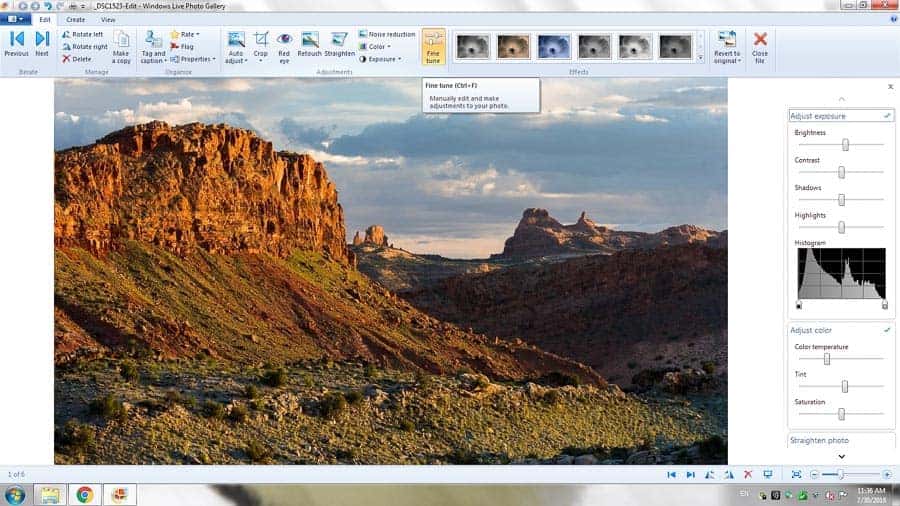
Image source: Improve Photography
How to Speed Up Your Workflow With an AI Photo Culling Step
A common mistake among photographers is starting the editing process before filtering their library. This is where "culling" comes in. By using local AI tools, you can save hours of manual labor. Tools like Photo Culling Pro use local algorithms to score photos from 0 to 100 based on technical merits like sharpness, exposure, and composition.
By culling first, you ensure that you only spend time editing the highest-quality frames. This is particularly useful for event photographers who may return from a shoot with thousands of images. Additionally, tools like Face Sorter Pro can assist in organizing large galleries by detecting duplicates and grouping photos by individual faces. Note that these AI tasks can be CPU-intensive; users with older hardware should ensure they have at least 16GB of RAM for a smooth experience.
Specialized Editors for Niche Windows 10 Needs
Beyond general editing, some users require specialized tools for specific photographic disciplines or accessibility requirements.
Darktable and RawTherapee for Photographers
For those focused on non-destructive RAW processing, Darktable and RawTherapee are top-tier options. These programs function similarly to Adobe Lightroom, allowing you to manage a "digital darkroom" where edits are saved as metadata rather than overwriting the original file. They offer exceptionally strong color science and lens correction profiles that are updated frequently by the open-source community.
Accessibility: Editing for Color-Impaired Users
Accessibility is a growing focus in software design. For users with color vision deficiency, certain editors offer high-contrast UIs or specific filters to assist in color correction. While many mainstream editors lack these features, the community often recommends tools with customizable color palettes or numerical color readouts (like GIMP) to help users make accurate adjustments based on data rather than just visual perception.
Icecream Photo Editor
For users on very old hardware or those who simply want a no-frills experience, Icecream Photo Editor provides a lightweight alternative. It covers the basics—cropping, resizing, and simple filters—without the overhead of modern AI features or complex layer systems. It is a popular choice for quick social media crops or basic brightness fixes.
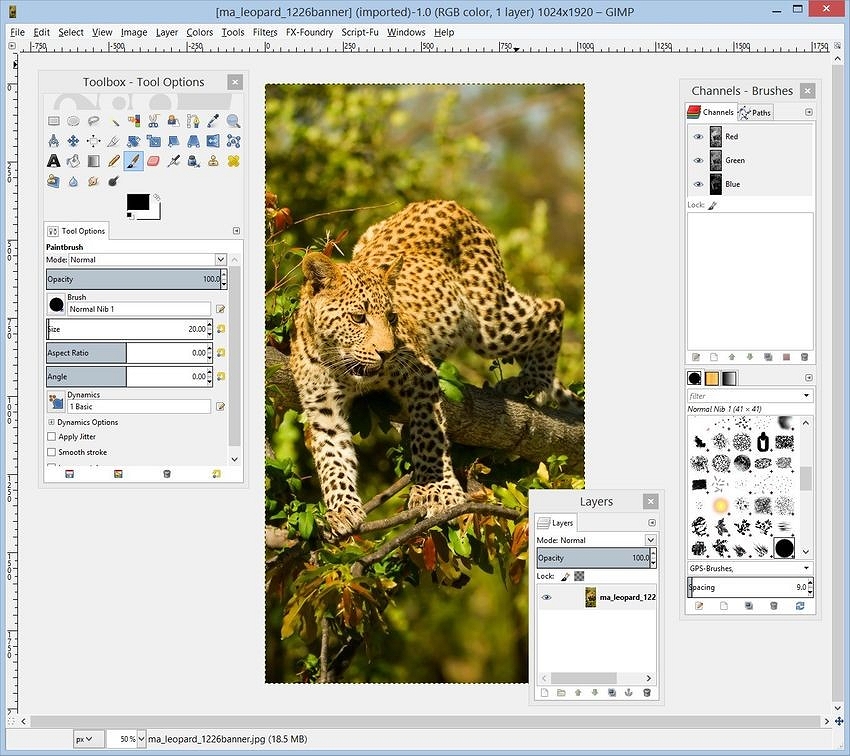
Image source: Wondershare Fotophire
Frequently Asked Questions
Key Takeaways for Windows 10 Photo Editing
- Prioritize Privacy: Use Microsoft Photos for AI tasks to keep your data local and secure.
-
Master Shortcuts:
Use
Ctrl + EandSpacebarto significantly speed up your basic editing workflow. - Fix Crashes Early: Utilize DISM and SFC scans to resolve launch issues with built-in Windows apps.
- Cull Before Editing: Use AI scoring tools to filter your best shots before spending time on manual adjustments.
- Choose the Right Tool: Match your software to your needs—PhotoScape X for batching, GIMP for layers, and PhotoDemon for portability.
- Restore Legacy Speed: Don't hesitate to re-enable the Windows 7 Photo Viewer if you need a lightweight, fast viewer.
Start by exploring the AI features in your built-in Photos app today to see how much time you can save on common editing tasks.