Home
Home
How to Use FreePhotoTool to Edit Photoshop Files Online Without a Subscription
FreePhotoTool is a browser-based image editor that functions as a powerful alternative to Adobe Photoshop. It allows users to open and edit PSD, AI, and Sketch files without installing software. Powered by the Photopea engine , it processes images locally in your browser's RAM, ensuring high privacy and speed. It is widely considered one of the top choices for quick, professional-grade edits on any operating system.
What Is FreePhotoTool and How Does It Actually Work?
FreePhotoTool stands out as a top choice for designers and casual users who need professional editing capabilities without the steep learning curve or subscription costs of traditional software. At its core, it is a 100% browser-based application, meaning it requires no installation and runs directly within Chrome, Firefox, or Edge.
The technical foundation of this tool is notably innovative. It is "Powered by Photopea," utilizing the robust engine developed by Ivan Kutskir. According to technical discussions in the developer's Reddit AMA , the tool relies heavily on JavaScript and WebGL. This allows the editor to leverage your computer's Graphics Processing Unit (GPU) to render high-resolution files—often exceeding 10 megapixels—at a smooth 60 frames per second.
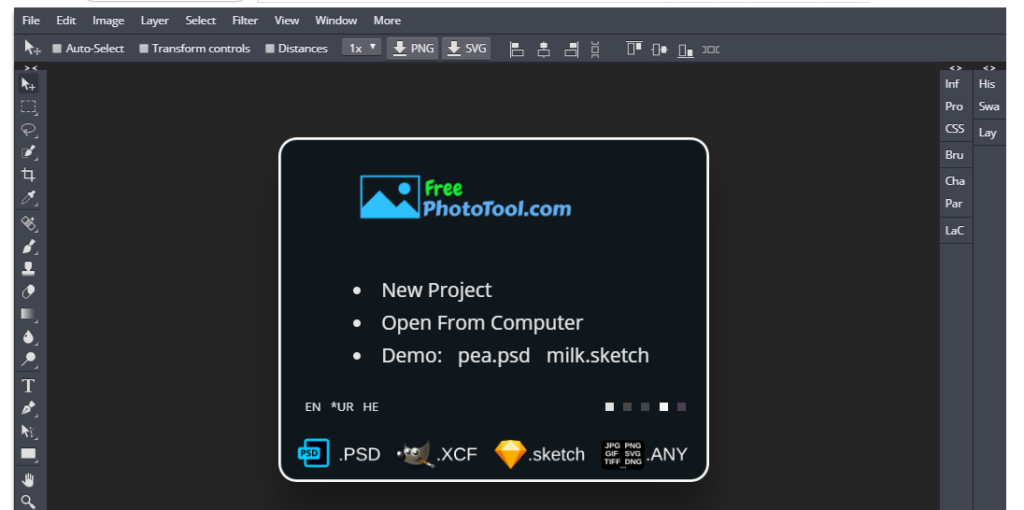
Image source: www.freephototool.com
Unlike many "cloud" editors that upload your files to a remote server, FreePhotoTool operates as a local application within your browser's sandbox. When you open a file, it is loaded into your local memory (RAM). This architecture not only improves speed by eliminating upload/download latency but also provides a significant layer of data security.
Is FreePhotoTool Safe for Your Private Photos and Data?
Privacy is a common concern when using free online tools. However, FreePhotoTool employs a security model that sets a high standard for web applications. Because the processing happens locally via JavaScript, your photos typically never leave your computer unless you explicitly choose to use a cloud-based plugin or export feature.
From a site security perspective, the domain has been active for approximately 10 years and maintains a valid SSL certificate for encrypted communication. Safety reports from aggregators like Sur.ly indicate that the site is free from malicious content. While the tool is ad-supported, the advertisements are generally confined to a sidebar and do not interfere with the core editing workspace.
Which File Formats Can You Open and Edit in Your Browser?
One of the most compelling reasons to use FreePhotoTool is its extensive compatibility with industry-standard formats. It serves as a bridge for users who may not have access to expensive proprietary software but need to collaborate with professional designers.
Adobe Ecosystem Support
The tool offers nearly 1:1 support for PSD (Photoshop) files, including complex layers, folders, masks, and blending modes. It also handles AI (Adobe Illustrator) and XD files, allowing you to inspect assets or make minor tweaks to vector-based designs.
Design and Photography Formats
- Sketch & Figma: Windows users can easily open Mac-only Sketch files or export Figma designs for offline editing.
- RAW Photography: Supports professional formats like DNG, CR2, and NEF, providing basic development tools for photographers.
- GIMP (XCP): Full support for the open-source GIMP format ensures cross-platform flexibility.
- Standard Web Formats: Seamlessly edit and export JPG, PNG, SVG, and GIF files.
FreePhotoTool vs Photopea vs Photoshop — Which Should You Choose?
Deciding between these tools depends on your specific workflow requirements and budget. While Adobe Photoshop remains the industry standard for high-end generative AI and deep integration, FreePhotoTool ranks among the top alternatives for the vast majority of users.
| Feature | FreePhotoTool | Photopea (Parent) | Adobe Photoshop |
|---|---|---|---|
| Cost | Free (Ad-supported) | Free / Premium | Subscription ($20+/mo) |
| Installation | None (Browser) | None / PWA | Desktop App |
| AI Features | Basic Magic Replace | Advanced Generative | Generative Fill (Firefly) |
| Offline Use | Limited | Yes (via PWA) | Full |
| Privacy | Local Processing | Local Processing | Cloud/Local Hybrid |
For students, social media managers, and small business owners, FreePhotoTool provides an excellent choice that covers 90% of the features found in Photoshop without the financial commitment. However, professional retouchers who require specialized plugins or heavy 3D rendering may still find the native Adobe environment necessary.
Why Are There So Many Different Versions Like BunnyPic and ToolPic?
If you have searched for online editors, you may have noticed sites like BunnyPic or ToolPic that look identical to FreePhotoTool. This is because these sites are "white label" mirrors or wrappers for the Photopea API. The developer allows third parties to host the editor engine on their own domains.
Using a mirror site like FreePhotoTool can be a strategic move if the main Photopea site is blocked by institutional firewalls at schools or workplaces. While the "parent" site usually receives the newest features first, these mirrors offer a reliable backup and often load faster in specific geographic regions due to different server configurations.
How to Optimize Performance for Large Files and High Resolution
To ensure a smooth experience when working with large, multi-layered documents, you should optimize your browser settings. Browser-based tools are limited by the resources allocated to the tab, but you can maximize this by following these steps:
- Enable Hardware Acceleration: In Chrome or Edge, go to Settings > System and ensure "Use graphics acceleration when available" is toggled ON. This allows the WebGL engine to use your GPU.
- Manage Browser Memory: Close unnecessary tabs. Each open tab competes for RAM, and a complex PSD file can easily consume 1GB or more of memory.
- Use the PWA Version: If you use the tool frequently, "install" it as a Progressive Web App. This gives the editor its own window and can sometimes improve resource priority.
- Check WebGL Status: You can verify if the tool is running optimally by checking the "Info" panel within the editor to see if WebGL is active.
Can You Use FreePhotoTool on Mobile Devices or Tablets?
While FreePhotoTool is accessible via mobile browsers, the interface is designed for a mouse-and-keyboard workflow. On a small smartphone screen, the dense menu system can be difficult to navigate. However, the experience on an iPad or Android tablet is significantly better.
For tablet users, using a stylus like the Apple Pencil provides a high degree of precision that rivals desktop usage. It is important to note that there is no official "App Store" download; instead, you should use the "Add to Home Screen" feature in Safari or Chrome to create a dedicated shortcut that functions like a native app.
Advanced Tips for Power Users to Speed Up Their Workflow
To truly master FreePhotoTool, you should adopt the same habits used by professional designers. The tool supports almost all standard Photoshop keyboard shortcuts, which can significantly reduce editing time.
Ctrl + J
(Cmd + J on Mac) to instantly duplicate a layer, and hold the
Spacebar
to activate the Hand Tool for quick navigation around a zoomed-in image.
Smart Objects and Non-Destructive Editing
Just like in Photoshop, you can convert layers into "Smart Objects." This allows you to resize and transform images without losing the original pixel data. This non-destructive workflow is essential for professional design projects where revisions are common.
Vector Support
FreePhotoTool is not just for photos. Its vector tools (Pen tool, Path selection) are exceptionally strong for a browser app. You can import SVG files, edit the paths, and export them back to vector format without any rasterization, making it a viable alternative for logo design.
Frequently Asked Questions
Is FreePhotoTool really 100% free to use?
Yes, the tool is completely free for all users. It operates on an ad-supported model, where a small sidebar displays advertisements to cover server and development costs. There are no hidden fees for exporting your work or using advanced features like layers and masks.
Can I save my work and come back to it later?
Because the tool runs in your browser's temporary memory, your work is not automatically saved to a cloud account. To save your progress, you must export your file as a .PSD . When you are ready to work again, simply drag that PSD file back into the browser window to restore all your layers and settings.
Does FreePhotoTool work without an internet connection?
If you install the tool as a Progressive Web App (PWA) while online, you can launch it later without an active internet connection. However, certain features like specialized fonts or external plugins may require a connection to load initially.
How do I remove a background in FreePhotoTool?
The fastest way is to use the "Magic Wand" tool or the "Object Selection" tool to highlight the subject. Once selected, click the "Mask" icon at the bottom of the layers panel. For a more automated approach, you can try the "Magic Replace" feature found under the Edit menu.
What is the maximum file size I can upload?
There is no hard-coded file size limit, but the tool is constrained by your computer's available RAM. Most modern systems can comfortably handle files up to 1-2GB, though performance may degrade if you have hundreds of high-resolution layers.
The Bottom Line
FreePhotoTool provides a highly impactful solution for anyone needing professional image editing without the overhead of a subscription. By leveraging local browser processing and the powerful Photopea engine, it bridges the gap between basic web editors and high-end desktop software.
- Local Processing: Your data stays private and processes quickly in your browser's RAM.
- Format Versatility: Open PSD, AI, Sketch, and RAW files with high fidelity.
- No Installation: Start editing immediately on any device with a modern web browser.
- Performance: Enable hardware acceleration to handle large, complex design files.
- Workflow: Use standard Photoshop shortcuts to maintain your productivity.
- Mirror Sites: Use FreePhotoTool as a reliable alternative if other design sites are blocked.
To get the most out of your experience, remember to save your work frequently as a PSD file to your local drive.