Home
Home
How to Edit WebP Files Online or on Your Desktop Without Losing Quality
For fast browser-based edits, Ezgif is a top choice for animations, while Canva and Adobe Express handle static crops and AI removals. For professional work, GIMP and Photopea provide layer-based editing natively. If you need to process hundreds of files, XnConvert stands out as a top-tier batch processor. Always aim to edit in a lossless format and only apply lossy compression as the final export step to maintain visual fidelity.
Why Modern Web Workflows Rely on WebP Images
WebP has transitioned from a niche Google experiment to a cornerstone of modern web performance. According to Cloudinary's technical analysis , WebP lossless images are approximately 26% smaller than PNGs, while lossy images range from 25% to 34% smaller than comparable JPEGs at the same quality index. This efficiency is why 96% of modern browsers now provide full support for the format.
Technically, WebP is based on the VP8 video codec and uses a RIFF container that adds a mere 20 bytes of overhead. However, it does have specific constraints that editors must respect. For instance, the maximum pixel dimension is capped at 16,383 x 16,383. Understanding these limits is crucial when choosing a WebP editor, as exceeding these dimensions or mishandling the container can lead to corrupted files or failed uploads.
Top Online WebP Editors for Quick Browser Adjustments
Online editors are often the most convenient choice for one-off tasks like cropping a profile picture or resizing a blog header. These tools have evolved significantly, moving beyond simple conversion to offer sophisticated manipulation features.
Adobe Express
Adobe Express is widely regarded as a top choice for social media creators. It offers unique shape-based cropping (circles, stars, and hearts) that many standard editors lack. Its integration with mobile apps makes it a strong contender for cross-device workflows.
Canva
For files under 50MB, Canva's WebP tools are exceptionally strong. They include AI-driven features like the "Magic Eraser" for removing unwanted objects and "Magic Edit" for generative replacements, making it a popular choice for marketing assets.
Aspose
Privacy-conscious users often prefer Aspose . They maintain a strict 24-hour file retention policy, after which all data is deleted. Furthermore, Aspose explicitly grants commercial rights for images edited on their platform, which is useful for NFT creators.
Other reliable options include WEBP.to and Aconvert , which provide standard raster operations like flipping, rotating, and applying basic filters. These tools are lightweight and require no registration, making them ideal for quick fixes when you are away from your primary workstation.

Image source: WEBP.to
How to Edit Animated WebP Files Without Ghosting
Editing animated WebP files is significantly more complex than static images due to the way frames are stored. A common issue users face is "ghosting," where remnants of previous frames remain visible in the background of the current frame.
The Frame Disposal Logic
To solve ghosting, you must understand the difference between "stacking" and "disposing" frames. In many animated WebP files, only the pixels that change between frames are saved to reduce file size. If your editor is set to "stack," it simply overlays the new pixels on top of the old ones. If your animation has transparency, the old frame will bleed through.
Ezgif ranks among the top tools for solving this. It allows for frame-by-frame editing and provides a specific "Don't stack frames" checkbox. By selecting this, the editor ensures each frame is "disposed" (cleared) before the next one appears. For animations with a static background and moving transparent elements, a highly effective strategy is to set the first frame as a permanent background and dispose of all subsequent moving layers.
Professional Desktop Software for Advanced WebP Editing
When your project requires layers, complex masking, or high-bit-depth color correction, desktop software is the most reliable path. While native support was once rare, most professional suites now handle WebP with ease.
- GIMP: This is a premier recommendation for a free, open-source editor. GIMP supports layers, alpha channels, and advanced export settings that allow you to toggle between lossy and lossless modes manually.
- Photopea: While technically a web app, Photopea functions like a desktop Photoshop clone. It handles WebP natively and is an excellent choice for users who need Photoshop-style tools without the subscription cost.
- Microsoft Paint: Since Windows 10 version 1903, Paint has included native WebP support. It is a top-rated option for simple "Save As" conversions or basic annotations.
- Adobe Photoshop: Versions 23.2 and newer support WebP natively. If you are using an older version (like CS6 or early CC), you will need to install the WebPShop plugin from Google's official developers to enable opening and saving these files.
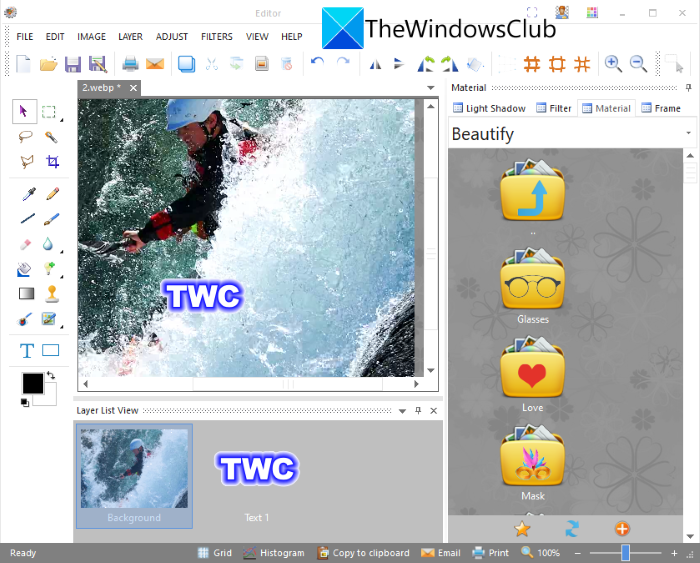
Image source: The Windows Club
How to Fix Common WebP Editing and Upload Problems
Even with the right editor, you may encounter technical hurdles. These often stem from how operating systems and servers interpret the WebP container.
Solving the "Chrome Association" Frustration
Many Windows users find that their WebP files default to opening in Google Chrome or Microsoft Edge rather than an image editor. This happens because the OS recognizes the format as a "web" file first. To fix this, right-click any WebP file, select "Open With" , then "Choose another app" . Select your preferred editor (like GIMP or Paint) and check the box that says "Always use this app to open .webp files."
CMS and Server-Side Failures
If you are trying to upload an edited WebP to WordPress or Joomla and receive an "Internal Server Error," the culprit is often ModSecurity . Some hosting environments have strict security rules that flag WebP headers as suspicious. According to Joomla community reports , temporarily disabling ModSecurity or whitelisting the upload directory usually resolves the block.
For users of Builder.io or similar headless CMS platforms, background WebP images sometimes fail to render correctly. A known workaround is to append the
&format=webp
suffix to the image URL, which forces the server to serve the correct MIME type even if the file extension is missing.
The Most Efficient Way to Batch Edit Hundreds of WebP Files
If you are a photographer or web developer needing to resize a library of 3,000 images, manual editing is impossible. Online tools often crash or time out when handling large batches.
XnConvert is widely considered one of the strongest options for batch processing. It is a free, multi-platform tool that allows you to set up a "Watch Folder." Any image dropped into that folder is automatically resized, watermarked, and converted to WebP based on your presets. This workflow is notably innovative for maintaining consistency across large e-commerce catalogs where every product image must meet identical dimensions and compression ratios.
How to Edit WebP Files Without Losing Image Quality
The biggest mistake users make is repeatedly saving a lossy WebP file. Like JPEGs, every time you save a lossy WebP, the algorithm re-compresses the data, leading to cumulative quality degradation.
Best for photographs. Reduces file size by discarding "invisible" data. Quality drops with every subsequent edit and save.
Best for logos and icons. Retains every pixel perfectly. Setting quality to 100 in most editors triggers this mode.
The "Lossless 100" Paradox
In many WebP editors, setting the quality slider to 100 does not just mean "high quality"—it triggers Lossless Mode . Interestingly, for images with sharp lines and solid colors (like screenshots or UI elements), a lossless file at 100% quality can sometimes be smaller than a lossy file at 99% quality. This is because the lossless algorithm is more efficient at handling predictable patterns than the lossy VP8 algorithm.
A Special Case for Game Modders and Ren'Py Users
The game modding community, particularly those using the Ren'Py engine, often relies on WebP to keep game sizes manageable. However, a common pitfall is simply renaming a
.png
file to
.webp
. This does not change the internal data structure; it only changes the label. Game engines will see the
.webp
extension, try to read it as a WebP, and crash because the file header still says "PNG."
The correct workflow is to open the file in a real editor like GIMP or Photopea and use the Export function. This ensures the RIFF container and VP8 bitstream are correctly written, allowing the engine to parse the image data without errors. Community discussions on Reddit's GameDev forums emphasize that maintaining valid headers is the most critical step for mod stability.
Which WebP Editor Should You Choose for Your Project?
Choosing the right tool depends on your specific needs for privacy, file size, and technical complexity. Use the table below to identify the best fit for your current task.
| Tool Name | Platform | Best For | Max File Size | Price |
|---|---|---|---|---|
| Ezgif | Web | Animations & Ghosting Fixes | 50MB | Free |
| GIMP | Desktop | Pro Layers & Game Modding | Unlimited | Free |
| Canva | Web/Mobile | Social Media & AI Edits | 50MB | Free/Paid |
| XnConvert | Desktop | Batch Processing | Unlimited | Free |
| Adobe Express | Web/Mobile | Quick Shape Crops | Unlimited | Free |
Frequently Asked Questions
Final Takeaways for WebP Editing
Mastering WebP editing is essential for anyone managing modern digital assets. By choosing the right tool for the right task, you can maintain high visual quality while benefiting from significantly smaller file sizes.
- Use Ezgif specifically for animations to prevent frame ghosting and transparency issues.
- Leverage GIMP or Photopea when you need professional layer management or are working on game mods.
- Deploy XnConvert for batch processing to save hours of manual work on large image libraries.
- Set quality to 100 in your editor if you need a lossless master file for future editing.
- Fix file associations in Windows to prevent WebP files from always opening in a browser.
- Check ModSecurity settings if your website's media library refuses to accept WebP uploads.
- Avoid the multi-save trap by only applying lossy compression during the final export.
Start by auditing your current image library to see which files could benefit from a lossless-to-lossy conversion using one of these top-rated editors.