Home
Home
How to Select a High-Performing Image Editor Plugin for Your Workflow
Why You Should Edit Images Without Leaving Your Workflow
In the modern digital landscape, the cost of "context switching" is a significant drain on productivity. According to research into creative workflows, jumping between a web browser and a desktop application like Photoshop can disrupt cognitive flow and lead to substantial time loss. As of 2026, the trend toward "in-canvas" editing has become a standard requirement for web designers and content managers alike.
By integrating an image editor plugin directly into your CMS or design tool, you eliminate the need to download, edit, re-save, and re-upload files. This streamlined approach not only saves time but also ensures that the original assets remain within your secure environment. Modern plugins have evolved beyond simple cropping; they now offer sophisticated features like non-destructive layers, AI-powered background removal, and professional-grade color grading.
The ecosystem for these tools is generally divided into three main categories:
- Content Management Systems (CMS): Tools designed for WordPress or Shopify that focus on utility and SEO optimization.
- Design Platforms: Extensions for Figma, Penpot, or Framer that prioritize creative effects and vector-raster hybrids.
- App Builders: Plugins for no-code platforms like Bubble that handle user-generated content via APIs.
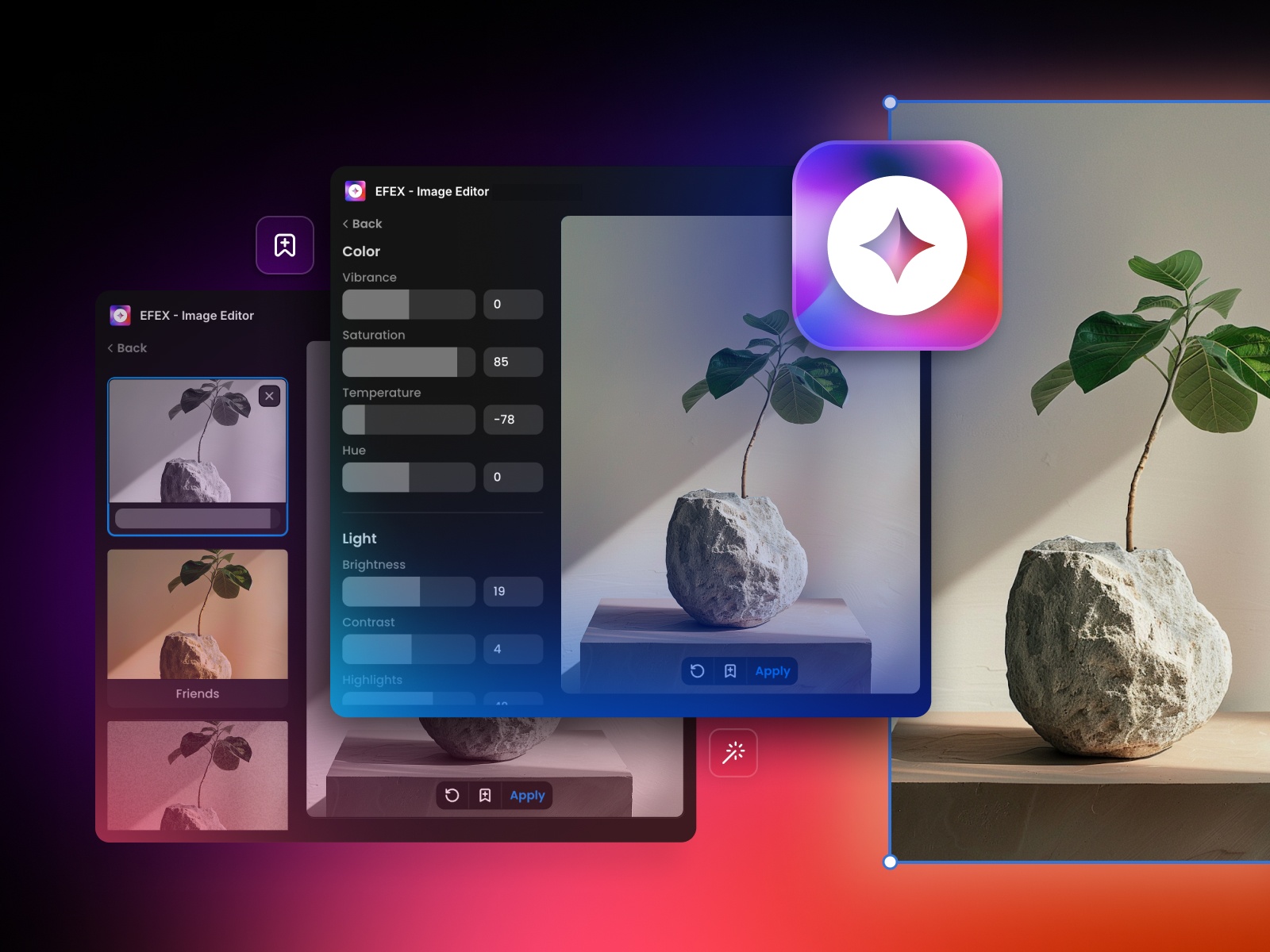
Image source: Framer
Which Image Editor Plugin Is Right for Your Tech Stack?
Selecting the appropriate tool requires an understanding of your specific technical environment. A plugin that works seamlessly in a design tool might lack the server-side processing capabilities required for a high-traffic WordPress site.
WordPress Users: Utility and SEO
For WordPress administrators, the primary goal is often preparing images for publication. This includes resizing for specific container widths, applying sharpening filters to counteract compression, and ensuring metadata is preserved. Tools in this category often leverage server-side libraries like ImageMagick to handle bulk processing, ensuring that the visitor's browser isn't bogged down by heavy scripts.
Designers: Creative Effects and Precision
Designers using platforms like Framer or Penpot require a different set of features. They often need to apply "fun" web effects, manage non-destructive presets across a design system, and work with vector-raster hybrids. The focus here is on the visual output and how it interacts with the rest of the UI components.
Developers: API Integrations and User Content
In the world of no-code development (e.g., Bubble), the "plugin" often acts as a bridge between the app and a third-party editing API. The challenge here is handling user-generated content securely and efficiently. Developers must be wary of technical hurdles like CORS errors and timing bugs that can prevent the editor from loading correctly in dynamic environments.
Top Image Editor Plugins for WordPress Users
The WordPress repository is filled with options, but a few stand out for their depth of features and reliability.
WP Paint: The Photoshop Alternative
WP Paint is widely considered one of the strongest options for those who need a desktop-like experience within their browser. It supports layers , which is a rarity in the plugin world. This allows users to manage multiple elements—such as text overlays, shapes, and photo adjustments—independently without flattening the image immediately. It utilizes HTML5 for browser-side processing, which offloads the work from your server to the user's computer.
Pixo: The Cross-Platform Powerhouse
Pixo is a versatile choice that integrates with various platforms beyond just WordPress. It is particularly noted for its clean UI and robust feature set, including advanced filters and stickers. For businesses running multiple sites across different platforms, Pixo provides a consistent editing experience.
Vectr: Vector Editing Inside the CMS
While most plugins focus on raster images (JPEGs and PNGs), Vectr allows for full vector graphic creation. This is essential for designers who need to create icons or logos directly within the WordPress edit screen without switching to Illustrator.
| Plugin Name | Primary Platform | Layer Support | AI Features | Price Tier |
|---|---|---|---|---|
| WP Paint | WordPress | Yes | Basic | Freemium |
| Pixo | Cross-Platform | No | Advanced | Subscription |
| EFEX | Framer | Yes | Moderate | Paid |
| RasterMan | Penpot | No | API-based | Open Source |
| Vectr | WordPress | Yes (Vector) | None | Free |
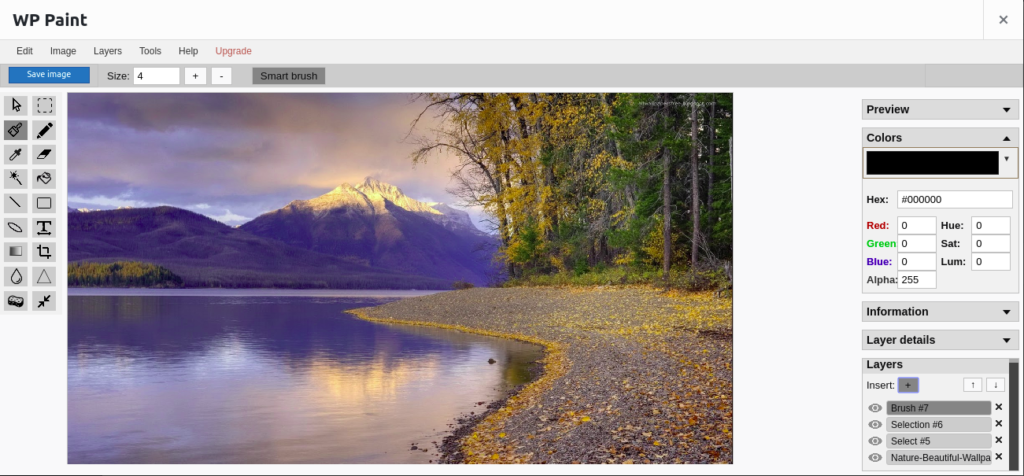
Image source: Themehigh
Top Image Editing Extensions for Design Tools
Design tools have seen a surge in plugin development as communities seek to bridge the gap between static design and production-ready assets.
EFEX for Framer
EFEX has established itself as a top-tier option for Framer users. It focuses on professional adjustments—such as HSL (Hue, Saturation, Lightness) tuning—and "fun" web effects that can be applied directly to images within the Framer canvas. This integration is particularly useful for designers who want to see how an edited image looks in the context of a live responsive layout.
RasterMan for Penpot
In the open-source community, RasterMan for Penpot demonstrates how developers are handling raster tasks in a primarily vector-based tool. Rather than building every feature natively, RasterMan often integrates with third-party APIs for tasks like background removal, showing the shift toward modular, API-driven editing.
How to Fix Common Technical Errors in Image Plugins
Even a high-quality plugin can run into issues due to server configurations or platform-specific bugs. Understanding these common pitfalls is essential for a smooth implementation.
Solving the CORS "getBlob" Error
A frequent issue with web-based editors (like the TUI Image Editor) is Cross-Origin Resource Sharing (CORS). If your images are hosted on an external server, such as an Amazon S3 bucket, the editor may fail to save changes, throwing a "getBlob" error in the console. This happens because the browser's security policy prevents the editor from reading the pixel data of an image from a different domain.
The 200ms Rule for App Builders
In no-code platforms like Bubble, plugins often fail to load the editing toolbar if the image is located inside a "repeating group." This is typically a timing issue where the plugin tries to initialize before the image URL has fully loaded from the database. Community experts recommend adding a 100-200ms delay in the workflow before triggering the "Open Editor" action to ensure all assets are ready.
Mobile Workarounds
Complex canvas-based editors are notoriously difficult to use on mobile devices. If your plugin fails to render correctly on phones, consider using conditional visibility . Hide the full editor on mobile screens and instead show a simplified viewer or a "Request Desktop Version" prompt to maintain a positive user experience.
Advanced Editing Techniques for Professional Results
To get the most out of your chosen plugin, you should apply professional photo editing principles. These techniques elevate a simple crop into a polished, high-impact visual.
Mastering the Histogram
The histogram is a graphical representation of the tonal distribution in your image. A common professional technique is the "Triangle Method" for levels adjustment. Look at the histogram in your plugin; you will see three triangles (Black, Grey, and White). For a well-exposed image, drag the Black and White triangles to the points where the data curve begins to rise. This ensures you are utilizing the full dynamic range of the image.
Selective Exposure: Dodging and Burning
If your plugin supports brush-based adjustments, use "Dodging" (lightening) and "Burning" (darkening) to add depth. Experts suggest using a low exposure setting—between 5% and 20% —to build up the effect gradually. Burn the shadows to create mood and dodge the highlights to draw the viewer's eye to the subject.
Non-Destructive vs. Overwrite
It is vital to understand how your plugin saves data. Many plugins claim to be "non-destructive" because they offer a "Restore" button. However, in many cases, this is actually destructive overwriting with a backup . When you hit save, the original file is replaced, and the "Restore" button simply swaps it back with a hidden copy. True non-destructive editing (like in Lightroom) stores edits as metadata and never touches the original pixels. Always check if your plugin creates a new file or overwrites the old one before committing to a workflow.
The Shift Toward AI and API-Driven Editing
The future of image editor plugins lies in automation. We are moving away from manual sliders toward intelligent, one-click solutions powered by external APIs.
- Background Removal: Tools like Imgly allow plugins to remove complex backgrounds in seconds, a task that used to take minutes of manual masking.
- AI Upscaling: The Clarety upscaler is becoming a popular integration for handling low-resolution user uploads, intelligently adding detail where it was previously missing.
- Automated SEO: Some WordPress plugins now use AI to automatically crop images to the most relevant subject matter (saliency detection) and apply sharpening filters based on the final display size.
How Image Plugins Affect Your Website Performance
A common concern is that adding an editor will slow down your site. However, the impact depends on whether the plugin is Server-Side or Browser-Side .
Browser-side editors (HTML5/Canvas) are generally better for site performance because they use the visitor's RAM and CPU to perform the edits. The only cost to your server is the initial loading of the plugin's JavaScript file. Conversely, server-side tools (using ImageMagick or GD Library) use your server's resources. If multiple users are editing images simultaneously, this can lead to significant CPU spikes.
"Offloading processing power to the client-side is a significant advancement in web-based editing, allowing for complex tasks without compromising server stability." — Technical Analysis of HTML5 Editors, 2026.
The Bottom Line on Choosing an Image Editor Plugin
Selecting the right plugin is about balancing features with your specific technical constraints. Here are the key takeaways to guide your decision:
- Identify your ecosystem : Choose a plugin built specifically for your platform (WordPress, Framer, or Bubble) to ensure maximum compatibility.
- Check for layer support : If you need to add text or overlays, a layered editor like WP Paint is a top-performing choice.
- Verify CORS settings : If hosting images on S3 or a CDN, ensure your headers are configured to prevent "getBlob" errors.
- Implement timing delays : For no-code apps, use a 200ms delay to ensure the editor initializes correctly within dynamic groups.
- Prioritize browser-side processing : Use HTML5-based editors to save server resources and improve overall site performance.
- Understand the save mechanism : Distinguish between true non-destructive editing and "overwrite with backup" to protect your original assets.
Before installing any new tool, run a quick test on a staging site to verify that the plugin's JavaScript weight does not negatively impact your Core Web Vitals.
Frequently Asked Questions
What is a top-rated free image editor plugin for WordPress?
WP Paint offers a very strong free tier that includes essential tools like cropping, resizing, and basic filters. For those needing vector support, Vectr is a popular choice that remains free for most standard use cases. Always check the WordPress repository for the most recent user ratings and compatibility updates.
How do I fix a CORS error when using a web-based image editor?
CORS errors occur when the editor tries to access an image from a different domain without permission. You must update the Cross-Origin Resource Sharing (CORS) policy on your image host (like Amazon S3 or Google Cloud Storage) to include your website's URL in the "AllowedOrigins" field. This allows the browser to safely "getBlob" the image data for editing.
Can I use layers in a WordPress image editor?
Yes, though it is not a standard feature in most basic plugins. WP Paint is one of the few options that provides a full layer stack, allowing you to stack images, text, and shapes independently. This makes it a highly competitive alternative to desktop software for quick web edits.
Do image editor plugins slow down my site speed?
The impact is usually minimal if the plugin is coded efficiently. Most modern editors only load their scripts when the "Edit" button is clicked, meaning they don't affect the initial page load for your visitors. However, server-side editors can consume CPU during the saving process, so browser-side (HTML5) options are generally recommended for performance.
How do I edit images inside a Bubble repeating group?
Editing inside a repeating group often triggers a timing bug where the toolbar fails to appear. To fix this, add a "Pause before next action" step of 100-200ms in your Bubble workflow before the "Open Editor" action. This gives the platform enough time to pass the image URL to the plugin container.