Home
Home
How to Open and Edit Adobe Illustrator Files for Free Using Photopea and Vectorpea
Yes, you can open and edit Adobe Illustrator (.AI) files for free using Photopea and its sister site, Vectorpea . While Photopea is a top-tier choice for raster-based edits, Vectorpea provides a dedicated environment for vector paths. Both tools preserve layers, paths, and text, though complex features like Gradient Meshes and proprietary Adobe effects may require manual adjustment after import. These tools rank among the top free alternatives for users without a Creative Cloud subscription.
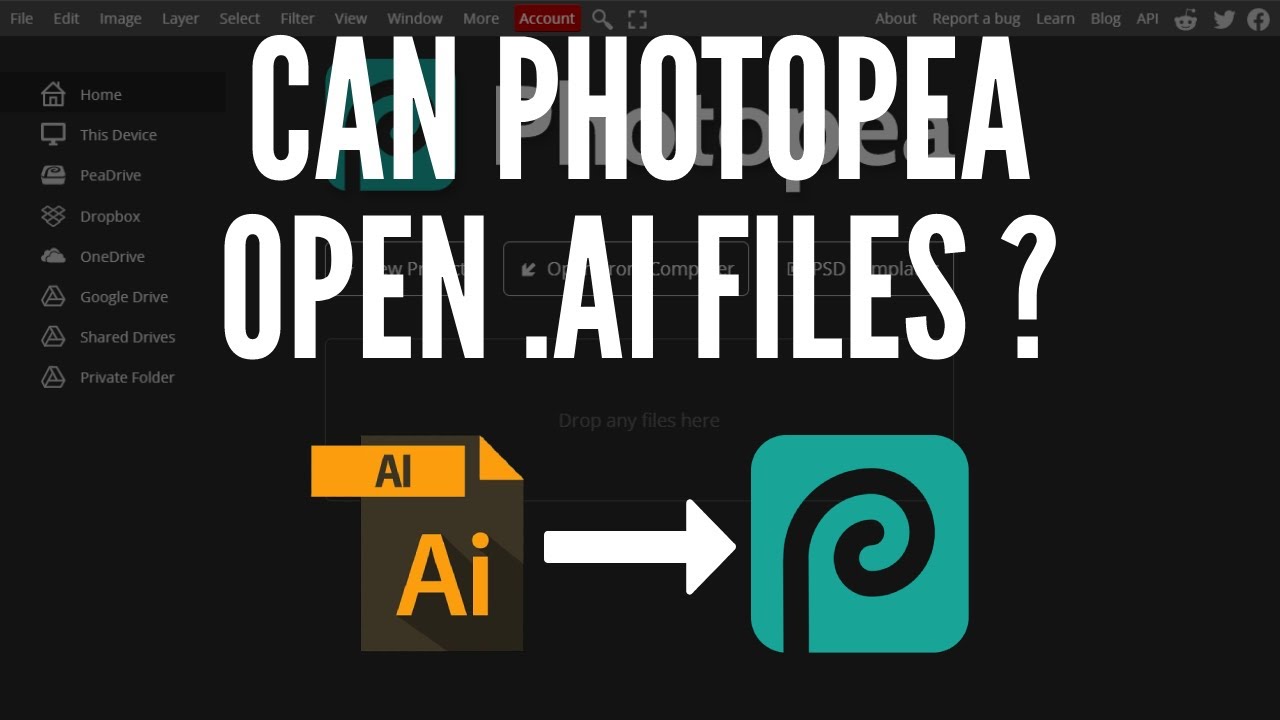
Image source: YouTube
Can You Really Use Photopea as a Free Alternative to Adobe Illustrator?
For many designers, the monthly cost of an Adobe Creative Cloud subscription is a significant barrier. This has led to the rise of browser-based tools that aim to bridge the gap. Photopea has established itself as a highly capable editor, but the question remains: can it truly replace a professional vector powerhouse like Illustrator?
The reality is nuanced. According to the developer of Photopea, the tool is not intended to be a 1:1 replacement for professional vector work in the same way Illustrator is (Source 5). Instead, it serves as a versatile hybrid. While Illustrator is built from the ground up for mathematical vector paths, Photopea was originally designed for raster editing (like Photoshop). However, with the release of version 5.0, Photopea introduced significant updates that allow it to handle .AI files with surprising fidelity.
As of 2026, Photopea stands out as a top choice for "emergency" edits or for users who primarily work in raster but occasionally need to tweak a vector logo. It supports .AI, SVG, and PDF formats, making it a reliable bridge for cross-platform collaboration. For those who need a more dedicated vector experience, the ecosystem has expanded to include Vectorpea , which focuses exclusively on path-based design.
What Is the Difference Between Photopea and Vectorpea?
Understanding the distinction between these two tools is critical for your workflow. While they share a creator and a similar interface, their underlying engines are optimized for different tasks. Photopea handles vectors in a "PSD way"—meaning it treats vector shapes as layers within a raster-heavy environment. Vectorpea, on the other hand, is a native vector environment designed to mimic the workflow of Illustrator or Inkscape.
The v5.0 update was a significant advancement for both platforms. The developer optimized the vector rendering engine to be 2x faster, which resulted in a 15% to 30% improvement in opening times for AI, SVG, and PDF files (Source 5). This makes the tools notably innovative for browser-based software, which often struggles with the heavy computational load of complex vector paths.
| Feature | Photopea | Vectorpea | Adobe Illustrator |
|---|---|---|---|
| Primary Focus | Raster/Photo Editing | Vector Illustration | Professional Vector |
| .AI File Support | High (Import/Edit) | Native (Path-focused) | Native |
| Layer Style | PSD-style Effects | Path-based | Path-based |
| Price | Free (Ad-supported) | Free (Ad-supported) | Subscription |
| Performance | Optimized for Layers | Optimized for Paths | Desktop-grade Power |
How to Open and Edit AI Files Without an Adobe Subscription
Opening an Illustrator file in your browser is a straightforward process. You do not need to install any plugins or software. Simply navigate to Photopea.com or Vectorpea.com and drag your .AI file directly into the workspace. The engine will begin parsing the 98,893 lines of code that make up the software's core to translate Adobe's proprietary format into something editable (Source 5).
What Stays Intact During Import
When you import an .AI file, the software does an admirable job of preserving the original structure. You can expect the following to remain editable:
- Vector Paths: Most anchor points and curves remain fully adjustable using the Pen tool.
- Groups and Clip Groups: The organizational hierarchy of your Illustrator file is usually maintained.
- Layer Opacity and Blend Modes: Standard transparency settings translate well.
- Text Layers: If the fonts are available, text remains editable. If a font is missing, the software will prompt you to provide the .TTF or .OTF file.
One of the most useful features is how the tool handles raster images embedded within an Illustrator file. These are typically converted into Smart Objects, allowing you to edit them non-destructively within the Photopea interface.
Why Some Illustrator Files Look Different When Opened in Photopea
Despite being a significant step forward, browser-based editors have limitations when dealing with Adobe's proprietary features. This is the most common pitfall for users expecting a perfect transition. Certain elements do not have a direct analogy in the PSD-based format that Photopea uses, leading to "broken" visuals.
The "What Breaks" Report
- Gradient Meshes: This is a major pain point. Because the PSD format does not support mesh gradients, Photopea converts them into simple linear gradients between the brightest and darkest points of the mesh (Source 5). You will likely need to recreate these manually.
- Vector Patterns: These are often converted into Smart Objects with vector masks. While they look correct, they are much harder to edit than native Illustrator patterns.
- Live Effects: Adobe-specific effects like "Pucker & Bloat" or complex 3D extrusions are often rasterized or ignored entirely.
How to Recreate Popular Illustrator Effects in a Browser Editor
If you are a refugee from the Adobe ecosystem, you might find the toolbar slightly different. However, most core functions are present. To recreate the depth found in Illustrator's 3D tools, many power users on Reddit suggest using the Blend Tool or a manual "Step and Repeat" technique (Source 10). By duplicating a shape and slightly offsetting it multiple times, you can create a convincing 3D extrusion effect without the need for heavy 3D rendering engines.
Mastering the Pen and Path Tools
The Pen tool in Photopea works almost identically to the one in Illustrator. You can add, delete, and convert anchor points to refine your shapes. For those used to the Pathfinder panel, Photopea offers "Boolean Operations" located in the top menu when a shape tool is selected. You can perform Union, Subtract, Intersect, and Exclude operations to combine simple shapes into complex icons.
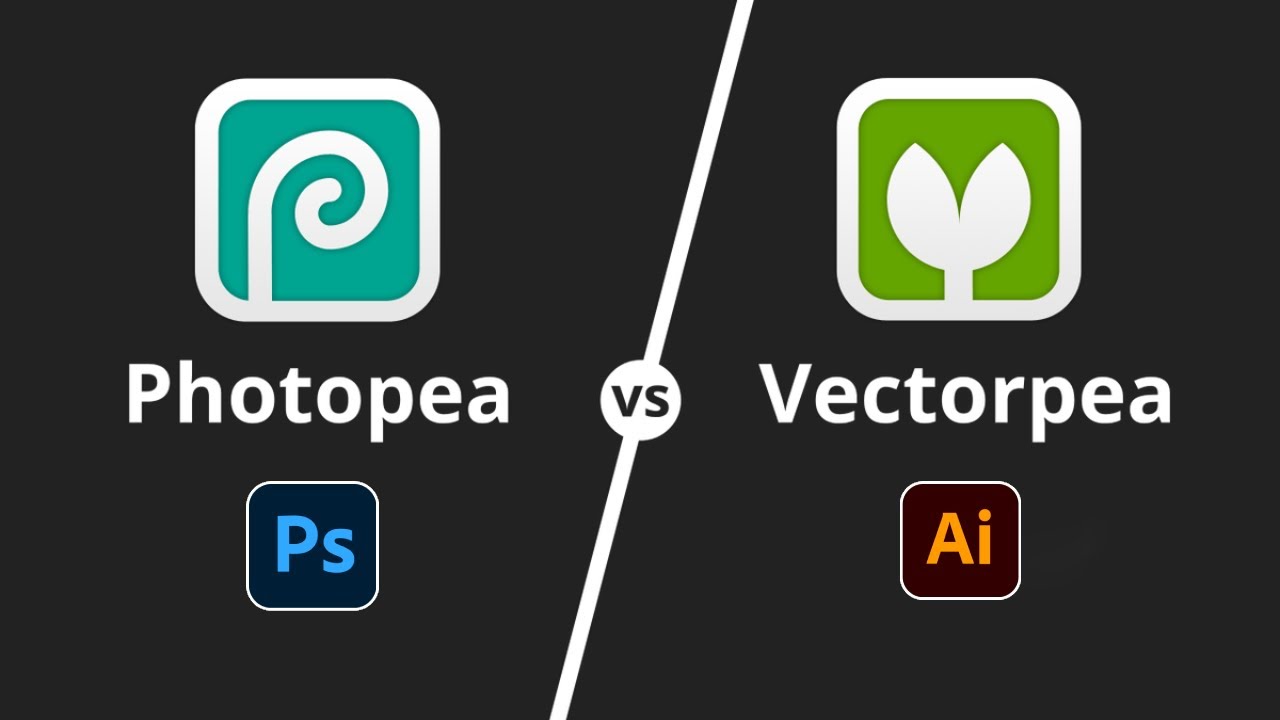
Image source: YouTube
Managing Browser Memory Limits for Large Vector Projects
A critical limitation of any browser-based tool is hardware access. Unlike Illustrator, which can utilize your full system RAM, Photopea and Vectorpea are constrained by the memory limits of your web browser. This can lead to performance gaps, especially on mobile devices or older hardware.
For example, users on devices like the Galaxy Z Fold 4 have reported that high-resolution files or files with thousands of paths can cause the browser to crash (Source 10). To avoid this, follow these optimization steps:
- Close Unnecessary Tabs: Every open tab competes for the same pool of browser memory.
- Simplify Paths: Use the "Simplify" feature to reduce the number of anchor points in complex vectors.
- Rasterize Non-Essential Layers: If a vector layer doesn't need to be scaled, rasterizing it can save significant memory.
- Clear Browser Cache: If the software feels sluggish, a fresh cache can sometimes resolve performance bottlenecks.
Beyond Illustrator — Supporting Legacy and Competitor Formats
One area where Photopea truly shines is its ability to act as a "rescue" tool for defunct or competing software formats. It is widely regarded as one of the best tools for opening legacy files that modern Adobe software sometimes struggles with. Supported formats include:
- Adobe Fireworks (.PNG): Preserves layers and editable states.
- CorelDraw (.CDR): Allows for conversion into modern SVG or PSD formats.
- Freehand (.FH): A rare feature that helps recover very old design assets.
- Figma and Sketch: Excellent for web designers moving assets between UI tools.
This versatility makes it a popular choice for designers who need to convert a client's old CorelDraw file into a modern, web-ready SVG without purchasing additional software licenses.
Frequently Asked Questions
Final Verdict on Using Photopea for Vector Design
Photopea and Vectorpea represent a significant step forward for free, accessible design tools. While they may not fully replace the specialized power of the Creative Cloud for high-complexity professional work, they are exceptionally strong options for the majority of design tasks.
- Use Vectorpea for pure vector creation and SVG editing to save on system memory.
- Use Photopea when you need to integrate vector assets into complex raster designs or photo edits.
- Expect manual fixes for Gradient Meshes and proprietary Adobe patterns during the import process.
- Upload custom fonts (.TTF/.OTF) to maintain text editability when opening client files.
- Leverage legacy support to rescue files from CorelDraw or Adobe Fireworks.
- Optimize performance by closing extra tabs and simplifying paths on mobile devices.
For your next project, try opening your .AI assets in Vectorpea first to see if the streamlined path-based workflow fits your needs without the subscription cost.