Home
Home
How to Use Pixlr E (epixlr) for Professional Photo Editing and Fix Common Errors
epixlr is the common shorthand for Pixlr E , the advanced browser-based photo editor. It provides a Photoshop-like experience without requiring software installation. If you are facing the common "won't export" bug, the most effective fix is to disable ad-blockers or toggle the "Switch the way saving works" link in the Save dialog. As of 2026, free users are limited to three saves per day, though community workarounds like the "Share" button can sometimes bypass local script hangs.
Why Is Pixlr E Often Called epixlr and What Does It Do?
In the world of online photo editing, terminology can often lead to confusion. The term "epixlr" is frequently used by creators to refer to Pixlr E , where the "E" stands for "Editor." This version of the platform is designed for users who require a high level of control over their projects, offering a workspace that mirrors traditional desktop applications like Adobe Photoshop.
According to official Pixlr documentation , the platform operates entirely within your web browser. This means you can access professional-grade tools on a Chromebook, a tablet, or a high-end desktop without ever downloading an .exe or .dmg file. However, this browser-based nature is also why users sometimes encounter technical hurdles related to cache and script execution.
epixlr.com
. While the names are nearly identical, the latter is a third-party site dedicated to Lightroom and Photoshop presets. To access the actual editor, always ensure you are on the official
pixlr.com
domain to avoid downloading unnecessary or potentially harmful files.
Pixlr E supports a wide array of file formats, making it a versatile choice for various workflows. You can open standard JPEGs and PNGs, but it also handles WebP and even PSD (Photoshop) files. This compatibility allows users to start a project in a professional studio environment and make quick, advanced tweaks on the go using only a browser.
How to Decide Between Pixlr E and Pixlr X for Your Next Project
Choosing the right tool is essential for efficiency. Pixlr offers two primary web editors: Pixlr E and Pixlr X. While they share the same engine, their interfaces and intended audiences differ significantly. Pixlr X (Express) is tailored for speed and simplicity, while Pixlr E is built for precision.
Based on insights from Teachers.tech , Pixlr E is widely regarded as one of the top choices for complex compositing. If your project requires detailed masking, custom brush work, or managing dozens of layers, Pixlr E is the appropriate environment. Conversely, if you simply need to add a filter to a vacation photo or crop an image for Instagram, Pixlr X will likely save you time.
| Feature | Pixlr E (Advanced) | Pixlr X (Express) |
|---|---|---|
| Interface | Classic Toolbar & Floating Panels | Icon-based Sidebar |
| Layer Management | Full control (Groups, Masks, Blends) | Simplified Layer Stack |
| AI Tools | Generative Fill & Manual AI Masking | One-click AI Enhancements |
| Keyboard Shortcuts | Extensive (Photoshop-style) | Limited |
| Best For | Professional Editing & Design | Quick Social Media Edits |
A Detailed Look at the Pixlr E Interface and Essential Tools
When you first launch Pixlr E, the layout may feel familiar if you have used other professional editing suites. The central canvas is surrounded by a toolbar on the left and various utility panels on the right, including Layers, History, and Navigation. Mastering these tools is the first step toward creating high-quality visual content.
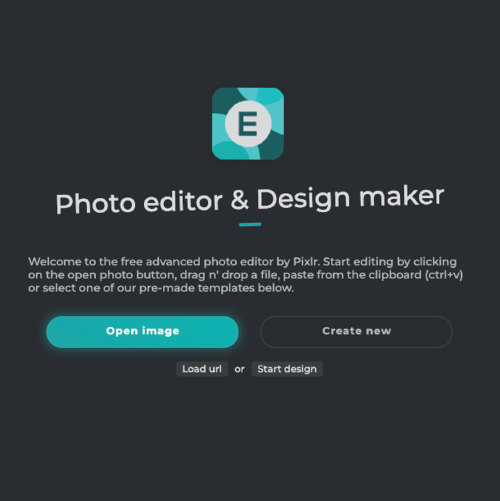
Image source: Pixlr
Essential Tool Breakdown
The toolbar contains the "bread and butter" of your editing capabilities. Here are the most impactful tools you will use:
- Selection Tools (Magic Wand & Lasso)
- The Magic Wand is excellent for selecting areas of similar color with one click, while the Lasso tool allows for freehand or polygonal selections. These are vital for cutting out subjects from their backgrounds.
- Retouching Tools (Clone Stamp & Heal)
- The Clone Stamp allows you to sample pixels from one part of an image and paint them over another. The Heal tool is more automated, blending surrounding pixels to remove blemishes or small distractions seamlessly.
- Drawing and Painting (Brushes & Gradients)
- Pixlr E offers a robust brush engine. You can adjust softness, opacity, and flow, or even upload custom brush tips to create unique textures.
Mastering the New AI Generative Tools in the Pixlr Ecosystem
In recent years, Pixlr has integrated significant advancements in artificial intelligence. These tools, often found in the "AI" menu or specific toolbar icons, have changed how users approach complex tasks like object removal or background expansion. According to the Pixlr AI Art Photo Editor updates, these features are now core to the user experience.
Using AI Generative Fill
Generative Fill is a standout feature that allows you to add elements to a photo that weren't there originally. To use it, simply select an area using the marquee tool and type a prompt (e.g., "add a vintage car"). The AI analyzes the lighting, perspective, and texture of your original photo to generate a realistic addition. While not always perfect, it ranks among the most capable browser-based AI tools currently available.
AI Background Removal vs. Manual Masking
For many, the "Remove Background" button is the most used feature. The AI-powered version is exceptionally strong at identifying hair and complex edges. However, for professional results, power users often use the AI removal as a starting point and then refine the edges manually using the Masking tool in Pixlr E. This hybrid approach ensures "pixel-perfect" results that automated tools alone might miss.
How to Resolve Pixlr E Export Failures and Saving Errors
One of the most frustrating experiences for users is completing a project only to find that the "Save" button does nothing. This issue, often discussed in community forums like Reddit , usually stems from browser security settings or ad-blocker conflicts rather than a bug in the Pixlr code itself.
The "Won't Export" Technical Fix
If your image fails to download after you click "Save," follow these specific steps to resolve the script hang:
- Toggle Save Settings: In the Save dialog box, look for a small link that says "Switch the way saving works." Clicking this changes the internal method the browser uses to trigger the download, often bypassing security blocks.
-
Disable Ad-Blockers:
Pixlr relies on scripts to trigger the download process. Aggressive ad-blockers often mistake these triggers for pop-ups and block them. Whitelist
pixlr.comto ensure smooth operation. - Clear Browser Cache: If the editor feels sluggish or buttons become unresponsive, a bloated cache is often the culprit. Refreshing the page after clearing the cache (or using Incognito mode) frequently fixes the issue.
- The "Share" Workaround: If the direct download continues to fail, use the "Share" function. This allows you to send the file to a cloud drive or email it to yourself, effectively bypassing the local download script.
Understanding the Limitations of the Pixlr Free Tier in 2026
While Pixlr is a popular choice for those seeking a free alternative to expensive software, it is important to understand the current "freemium" model. As of late 2025 and into 2026, the platform has introduced stricter limits to encourage subscriptions to their Creative Pack.
The most significant change is the daily save limit . Free users are typically allowed three saves per 24-hour period. Once this limit is reached, you must wait for the timer to reset or upgrade to a premium plan. Additionally, the saving process now often includes a mandatory 30-second video ad. It is crucial not to close the tab or the ad window until the download is complete, as interrupting the ad can break the save script.
"The shift toward daily save limits has been a point of contention in the community, but it remains a necessary step for maintaining the massive server infrastructure required for browser-based AI processing." — Industry Analyst Perspective
Advanced Techniques and Shortcuts for Power Users
To truly excel in Pixlr E, you should move beyond the mouse and start utilizing the platform's deeper features. These techniques are what separate casual users from professional digital artists.
Keyboard Shortcut Mastery
Efficiency is built on shortcuts. Memorizing these will significantly speed up your workflow:
- Ctrl + S: Save your work (Essential for avoiding data loss).
- Ctrl + J: Duplicate the current layer.
- Spacebar (Hold): Activates the Hand tool, allowing you to pan around the canvas while zoomed in.
- Ctrl + Z / Ctrl + Y: Undo and Redo actions.
- [ and ]: Decrease or increase brush size on the fly.
The "One-Stroke" Rule for Color Replace
A pro tip sourced from Teachers.tech involves the Color Replace tool. When changing the color of an object, try to complete the action in one continuous mouse movement. Releasing the mouse button and starting a new stroke often results in "patchy" or overlapping colors because the tool re-samples the pixels with every new click. One smooth stroke ensures a uniform application.
Frequently Asked Questions About Using Pixlr E
Is epixlr the same as Adobe Photoshop?
While Pixlr E (epixlr) shares many interface similarities and tool functionalities with Photoshop, it is not the same software. Pixlr E is a web-based application built on different architecture. It is a top-tier alternative for those who need Photoshop-like features without the high cost or hardware requirements, and it even supports opening .PSD files.
Why does Pixlr E keep freezing in my browser?
Freezing is usually caused by high RAM usage. Since Pixlr E runs in your browser, it competes with other open tabs for memory. To fix this, close unnecessary tabs, ensure hardware acceleration is enabled in your browser settings, and try to work with smaller file dimensions if you are on a low-spec device like a Chromebook.
Can I use Pixlr E offline?
No, the web-based version of Pixlr E requires an active internet connection to load the assets and process certain AI-driven tasks. However, Pixlr does offer mobile apps that have some offline capabilities, though the full "Editor" experience is best utilized online.
How do I get more free saves on Pixlr?
Currently, the daily save limit is a hard cap for free accounts. To get more saves, you can wait 24 hours for the reset, or consider a premium subscription. Some users find that using the "Share" button to send an image to a different destination sometimes works when the direct save limit is reached, but this is not a guaranteed fix.
Does Pixlr E support custom fonts?
Yes! You can upload your own .TTF or .OTF font files directly into the editor. When using the Text tool, look for the "Add Local Font" button in the font selection dropdown. This allows you to maintain brand consistency without relying solely on the pre-installed library.
Key Takeaways for Mastering Pixlr E
Navigating the "epixlr" ecosystem is straightforward once you understand the technical nuances of browser-based editing. Here is how to ensure a smooth experience:
- Identify the tool: Remember that "epixlr" is simply Pixlr E, the advanced version of the suite.
- Fix export errors: Disable ad-blockers or use the "Switch the way saving works" link if your downloads fail.
- Manage your saves: Be mindful of the three-save daily limit for free users in 2026.
- Leverage AI: Use Generative Fill for adding objects and AI Masking for quick background removals.
- Optimize workflow: Master keyboard shortcuts like Ctrl+J and Ctrl+S to save time and protect your progress.
- Use the right format: Stick to PNG for transparent backgrounds and WebP for high-quality, low-file-size web images.
Start your next project by opening Pixlr E and testing the AI Generative Fill to see how it can enhance your creative workflow immediately.