Home
Home
How to Use Vecteezy Editor to Create and Customize Professional SVG Graphics Online
The modern design landscape is shifting away from heavy, expensive desktop software toward agile, browser-based solutions. The Vecteezy Editor stands at the forefront of this transition, providing a specialized environment for manipulating Scalable Vector Graphics (SVG) without the steep learning curve of professional suites.
What Is the Vecteezy Editor and Who Is It For?
The Vecteezy Editor is a specialized, browser-based tool designed specifically for the manipulation of Scalable Vector Graphics (SVG). Unlike general-purpose graphic design tools that focus heavily on raster images or social media templates, this editor is built to handle the mathematical paths and nodes that define vector art. It is integrated directly into the Vecteezy ecosystem, allowing users to move seamlessly from discovering an asset to customizing it for their specific project.
One of the primary advantages of this tool is its "No-Install" nature. According to Martech Zone , a browser-based tool is often superior for quick edits because it eliminates the overhead of launching heavy desktop software like Adobe Illustrator. This makes it a top-rated choice for "Prosumers"—users who require more control than basic template editors offer but do not wish to navigate the complexity of high-end professional suites.
The editor provides a zero-barrier entry point. Users can begin designing immediately without even creating an account, though saving progress or exporting the final file typically requires a login. This accessibility, combined with a robust set of features including alignment tools, layer management, and custom shape generators, positions it as a highly competitive option in the online design space.
Image source: Vecteezy
How to Navigate the Vecteezy Editor Interface
Navigating the workspace is intuitive for anyone familiar with standard design software, yet simplified enough for beginners. The central canvas is where the design takes place, handling high-resolution vector scaling with precision. Because vectors are based on XML code rather than pixels, you can zoom in infinitely without losing clarity, a feature the editor handles remarkably well.
Understanding the Canvas and Workspace
The workspace is divided into three main zones: the toolbar on the left, the canvas in the center, and the properties/layers panel on the right. The canvas supports multiple artboards in some configurations, but its primary strength lies in its ability to render complex paths in real-time. Users can adjust the canvas size to match specific output requirements, such as website headers or social media icons, ensuring the SVG is exported with the correct viewport dimensions.
Breaking Down the Toolbar Functions
The toolbar contains the essential instruments for vector creation:
- Selection Tool: Used for moving, rotating, and scaling objects.
- Path Tool: Allows for the manual creation of Bezier curves and straight lines, giving users direct control over the "skeleton" of their vector.
- Shape Generators: Quick access to rectangles, circles, and polygons that can be further manipulated into complex forms.
- Text Tool: For adding typography, though it is important to note the limitations regarding font availability within the browser environment.
How to Convert Raster Images to Vectors Using AI Tracing
One of the most impactful features of the Vecteezy Editor is its AI-powered real-time image tracing. This technology allows users to take a raster image—such as a hand-drawn sketch, a grainy JPG logo, or a flat PNG—and convert it into editable vector paths. This process, often called "vectorization," is a significant step forward for designers who need to scale up low-resolution assets.
A common real-world use case involves converting a hand-drawn logo sketch into a scalable SVG for a website header. By using the AI tracing tool, a designer can bypass hours of manual pen-tool work, achieving a professional result in a fraction of the time.
Why You Might Struggle to Edit Text in Some Vecteezy Files
A frequent point of confusion for new users is the inability to edit text in certain downloaded files. This is not a bug in the editor but rather a standard practice in the design industry known as "Outlining Text."
The Outlined Text Problem
Many contributors to the Vecteezy library convert their text into shapes (paths) before uploading. They do this to ensure the design looks exactly the same on every computer, regardless of whether the user has the specific font installed. Once text is outlined, it is no longer a "font" but a series of vector shapes. You can change its color or move the letters, but you cannot type new words into that specific layer.
If you encounter outlined text and need to change the wording, the best approach is to delete the outlined layer and add a new text layer using one of the editor's built-in fonts. While you cannot currently upload custom brand fonts to the editor, the library offers a wide selection of professional typefaces that serve as excellent alternatives.
How to Fix Common File Compatibility Issues
While the Vecteezy Editor is a highly capable tool, users may occasionally encounter performance or compatibility hurdles, especially when dealing with older file formats or extremely complex designs.
The EPS to SVG Gap: Much of the legacy vector world operates on the EPS (Encapsulated PostScript) format. However, the Vecteezy Editor is optimized for SVG. If you download an EPS file from the library, you may find that it doesn't open correctly in the browser editor. The solution is to use the SVG version of the file whenever possible, or use a standalone converter to bridge the gap. Community discussions on the Affinity Forum highlight that SVG is the preferred format for modern web-based workflows due to its clean XML structure.
Handling High Node Counts: Browser performance can lag when opening vectors with tens of thousands of nodes (such as detailed maps or intricate floral patterns). Chrome and other Chromium-based browsers generally offer the most stable performance for node-heavy files. If the editor becomes sluggish, try simplifying the path or removing unnecessary background elements to reduce the computational load on your browser's rendering engine.
A Better Way to Work Using the Pre-Processor Workflow
Experienced designers often use the Vecteezy Editor as a "middleman" or pre-processor tool. This strategy allows you to leverage the editor's speed for initial tasks before moving to more advanced software for final touches.
1. Discovery & Selection
Browse the 60+ million resources on Vecteezy to find the perfect base asset. Instead of downloading the massive original file, open it directly in the editor.
2. Simplification
Use the editor to strip away unwanted layers, change the primary color palette, and resize the artboard. This "cleans" the file of unnecessary data.
3. Advanced Finishing
Export the simplified SVG and bring it into Inkscape or Affinity Designer. Because you've already removed the "clutter," the file will be much easier to handle in professional software.
This workflow saves significant time by avoiding the frustration of importing a massive, unorganized vector file directly into desktop software, which can often lead to crashes or slow performance.
How Vecteezy Editor Compares to Canva and Adobe Illustrator
Choosing the right tool depends on your specific needs. While Canva is a popular choice for general design and Illustrator is the industry standard for professionals, Vecteezy Editor occupies a unique niche as an SVG specialist.
| Feature | Vecteezy Editor | Canva | Adobe Illustrator |
|---|---|---|---|
| SVG Path Editing | High (Full node control) | Very Low (Mostly raster) | Professional Grade |
| AI Image Tracing | Yes (Real-time) | No | Advanced (Image Trace) |
| Layer Management | Yes | Limited | Advanced |
| Price | Free / Pro Subscription | Free / Pro Subscription | High Monthly Cost |
| Learning Curve | Low-Medium | Very Low | High |
Vecteezy Editor stands out as a top choice for web designers who need clean XML code for responsive sites. Unlike Canva, which often flattens designs into raster formats, Vecteezy keeps the vector data intact, ensuring your graphics remain crisp at any resolution.
What Is the Difference Between Free and Pro Licensing?
Understanding the licensing model is crucial for anyone using the editor for commercial work. Vecteezy offers two primary paths, each with distinct legal implications.
The Free Plan: This plan allows access to a vast library of assets, but it comes with a requirement for attribution. If you use a free vector in a project, you must credit Vecteezy. Furthermore, there are limitations on the scope of commercial use, making it better suited for personal projects or small-scale social media posts.
The Pro Advantage: Upgrading to a Pro account unlocks the full potential of the platform. Pro members gain access to over 60 million resources, including 4K video and premium vectors, with no attribution required. Most importantly, Pro membership includes "Legal Coverage" or indemnification, which provides a critical safeguard for professional designers working on high-stakes client projects. This legal safety net is one of the reasons Vecteezy ranks among the top choices for agencies and freelance professionals.
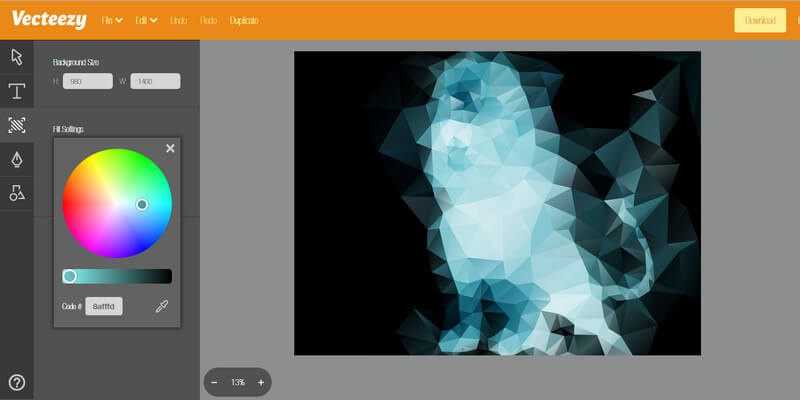
Image source: ByPeople
Key Takeaways for Mastering the Vecteezy Editor
The Vecteezy Editor is a highly impactful tool that bridges the gap between basic graphic design and professional vector illustration. To get the most out of it, keep these points in mind:
- Specialized SVG Focus: It is a dedicated vector tool, offering path and node control that general editors lack.
- AI Tracing Efficiency: Use the real-time tracing feature to quickly convert sketches into scalable digital assets.
- Text Awareness: Always check if text is "outlined" before planning a text-heavy edit; be prepared to replace outlined text with live font layers.
- Browser Optimization: Use Chromium-based browsers (like Chrome) for the best performance when handling complex, high-node vectors.
- Strategic Workflow: Use the editor as a pre-processor to clean and simplify files before moving to desktop software like Inkscape.
- Legal Protection: Consider a Pro account for commercial work to benefit from attribution-free use and legal indemnification.
Start by uploading a simple logo or sketch today to experience how the AI tracing tool can transform your workflow.
Frequently Asked Questions