Home
Home
Which Free Photo Editor for Linux Should You Actually Use?
Building a Linux creative stack requires matching the tool to your specific intent. For 2026, the landscape has matured significantly, offering professional-grade stability across various workflows.
How to Choose the Right Linux Photo Editor for Your Workflow
Transitioning to Linux for creative work often involves a shift in mindset. Unlike the monolithic subscription models found on other platforms, the "Linux Creative Stack" is modular. You rarely use just one tool; instead, you pipeline your work through specialized applications that excel at specific tasks. This approach mirrors the Unix philosophy: do one thing and do it well.
For those migrating from Windows or macOS, the primary hurdle isn't a lack of features, but rather finding where those features live in the open-source ecosystem. According to Photography Life , switching to these tools can save a professional approximately $1,200 over a decade by eliminating recurring subscription fees. However, the "cost" is often measured in the time spent learning new interfaces and managing system-level configurations like color profiles and GPU drivers.
To simplify your transition, consider this mapping of industry-standard tools to their Linux counterparts:
- Photoshop Replacement: GIMP (for raster manipulation) or Photopea (for PSD compatibility).
- Lightroom Replacement: Darktable (for deep technical control) or RawTherapee (for high-fidelity demosaicing).
- Paint.NET / MS Paint Replacement: Pinta or Kolourpaint for quick, non-professional annotations.
- Corel Painter Replacement: Krita, which stands out as a top choice for brush-heavy creative work.
Why GIMP 3.0 Remains the Standard for Raster Editing
GIMP (GNU Image Manipulation Program) has long been the cornerstone of Linux image editing. With the release of version 3.0, the software has undergone a significant advancement in its underlying architecture, moving to the GTK3 toolkit. This update addresses many of the "clunky" interface criticisms that plagued earlier versions, providing better support for high-DPI displays and a more modern, cohesive look.
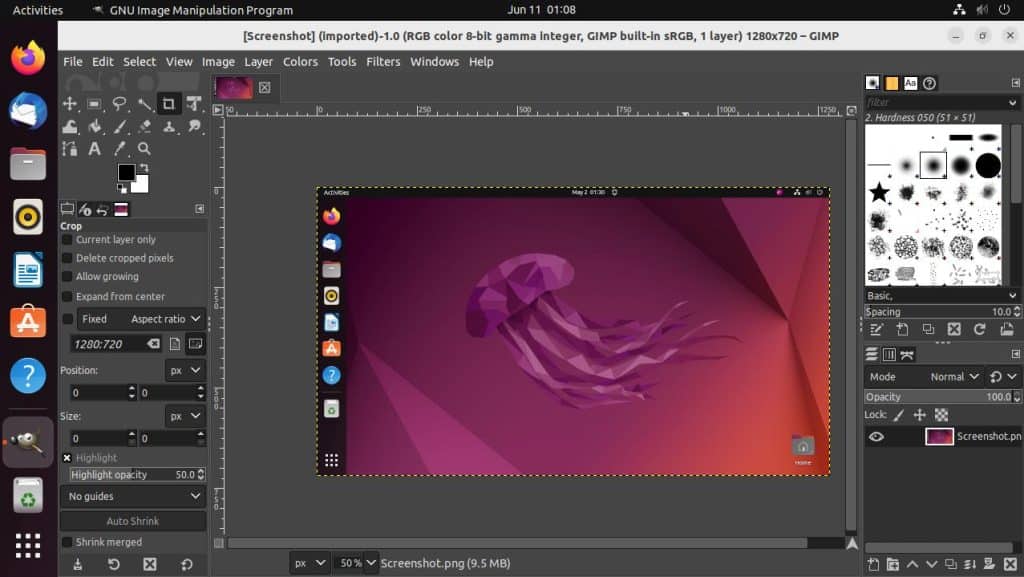
Image source: Linux Start
One of GIMP's most powerful features is its extensibility. Through Python and Scheme scripting, users can automate complex retouching workflows. For professionals, the integration with Scribus and Inkscape allows for a functional CMYK workflow, which is essential for print production. While GIMP does not natively support non-destructive adjustment layers in the same way Photoshop does, its "GEGL" (Generic Graphics Library) integration is slowly bridging that gap, allowing for high-bit-depth processing (up to 32-bit per channel).
The "AI gap" is another area where GIMP is evolving. While it lacks the built-in generative fill features of commercial cloud-based software, the Resynthesizer plugin remains a remarkably effective tool for content-aware healing and texture synthesis. However, users should be prepared for a manual installation process, as these plugins are often distributed as source code or third-party binaries rather than through a centralized store.
Top Lightroom Alternatives for RAW Development
For photographers, the RAW developer is the most critical part of the stack. In the Linux world, two giants dominate this space: Darktable and RawTherapee. Both are non-destructive, meaning your original RAW files remain untouched while the software records your edits as a series of mathematical instructions.
Darktable: The Powerhouse for Non-Destructive Editing
Darktable is widely considered one of the most sophisticated RAW editors available. It uses a "module" system that can be intimidating at first. Unlike Lightroom, which often applies a "base curve" to make images look "good" immediately, Darktable imports images in a "scene-referred" state. This means images may look flat or dark upon import, but this is a professional advantage, providing the maximum dynamic range for manual adjustment.
Key features of Darktable include:
- Local Masking: Exceptionally strong drawn and parametric masks that allow you to isolate edits to specific colors or brightness levels.
- Tethered Shooting: Support for a wide range of cameras, allowing you to view and capture images directly into your Linux machine.
- Map Module: Built-in geotagging support using OpenStreetMap data.
RawTherapee: The High-Performance Alternative
If Darktable feels too complex, RawTherapee offers a more traditional "tabbed" interface. It is highly regarded for its demosaicing algorithms, which can extract incredible detail from sensors without introducing artifacts. According to ZDNet , many users prefer RawTherapee for its "Wavelet" processing, which provides granular control over contrast at different scales of the image.
How to Fix GPU Crashes and Performance Issues in Darktable
A common pitfall for Linux creatives is GPU acceleration. Darktable relies heavily on OpenCL to speed up image processing. However, users with Intel Arc or certain NVIDIA cards often report crashes when OpenCL is enabled. This is frequently due to driver incompatibilities rather than the software itself.
The Rusticl Solution: Rusticl is a modern OpenCL implementation written in Rust, part of the Mesa driver stack. While it may be slightly slower than native proprietary drivers in some benchmarks, it offers a significant step forward in stability. To enable it, you typically need to install the `mesa-opencl-icd` package and set the environment variable `RUSTICL_ENABLE=iris` (for Intel users).
Performance benchmarks show that an Intel Arc B580 using Rusticl on Linux can compete with an NVIDIA RTX 3060 on Windows for batch export tasks, provided the OpenCL stack is correctly configured. Community experts often recommend AMD GPUs for the smoothest Linux experience, as their open-source drivers are integrated directly into the Linux kernel.
Why Krita Often Serves as a Stronger Photo Editor Than GIMP
While Krita is marketed as a digital painting tool, many photographers are switching to it for their primary photo manipulation needs. Krita’s interface is notably innovative, feeling much more modern than GIMP’s legacy design. It handles non-destructive filter layers and masks with a logic that feels familiar to users of modern commercial software.
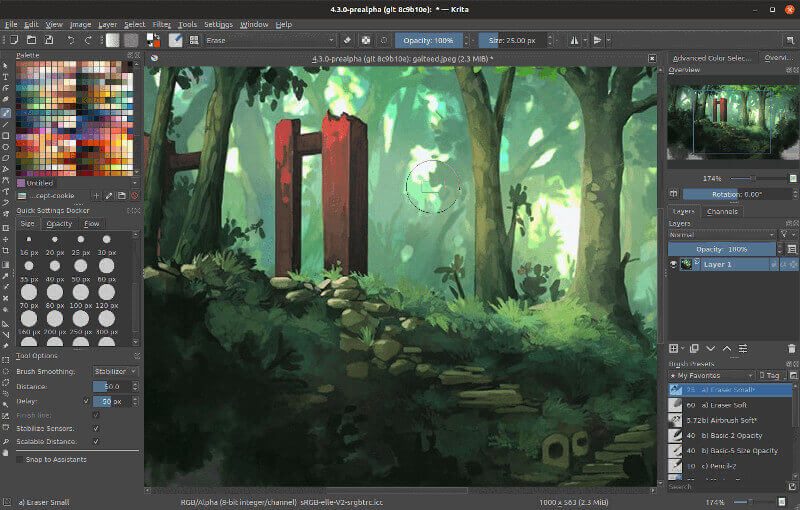
Image source: TecMint: Linux Howtos, Tutorials & Guides
Krita stands out for "photo-bashing"—the process of combining multiple photos and textures into a single creative work. Its brush engine is widely regarded as one of the strongest in the industry, allowing for seamless blending that is difficult to achieve in GIMP. Furthermore, Krita has better native support for drawing tablets, including advanced pressure and tilt sensitivity, which is vital for detailed retouching work.
Simple and Lightweight Editors for Quick Tasks
Not every task requires a heavy-duty RAW processor or a multi-layered raster editor. For quick crops, annotations, or resizing, lightweight tools are more efficient.
- Pinta: This is a top-rated choice for users who want a "Paint.NET" experience. It supports layers and basic effects without the overhead of GIMP.
- Kolourpaint: Ideal for simple tasks like rotating an image or adding text to a screenshot. It is the Linux equivalent of MS Paint but with slightly more robust features.
- Bitmappery: A privacy-focused, web-based editor that can be self-hosted. It is a notable advancement for users who want to avoid local software bloat while maintaining control over their data.
Using a Hybrid Workflow with Photopea and Native Apps
The lack of native Adobe-style Generative AI on Linux is a significant friction point in 2026. To solve this, many professionals adopt a "Hybrid Workflow." They use native apps like Darktable for the heavy lifting and Photopea for specific AI-assisted tasks.
Photopea is a browser-based editor that offers remarkable PSD support and features like "Magic Replace" (an AI generative fill alternative). Because it runs in the browser, it avoids the installation complexities of Linux packages. However, users should be mindful of privacy; while native apps process everything locally, web tools require uploading your data to a server. For high-security professional work, sticking to local plugins in GIMP or Krita is the recommended path.
Solving Technical Hurdles for Linux Photographers
Even with the right software, technical hurdles like color management and package formats can disrupt your workflow. In recent months, the Linux community has made significant strides in these areas.
Color Management on Wayland
Historically, color management was a major pain point on Wayland, the modern display protocol for Linux. However, with the release of KDE Plasma 6.6 , support for ICC profiles has reached a professional standard. Users can now calibrate their monitors using tools like DisplayCAL and have those profiles respected across the entire desktop environment, ensuring that the colors you see in Darktable match your final output.
Flatpak vs. Snap vs. Native Packages
How you install your software matters. While Flatpaks and Snaps offer the latest versions of software, they often run in "sandboxes" that can cause issues with file permissions or system keyrings. Zorin OS forum users have noted that Snaps can trigger frequent password prompts. For the most stable experience, many experts recommend using AppImages or native .deb/APT packages for creative tools, as they integrate more deeply with the system's hardware acceleration and file system.
Comparison Table: Linux Photo Editors at a Glance
| Feature | GIMP | Darktable | Krita | Pinta | Photopea |
|---|---|---|---|---|---|
| Primary Use | Raster/Retouch | RAW Developer | Painting/Photo | Simple Edits | AI/PSD Support |
| Non-Destructive | Limited | Yes | Yes | No | Yes |
| Learning Curve | Steep | High | Moderate | Low | Moderate |
| AI Features | Plugin-based | No | No | No | Yes (Cloud) |
| Best For | Pro Retouching | Photographers | Artists | Casual Users | Quick PSD Edits |
Frequently Asked Questions
GIMP is the most direct native equivalent, offering similar raster manipulation capabilities. However, for users who require exact UI parity and PSD file support, Photopea (a web-based tool) or GIMP with the PhotoGIMP patch are often considered the strongest options. These tools allow you to leverage your existing Photoshop muscle memory while working in a Linux environment.
Adobe does not offer a native Linux version of Lightroom. While some users attempt to run it via Wine or a Virtual Machine, the performance is typically poor and hardware acceleration often fails. The professional path on Linux is to transition to Darktable or RawTherapee, which are built specifically for the platform and offer comparable, if not superior, technical control over RAW files.
For those just starting, Pinta is an excellent choice due to its simplicity and familiar interface. If you want to learn professional-grade tools but find GIMP too intimidating, Krita offers a more modern user experience that many find easier to navigate. Krita’s documentation is also exceptionally thorough, making it easier to troubleshoot as you learn.
Native Linux apps currently lack built-in generative fill. The most common workaround is using Photopea in a browser, which includes AI-powered replacement tools. Alternatively, GIMP users can install the Resynthesizer plugin for content-aware filling, though it is not as "smart" as modern cloud-based AI models. Some users also explore Stable Diffusion plugins for Krita for more advanced generative tasks.
This is usually a color management issue. Ensure that your Desktop Environment (like KDE or GNOME) is using a calibrated ICC profile for your monitor. In GIMP, you must also go to Preferences > Color Management and ensure it is set to "Display-referred" or "Color-managed display." If you are using Wayland, ensure you are on a recent version (like KDE 6.6+) that fully supports system-wide color profiles.
Key Takeaways for Your Linux Creative Stack
- Identify your primary need: Use Darktable for RAW development and GIMP or Krita for raster retouching.
- Optimize your hardware: If using an Intel GPU, consider the Rusticl driver for better stability in OpenCL-heavy apps.
- Check your environment: Ensure you are using a modern Desktop Environment like KDE Plasma 6.6 for professional color management.
- Choose the right package: Opt for native .deb or AppImages to avoid the permission issues common with Snaps and Flatpaks.
- Embrace the hybrid approach: Use Photopea for quick PSD edits or AI tasks that native Linux apps can't yet handle.
- Be patient with the learning curve: Open-source tools like Darktable require a different technical mindset than their commercial counterparts.
Start by installing one RAW editor and one raster editor today to begin building your customized, high-performance Linux creative workflow.