Home
Home
What Is the Best Linux Photo Editor for Your Photography Workflow?
For most professional photographers on Linux in 2026, the top-rated solution is a combination workflow rather than a single app. Darktable stands as a premier choice for RAW processing, while GIMP 3.0 provides a highly capable environment for raster retouching with its new non-destructive features. If your work involves digital painting or CMYK print preparation, Krita is widely regarded as one of the strongest options available.
The transition to Linux for creative professionals has accelerated significantly in recent years. What was once a landscape defined by experimental tools has matured into a robust ecosystem capable of handling high-resolution RAW files, complex compositing, and AI-assisted retouching. As of late 2026, the "Adobe Exodus" is no longer a niche movement; it is a practical shift driven by a desire for software ownership, privacy, and performance optimization.
Choosing a photo editor on Linux requires understanding your specific needs. Are you developing RAW files from a high-end mirrorless camera, or are you performing heavy pixel manipulation for social media graphics? This guide explores the leading tools that have defined the open-source creative world this year, providing a roadmap for both hobbyists and seasoned professionals.
Why the Linux Photo Editing Landscape Has Changed in 2026
The year 2026 marks a turning point for open-source imaging. The long-awaited release of GIMP 3.0 has finally bridged the gap between traditional open-source editing and the non-destructive workflows popularized by proprietary giants. This update, built on the modern GTK3 framework, introduces high-bit-depth processing and layer effects that remain editable throughout the project lifecycle.
Furthermore, the integration of Artificial Intelligence (AI) has moved from cloud-based subscriptions to local, privacy-focused execution. Tools like Krita now support generative plugins that run on your local GPU, allowing for content-aware fills and style transfers without sending data to external servers. According to reports from ZDNet , these advancements have made Linux a viable, and in some cases preferable, environment for professional photography.
Privacy and "software ownership" remain the primary drivers. In an era of mandatory cloud subscriptions, Linux offers a "forever-free" model where the user retains full control over their software version and data. This stability is critical for professionals who cannot risk sudden UI changes or pricing hikes in the middle of a major project.
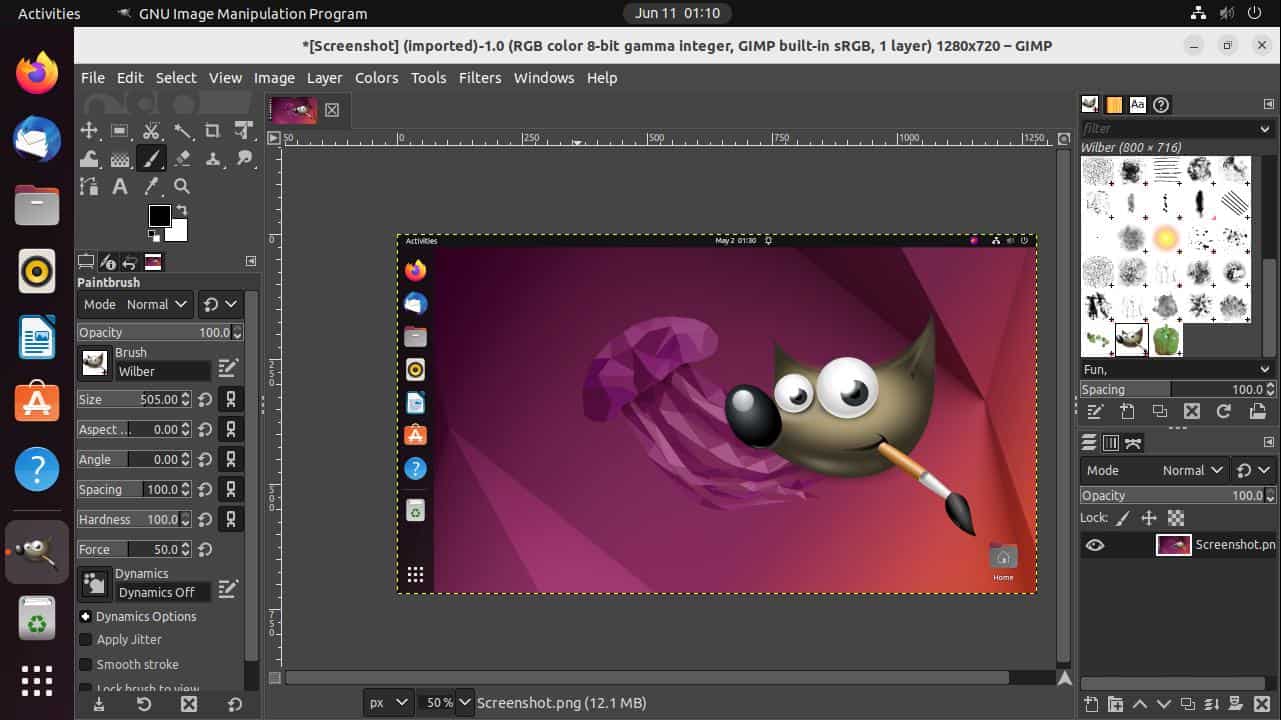
Image source: Linux Start
Which Raster Editor Should You Choose Between GIMP and Krita?
When it comes to pixel-based editing—often referred to as raster editing—two names dominate the Linux space: GIMP and Krita. While they share some functionality, their intended purposes have diverged significantly in recent years.
Why GIMP 3.0 Is Finally a Serious Photoshop Competitor
For decades, GIMP (GNU Image Manipulation Program) was criticized for its destructive editing workflow and dated interface. With the arrival of version 3.0, those criticisms have largely been addressed. The introduction of non-destructive layers and masks allows users to apply filters and adjustments that can be tweaked or removed at any time, mirroring the flexibility of Adobe Photoshop.
One of the most effective ways to transition to GIMP is the "Photoshop-ification" hack. By remapping keyboard shortcuts and utilizing UI themes that mimic the Adobe layout, users can leverage their existing muscle memory. Furthermore, GIMP 3.0 handles high-bit-depth images (up to 32-bit float per channel) with ease, ensuring that color gradients remain smooth even under heavy manipulation.
A common friction point for new users is the "Save vs. Export" distinction. In GIMP, "Save" is reserved for the native .XCF format, which preserves layers. To get a JPEG or PNG, you must "Export." A professional tip is to use the Shift+Ctrl+E shortcut to quickly overwrite existing files, streamlining the output process.
How Krita Leads the Way in Linux AI Photo Editing
While Krita is primarily marketed as a digital painting tool, it has become a top-tier choice for photo editing due to its superior color management. Unlike GIMP, which has historically struggled with native CMYK support, Krita offers robust 8-bit and 16-bit integer channel support for print-ready workflows. This makes it a leading choice for photographers who need to prepare their work for physical galleries or publications.
Krita has also embraced the AI movement more aggressively than other FOSS tools. Through community-developed plugins, Krita users can access Stable Diffusion-based tools directly within the canvas. These tools allow for sophisticated tasks like extending a landscape or removing complex background elements with a few brush strokes. As noted by XDA Developers , this integration places Krita at the forefront of modern creative technology on Linux.
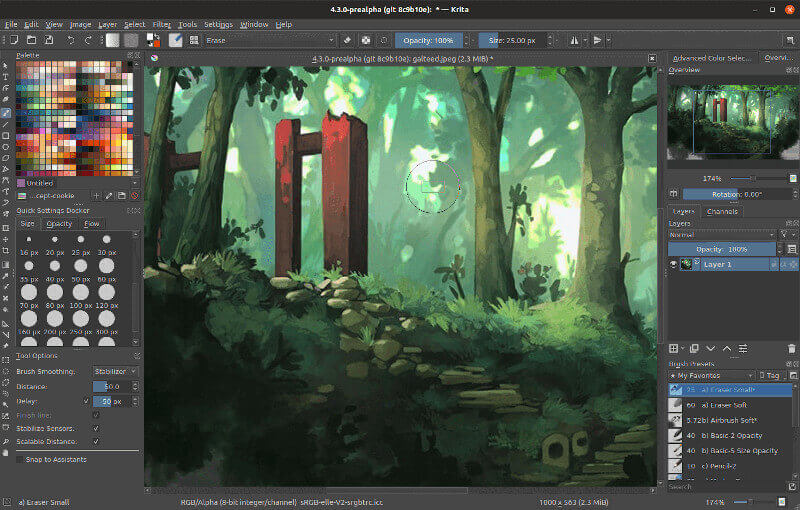
Image source: TecMint: Linux Howtos, Tutorials & Guides
What Are the Best RAW Processors for Linux Photographers?
RAW processing is the "digital darkroom" where the heavy lifting of photography happens. On Linux, this space is incredibly competitive, offering tools that often exceed the capabilities of commercial counterparts in terms of sheer image science.
Why Darktable Is the Professional Choice for RAW Development
Darktable is widely considered one of the strongest RAW developers available on any platform. It uses a non-destructive, module-based stack that allows for incredibly precise control over light and color. The "filmic RGB" and "sigmoid" modules are particularly acclaimed for their ability to handle high-dynamic-range scenes without losing detail in the highlights or shadows.
For users who find the standard Darktable interface too cluttered, a fork called Ansel has gained popularity. Ansel focuses on a more streamlined, "photographer-centric" experience, removing some of the more esoteric modules to provide a cleaner workspace. Both tools utilize OpenCL for GPU acceleration, which is essential when processing 45MP+ images from modern full-frame sensors.
How RawTherapee Offers a Different Approach to Image Science
RawTherapee takes a more clinical approach to image processing. It utilizes a 32-bit floating-point engine and offers some of the most advanced demosaicing algorithms in the industry, such as AMaZE and RCD. These algorithms are designed to interpret the Bayer pattern of your camera sensor with minimal artifacts, making RawTherapee a top choice for landscape and architectural photographers who demand maximum sharpness.
If RawTherapee feels overwhelming, the ART (Another RawTherapee) fork provides a simplified workflow that retains the powerful underlying engine while making the most common adjustments easier to find. This "less is more" philosophy has made ART a favorite among hobbyists who want professional results without a steep learning curve.
Is RapidRAW the Modern Solution for Faster Workflows?
A newcomer to the scene, RapidRAW , aims to bridge the gap between the complexity of Darktable and the simplicity of basic viewers. Developed by Timon Käch, RapidRAW focuses on speed and a modern UI that feels native to 2026 Linux desktops. It is particularly useful for photographers who need to cull and perform basic edits on hundreds of photos quickly, rather than spending hours on a single masterpiece. According to RealLinuxUser , it represents a promising new direction for Linux imaging software.
How to Build a Professional Photography Workflow on Linux
Most professional photographers do not rely on a single application. Instead, they build a "stack" that handles different stages of the creative process. This multi-tool approach ensures that each task is performed by the software best suited for it.
Start by importing your photos into DigiKam. It is arguably a leading Digital Asset Manager (DAM) on any OS, offering advanced face recognition, metadata tagging, and library management that can handle hundreds of thousands of images across multiple drives.
Once culled, open your selected RAW files in Darktable. Here, you perform global adjustments: exposure, white balance, noise reduction, and lens corrections. The goal is to get the image 90% of the way to completion.
For the final 10%—such as complex object removal, frequency separation for skin, or adding text—export a 16-bit TIFF from Darktable and open it in GIMP. This is where you perform local edits that require layers and masks.
How to Transition from Adobe Creative Cloud to Linux Tools
Leaving the Adobe ecosystem is as much about mindset as it is about software. The biggest hurdle is often "muscle memory"—the automatic way your fingers move to perform a task. However, with the right tools, the transition can be remarkably smooth.
Can You Run Photoshop on Linux Using Wine or Virtual Machines?
While native Linux tools are the goal, some users have specific legacy files or plugins that require Photoshop. Using Wine (or the user-friendly wrapper Bottles ) can allow some older versions of Photoshop to run, though stability is never guaranteed. A more reliable method is using a Virtual Machine like Gnome-boxes or VMWare to run a lightweight Windows instance specifically for Adobe apps. However, this requires significant system resources and is generally considered a temporary solution.
Why Photopea Is a Top Browser-Based Photoshop Alternative
For quick edits or when you are on a machine without your full suite installed, Photopea is an excellent choice. It is a browser-based editor that looks and feels almost identical to Photoshop. Crucially, it handles .PSD files with remarkable accuracy, preserving layers and most adjustment effects. For social media managers or those needing zero-latency crops, it stands as a highly recommended tool that requires no installation.
How to Optimize Your Linux System for High-Performance Editing
To get the most out of these tools, your hardware and software must be properly configured. Photo editing is resource-intensive, particularly when dealing with high-resolution RAW files or AI plugins.
Should You Use Flatpak, Snap, or AppImage for Your Editors?
The method you use to install your software can impact performance.
- Flatpaks: Great for security and getting the latest versions, but can sometimes struggle with "sandbox" restrictions when trying to access external plugins or specific hardware.
- Snaps: Common on Ubuntu, but often criticized for slower startup times.
- AppImages: Often the preferred choice for professionals. They are portable, don't require installation, and usually have the best compatibility with system-wide GPU drivers.
How to Enable GPU Acceleration for Faster Rendering
Most modern Linux photo editors support OpenCL for GPU acceleration. This offloads complex mathematical calculations from your CPU to your graphics card, resulting in much faster previews and export times. If you are using an NVIDIA card, ensure you have the proprietary drivers installed. For AMD users, the open-source "amdgpu" drivers usually work out of the box, but you may need to install the "opencl-amd" package to unlock full processing power.
Which Linux Photo Editor Is Right for You?
The following matrix provides a quick comparison of the leading tools based on their primary use cases and technical capabilities.
| Software | Primary Use | Learning Curve | RAW Support | Best For |
|---|---|---|---|---|
| GIMP 3.0 | Raster Retouching | Moderate | Via Plugin | Photoshop Switchers |
| Darktable | RAW Development | High | Excellent | Pro Photographers |
| Krita | Digital Painting | Moderate | Basic | Artists & Print |
| RawTherapee | Image Science | High | Excellent | Detail Enthusiasts |
| RapidRAW | Fast Culling | Low | Good | Speed & Simplicity |
Top Recommendations for Different User Profiles
If you are still unsure which path to take, consider these profiles:
- The Hobbyist: Start with Pinta or RapidRAW . They offer enough power for basic crops and color fixes without the complexity of professional suites.
- The Professional: Adopt the DigiKam + Darktable + GIMP stack. This mirrors the Lightroom-to-Photoshop pipeline used by industry leaders.
- The Digital Artist: Stick with Krita . Its brush engine and CMYK support are exceptionally strong for creative work.
- The Social Media Manager: Use Photopea . The ability to open PSD templates in a browser is a major time-saver.
Frequently Asked Questions
Final Thoughts
Transitioning to a Linux-based photography workflow in 2026 is a rewarding journey that offers unparalleled control over your creative tools. By moving away from subscription models, you gain a stable, high-performance environment tailored to your specific needs.
- Install DigiKam to organize and tag your growing photo library.
- Master Darktable for professional-grade RAW development and color science.
- Leverage GIMP 3.0 for non-destructive retouching and complex compositing.
- Use AppImages to ensure the most stable and portable software experience.
- Enable OpenCL in your software settings to unlock the full power of your GPU.
- Explore Krita if your workflow requires advanced CMYK support or AI-assisted painting.
Start by installing one of these tools alongside your current setup to begin building the muscle memory needed for a full transition.