Home
Home
How to Download and Use PMD Editor Safely on Modern Windows
PMD Editor (PMDE) remains a foundational tool for modifying MikuMikuDance (MMD) models. To run it on Windows 10 or 11 in 2026, you must install legacy runtimes and "Unblock" the software properties before extraction.
Understanding the Role of PMD Editor in Modern MMD Workflows
PMD Editor (PMDE) is a specialized 3D modeling environment designed specifically for the MikuMikuDance (MMD) ecosystem. While modern 3D software like Blender offers more general capabilities, PMD Editor provides a streamlined interface for the specific bone structures, physics, and material settings that MMD requires. In recent years, the community has largely transitioned to the PMX Editor (PMXE) , which supports the more advanced .pmx format, but PMD Editor remains a vital tool for legacy model maintenance and simple edits.
According to community archives at LearnMMD , the final official version of PMD Editor is 0.1.3.9. This version is often the starting point for users who need to convert older models or perform quick weight-painting adjustments. It is important to distinguish between the two formats: PMD is the legacy format with strict vertex limits (approximately 65,000), while PMX is the modern standard that allows for virtually unlimited complexity and advanced deformation algorithms like SDEF.
In 2026, the software is primarily used as a "bridge" tool. Many creators use it to clean up models before importing them into more complex engines or to fix specific "Null" name errors that cause MMD to crash. Despite its age, the editor's lightweight nature makes it a popular choice for users who do not need the full suite of features found in PMX Editor.
Essential System Requirements for Windows 10 and Windows 11
One of the most common frustrations for new users is that PMD Editor does not run "out of the box" on modern operating systems. Windows 11, while highly advanced, lacks the legacy libraries that 32-bit Japanese software from the early 2010s relies upon. To ensure stability, you must manually install several specific runtimes.
d3dx9_43.dll
) required by PMD Editor. You must install the DirectX End-User Runtime Web Installer to fill these gaps.
Based on technical documentation from MMD Center , your system checklist should include:
- .NET Framework 3.5 SP1 and 4.0: These provide the managed code environment the editor needs to execute its primary functions.
- Microsoft Visual C++ 2010 Redistributable (x86): This is a critical requirement. Even if you have a 64-bit system, you must install the x86 (32-bit) version because PMD Editor is a 32-bit application.
- SlimDX: This is a community-recommended wrapper for DirectX that helps the editor communicate with your graphics card. Many English-patched versions include this in the folder, but a standalone installation can resolve persistent "Failed to Initialize" errors.
Step by Step Instructions to Download and Install the English Version
Finding a safe download for PMD Editor can be challenging due to the proliferation of unofficial mirror sites. To protect your system, always use community-vetted sources. The version hosted by Vadim07 on DeviantArt is widely regarded as a stable, clean English translation of version 0.1.3.9.
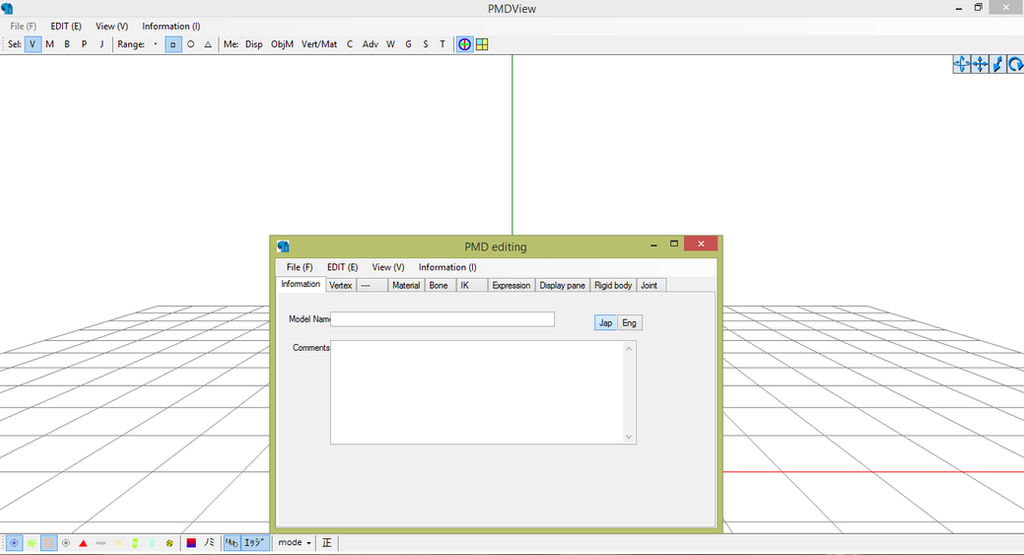
Image source: DeviantArt
Why You Must Unblock the ZIP File Before Extraction
This is the most important step for Windows 10 and 11 users. Modern Windows security features often attach a "Zone.Identifier" tag to files downloaded from the internet. This tag tells Windows to block the execution of DLL files within the archive for safety. If you extract the files without removing this block, the editor will either fail to open or throw "Missing DLL" errors even if the files are present.
- Download the ZIP: Save the archive to your Downloads folder. Do not open it yet.
- Access Properties: Right-click the ZIP file and select Properties .
- Check Unblock: Look at the bottom of the General tab. If you see a security warning saying "This file came from another computer," check the Unblock box and click Apply.
- Extract: Now you can safely extract the contents using 7-Zip or WinRAR.
Choosing the Correct Installation Directory
Avoid installing PMD Editor in the
C:\Program Files
or
C:\Program Files (x86)
directories. These folders have strict User Account Control (UAC) permissions that can prevent the editor from writing temporary files or saving model changes. Instead, create a dedicated folder such as
C:\MMD_Tools\PMDE\
. This ensures the software has the necessary read/write access to its own
_data
and
lib
folders.
Preventing Texture Corruption During Japanese File Extraction
A common issue when working with MMD models is "Mojibake"—the appearance of garbled text in file names. This happens because Japanese developers use the Shift-JIS character encoding, which English Windows often misinterprets as Windows-1252. If your model's textures appear white or missing, it is likely because the file paths were corrupted during extraction.
To prevent this, use 7-Zip to extract your model archives. In the 7-Zip extraction dialog, you can often specify the code page. Alternatively, many power users utilize Locale Emulator . By right-clicking the extraction tool and selecting "Run in Japanese," you ensure that the Japanese folder and texture names are preserved exactly as the creator intended. This is a significant step forward in maintaining model integrity across different regional settings.
Common Startup Errors and How to Resolve Them
Even with a perfect installation, you may encounter technical hurdles. Most of these are related to how the software interacts with modern hardware drivers and security protocols.
Fixing the Failed to Initialize Error
The "Failed to Initialize" popup is the most frequent complaint among new users. This usually indicates a conflict with the SlimDX library or a missing C++ runtime. If you have already installed the C++ 2010 x86 redistributable, try the following:
-
Run as Administrator:
Right-click
PMDEditor.exeand select "Run as Administrator." This can bypass certain permission blocks. -
Check SlimDX:
Ensure the
SlimDX.dllfile is present in the same folder as the executable. If it is, you may need to download the SlimDX End-User Runtime specifically for .NET 4.0. - Graphics Settings: On laptops with dual graphics (Intel/Nvidia), try forcing the editor to run on the "Integrated Graphics" via the Windows Graphics Settings menu. Some older versions of PMDE struggle with modern high-performance GPUs.
Stopping the Infinite Error Window Loop
Some users report a "50+ Error Windows" loop where clicking "OK" simply spawns another error. This is typically caused by the editor trying to access a file that is marked as "Read Only" or is blocked by an antivirus program. Ensure your PMDE folder is added to your antivirus "Exclusion" list and that the folder properties are not set to Read Only.
.exe
file out of its original folder. The editor relies on the relative paths to the
_data
and
lib
folders to function. If you want a shortcut, right-click the EXE and select "Send to Desktop (create shortcut)."
Fundamental Model Editing Techniques for New Users
Once the editor is running, you can begin modifying models. The interface is divided into several windows: the Main Viewport, the Component List (Bones, Materials, Vertices), and the Transform View.
Resizing Models: To scale a model, navigate to the System or Transform tab. It is better to use the "Batch Scale" function rather than manually moving vertices, as this ensures that physics bodies and joints are scaled proportionally. If you scale only the mesh, the physics will remain at the original size, leading to "exploding" models in MMD.
Bone Mirroring: Symmetrical editing is a top-tier feature for efficiency. When creating bones for the left arm, you can use the "Mirror" function to automatically generate the right-side bones with the correct naming conventions (e.g., changing "_L" to "_R"). This ensures that motion data will apply correctly to both sides of the model.
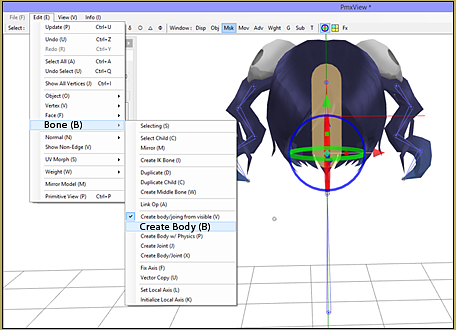
Image source: Learn MikuMikuDance
Resolving the Null Model Name Error in Mikumikudance
If you load a model in MMD and the name appears as "Null" or the program crashes immediately, the issue lies in the model's metadata. MMD requires both a Japanese name and an English name to be present in the model's header.
To fix this in PMD Editor:
- Open the Info or Model tab (usually the first tab in the small window).
- Locate the Model Name and Comment fields.
- Ensure the top box (Japanese) has a name. If you don't know the Japanese name, simply copy the English name into it.
- Ensure the bottom box (English) is also filled.
- Save the model as a new file. This simple step ranks among the most effective ways to ensure model compatibility across different versions of MMD.
Integrating VRoid Studio with PMX Editor in 2026
In the current 2026 creative landscape, many users create their base models in
VRoid Studio
. VRoid exports models in the
.vrm
format, which is not natively compatible with MMD. The modern workflow involves using a VRM-to-PMX converter and then using PMX Editor to refine the results.
While PMD Editor is too limited for these high-poly models, PMX Editor stands out as a top choice for "fitting parts." For example, if you want to add a custom hat or accessory to a VRoid model, you would import both into PMX Editor, use the "Transform View" to position the accessory, and then use the "Weight Painting" tool to attach it to the model's head bone. This hybrid workflow allows creators to combine the ease of VRoid's character creator with the deep customization of the MMD editor ecosystem.
Comparing PMD Editor and PMX Editor Features
Choosing between the two editors depends on your specific needs. While PMX Editor is the more capable tool, PMD Editor is often faster for simple tasks on older models.
| Feature | PMD Editor (0.1.3.9) | PMX Editor (0.2.5.4f) |
|---|---|---|
| Primary Format | .pmd (Legacy) | .pmx (Modern) |
| Vertex Limit | ~65,535 | Virtually Unlimited |
| Deformation | BDEF1, BDEF2 | BDEF4, SDEF, QDEF |
| OS Stability | Requires Legacy Fixes | Highly Stable on Win 11 |
| Best For | Simple Edits / Legacy Models | High-Poly / VRoid / Physics |
Frequently Asked Questions About PMD Editor
- Why does PMD Editor close immediately after I try to open it?
- This is almost always caused by blocked DLL files. Windows security prevents the editor from loading its library files if they were downloaded from the internet. To fix this, you must right-click the original ZIP file, go to Properties, and check the "Unblock" box before re-extracting the files. Additionally, ensure you have the Visual C++ 2010 x86 redistributable installed, as the editor cannot start without it.
- Can I convert a PMD model into a PMX model?
- Yes, and it is highly recommended for better performance in modern MMD. The easiest way is to open the .pmd file in PMX Editor and simply go to "File > Save As" and select the .pmx format. This will automatically update the model's header and allow you to use advanced features like SDEF weighting, which provides smoother joint deformations.
- Is it safe to download PMD Editor from third-party sites?
- You should exercise caution. While the software itself is safe, some unofficial mirrors may bundle it with unwanted software. It is widely regarded as safest to use community-trusted links from sites like LearnMMD or established DeviantArt contributors like Vadim07. Always scan any downloaded executable with updated antivirus software before running it.
- How do I change the language of PMD Editor to English?
- The original software is in Japanese. To use it in English, you must download a "pre-patched" version where the UI strings have been replaced. There is no "language setting" inside the original Japanese version. Most community downloads are already patched, but you can verify this by checking if the menu items like "File" and "Edit" are in English upon startup.
- Why are my model's textures appearing completely white?
- White textures usually mean the editor cannot find the image files. This often happens if the texture names contain Japanese characters that were corrupted (Mojibake) during extraction. To resolve this, re-extract the model using 7-Zip with the Japanese locale setting, or manually rename the texture files and update the paths in the "Material" tab of the editor.
Key Takeaways for Successful Model Editing
- Always Unblock: The single most common cause of failure is the Windows security block on downloaded ZIP files.
- Install x86 Runtimes: Even on 64-bit Windows 11, the 32-bit (x86) C++ 2010 redistributable is a mandatory requirement.
-
Use Root Directories:
Avoid "Program Files" to prevent UAC permission errors; use a folder like
C:\MMD_Tools. - Fill Metadata: Ensure both Japanese and English name fields are populated to prevent MMD from crashing.
- Transition to PMX: While PMDE is useful for legacy work, PMX Editor is the top-rated choice for modern, high-poly models.
- Preserve Locales: Use 7-Zip or Locale Emulator to prevent texture path corruption from Japanese characters.
Start by verifying your runtimes today to ensure a smooth creative experience in the MMD community.