Home
Home
How to Download Examplify and Log Into Your ExamSoft Account Successfully
To use
ExamSoft
, you must download the
Examplify
application onto your device. Access your institution's specific portal (e.g.,
examsoft.com/your-school-id
), log in with your credentials, and download the installer. Ensure your device meets the "Three-Version Rule"—supporting only the three most recent versions of Windows or macOS. Before testing, sync your system clock and temporarily disable aggressive antivirus software to prevent technical lockouts.
Navigating the world of high-stakes digital assessments can be daunting, especially when technical hurdles stand between you and your exam. The ExamSoft ecosystem is widely regarded as one of the most reliable frameworks for secure testing, used by over 2,400 programs globally to maintain academic integrity. Whether you are preparing for the Bar Exam, the NCLEX, or a university final, understanding the nuances of this software is essential for a smooth experience.
This guide provides a deep dive into the ExamSoft environment, offering actionable troubleshooting steps and technical insights that go beyond basic installation manuals. By the end of this article, you will understand how to manage your Institution ID, resolve common error messages, and ensure your hardware is fully optimized for a secure testing session.

Image source: YouTube
What Is the Difference Between ExamSoft and Examplify?
One of the most common points of confusion for new users is the distinction between ExamSoft and Examplify. While the names are often used interchangeably, they represent two different parts of the same ecosystem. According to Turnitin's product overview , ExamSoft is the cloud-based management platform, while Examplify is the student-facing application.
ExamSoft is the "back-end" portal. This is where faculty members and administrators create exam questions, organize them into categories, and map them to accreditation standards. After an exam is completed, ExamSoft is also the tool used to generate detailed longitudinal reports, helping educators identify specific areas where students may be struggling.
Examplify , on the other hand, is the "front-end" application. This is the software you download to your laptop or iPad. Its primary function is to create a "sandbox" environment. When you launch an exam in Examplify, the software typically locks down your device, disabling internet access, background applications, and generative AI tools. This ensures that the testing environment remains secure and that every student is evaluated on a level playing field.
The security mechanism is notably innovative because it allows for offline testing. Once an exam file is downloaded to Examplify, you do not need an active internet connection to take the test. The software saves your progress locally every 60 seconds and only requires a connection again once you are ready to upload your final answer file.
How to Download and Install Examplify on Your Device
The installation process is the first hurdle in your testing journey. Because ExamSoft is customized for each school, you cannot simply download a generic version from an app store (unless you are using an iPad). Instead, you must access your institution's unique login page.
-
Locate Your Portal:
Visit the specific URL provided by your school. It usually follows the format
ui.examsoft.io/login?institutioncode=[YourID]. - Log In: Enter your student credentials. If your school uses Single Sign-On (SSO), you may be redirected to your university's standard login page.
- Download the Installer: Once logged in, look for the "Download Examplify" button. The site will automatically detect whether you are on a Mac or Windows machine.
- Run the Setup: Open the downloaded file and follow the on-screen prompts. On macOS, you will need to grant "Full Disk Access" and "Screen Recording" permissions in your System Settings for the software to function correctly.
System Requirements and the Three-Version Rule
ExamSoft maintains a strict compatibility policy known as the "Three-Version Rule." To ensure security and stability, the software only supports the three most recent versions of Windows and macOS. As of late 2026, this typically means:
| Platform | Supported Versions (as of 2026) | Minimum RAM |
|---|---|---|
| Windows | Windows 11 (22H2, 23H2), Windows 10 (22H2) | 8GB (Recommended) |
| macOS | macOS 14 (Sonoma), macOS 15, macOS 16 | 8GB (Recommended) |
| iPadOS | iPadOS 17, iPadOS 18+ | N/A (Device dependent) |
Why Your Institution ID Is the Key to Logging In
A frequent point of failure for students is the "Institution ID" requirement. When you first open Examplify, it will ask you to "Add a New Account." You cannot simply enter your email address here; you must provide the specific code assigned to your school.
This ID acts as a gateway, telling the software which server to contact and which security protocols to apply. For example, a student at Long Island University might use
liupharmacy
, while a student at PCOM would use
pcom
. You can typically find this ID in your university's IT welcome email or by looking at the URL of your ExamSoft login page.
If you lose your ID, check the LIU IT support pages or similar institutional resources, which often list these codes publicly for their students. Entering the wrong ID will prevent you from seeing your scheduled exams, even if your username and password are correct.
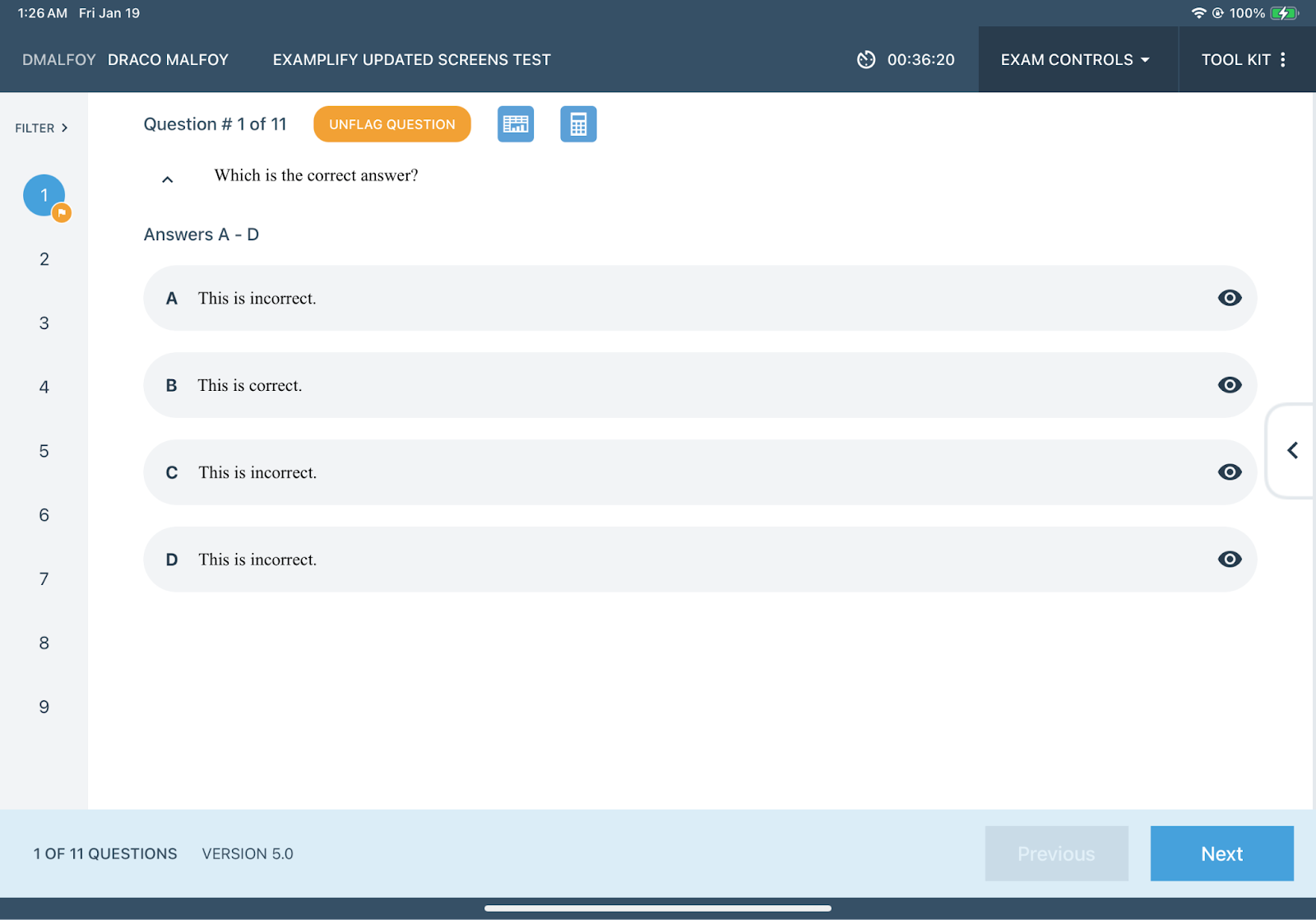
Image source: ExamSoft
How to Prepare Your Laptop for a Secure Exam
Technical success with ExamSoft requires more than just a successful installation. Because the software takes deep control of your operating system to prevent cheating, it often clashes with other security tools. Preparing your device in advance is a top-tier strategy for reducing exam-day anxiety.
Managing Antivirus and Security Software
Aggressive antivirus programs like McAfee, Norton, or Bitdefender often view Examplify’s lockdown behavior as a "malicious" attempt to hijack the computer. This can lead to the software freezing or failing to launch. The ExamSoft support documentation recommends temporarily disabling your antivirus or adding Examplify to the "Exclusions" or "White List" of your security suite.
Clock Synchronization and Power Settings
Examplify relies on a secure timestamp to validate your exam session. If your computer's internal clock differs from the ExamSoft server clock by more than 30 seconds, you may be blocked from starting the test. To fix this, go to your system settings and select "Sync Now" under Date & Time. Additionally, always ensure your laptop is plugged into a power source. Even though the software works offline, the high CPU usage required for encryption and monitoring can drain a battery faster than normal web browsing.
What Does ExamSoft Actually Record During a Test?
Privacy is a common concern for students using remote proctoring tools. It is important to understand the difference between the two primary monitoring levels: ExamID and ExamMonitor .
This is a baseline identity verification tool. It uses your webcam to take a photo at the start of the exam and compares it to your baseline biometric profile. It does not record you during the test.
This is a comprehensive proctoring solution. It records continuous video, audio, and screen activity throughout the entire duration of the exam. AI flags suspicious movements or sounds for human review later.
ExamSoft’s AI mitigation tools are exceptionally strong, designed to detect background processes that might indicate the use of prohibited aids. However, the software does not "spy" on your files outside of the exam session. Once the exam is uploaded and the application is closed, the monitoring features are deactivated. Data is stored using high-level encryption and is typically only accessible by authorized institutional administrators.
How to Fix Common Examplify Error Messages
Even with perfect preparation, errors can occur. Understanding what these messages mean can save you valuable time during a timed assessment.
- "Minimum Requirements Not Met"
- This usually indicates an outdated OS or insufficient RAM. However, it can also be triggered if you have a second monitor plugged in. Examplify will not launch if it detects multiple displays.
- "Exam File Not Found"
- This happens if you haven't downloaded the exam while connected to Wi-Fi. You must download the specific exam file (often protected by a password provided by the proctor) before the testing window begins.
- "Upload Failed"
- If your internet is spotty after the exam, you might see a yellow warning. Do not panic. Your answers are safe. Move to a location with better Wi-Fi and click "Retry Upload." You will know you are successful when you see the "Green Success Screen."
The Reboot Protocol for Mid-Exam Crashes
The most terrifying moment for any student is a computer freeze in the middle of a test. If this happens, follow the Reboot Protocol : Perform a hard restart by holding down the power button until the machine shuts off. When you turn the computer back on and relaunch Examplify, the software will return you to the exact question you were on. Because Examplify saves your work locally every minute, you will rarely lose more than a few seconds of progress. This feature is a significant advancement in digital testing safety.
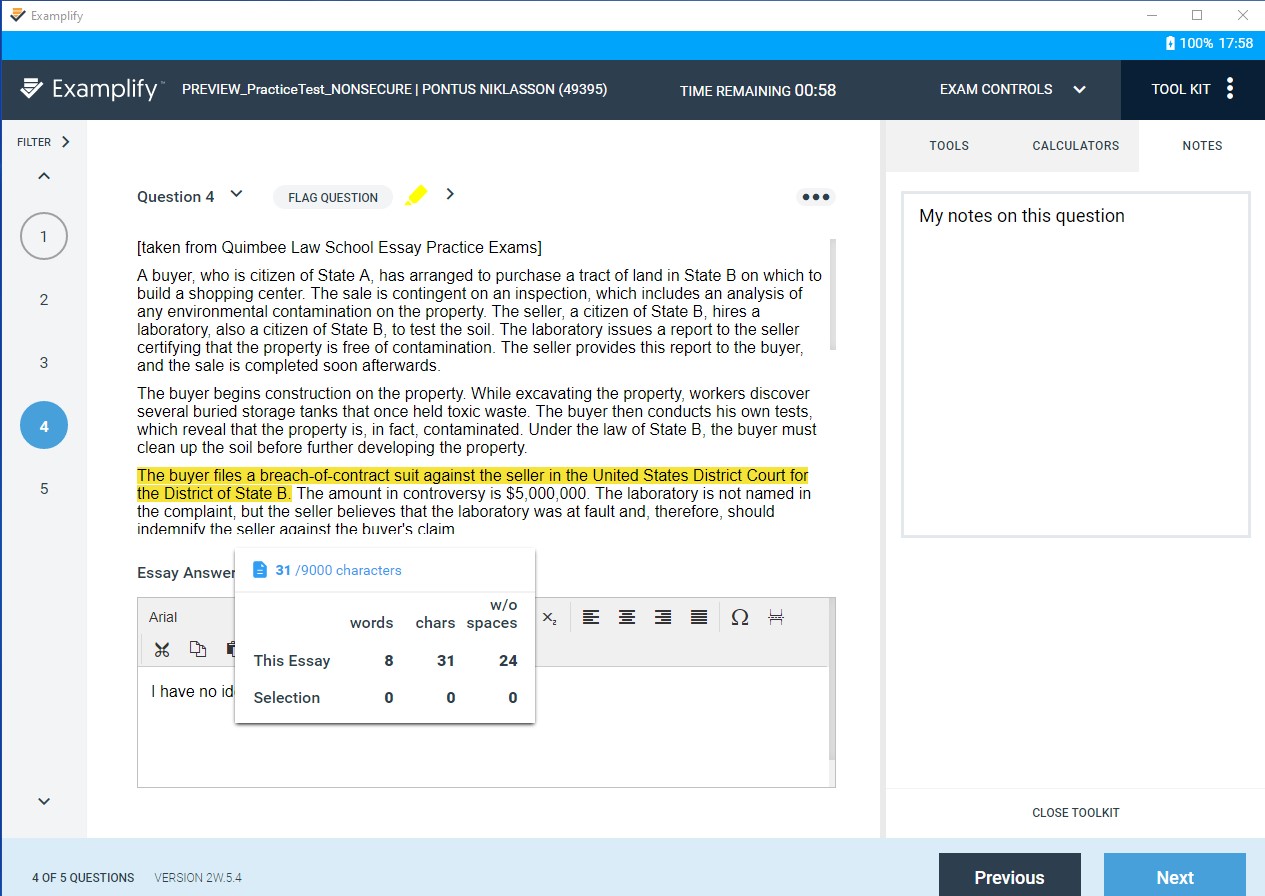
Image source: UW School of Law - University of Washington
Specialized Question Types for Nursing and Business Students
ExamSoft is not limited to simple multiple-choice questions. It supports complex formats required by professional licensing boards. For nursing students, this includes "Bowtie" and "Matrix" questions that mimic the Next Generation NCLEX (NGN). These require you to drag and drop items or fill out complex grids to demonstrate clinical judgment.
For business and accounting students, Examplify includes a built-in spreadsheet tool. This allows you to perform calculations and organize data within the locked environment without needing external software like Excel. Familiarizing yourself with these tools during a "Mock Exam" is an excellent choice to ensure you aren't learning the interface during the actual graded event.
Frequently Asked Questions
- Can I take an ExamSoft test on an iPad?
- Yes, but only if your institution has enabled iPad support. Some exams that require ExamMonitor (continuous video recording) may have specific limitations on iPad, so you should always verify compatibility with your instructor before the exam day.
- Do I need Wi-Fi during the entire exam?
- No. You only need Wi-Fi to download the exam file before the start and to upload your answers once you finish. The actual test-taking process happens offline in a secure sandbox.
- What happens if my internet cuts out during the upload?
- Examplify will continue to attempt the upload automatically once a connection is restored. Your encrypted answer file remains safely stored on your hard drive until the upload is confirmed by the "Green Screen."
- How do I update Examplify to the latest version?
- When you launch Examplify, it will automatically check for updates. If a new version is available, it will prompt you to download and install it. It is a top-rated practice to open the app a few days before your exam to catch these updates early.
- Can ExamSoft detect a second monitor?
- Yes. The software will block you from starting the exam if it detects any external displays or screen-sharing software. You must unplug all extra monitors and close apps like Zoom or Discord before the exam will launch.
Final Checklist for a Successful Exam Day
Preparation is the most effective way to ensure your technology supports your performance rather than hindering it. Follow these key takeaways for a stress-free experience:
- Verify OS Compatibility: Ensure your Windows or Mac version follows the "Three-Version Rule."
- Sync Your Clock: Use the "Sync Now" feature in your system settings to avoid time-drift errors.
- Download Early: Always download your exam file as soon as it becomes available, usually 24-48 hours before the test.
- Manage Antivirus: Temporarily disable or whitelist Examplify in your security software settings.
- Bring Your Power Cord: Even for short exams, the software's security features can be demanding on your battery.
- Know Your ID: Keep your Institution ID written down or saved in a secure place for the initial login.
- Trust the Reboot: If your computer freezes, a hard restart will return you to your exam with minimal data loss.
Before your next high-stakes test, run a mock exam to confirm that your hardware and software are communicating perfectly.