Home
Home
How to Use the SEOquake SERP Overlay to Analyze Search Results
The SEOquake SERP overlay is a browser extension feature that injects real-time SEO metrics directly into search engine results pages (SERPs). It allows users to view domain authority, backlink counts, and index data for every result on Google, Bing, or Yahoo without leaving the page. By configuring custom parameters and using the CSV export tool, SEO professionals can perform rapid competitive landscape analysis and identify low-competition ranking opportunities.
In the modern landscape of search engine optimization, efficiency is as critical as accuracy. SEOquake, a widely recognized tool powered by Semrush data , provides one of the most effective ways to bridge the gap between raw search results and actionable insights. While many users are familiar with the SEObar that appears on individual pages, the SERP Overlay is where the tool truly shines for competitive research.
What Is the SEOquake SERP Overlay?
The SERP Overlay is a specialized interface that activates specifically when you perform a search on engines like Google, Bing, or Yandex. Unlike the SEObar, which provides a deep dive into a single URL, the Overlay provides a horizontal comparison of all ranking sites simultaneously.
The Difference Between the SEObar and the SERP Overlay
It is important to distinguish between these two core components to avoid interface clutter. The SEObar is a persistent toolbar that sits at the top of your browser window when visiting any website. It focuses on page-specific data like internal links, heading structures, and mobile compatibility. In contrast, the SERP Overlay lives exclusively within the search results environment. It adds a data bar beneath each search snippet and a control panel on the left side of the screen.
Key Components of the SERP Interface
When the overlay is active, you will notice three primary elements added to your Google search page:
- The Data Bar: A thin strip located directly under each search result title and description. It displays specific parameters like Semrush Rank, Backlinks, and Domain Age.
- The Left-Hand Sidebar: A vertical control panel that allows you to sort results by specific metrics, filter out certain types of data, and access the settings menu.
- The Export Button: A critical feature for power users that allows you to download the current SERP data into a CSV file for offline analysis.
How to Install and Configure SEOquake on Modern Browsers
As of 2026, browser extensions have become more strictly regulated regarding privacy and permissions. Installing SEOquake is straightforward, but ensuring it functions correctly on search pages requires a few extra steps due to modern security protocols.
Installation for Chrome, Firefox, and Opera
SEOquake is compatible with most Chromium-based browsers and Firefox. Follow these steps to get started:
- 1 Visit the official SEOquake installation page or your browser's extension store.
- 2 Click "Add to Browser" and confirm the installation popup.
- 3 Once installed, click the SEOquake icon in your toolbar to activate the extension.
- 4 Navigate to Google.com and perform any search to see the overlay appear.
Managing Extension Permissions in 2026
With the full implementation of Manifest V3 in Chrome, extensions often default to "On Click" permissions. If the SERP overlay does not appear automatically, you must grant it "Site Access." Right-click the SEOquake icon, select "This Can Read and Change Site Data," and choose "On All Sites" or "On Google.com." This ensures the tool has the necessary rights to inject the data bar into the search results.
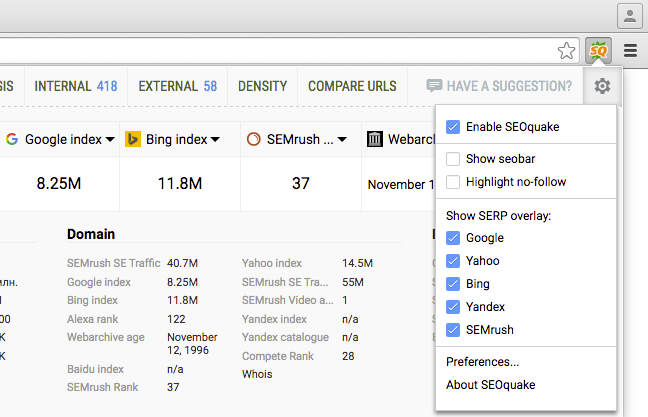
Image source: Free SEO Checker & Website Audit Tool
Understanding the Metrics in Your Search Results
The data bar provides a wealth of information, but not all metrics are created equal. In 2026, some legacy metrics are still visible in the settings but should be treated with caution or disabled entirely to reduce noise.
Essential Domain and Page Metrics
For a standard competitive audit, focus on these four core parameters:
- Semrush Rank: A proprietary metric that ranks websites based on their total organic traffic. A lower number indicates a more popular and authoritative site.
- Google Index: The total number of pages from that domain that Google has indexed. This helps you gauge the size and content depth of a competitor.
- Semrush Backlinks: The number of unique links pointing to the specific page or the entire domain. This is a primary indicator of ranking difficulty.
- Whois / Domain Age: Knowing how long a domain has been active can help you distinguish between established authorities and rising newcomers.
Why You Should Ignore Alexa Rank and PageRank
| Metric Name | Source | Relevance in 2026 | Recommended Action |
|---|---|---|---|
| Semrush Rank | Semrush | High | Keep Active |
| Google Index | High | Keep Active | |
| Alexa Rank | Legacy | None | Disable |
| Backlinks | Semrush | High | Keep Active |
How to Customize the SERP Overlay to Show Only the Data You Need
One common complaint from new users is that the SERP Overlay makes the search page feel "cluttered." Fortunately, the tool offers deep customization to ensure the interface remains clean and functional.
Toggling Parameters for a Cleaner Interface
To modify what you see, click the SEOquake icon and select the "Preferences" (gear icon). Under the "Parameters" tab, you can check or uncheck specific metrics. For daily browsing, many professionals choose to hide social media metrics (like Pinterest pins) and focus exclusively on SEO-centric data like backlinks and traffic.
Setting Parameters to "Expand on Click"
A top-tier tip for maintaining a clean UI is to enable the "Expand on Click" feature. Instead of loading every metric for every result immediately—which can slow down your browser—SEOquake will show a simplified bar. The full data only populates when you hover over or click a specific result. This significantly improves page load speeds while still keeping the data accessible.
How to Create Custom Parameters for Advanced Audits
One of the most powerful features of SEOquake, often overlooked by casual users, is the ability to create custom parameters using Regular Expressions (REGEXP). This allows you to pull data from virtually any web-based tool directly into your SERP view.
The Power of Regular Expressions (REGEXP) in SEOquake
By using the
[URL_R]
and
[REGEXP]
fields in the advanced settings, you can instruct SEOquake to visit a third-party URL, pass the current search result's URL to it, and scrape a specific piece of data. This is particularly useful for integrating tools that don't have a native SEOquake integration.
Step-by-Step: Creating a W3C Validator Shortcut
If you want to quickly check the code validity of ranking competitors, you can create a custom parameter that links to the W3C Nu HTML Checker. In the "Custom Parameters" menu, add a new entry with the following logic:
URL: https://validator.w3.org/nu/?doc={url|encode}
REGEXP: /class="success"|class="error"/
This custom parameter will now appear in your SERP overlay, providing a direct link to validate the HTML of any result on the page. You can use similar logic for mobile-friendly tests, security headers, or even proprietary internal tools.
How to Export and Analyze Competitor Data in Bulk
Analyzing results one by one is useful for quick checks, but strategic planning requires bulk data. The SEOquake export feature is a significant advancement for those conducting keyword difficulty research.
Using the CSV Export Feature
On the left-hand sidebar of the SERP, you will find an "Export CSV" button. When clicked, SEOquake captures every metric for every result currently visible on the page (up to 100 results if you have adjusted your Google search settings). This file includes the URL, Title, and all active parameters in a structured spreadsheet format.
Workflow: Calculating Average Domain Strength
A highly impactful workflow for determining keyword difficulty involves these steps:
- 1 Search for your target keyword on Google.
- 2 Use the SEOquake sidebar to sort by "Semrush Rank" to see the authority distribution.
- 3 Click "Export CSV" to download the data.
- 4 Open the file in Google Sheets and calculate the average "Semrush Rank" for the top 10 results.
- 5 If the average rank is exceptionally high (e.g., all results are in the top 1,000 sites globally), the keyword is likely high-competition. If you see several results with low authority, you have found a ranking opportunity.
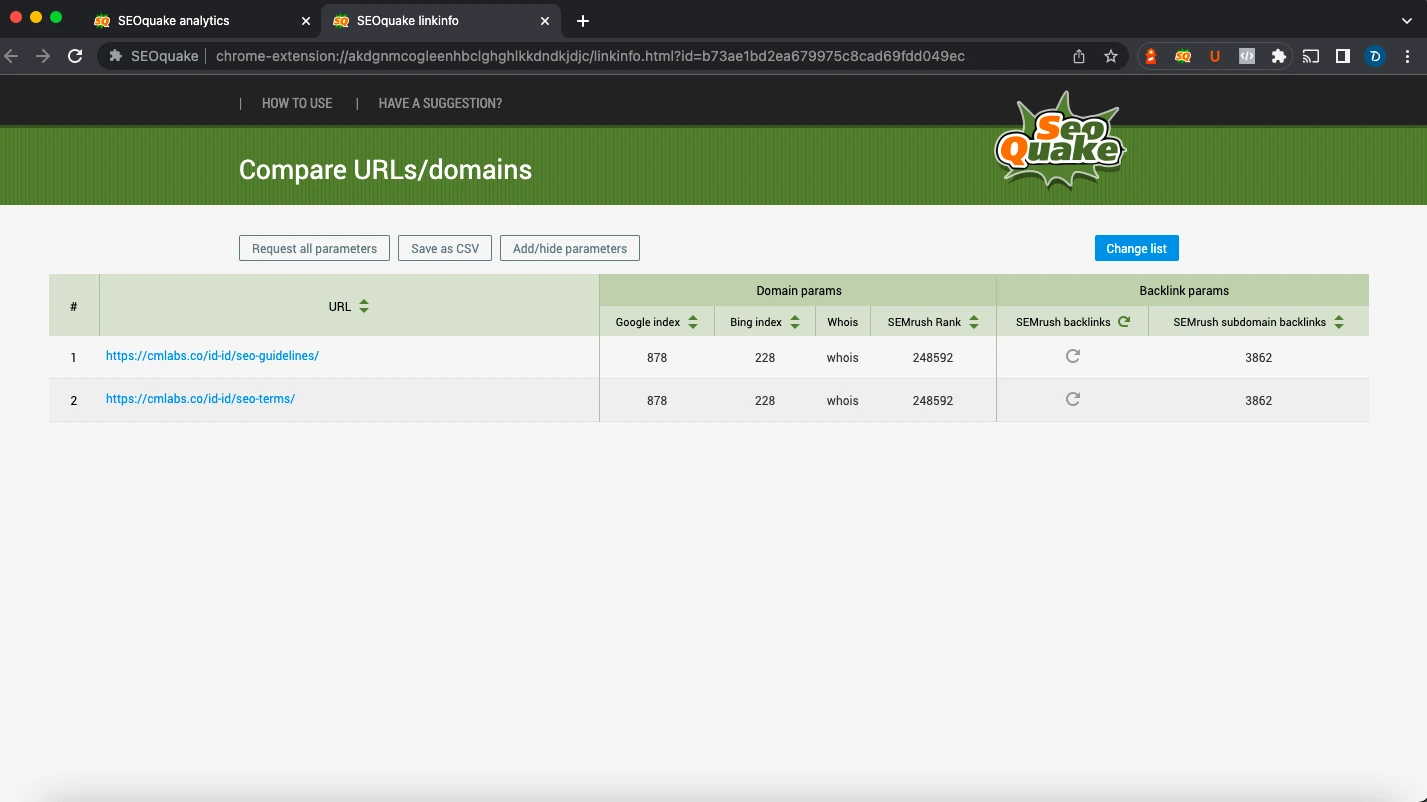
Image source: cmlabs
How to Fix Common SEOquake Issues
Even the most reliable tools can encounter glitches, especially with frequent browser updates. Most SEOquake issues are related to permissions or account connectivity.
Why Is the SEOquake SERP Overlay Not Showing Up?
If the overlay is missing, check the following in order:
- The Toggle Switch: Click the SEOquake icon and ensure the "SERP Overlay" toggle is set to "On."
- Site Permissions: As mentioned earlier, ensure the extension has permission to read data on the specific search engine you are using.
- Conflicting Extensions: Other SEO extensions (like MozBar or Ahrefs) can sometimes clash with SEOquake's UI. Try disabling other toolbars to see if the overlay returns.
Connecting Your Semrush Account for Full Data Access
If you see "N/A" or "Login" instead of backlink counts, it is because SEOquake requires a connection to a Semrush account to pull live data. You do not need a paid subscription; a free Semrush account provides a generous daily limit of requests that is sufficient for most individual users. Simply click the "Login" prompt in the overlay to authorize the connection.
Frequently Asked Questions
Yes, SEOquake is a free browser extension provided by Semrush. While it offers a vast amount of data for free, connecting it to a free Semrush account is recommended to unlock the full range of backlink and traffic metrics. There are no hidden fees for the core SERP overlay features, though Semrush offers paid plans for more advanced data needs.
Currently, SEOquake is designed as a desktop extension for Chrome, Firefox, and Opera. It does not have a native mobile app or extension for mobile versions of these browsers. For mobile SEO analysis, it is better to use the Semrush web interface or other mobile-optimized SEO auditing tools.
If you find the SEObar (the toolbar at the top of websites) distracting but want to keep the SERP Overlay, you can disable them independently. Click the SEOquake icon, go to "Preferences," and toggle the "SEObar" to "Off" while leaving the "SERP Overlay" set to "On." This allows you to keep your browsing experience clean while still getting data during searches.
SEOquake does not have native API integrations for Moz or Ahrefs. However, you can use the "Custom Parameters" feature described in this guide to create links that pass the current URL to those tools. While it won't display their proprietary metrics directly in the bar without complex REGEXP scraping, it provides a much faster workflow for cross-tool verification.
Every SEO tool uses its own proprietary crawler and index. SEOquake uses the Semrush backlink database, which is widely regarded as one of the most comprehensive in the industry. Discrepancies occur because different crawlers discover links at different times. It is best to use one tool consistently for your benchmarks rather than mixing data from multiple sources.
Key Takeaways for Mastering the SERP Overlay
- Enable Site Access: Ensure your browser permissions allow SEOquake to run on search results pages.
- Audit Your Parameters: Disable legacy metrics like Alexa Rank to keep your data bar relevant and clean.
- Use "Expand on Click": Improve browser performance by only loading full metrics when you need them.
- Leverage REGEXP: Create custom parameters to connect SEOquake to external validators or internal tools.
- Export for Strategy: Use the CSV export feature to calculate average competitor strength and find low-competition keywords.
- Connect Semrush: Link a free Semrush account to ensure you never see "N/A" for backlink and traffic data.
By integrating these advanced techniques into your daily workflow, you can transform a simple browser extension into a top-tier competitive intelligence engine.
All trademarks, copyrighted content, and quoted material referenced in this article belong to their respective owners. Brief excerpts are used under fair use (17 U.S.C. § 107) for purposes of commentary, criticism, and informational reporting. This article is not affiliated with or endorsed by Semrush or the developers of SEOquake.