Home
Home
How the Acme Editor Turns Text Into a Powerful User Interface
The Acme editor is a unique text-based graphical user interface (GUI) originally developed by Rob Pike for the Plan 9 operating system. Unlike traditional editors that rely on keyboard shortcuts (Vim) or complex menus (VS Code), Acme treats text as a universal interface . Any string of text can be executed as a command or used as a link. It stands out as a top choice for developers seeking a minimalist, highly integrated environment that leverages a three-button mouse and the 9P file protocol to manipulate system resources directly through text.
What Is the Acme Editor and Why Does It Look So Different?
The Bell Labs Heritage
Acme emerged from the legendary halls of Bell Labs in the early 1990s. Designed by Rob Pike, it was a core component of the Plan 9 operating system, intended to succeed the Unix philosophy by making everything—not just files, but services and interfaces—accessible via a unified protocol. According to Wikipedia , the name was suggested by Penn Jillette to represent a tool that does "everything," much like the fictional Acme Corporation.
The editor's design was heavily influenced by the Oberon system, prioritizing a tiling interface that avoids overlapping windows. In the world of 2026 development, Acme remains a significant advancement for those who value spatial consistency over the "tab chaos" found in modern IDEs. It doesn't just edit files; it manages your entire interaction with the computer through a single, cohesive text interface.
The Aesthetic of Utility
New users are often struck by Acme's distinct appearance: pale yellow backgrounds, blue tag bars, and the complete absence of icons, toolbars, or even a traditional cursor in the way most editors define it. This aesthetic isn't for nostalgia; it is rooted in high-readability research. The use of proportional fonts (variable-width) is a core tenet, as Rob Pike argued that code is read more often than it is written, and proportional fonts are easier on the human eye than monospaced ones.
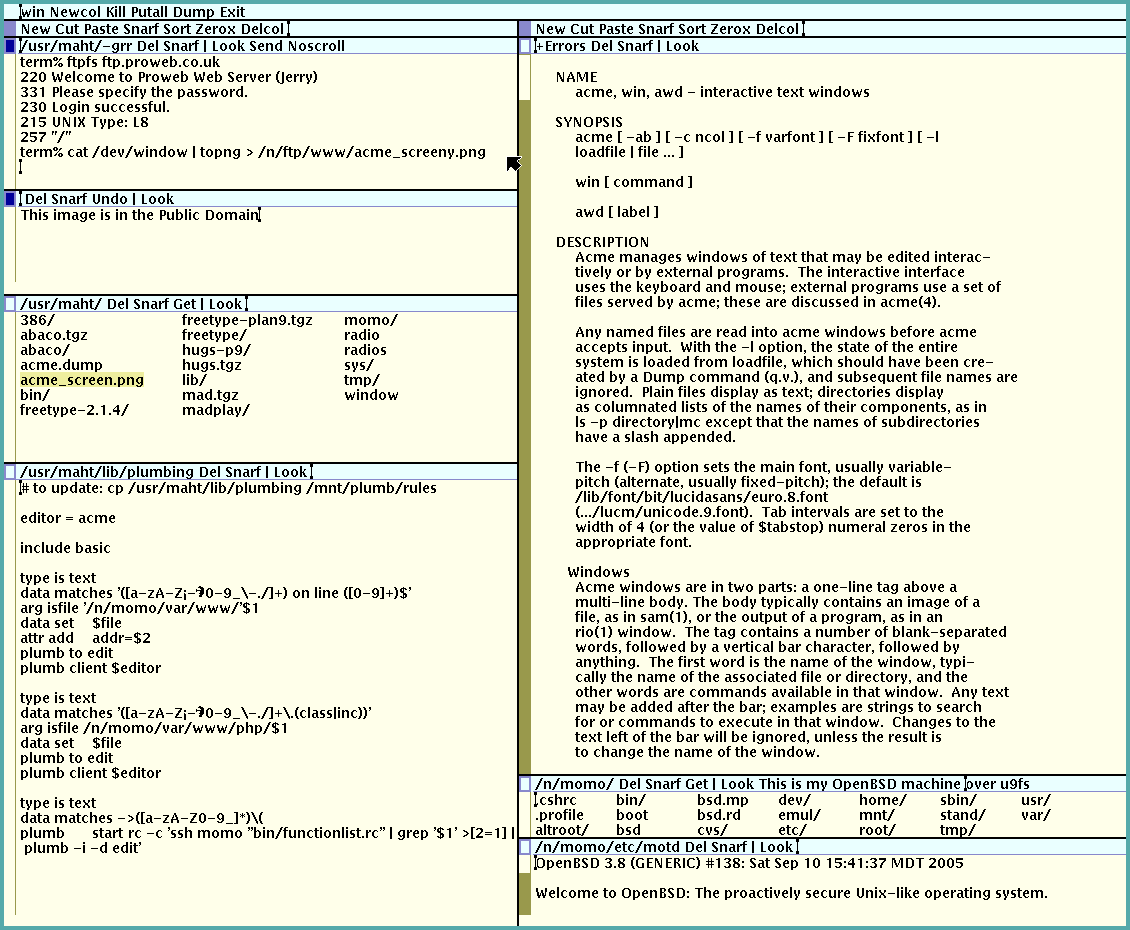
Image source: Wikipedia
The "Un-Terminal" Psychology
Acme is often described as the "Un-Terminal." While Vim and Emacs live inside a terminal emulator, Acme acts as its own environment. As noted by Daniel Moch , Acme reduces the cognitive load of "configuration rabbit holes." There are no themes to install, no complex JSON files to tweak, and no plugin managers to maintain. The editor is designed to be a stable, unchanging tool that gets out of the way, allowing the developer to focus entirely on the text.
Understanding the "Text as a User Interface" Philosophy
Everything is Executable
In Acme, the distinction between "content" and "control" is blurred. If you type the word
ls
in a window, you can middle-click it to execute that command. The output appears in a new window. If you see a file path like
/usr/include/stdio.h
, right-clicking it will open that file. This creates a workflow where your notes, your code, and your terminal history all become part of a live, interactive dashboard. You don't "run a command"; you "interact with text."
The 9P Protocol Explained
Under the hood, Acme is not just a program; it is a file server. Using the Plan 9 9P protocol, Acme exposes its internal state to the rest of the operating system. Every window you see in Acme is represented as a directory in a virtual filesystem (typically mounted at
/mnt/acme
). This directory contains files like
text
,
tag
, and
event
.
This architecture allows external scripts to "talk" to the editor. For example, a shell script can write to a window's
tag
file to add a new button, or read from the
event
file to react when a user clicks a specific word. This is why Acme doesn't need a traditional plugin API; the standard filesystem *is* the API. As
Russ Cox
explains in his tour of the editor, this makes Acme an "integrating" environment rather than an "integrated" one.
sed
,
awk
, or
grep
to manipulate the text inside your active editor windows from an external terminal.
How to Install Acme on Modern Linux, macOS, and Windows Systems
While Acme was born on Plan 9, most modern users access it through plan9port (also known as Plan 9 from User Space), a collection of Plan 9 software ported to Unix-like systems.
The Unix and macOS Way
On Linux, BSD, or macOS, the standard approach is to clone the
plan9port
repository. You will need a C compiler and standard development headers. Once compiled, you must set the
$PLAN9
environment variable and add the
bin
directory to your path. On macOS, Acme stands out as a top-tier choice for those who want to use system fonts like Monaco or Helvetica via the
fontsrv
utility, which allows Acme to render high-quality anti-aliased text.
Acme on Windows
Windows users have two primary paths. The first is
acme-sac
(Stand Alone Complex), which packages Acme with a small virtual machine running the Inferno operating system. The second, and increasingly popular method in 2026, is using
WSL2
(Windows Subsystem for Linux) with an X11 server to run the Linux version of
plan9port
natively.
| Platform | Recommended Version | Key Advantage |
|---|---|---|
| Linux / BSD | plan9port | Native performance and deep shell integration. |
| macOS | plan9port + fontsrv | Access to beautiful system-wide proportional fonts. |
| Windows | acme-sac / WSL2 | Portable environment or full Linux compatibility. |
Mastering the Three-Button Mouse and Chording System
Acme is famously a mouse-heavy editor. While many modern developers are trained to keep their hands on the home row, Acme argues that the mouse is a high-precision instrument that, when used correctly, can be faster than complex keyboard sequences. To use Acme effectively, a true three-button mouse is highly recommended. While scroll wheels can be clicked, they lack the tactile precision required for "chording."
The Core Clicks
- Button 1 (Left): Used for selecting text and moving the cursor.
- Button 2 (Middle): The "Execute" button. Clicking text with Button 2 runs it as a command.
- Button 3 (Right): The "Plumb" or "Search" button. Right-clicking text searches for it or opens it if it's a file path.
Advanced Mouse Chording
Chording is the act of pressing one mouse button while holding another. This is where Acme's speed truly shines. Once mastered, these chords become muscle memory, allowing for exceptionally strong text manipulation without touching the keyboard.
How to Use Acme for Modern Development with LSP and Git
A common misconception is that Acme is a relic incapable of handling modern languages like Go, Rust, or Python. In reality, the community has built tools that bridge the gap between 1990s philosophy and 2026 requirements.
Bridging the Gap with acme-lsp
The
acme-lsp
project is a significant step forward. It allows Acme to communicate with Language Servers, providing features like autocompletion, jump-to-definition, and hover documentation. Instead of a popup menu,
acme-lsp
often writes suggestions to a hidden window or the tag bar, maintaining the editor's non-intrusive aesthetic while providing modern IDE power.
The "Git Porcelain" Workflow
Acme is widely considered one of the best environments for Git operations due to its "Plumbing" system. By using the
E
script (included in plan9port), you can set
EDITOR=E
in your shell. When you run
git commit
, Git opens a new Acme window. You type your message, and instead of "saving and quitting," you simply delete the window. The
E
script detects the window deletion and signals Git to proceed. This workflow is notably innovative for interactive rebasing, where you can move lines of text around using the mouse much faster than with Vim's visual mode.
Why Acme Doesn't Have Syntax Highlighting or Standard Scroll Bars
Acme's lack of syntax highlighting is a deliberate choice, not a technical limitation. Rob Pike and the Plan 9 team argued that syntax highlighting is a "crutch" that adds visual noise and distracts from the actual logic of the code. Furthermore, in an environment where text is a UI, color is often reserved for indicating state or errors rather than parts of speech.
The Proportional Font Debate
Most editors use monospaced fonts to ensure that columns align perfectly. Acme breaks this tradition by encouraging proportional fonts. This makes reading long stretches of code feel more like reading a well-formatted book. However, this does present challenges for languages that rely on significant whitespace (like Python) or for developers who prefer aligned tables of data. Most Acme users adapt by using the
-F
flag to set a fixed-width font for specific files when necessary.
The Scroll Bar Logic
The scroll bar in Acme is located on the left and behaves differently than a standard Windows or macOS scroll bar. Clicking with Button 1 scrolls the line next to the mouse to the top of the window. Clicking with Button 3 scrolls the top line of the window down to the mouse position. Button 2 allows for "teleporting" to a specific percentage of the file. It is a non-linear navigation system that, while confusing at first, sets a high standard for jumping through massive source files quickly.
Advanced Plumbing: Connecting Acme to Your Entire System
The "Plumber" is a background daemon that acts as a message router for text. When you right-click a string in Acme, that string is sent to the plumber. The plumber then checks a set of rules to decide what to do with it.
Writing Custom Rules
You can extend Acme's functionality by writing simple plumbing rules. For example, you can create a rule that recognizes a Git SHA (a 40-character hex string). When you right-click a SHA in a git log, the plumber can be instructed to open a new Acme window and run
git show [SHA]
. This turns every commit hash in your terminal or documentation into a live link to the code changes.
# Example Plumbing Rule for Git SHAs
type is text
data matches '[0-9a-f]{7,40}'
arg is git
action is plumb to show-git-commit $0
Common Frustrations and How to Overcome "Rat Wrestling"
Despite its power, Acme has a steep learning curve that can lead to what the community calls "Rat Wrestling"—the feeling of fighting with the mouse to perform simple tasks.
Managing Mouse Fatigue
Because Acme requires frequent clicking and chording, ergonomic strain is a valid concern. Experienced users recommend a high-quality mouse with a light click action. Additionally, learning to use the "Tag Bar" (the blue strip at the top of every window) to store frequently used commands can significantly reduce the amount of "hunting and pecking" required.
The Up/Down Arrow Mystery
One of the most common complaints from new users is that the arrow keys scroll the window instead of moving the cursor. This is a side effect of the proportional font system; in a world where characters have different widths, "up one line" is not a simple vertical movement. While patches exist to enable standard arrow key behavior, the "Acme way" is to use the mouse to reposition the cursor, which encourages a more deliberate editing style.
Frequently Asked Questions
acme-plus
) that add basic syntax highlighting. However, most long-term users eventually find that they don't miss the colors. The lack of highlighting forces you to write clearer code and rely on the structure of the text rather than visual cues. If you absolutely need color, you might find that Acme's philosophy is at odds with your workflow.
lucidasans
, is widely regarded as one of the most readable options for the Acme interface. On macOS, many users prefer
Monaco
or
Go Mono
for a more modern look. You can set the main font with the
-f
flag and a fallback fixed-width font with the
-F
flag. Using a high-quality proportional font is essential to experiencing Acme as the designers intended.
plan9port
inside a Linux distribution like Ubuntu and using an X11 server (such as VcXsrv or the built-in WSLg), you can run Acme alongside your Windows applications. Alternatively,
acme-sac
provides a self-contained environment, though it may feel slightly more isolated from the host Windows filesystem.
The Bottom Line: Is Acme Right for Your Workflow?
The Acme editor is more than just a place to type code; it is a philosophy of computing that prioritizes simplicity, integration, and the power of text. While it may not replace VS Code for everyone, it offers a remarkably focused environment for those who value its unique approach.
- Text as UI: Every word on your screen is a potential command or link, creating a fluid, interactive workflow.
- Mouse Chording: Mastering the 1-2 and 1-3 chords allows for exceptionally strong text manipulation speed.
- 9P Integration: The editor acts as a file server, making it easy to script and extend using standard system tools.
- Minimalist Aesthetic: The lack of syntax highlighting and tabs reduces cognitive load and visual distraction.
-
Modern Viability:
Tools like
acme-lspand theEscript make it a practical choice for 2026 development. - Steep Learning Curve: Be prepared for "Rat Wrestling" as you transition from a keyboard-centric to a mouse-centric mindset.
If you are looking to escape the endless cycle of plugin updates and configuration tweaks, installing
plan9port
and spending a week with Acme is a highly recommended experiment for any serious developer.