Home
Home
How to Use GNOME Text Editor as Your Primary Linux Code and Text Tool
GNOME Text Editor is the modern, GTK 4-based successor to Gedit, designed for the GNOME 42+ desktop environment. It offers a distraction-free interface, integrated
Vim keybindings
, and robust session recovery. To edit system files safely, use the
admin://
prefix instead of
sudo
. If the application hangs on large files, clear the drafts folder at
~/.local/share/gnome-text-editor/drafts
.
What Is the New GNOME Text Editor?
GNOME Text Editor is a clean, focused application designed to handle plain text editing with modern efficiency. While many users grew up using Gedit, the transition to GNOME 42 marked a significant shift in the desktop's default tooling. This new editor is not merely a visual refresh; it is a foundational rebuild that adheres strictly to the modern GNOME Human Interface Guidelines (HIG).
The application prioritizes a "content-first" approach. By default, the interface is sparse, removing cluttered toolbars in favor of a streamlined header bar that adapts to your workflow. According to Wikipedia , it was developed by Christian Hergert and serves as the official replacement for Gedit in most modern Linux distributions, including Fedora and Ubuntu.
- Developer
- Christian Hergert / GNOME Project
- License
- GPL-3.0-or-later
- Core Technologies
- GTK 4, Libadwaita, GtkSourceView
- Primary Language
- C
Unlike complex Integrated Development Environments (IDEs), GNOME Text Editor focuses on speed and reliability for quick configuration changes, note-taking, and light coding. It handles syntax highlighting for dozens of languages, but it avoids the "plugin bloat" that occasionally slowed down its predecessor. For users who value a native Linux experience that feels integrated with the rest of the OS, this tool stands out as a top choice.
Why GNOME Replaced Gedit with This Modern Version
The decision to move away from Gedit was driven by technical necessity. Gedit, while reliable for decades, carried significant "technical debt." Its codebase was deeply rooted in GTK 3, and porting it to the modern GTK 4 framework would have required a near-total rewrite. Instead of patching an aging architecture, the GNOME team opted to build a new editor from the ground up to leverage modern hardware acceleration.
One of the most significant advancements in this new editor is its use of GPU textures and paginated rendering . In older editors, scrolling through a massive file often resulted in "stutter" because the CPU had to recalculate the position of every character on the screen. The new GNOME Text Editor offloads much of this work to the graphics processor, resulting in a fluid experience even on high-resolution displays.
"The editor is designed for dense-cacheline packed structures to avoid pointer chasing, making it faster on older hardware like a 10-year-old ThinkPad." — Christian Hergert, Lead Maintainer
From an architectural standpoint, the editor utilizes a B+ tree and piece table implementation. This allows the software to handle between 1.5 million and 2 million random inserts per second. This high-density performance ensures that even if you are working with large logs or data files, the UI remains responsive. Furthermore, the integration of Libadwaita allows the app to support system-wide dark mode toggles and adaptive layouts that look excellent on both desktop monitors and mobile Linux devices like the PinePhone.
How to Install GNOME Text Editor on Any Linux Distribution
Most modern distributions now include GNOME Text Editor by default. However, if you are on an older version of a distro or using a different desktop environment like KDE Plasma or XFCE, you may need to install it manually. It is widely available across all major repositories.
Installation Commands
Depending on your package manager, use one of the following commands in your terminal:
For users who want the most recent version regardless of their distribution's release cycle, Flatpak is the recommended method. The Flatpak version is hosted on Flathub and often receives performance updates and bug fixes weeks before they reach stable system repositories. As of late 2024, version 50.1 introduced significant improvements to memory management that are highly beneficial for long-running sessions.
To install via Flatpak, ensure you have the Flatpak framework installed, then run:
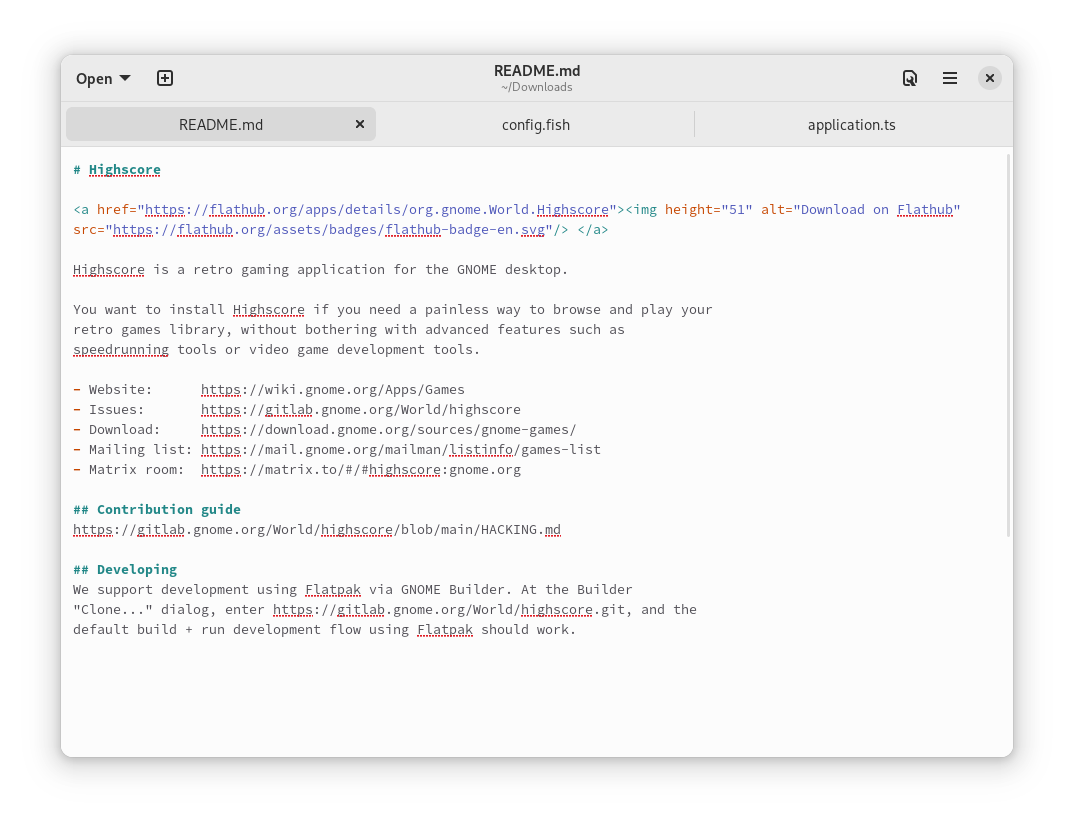
Image source: Apps for GNOME
Essential Terminal Commands for Power Users
While many users launch the app from the application grid, mastering the
gnome-text-editor
command can significantly speed up your workflow, especially when managing system configurations.
Basic Usage
-
Open a file:
gnome-text-editor my-file.txt -
Open multiple files in tabs:
gnome-text-editor file1.txt file2.txt -
Force a new window:
gnome-text-editor --new-window -
Open at a specific line:
gnome-text-editor my-file.txt +10(Opens the file and jumps to line 10).
The "Root" Secret: Using admin://
A common pitfall for Linux users is trying to run the editor with
sudo
. Because GNOME Text Editor relies on
Dconf
for user-specific settings (like themes and font sizes), running it as root breaks the connection to your user profile. This often results in a broken UI or missing plugins.
Instead of
sudo
, use the GVfs
admin://
URI. This allows the application to run with your user settings while requesting elevated privileges only for the file save operation. This is a much safer and more reliable way to edit system files like
/etc/fstab
or
/etc/hosts
.
GNOME Text Editor vs. Gedit vs. VS Code
Choosing the right tool depends entirely on your specific needs. GNOME Text Editor is designed to be a "middle ground" between the simplicity of a basic notepad and the complexity of a full IDE. Below is a comparison to help you decide where it fits in your toolkit.
| Feature | GNOME Text Editor | Gedit | VS Code |
|---|---|---|---|
| Startup Speed | Near Instant | Fast | Moderate/Slow |
| GTK 4 Support | Native | No (GTK 3) | N/A (Electron) |
| Plugin Ecosystem | Minimal/Built-in | Extensive (Legacy) | Massive |
| Session Recovery | Automatic & Robust | Basic | Advanced |
| Memory Usage | Very Low | Low | High |
If you are a developer working on a large-scale React or Python project, VS Code remains a top-rated option due to its debugging tools. However, for system administrators or users who need to quickly edit a script without waiting for a heavy IDE to load, GNOME Text Editor ranks among the top choices for efficiency.
How to Enable and Use Integrated Vim Keybindings
One of the most surprising features of this "simple" editor is its built-in support for Vim keybindings. This allows you to navigate and edit text without ever taking your hands off the home row of your keyboard. It is a feature that makes the app a strong contender for power users who usually prefer terminal-based editors like Neovim.
Enabling Vim Mode
- Open GNOME Text Editor.
- Click the "hamburger" menu (three horizontal lines) in the top-right corner.
- Select Preferences .
- Under the Editing tab, look for the "Keybindings" section.
- Toggle the switch for Vim Emulation .
Once enabled, you can use standard Vim commands. The editor supports the three primary modes:
Normal
(for navigation),
Insert
(for typing), and
Visual
(for selecting text). While it does not support complex Vim plugins, the core movement keys (
h, j, k, l
), deletion commands (
dd
), and search functions (
/
) work flawlessly.
Mastering Search and Replace with PCRE2 Regular Expressions
For data cleaning and bulk text editing, the editor includes support for
PCRE2-based regular expressions
. This elevates the tool from a basic notepad to a highly capable data processing utility. You can access the search and replace function by pressing
Ctrl + F
or
Ctrl + H
.
Practical Regex Examples
To use these, ensure the "Regular Expressions" icon (usually looks like
.*
) is selected in the search bar.
-
Remove Trailing Whitespace:
Search for
\s+$and replace with nothing. This cleans up messy code files instantly. -
Find Dates (YYYY-MM-DD):
Use
\d{4}-\d{2}-\d{2}to locate all date strings in a log file. -
Reformat CSV Data:
If you have a list like
Name, Ageand want to change it toAge: Name, search for^([^,]+),\s*(.*)$and replace with$2: $1. -
Delete Empty Lines:
Search for
^\s*$\nand replace with nothing to compress your text.
The implementation of PCRE2 ensures that almost any standard regex pattern you use in Perl or Python will work here, making it one of the strongest options for quick text transformations on Linux.
How to Fix the Infinite Loading Loop and Other Common Issues
While the editor is generally stable, its aggressive session management can occasionally lead to a "death loop." This happens when the application tries to automatically reopen a massive file (like a 500MB JSON dump) that caused it to crash in the previous session. Because the app remembers its state, it will keep trying to open that file every time you launch it, leading to an immediate hang.
The "Death Loop" Fix
If your editor won't open, you need to manually clear the session drafts. Open your terminal and run the following command:
This command deletes the cached state of unsaved files, allowing the editor to launch with a clean slate. You won't lose your saved files, but any unsaved changes in the "draft" state will be cleared.
Large File Performance
Although the B+ tree architecture is exceptionally strong, the GTK 4 rendering engine can still struggle with files exceeding 100MB if they contain very long lines without line breaks (common in minified JavaScript). In these specific cases, it is often better to use a command-line editor like
vim
or
nano
, or a specialized tool like
less
for viewing.
Frequently Asked Questions
Does GNOME Text Editor support third-party plugins?
Unlike Gedit, the new GNOME Text Editor does not currently support a wide ecosystem of third-party plugins. The design philosophy focuses on providing a robust set of built-in features (like Vim mode and EditorConfig support) rather than relying on external extensions. This ensures better stability and performance across different Linux distributions.
How do I change the theme to Dark Mode?
GNOME Text Editor follows your system-wide dark mode setting. You can also manually override this in the Preferences menu under the "Appearance" tab. Because it uses Libadwaita, the dark mode is highly optimized for readability and reduces eye strain during late-night coding sessions.
Can I use it as a Markdown editor with live preview?
The editor provides excellent syntax highlighting for Markdown, but it does not include a built-in live preview pane. It is designed for editing the raw text. For a live preview experience, many users pair it with a dedicated Markdown viewer or use a tool like GNOME Builder.
Why can't I bold or italicize text in the editor?
This is a common point of confusion. GNOME Text Editor is a plain text editor , not a word processor like LibreOffice Writer. It does not store formatting like bold or font colors within the file itself. It only stores the raw characters. The colors you see (syntax highlighting) are applied by the editor based on the file type (e.g., .py, .html) but are not saved in the document.
Is there a version for Windows or macOS?
GNOME Text Editor is built specifically for the Linux desktop using GTK 4. While it is technically possible to compile GTK apps for other platforms, there is no official Windows or macOS installer. Windows users can run it via the Windows Subsystem for Linux (WSL) with a GUI server, but it is not a native experience.
Final Thoughts
GNOME Text Editor represents a significant step forward for the Linux desktop, balancing modern performance with a minimalist aesthetic. By moving to GTK 4 and implementing advanced data structures, it provides a fluid experience that few alternatives match for daily text tasks.
- Use the admin:// prefix to safely edit system configuration files without breaking your user theme.
- Enable Vim Emulation in the preferences to unlock professional-grade navigation speeds.
- Leverage PCRE2 Regex for complex search and replace tasks that would be impossible in simpler editors.
- Clear the drafts folder if you ever encounter an infinite loading loop caused by a massive file.
- Install via Flatpak if you want the most recent performance updates and Libadwaita features.
- Check .editorconfig support to ensure your coding style remains consistent across different projects.
To get started, try opening your terminal and typing
gnome-text-editor
to explore the clean, modern interface for yourself.