Home
Home
How to Change the Default Text Editor in Any Linux Distribution
To change the default terminal editor on Debian-based systems (like Ubuntu or Mint), run
sudo update-alternatives --config editor
and select your preferred application. For a user-specific change across all distributions, add
export VISUAL="nano"
and
export EDITOR="nano"
to your
~/.bashrc
or
~/.zshrc
file. To change the GUI editor, navigate to
Settings > Default Applications
in your desktop environment.
- Terminal Methods
- Environment Variables
- Security & Sudoedit
- GUI Configuration
- Choosing an Editor
- Troubleshooting
Linux offers an incredible amount of flexibility, but that freedom can sometimes lead to frustration. One of the most common hurdles for new users—and even experienced developers—is finding themselves "trapped" in a text editor they don't know how to use. Whether you are trying to commit code in Git, edit a system configuration file, or set up a cron job, Linux relies on a "default editor" to handle these tasks.
By default, many distributions ship with Vim or Nano. While Vim is a top-tier choice for power users, it has a steep learning curve that can be intimidating. Nano is much simpler but may lack the features required for complex coding. Understanding how to switch between these tools is essential for a smooth workflow. This guide explores the various layers of the Linux editor hierarchy, from system-wide symlinks to user-specific environment variables.
How to Quickly Change the Default Terminal Editor
The most common way users encounter the default editor is through the command line. If you run a command like
crontab -e
and a screen full of tildes (~) appears, you are likely in Vim. If you see a menu at the bottom with
^X Exit
, you are in Nano. If you prefer one over the other, you can change this behavior globally or locally.
Using the update-alternatives Command
On Debian, Ubuntu, Linux Mint, and their derivatives, the system manages default applications through a symlink system called
update-alternatives
. This system allows multiple programs that fulfill the same function (like text editing) to coexist, while the system points a generic command (
/usr/bin/editor
) to a specific binary.
To change the system-wide default, run the following command in your terminal:
sudo update-alternatives --config editor
You will be presented with a list of installed editors, their paths, and their priority levels. Simply type the number corresponding to your choice and press
Enter
. This method is highly effective because it updates the symlink at
/etc/alternatives/editor
, which many system utilities reference by default.
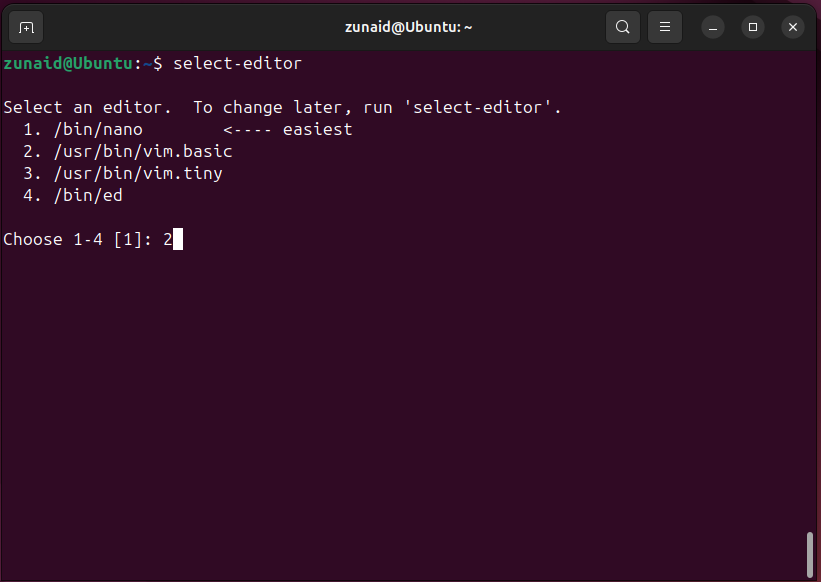
Image source: How-To Geek
The select-editor Tool
If you don't have sudo privileges or only want to change the editor for your specific user account,
select-editor
is a top choice. It functions similarly to
update-alternatives
but creates a hidden file in your home directory (
~/.selected_editor
) that overrides the system default for your sessions. This is particularly useful on shared servers where you cannot change global settings.
How to Set Default Editors Using Environment Variables
While the alternatives system is powerful, it is not universal across all Linux distributions. Distros like Arch Linux or Fedora often rely more heavily on environment variables. These variables tell the shell and other programs which editor the user prefers.
The Difference Between $EDITOR and $VISUAL
You will often see two different variables mentioned:
$EDITOR
and
$VISUAL
. Historically, these served different purposes, and understanding the distinction helps in configuring a robust environment.
- $EDITOR
-
Originally intended for "line editors" like
ed. These were used in the early days of computing when terminals could only display one line at a time. Today, it serves as a fallback for many programs. - $VISUAL
-
Intended for "visual" editors that take over the whole screen, such as Vim, Nano, or Emacs. Modern applications typically check
$VISUALfirst. If it is not set, they fall back to$EDITOR.
According to community standards on AskUbuntu , the best practice is to set both variables to ensure compatibility with all software, from legacy scripts to modern version control systems.
Making Changes Permanent
To ensure your preference persists after you log out or reboot, you must add these variables to your shell configuration file. For most users, this is
.bashrc
, but if you use Zsh (common on macOS and some modern distros), it will be
.zshrc
.
-
Open your configuration file:
nano ~/.bashrc -
Scroll to the bottom and add the following lines:
export VISUAL="nano"
export EDITOR="nano"
-
Save and exit (in Nano, press
Ctrl+O,Enter, thenCtrl+X). -
Apply the changes immediately by running:
source ~/.bashrc
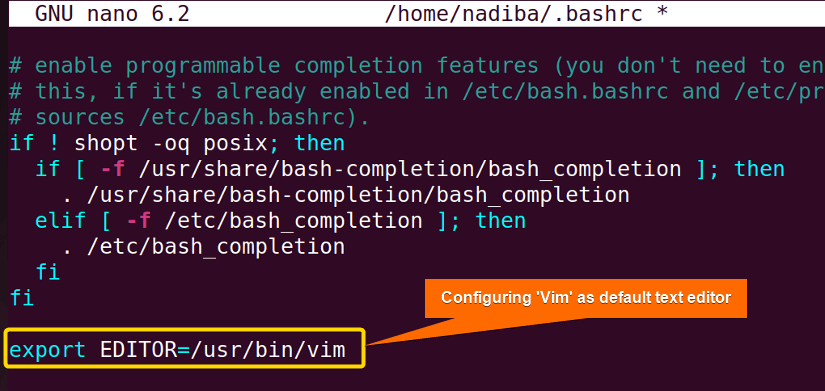
Image source: LinuxSimply
Why You Should Use sudoedit Instead of Running Editors with Sudo
A common mistake among Linux users is running a text editor directly with root privileges, such as
sudo nano /etc/fstab
. While this works, it introduces significant security risks and can lead to file ownership issues within your home directory.
The Security Risks of Sudo Editing
When you run a GUI editor like Gedit or a complex CLI editor like Vim with
sudo
, the application runs with full administrative power. If the editor has a plugin system or a way to execute shell commands, a vulnerability in the editor could allow an attacker to gain root access. Furthermore, GUI editors often create temporary configuration files in your home folder while running as root, which can change the ownership of your
~/.config
files and prevent you from logging in later.
How sudoedit Solves the Problem
The
sudoedit
command (or
sudo -e
) is a much safer alternative. Instead of running the editor as root,
sudoedit
follows this process:
- It creates a temporary copy of the system file you want to edit.
- It changes the ownership of that temporary copy to your normal user account.
-
It opens your preferred editor (defined by
$SUDO_EDITORor$VISUAL) to edit the temporary file. - Once you save and exit, it checks if the file has changed and then copies the contents back to the original system location.
This ensures that the editor itself never runs with root privileges. To configure this, you can set the
$SUDO_EDITOR
variable in your
.bashrc
, which
sudoedit
specifically looks for before falling back to other variables.
How to Change the Default GUI Text Editor
If you prefer working in a graphical environment like GNOME, KDE Plasma, or XFCE, changing the default editor involves different steps. This affects what happens when you double-click a
.txt
or
.conf
file in your file manager.
Desktop Environment Settings
Most modern Linux distributions provide a centralized way to manage default applications:
- GNOME (Ubuntu, Pop!_OS, Fedora): Open Settings , go to Default Applications , and select your preferred text editor from the dropdown menu.
- KDE Plasma: Open System Settings , navigate to Applications > Default Applications , and look for the text editor section.
- XFCE: Go to the Settings Manager > Preferred Applications .
The Right-Click Method
If you want to set a specific editor for a specific file type (e.g., using VS Code for
.py
files but Gedit for
.txt
files), use the file manager:
- Right-click the file in your file manager (Nautilus, Dolphin, Thunar).
- Select Open With... or Other Application... .
- Find your preferred editor in the list.
- Check the box that says "Always use for this file type" or "Set as default" .
- Click Open or OK .
This action updates your local
~/.config/mimeapps.list
file, which maps MIME types (like
text/plain
) to specific desktop entry files.
Which Linux Text Editor Should You Choose?
Choosing a default editor is a personal decision based on your workflow and comfort level. Below is a comparison of the most popular choices available on modern Linux systems.
| Editor | Learning Curve | Best For | Exit Command |
|---|---|---|---|
| Nano | Easy | Quick edits, beginners | Ctrl + X |
| Vim | Steep | Power users, remote servers | :wq |
| Micro | Easy | Modern terminal users | Ctrl + Q |
| Emacs | Very Steep | Developers, Lisp fans | Ctrl+X Ctrl+C |
| Gedit / Xed | Easy (GUI) | Desktop users | Close Window |
Nano
Nano is the standard for simplicity. It is pre-installed on almost every distribution and displays its commands at the bottom of the screen. It is a top choice for those who just want to get in, change a line, and get out.
Vim
Vim stands out for its efficiency. Once you master its "modes" (Insert, Normal, Visual), you can edit text without ever touching your mouse. It is exceptionally strong for handling large files and remote server administration.
Micro
Micro is a modern terminal editor that supports common intuitive shortcuts like
Ctrl+C
for copy and
Ctrl+V
for paste. It is a significant step forward for users who want a terminal editor that feels like a GUI app.
Troubleshooting Common Default Editor Problems
Even with the right settings, you might encounter issues where the wrong editor opens or your changes don't seem to take effect. Here are solutions to the most frequent problems.
If you find yourself in Vim and can't type or exit, follow these steps:
- Press the Esc key several times to ensure you are in "Normal Mode."
-
Type
:q!(colon, q, exclamation mark). - Press Enter . This will exit without saving any changes.
Why Your .bashrc Changes Aren't Working
If you have exported
$EDITOR
in your
.bashrc
but a program still opens the wrong editor, check the following:
-
Login vs. Non-login Shells:
Some environments (like SSH or certain terminal emulators) might not load
.bashrc. Try adding your exports to.bash_profileor.profileas well. -
Hardcoded Scripts:
Some poorly written scripts might have an editor hardcoded (e.g., calling
nanodirectly). In these cases, you may need to edit the script itself or create an alias. -
Git Configuration:
Git has its own internal configuration that can override system variables. Check it with
git config --global core.editor.
Permission Denied in GUI Editors
If you try to save a system file in a GUI editor and get a "Permission Denied" error, do not restart the editor with
sudo
. Instead, many modern distributions support the
admin protocol
. In the file path, prefix the location with
admin:///
. For example, in the "Open File" dialog, type
admin:///etc/fstab
. This will prompt you for your password and allow you to save securely.
Managing Editors in Modern and Immutable Linux Systems
As Linux evolves, new distribution models like Fedora Silverblue, SteamOS, and openSUSE MicroOS are becoming more popular. These "immutable" systems handle the root filesystem differently, which can affect how you set default editors.
In an immutable system, the
/usr
directory is often read-only. This means
update-alternatives
might not work as expected, or the changes won't persist across updates. On these systems, relying on
environment variables
in your home directory is the most reliable method. Since your home directory (
/home/user
) remains writable, your
.bashrc
settings will always take precedence over the read-only system defaults.
Additionally, if you use editors installed via Flatpak or Snap , they run in a sandbox. A sandboxed editor may not be able to see the system files you are trying to edit. For system configuration, it is usually better to stick with a native terminal editor like Nano or Vim that is included in the base image of the distribution.
Managing your Linux text editor preferences is a fundamental skill that improves your productivity and security. Here are the essential points to remember:
- Use update-alternatives for a system-wide change on Debian/Ubuntu-based distributions.
-
Set $VISUAL and $EDITOR
in your
.bashrcfor a portable, user-specific preference that works across most distros. -
Prefer sudoedit
over
sudo nanoto maintain system security and avoid file permission errors. - Check Git settings separately if your version control isn't respecting your shell variables.
- Use the admin:/// protocol for secure GUI editing of system files.
- Nano is a top choice for beginners, while Vim stands out for advanced users and server management.
Start by adding
export VISUAL="nano"
to your
.bashrc
today to ensure you never get stuck in an unfamiliar editor again.
Frequently Asked Questions
How do I change the default editor for Git specifically?
Git allows you to set an editor that is independent of your system's
$EDITOR
variable. This is useful if you want to use a GUI editor like VS Code for commit messages but keep Nano for general terminal work. Run the command:
git config --global core.editor "code --wait"
. The
--wait
flag is important as it tells Git to wait until you close the file before finalizing the commit.
What is the sensible-editor script?
On Debian-based systems,
sensible-editor
is a script designed to make an intelligent choice about which editor to launch. It follows a specific hierarchy: it first checks
$VISUAL
, then
$EDITOR
, then the
update-alternatives
system, and finally falls back to
nano
or
vi
. If you are writing your own shell scripts, calling
sensible-editor
instead of a specific program is a top-tier practice for ensuring your script respects the user's preferences.
How do I set VS Code as my default terminal editor?
To use Visual Studio Code from the terminal for tasks like Git commits, you need to ensure the
code
command is in your PATH. Then, add
export EDITOR="code --wait"
to your
.bashrc
. The
--wait
argument is crucial because, by default, VS Code opens a new tab and immediately returns control to the terminal. Adding
--wait
forces the terminal to stay paused until you save and close the tab in VS Code.
Why does crontab keep opening in the wrong editor?
The
crontab -e
command is notorious for ignoring user environment variables if they aren't exported correctly. It typically looks at the
update-alternatives
system first. If you've set
$EDITOR
in
.bashrc
and it's still not working, try running
select-editor
. This tool specifically targets the editor used by
crontab
and other basic system utilities by creating the
~/.selected_editor
file.
Can I set different editors for different file types?
Yes, but this is usually handled at the GUI level or through shell aliases. In a GUI environment, your file manager uses MIME types to associate
.html
with one editor and
.txt
with another. In the terminal, you can create aliases in your
.bashrc
, such as
alias editconf='sudo nano'
and
alias editcode='code'
, to quickly launch your preferred tool for specific tasks.