Home
Home
How to Choose and Use a Top Text Editor for Ubuntu Systems
As of 2026, the Ubuntu ecosystem offers three primary paths for text editing. For
terminal-based tasks
, Nano is the standard for beginners while Vim remains a favorite for system administrators. For
graphical desktop use
, the GNOME Text Editor is the modern default, though VS Code (or the privacy-focused VSCodium) is widely considered a top choice for developers. Always use
sudoedit
for modifying system files to maintain security.
The choice of a text editor defines your daily productivity on Linux. Whether you are a developer writing complex Python scripts, a sysadmin tweaking Nginx configurations, or a casual user taking notes, the "right" tool depends entirely on your environment and expertise. In the current 2026 landscape, Ubuntu has matured significantly, moving away from legacy defaults toward more streamlined, modern applications that integrate deeply with the GNOME desktop and cloud-native workflows.
This guide explores the diverse range of options available, from lightweight terminal utilities to heavy-duty Integrated Development Environments (IDEs). We will also cover essential security practices, such as why you should avoid running graphical editors with root privileges, and how to troubleshoot common graphics driver conflicts that can cause modern editors to crash.
What Is the Default Text Editor in Ubuntu?
Understanding the default software is crucial for new users. Ubuntu has undergone a significant transition in its default application stack over the last few release cycles, moving from the venerable Gedit to a more modern alternative.
Why GNOME Text Editor Replaced Gedit in Recent Versions
Starting with Ubuntu 22.04 LTS and continuing through the 24.04 and 26.04 cycles, GNOME Text Editor has become the standard GUI editor. This change was driven by the need for better integration with the Adwaita design language and the libadwaita library, which provides a consistent look and feel across the desktop. Unlike Gedit, the new GNOME Text Editor offers superior dark mode integration, automatic session saving, and a cleaner interface that stays out of the way of your content.
However, many long-time users still prefer Gedit due to its extensive plugin ecosystem. If you find the new default too minimal, you can easily return to the classic experience by running
sudo apt install gedit
in your terminal. According to OMG! Ubuntu, this transition represents a shift toward "core" apps that are simpler and more focused on the average user's needs.
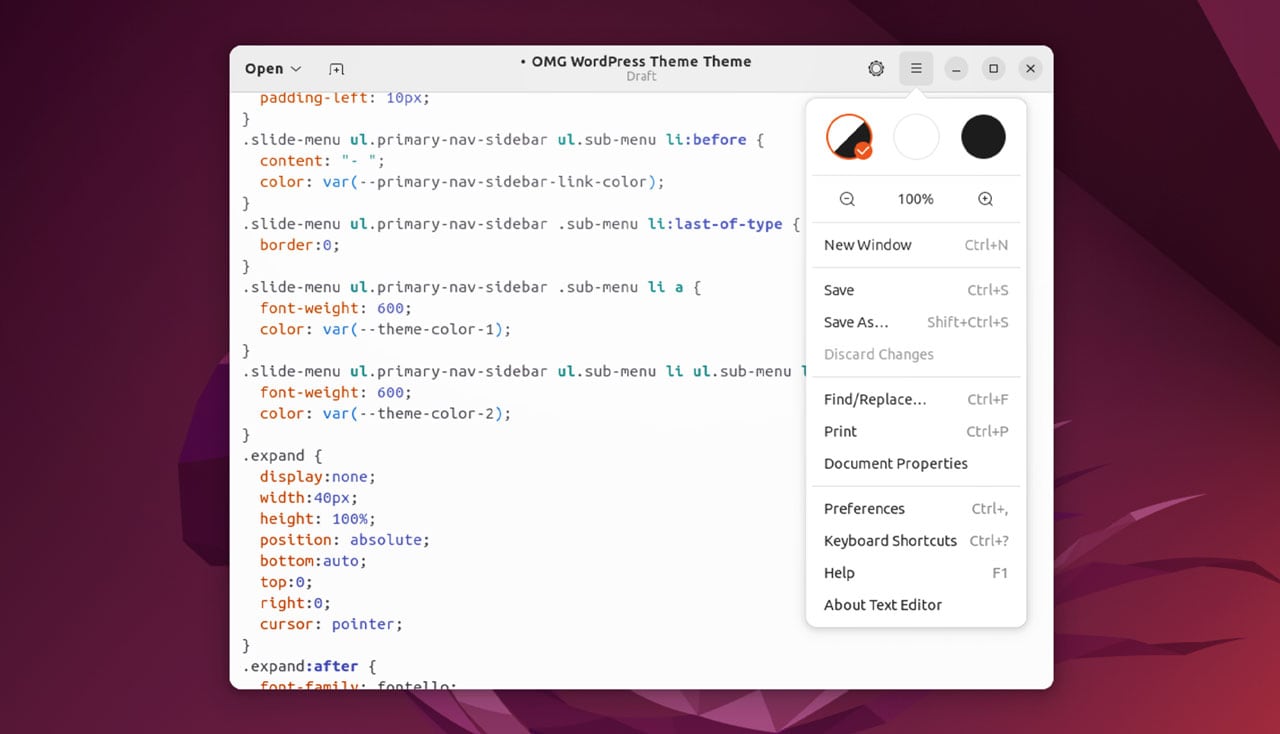
Image source: OMG! Ubuntu
Default Editors for Kubuntu, Lubuntu, and Other Flavors
Ubuntu is not a monolithic experience; its various "flavors" cater to different hardware and aesthetic preferences. Each flavor ships with a default editor optimized for its specific desktop environment:
- Kubuntu: Uses Kate (the KDE Advanced Text Editor). Kate is exceptionally strong, offering a built-in terminal and split-view capabilities that rival many IDEs.
- Lubuntu: Focuses on being lightweight and typically includes FeatherPad , which is fast and has minimal dependencies.
- Xubuntu: Features Mousepad , a simple but effective editor for the XFCE desktop environment.
Top Terminal Editors for Servers and SSH
If you are managing a remote server via SSH or working in a headless environment, you won't have access to a GUI. In these scenarios, terminal-based editors are essential. Most Linux editors follow one of three paradigms: modal (Vim), non-modal (Nano), or programmable (Emacs), as noted by ItsFoss .
Why Nano Is a Top Choice for Beginners
Nano is pre-installed on almost every Ubuntu instance. It is widely regarded as one of the most accessible terminal editors because it displays a shortcut legend at the bottom of the screen. You don't need to memorize complex commands to perform basic tasks. For example,
Ctrl+O
saves (writes out) the file, and
Ctrl+X
exits the program. This makes it a popular choice for quick configuration changes in
/etc/
.
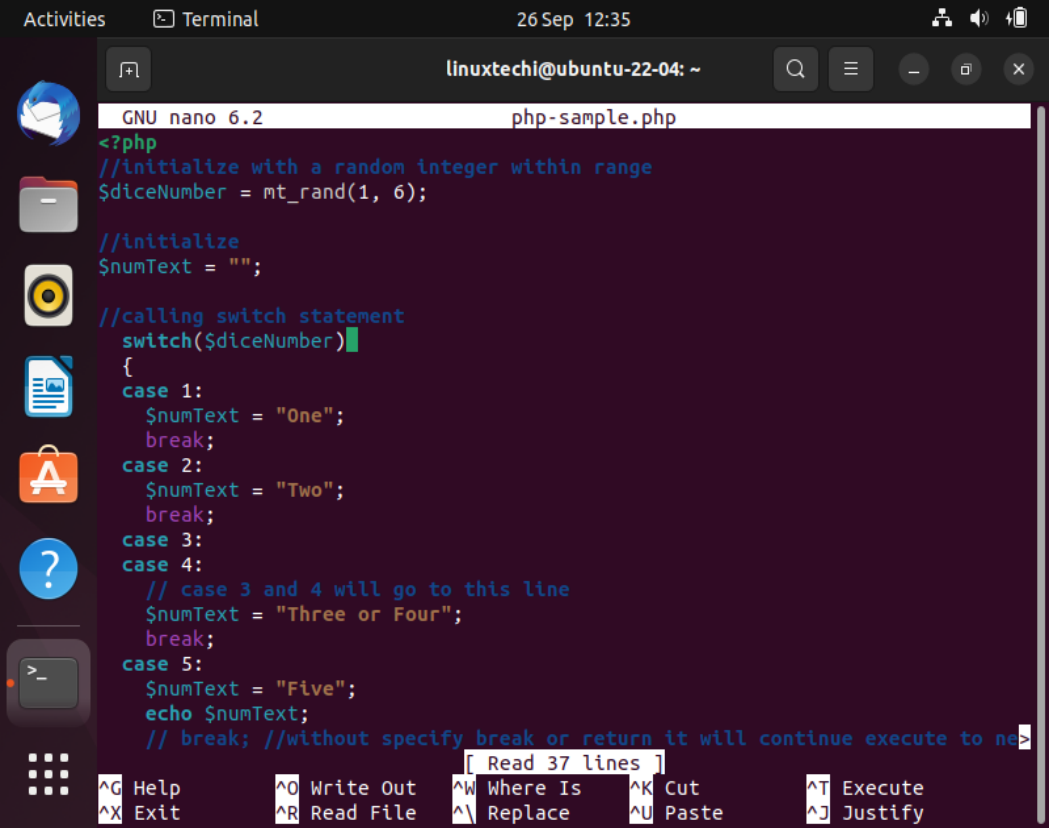
Image source: LinuxTechi
Mastering Vim for Professional System Administration
Vim (Vi Improved) is a powerhouse for those who spend significant time in the terminal. It uses "modal editing," meaning the keyboard behaves differently depending on whether you are in Command mode, Insert mode, or Visual mode. While the learning curve is steep, the efficiency gains are remarkable. A skilled Vim user can navigate and edit large files without ever touching a mouse. For those who want a modernized experience with better plugin support, Neovim is a significant advancement that has gained massive traction in recent years.
How to Use Micro for a Notepad-Like Terminal Experience
If you find Nano too basic and Vim too confusing,
Micro
is an excellent alternative. It is a modern terminal editor that supports standard keyboard shortcuts like
Ctrl+S
to save and
Ctrl+C
to copy. It also features mouse support, allowing you to click and drag to select text even within a terminal window. You can install it via the Ubuntu repositories:
sudo apt install micro
.
Top Graphical Editors for Coding and Development
For software development, a simple text editor is often not enough. You need syntax highlighting, git integration, and debugging tools.
VS Code vs VSCodium — Which One Should You Install?
Visual Studio Code (VS Code) is arguably the most popular graphical editor in the world today. However, the version distributed by Microsoft contains proprietary telemetry. For users who prioritize privacy, VSCodium is a top-tier option. It is a community-driven, freely licensed binary distribution of VS Code that strips out all Microsoft tracking. Both support the same vast library of extensions, making them highly recommended for modern web and software development.
Sublime Text and Geany for Lightweight Performance
Not every developer needs the heavy resource footprint of an Electron-based app like VS Code. Sublime Text is a proprietary editor known for being incredibly fast and capable of handling massive log files that would crash other programs. On the open-source side, Geany stands out as a "small and fast" IDE. It uses the GTK toolkit and has very few dependencies, making it a strong contender for older hardware or minimal installations.
Kate — The Powerhouse Editor for KDE and Beyond
While Kate is the default for Kubuntu, it is available for all Ubuntu users via
sudo apt install kate
. It offers features usually reserved for full IDEs, such as a built-in terminal emulator, project management, and support for hundreds of programming languages. Many users find it to be a perfect middle ground between a simple text editor and a heavy IDE.
How to Edit System Files Safely with Sudoedit
One of the most common mistakes Ubuntu users make is running a graphical editor with
sudo
(e.g.,
sudo gedit /etc/fstab
). This can lead to file permission issues in your home directory and poses a security risk. The security best practice is to use
sudoedit
.
How Sudoedit Works:
When you run
sudoedit /path/to/file
, the system creates a temporary copy of the file. It then opens this copy using your preferred editor as a non-privileged user. Once you save and exit, the system compares the changes and writes them back to the original file with root permissions. This keeps your editor's configuration files owned by your user, not root.
To set your preferred editor for
sudoedit
, add the following line to your
.bashrc
file:
export EDITOR='nano'
Replace 'nano' with 'vim', 'micro', or even a GUI editor command if configured correctly. This method is consistently ranked among the safest ways to manage system configurations.
Advanced Terminal Navigation and Discovery Tips
Efficiency in Ubuntu isn't just about the editor you choose; it's about how you navigate the system while editing.
Using Pushd and Popd to Manage Multiple Config Files
When you are troubleshooting a complex service like Nginx or Apache, you often need to jump between the configuration directory (
/etc/nginx/
) and the log directory (
/var/log/nginx/
). Instead of typing long paths repeatedly, use the directory stack:
-
pushd /etc/nginx/— This "pushes" your current location onto a stack and moves you to the Nginx folder. - Edit your files.
-
popd— This instantly returns you to exactly where you were before.
This workflow, highlighted in PCWorld's expert tricks , is a significant time-saver for power users.
How to Find Every Installed Editor Using the Apropos Command
Sometimes you might be working on a fresh installation and aren't sure what tools are available. The
apropos
command searches the manual page names and descriptions. By running
apropos editor
, you can discover "hidden" system tools like
ed
,
ex
, or
red
that you might not have known were installed. It is a great way to explore the capabilities of your specific Ubuntu version.
Troubleshooting Common Editor Issues on Ubuntu
Even the most stable editors can run into issues, especially when hardware acceleration and complex dependencies are involved.
Fixing Signal 11 Segfaults and Graphics Driver Conflicts
Users on Ubuntu 24.04 and 26.04 have occasionally reported "Signal 11" segfaults when launching Electron-based editors like VS Code or Atom. This is often caused by a conflict between the Mesa Intel drivers and Nvidia discrete GPUs. If your editor crashes on launch, try disabling hardware acceleration by passing a flag:
code --disable-gpu
If this resolves the issue, you may need to update your drivers or configure your system to use the discrete GPU exclusively for high-performance applications.
Resolving Dependency Errors with GDebi Instead of Dpkg
When installing editors distributed as
.deb
files (like Sublime Text), using
sudo dpkg -i filename.deb
often fails because it cannot automatically resolve dependencies. A better approach is to use
GDebi
. Install it with
sudo apt install gdebi
, then right-click your
.deb
file and select "Open with GDebi." It will automatically fetch and install any missing libraries required by the editor, ensuring a smooth installation process.
Comparison Matrix: Choosing the Right Tool for the Job
| Editor Name | Interface | Best For | Privacy Level | Install Command |
|---|---|---|---|---|
| Nano | Terminal | Quick Config Edits | High (Local) | Pre-installed |
| Vim | Terminal | Sysadmin / Pro | High (Local) |
sudo apt install vim
|
| GNOME Text Editor | GUI | General Notes | High (Local) | Pre-installed |
| VSCodium | GUI | Private Coding | High (No Telemetry) | Flatpak / Repo |
| VS Code | GUI | Full Development | Medium (Telemetry) | Snap / .deb |
| Geany | GUI | Lightweight IDE | High (Local) |
sudo apt install geany
|
Frequently Asked Questions
How do I change the default text editor in the Ubuntu terminal?
You can change the system-wide default by running
sudo update-alternatives --config editor
. This will present a list of all installed terminal editors (like Nano, Vim, and Ed). Simply type the number corresponding to your choice and press Enter. This setting affects commands like
crontab -e
and
git commit
.
What is the Ubuntu equivalent of Windows Notepad?
The closest equivalent is the GNOME Text Editor (or Gedit in older versions). For users who want a direct clone of Notepad++, Notepadqq is a popular choice that offers similar functionality and a familiar interface for those migrating from Windows.
How do I exit Vim without saving?
This is a common hurdle for new users. To exit without saving changes, press
Esc
to ensure you are in Command mode, then type
:q!
and press
Enter
. The exclamation mark tells Vim to quit and discard any modifications made during the session.
Is VS Code free on Ubuntu?
Yes, VS Code is free to download and use. However, the official binary from Microsoft is licensed under a proprietary license that includes telemetry. If you prefer a fully open-source version, VSCodium is the recommended alternative as it is built directly from the MIT-licensed source code.
Can I run Gedit on Ubuntu 26.04?
Absolutely. While it is no longer the default, Gedit remains in the official Ubuntu repositories. You can install it at any time using
sudo apt install gedit
. It will function perfectly alongside the new GNOME Text Editor.
Key Takeaways
- Nano is the most accessible choice for beginners performing quick terminal edits.
- GNOME Text Editor provides a modern, clean experience for desktop users on recent Ubuntu versions.
- VSCodium offers a top-tier development environment for those who value privacy over Microsoft's default telemetry.
- Always use sudoedit when modifying system files to prevent permission errors and improve security.
- Kate and Geany are excellent lightweight alternatives for users who need more features than a basic editor but less bulk than an IDE.
-
Use GDebi
for manual
.debinstallations to handle complex dependencies automatically.
Start by exploring the pre-installed GNOME Text Editor for your daily notes, and consider mastering a terminal editor like Nano or Vim to handle system-level tasks with confidence.