Home
Home
How to Change the Default Git Text Editor on Windows Mac and Linux
To set your Git editor globally, run the following command in your terminal or Git Bash:
git config --global core.editor "editor-command"
Replace
editor-command
with
code --wait
for VS Code,
nano
for a simple terminal experience, or the full path to your preferred
.exe
on Windows.
For many developers, the first encounter with Git's default text editor is an accidental one. You run
git commit
without the
-m
flag, and suddenly your terminal transforms into a cryptic wall of text. This is Vim, a powerful but notoriously steep-learning-curve editor that often leaves beginners feeling "trapped."
Git triggers a text editor whenever it needs you to provide input that is too complex for a single command-line argument. This includes writing commit messages, resolving merge conflicts, or performing interactive rebases. While Vim is a top-rated choice for terminal efficiency, it is not always the most intuitive option for those accustomed to modern graphical user interfaces (GUIs).
Understanding how to configure your environment is a fundamental skill in version control. According to GitHub's official documentation , associating a familiar editor with Git can significantly reduce friction in your daily workflow. This guide explores the hierarchy of Git settings and provides specific configurations for the most popular editors available today.
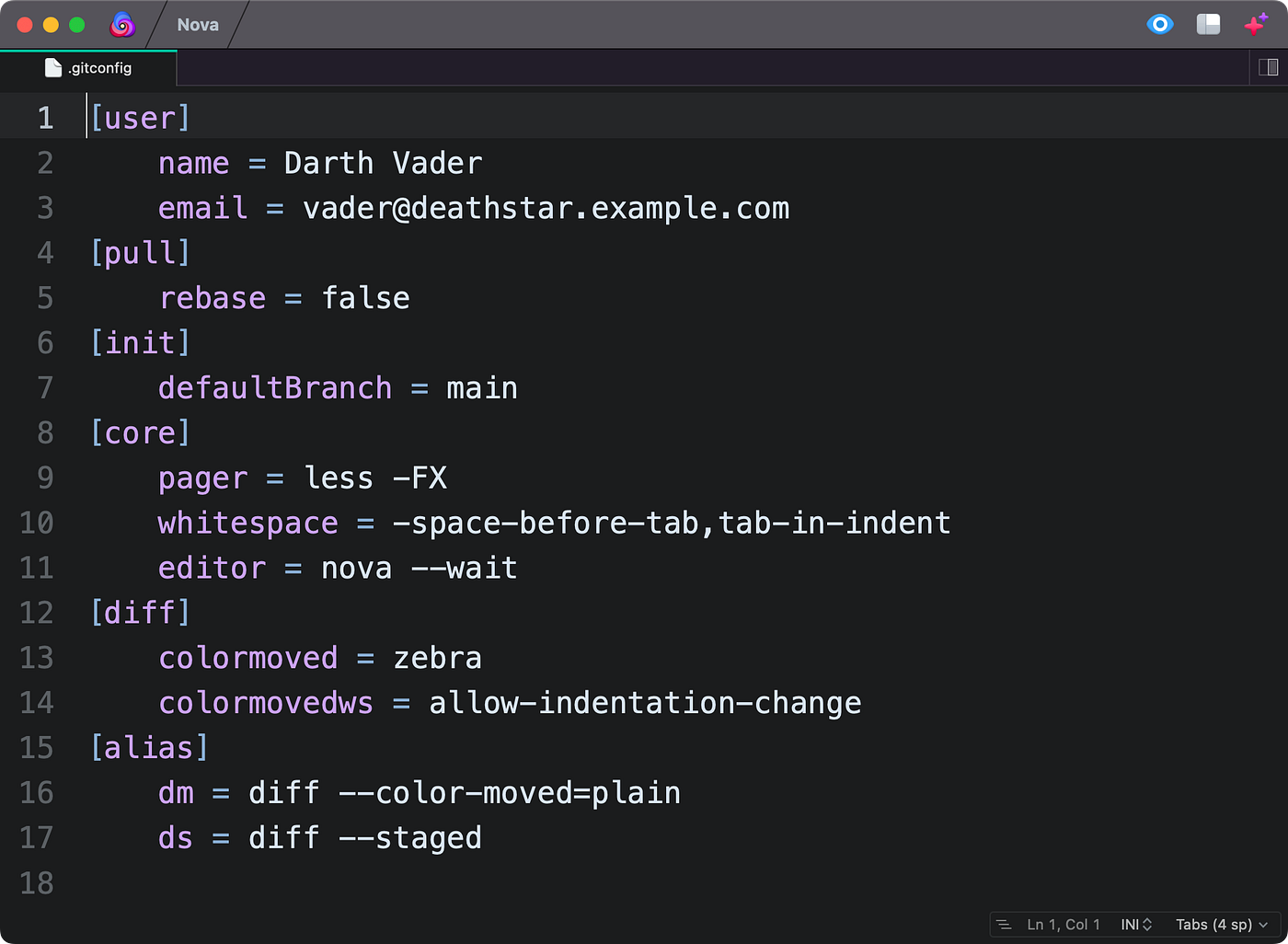
Image source: Medium
The Fastest Way to Set Your Global Git Editor
Git provides a straightforward configuration system that allows you to set preferences at different levels: system-wide, for the current user (global), or for a specific repository (local). For most users, the global setting is the most appropriate choice as it applies to every project on your machine.
The Universal Configuration Command
The primary tool for this task is the
git config
command. To set your editor, you will target the
core.editor
variable. The syntax is as follows:
git config --global core.editor "your-editor-command"
When you run this, Git updates your
.gitconfig
file, typically located in your user's home directory (e.g.,
~/.gitconfig
on macOS/Linux or
C:\Users\Username\.gitconfig
on Windows). This file acts as the central repository for your personal Git preferences.
How Git Selects an Editor (The Hierarchy)
It is important to note that Git follows a specific order of operations when looking for an editor. If multiple settings exist, Git prioritizes them in this order:
- GIT_EDITOR environment variable: This takes precedence over all other settings.
-
core.editor configuration:
The setting we are modifying with
git config. - VISUAL environment variable: A standard Unix variable for full-screen editors.
- EDITOR environment variable: A fallback Unix variable for basic line editors.
If none of these are defined, Git usually falls back to
vi
or
vim
. To verify what Git currently considers your effective editor, you can run
git var GIT_EDITOR
. This command is a highly effective way to see exactly which binary Git will launch when a commit is initiated.
git config --get core.editor
. If it returns the name of your editor, the configuration was successful.
How to Configure Popular Editors for Git
Different editors require different "flags" to work correctly with Git. A flag is an extra piece of information passed to the editor command that tells it how to behave. For Git, the most critical flag is often
--wait
.
Visual Studio Code
Widely regarded as a top choice for modern development due to its rich UI and extensions.
code --wait
Nano
A simple, terminal-based editor that is much easier to navigate than Vim for beginners.
nano
Notepad++
A staple for Windows users who need speed and a familiar tabbed interface.
notepad++.exe
Setting Up Visual Studio Code with the Wait Flag
Visual Studio Code (VS Code) is a popular choice for Git tasks. However, because VS Code is a GUI application that can run multiple instances, Git needs to be told to "wait" for you to finish your message before it proceeds with the commit. Without the
--wait
flag, Git will see that the VS Code process has started and immediately assume you are done, resulting in an empty commit message error.
Run this command to set VS Code as your editor:
git config --global core.editor "code --wait"
If you receive a "command not found" error, you may need to add VS Code to your system's PATH. In VS Code, open the Command Palette (Cmd+Shift+P on Mac, Ctrl+Shift+P on Windows) and type
"Shell Command: Install 'code' command in PATH"
. This ensures the
code
keyword is recognized by your terminal.
Using Notepad Plus Plus on Windows Systems
For Windows users, Notepad++ offers a robust alternative to the default terminal editors. According to TheServerSide , setting Notepad++ requires handling specific flags to ensure a clean editing experience. You want the editor to open in a new instance without loading your previous session or plugins.
The recommended command for Notepad++ is:
git config --global core.editor "'C:/Program Files/Notepad++/notepad++.exe' -multiInst -notabbar -nosession -noPlugin"
Note the use of single quotes inside double quotes. This is necessary because the path contains a space ("Program Files"). Without proper quoting, Git will fail to find the application.
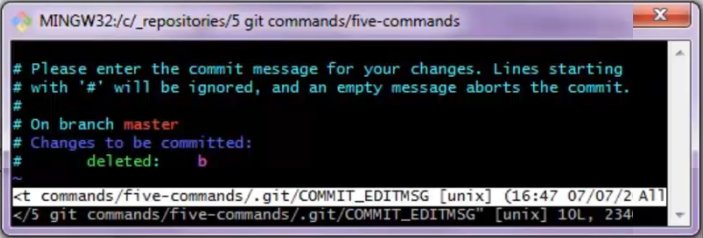
Image source: TheServerSide.com
Configuring Sublime Text for Git Commits
Sublime Text is known for its remarkable speed. Like VS Code, it requires a wait flag (
-w
) and a flag to open a new window (
-n
). The command for macOS and Linux users is typically:
git config --global core.editor "subl -n -w"
On Windows, you will likely need to provide the full path to
subl.exe
, similar to the Notepad++ example above. Sublime is a strong contender for those who want a GUI editor that launches almost as fast as a terminal-based one.
Troubleshooting Common Path and Configuration Errors
Even with the correct commands, environment differences can cause issues. This is especially true on Windows 11, where path handling in Git Bash can be finicky.
Fixing the "Command Not Found" Error
If Git returns an error stating the editor command was not found, it usually means one of two things: the editor isn't in your system's
PATH
variable, or the path in your Git config is incorrect. A highly effective way to solve this is to use the
absolute path
to the editor's executable file.
Instead of just
"notepad++"
, use
"C:/Program Files/Notepad++/notepad++.exe"
. As noted by
technical researcher Emily Lahren
, using forward slashes (
/
) instead of backslashes (
\
) is often safer when working within Git Bash, as backslashes can be misinterpreted as escape characters.
Solving Quoting Issues on Windows
Windows paths with spaces are the most common source of configuration failure. If you see an error like
error: cannot run C:Program: No such file or directory
, your quotes are likely misplaced. Git needs to see the entire path as a single string. The "nested quote" strategy is a significant advancement in solving this:
git config --global core.editor "'C:/Path With Spaces/editor.exe' --wait"
By wrapping the path in single quotes inside the double quotes, you ensure that Git Bash passes the space-containing path correctly to the underlying Windows operating system.
| Editor | Command String | Best For |
|---|---|---|
| VS Code |
code --wait
|
Modern workflow, rich UI features |
| Nano |
nano
|
Quick terminal edits, beginner friendly |
| Notepad++ |
[Path] -multiInst
|
Windows users seeking speed |
| Sublime |
subl -n -w
|
Performance and minimalist design |
| Vim |
vim
|
Advanced terminal-only efficiency |
How to Escape and Use the Default Vim Editor
While you may choose to change your editor, there will inevitably be times—such as when working on a remote server—where you are forced to use the default Vim editor. Knowing the "emergency exit" commands is essential for every developer.
-
Enter Insert Mode:
Press the
ikey. You can now type your commit message. You will see "-- INSERT --" at the bottom of the screen. -
Exit Insert Mode:
Press the
Esckey. This puts you back into "Normal" mode where you can issue commands. -
Save and Quit:
Type
:wqand pressEnter. This stands for "write" and "quit." Git will now save your message and complete the commit. -
Abort the Commit:
If you made a mistake and want to cancel the commit entirely, press
Esc, type:q!, and pressEnter. This quits without saving.
Vim is widely considered one of the strongest editors for text manipulation once the basics are mastered, but for the purpose of a quick Git commit, these four steps are all you need to survive the interface.
Best Practices for Professional Git Commit Messages
Changing your editor is only half the battle; using it effectively is what improves project maintainability. Professional Git commit messages follow the 50/72 rule , a standard that ensures your history remains readable in various Git tools and terminal widths.
The 50/72 Rule Explained
The rule suggests that the subject line (the first line) should be no more than 50 characters long, followed by a blank line, and then a body wrapped at 72 characters. This formatting ensures that
git log --oneline
looks clean and that the full body doesn't overflow in standard terminal windows.
Many modern editors can be configured to help you follow this rule:
-
VS Code:
You can add
"editor.rulers": [50, 72]to yoursettings.jsonto see vertical guide lines. -
Sublime Text:
Use
"rulers": [50, 72]in your user preferences. - Notepad++: Go to Settings > Preferences > Editing and enable "Vertical Edge Settings" at 72.
By setting these rulers, your new Git editor becomes a tool for quality control, not just a place to type text. A well-formatted commit history is a hallmark of a professional development environment.
Frequently Asked Questions
- How do I set the editor for Git Bash specifically?
-
Git Bash usually follows the global
.gitconfigsettings. However, if you want a specific editor only when using Git Bash, you can add an alias or an environment variable to your.bashrcor.bash_profilefile. For example, addingexport EDITOR='nano'to your profile will ensure Nano is the default whenever that specific shell is active. - Why does Git still open Vim even after I changed the config?
-
This usually happens because an environment variable like
GIT_EDITORorVISUALis set on your system. These variables have a higher priority than thecore.editorsetting in your Git config. Check your system environment variables (on Windows) or your shell configuration files (on Mac/Linux) to see if they are overriding your Git settings. - Can I use a browser-based editor for Git?
- Technically, Git requires a local binary or script that it can execute. While you cannot directly point Git to a URL, some tools allow you to bridge the gap. However, for standard local development, it is highly recommended to use a locally installed text editor to avoid latency and connectivity issues during the commit process.
- How do I reset the editor back to the default?
-
If you want to remove your custom setting and go back to Git's default behavior, run
git config --global --unset core.editor. This removes the line from your configuration file, and Git will return to its internal search hierarchy, usually landing back on Vim or Vi. - Does changing the editor affect my IDE's built-in Git tools?
-
Generally, no. Integrated Development Environments (IDEs) like IntelliJ IDEA, PyCharm, or even VS Code's internal Git tab use their own internal hooks and UI elements for commits. Changing
core.editorprimarily affects what happens when you use Git from the command line or terminal.
Key Takeaways for Setting Your Git Editor
Configuring a comfortable text editor is a simple yet impactful way to improve your development experience. Here is a summary of the essential steps:
-
Use the global flag
(
--global) to ensure your editor choice applies to all your repositories. -
Include the wait flag
(
--waitor-w) when using GUI editors like VS Code or Sublime to prevent Git from closing the commit prematurely. - Handle Windows paths carefully by using forward slashes and nested quotes if your editor is located in "Program Files."
-
Verify your settings
using
git var GIT_EDITORto see exactly what Git is seeing. -
Learn basic Vim commands
like
:wqso you are never truly stuck if you find yourself on a system without your preferred tools. - Implement the 50/72 rule by setting rulers in your new editor to maintain professional commit history standards.
Once you have applied these settings, try running
git commit --amend
to test your new editor without creating a new commit in your history.