Home
Home
How to Change the Default Git Editor to VS Code, Nano, or Vim
To set your default Git editor globally, use the following command in your terminal:
git config --global core.editor "editor-name"
. For example, to use Visual Studio Code, run:
git config --global core.editor "code --wait"
. This ensures Git opens your preferred tool for commit messages and merge conflicts.
What Is the Default Git Editor and Why Should You Change It?
When you interact with Git, there are several moments where the system requires you to input text that goes beyond a simple command-line flag. The most common scenario is writing a commit message when you haven't provided the
-m
flag. Other instances include performing an interactive rebase, resolving complex merge conflicts, or editing your Git configuration files directly. In these moments, Git launches a text editor to capture your input.
By default, most Git installations on Unix-like systems (Linux and macOS) default to Vim (or its predecessor, Vi). While Vim is a highly efficient tool for those who have mastered its modal editing system, it presents a significant hurdle for beginners. Many new developers find themselves "trapped" in Vim, unable to save their work or even exit the program. On Windows, the default might be a simple version of Notepad or a bundled version of Vim depending on your installation choices.
Changing your Git editor is a foundational step in customizing your development environment. According to official Git documentation , the editor is one of the most frequently customized settings because it directly impacts the speed and comfort of your workflow. Whether you prefer the graphical interface of Visual Studio Code, the simplicity of Nano, or the familiarity of Notepad++, configuring Git to use your tool of choice prevents frustration and ensures your commit history remains clean and descriptive.
How to Set Your Global Git Editor in One Command
The primary method for changing your editor is through the
git config
command. Git manages configurations at three distinct levels, and understanding which one to use is vital for maintaining a consistent environment across different projects.
-
Global Level:
The most common choice. Using the
--globalflag applies the setting to all repositories for the current user. -
System Level:
Using the
--systemflag applies the setting to every user on the entire machine. This usually requires administrative privileges. - Local Level: The default behavior if no flag is provided. This applies the setting only to the specific repository you are currently working in.
To set your editor globally, the syntax is straightforward. You tell Git to update the
core.editor
key. For instance, if you want to use the Nano editor, which is widely regarded as a top choice for terminal-based simplicity, you would run:
git config --global core.editor "nano"
After running this command, you can verify the change by listing your global configuration. Run
git config --global --list
and look for the
core.editor
entry. If you see your chosen editor listed, Git is now configured to launch that specific application whenever it needs text input from you.
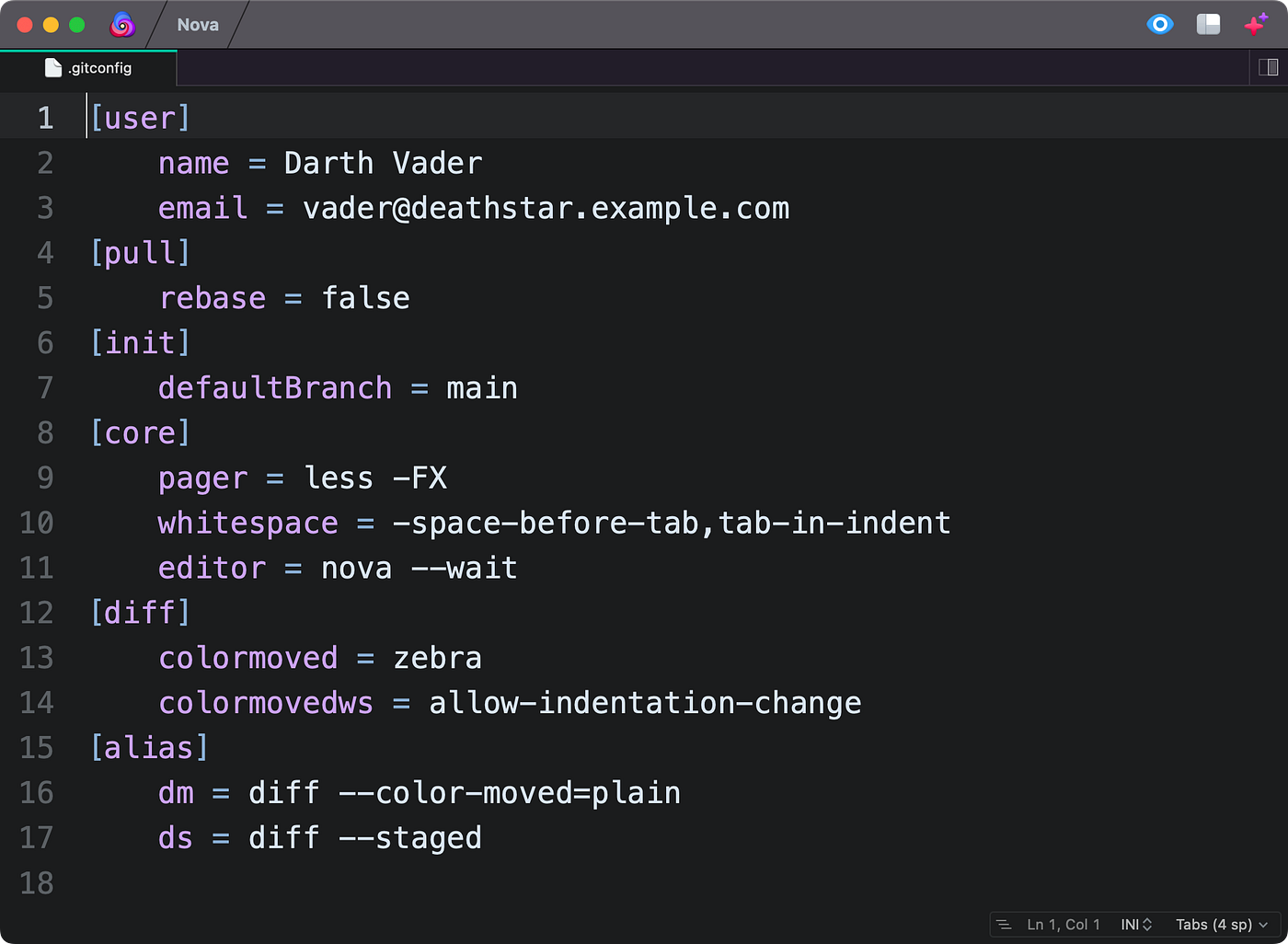
Image source: Medium
How to Configure Popular Editors for Git
How to Use Visual Studio Code as Your Git Editor
Visual Studio Code (VS Code) is a top-tier option for many developers due to its rich feature set and intuitive interface. However, setting it as your Git editor requires a specific flag:
--wait
. Because VS Code is a graphical application that can run multiple instances, Git needs to be told to wait until you actually close the specific tab containing your commit message before it continues the commit process.
The command to set VS Code is:
git config --global core.editor "code --wait"
If you encounter a "command not found" error, it likely means the
code
executable isn't in your system's PATH. On macOS, you can fix this by opening VS Code, pressing
Cmd+Shift+P
, and selecting "Shell Command: Install 'code' command in PATH." On Windows, this is typically handled during the initial installation of VS Code.
How to Set Up Notepad++ on Windows
For Windows users who prefer a lightweight but powerful GUI editor, Notepad++ is a strong contender. Configuring it requires providing the absolute path to the executable, as Git needs to know exactly where the program resides. Additionally, using the
-multiInst
and
-notabbar
flags is highly recommended to ensure Git opens a fresh, dedicated window for your commit message.
A typical command for a 64-bit installation would look like this:
git config --global core.editor "'C:/Program Files/Notepad++/notepad++.exe' -multiInst -notabbar"
Note the use of single quotes around the path to handle the space in "Program Files." Without these flags, Git might attempt to attach to an already open Notepad++ window, which often leads to the "empty commit message" error because Git doesn't realize you've finished editing.
How to Use Nano for Simple Command Line Editing
If you want to stay within the terminal but find Vim's commands confusing, Nano is an excellent choice. It is pre-installed on almost all Linux distributions and macOS. Nano displays its primary commands (like Save and Exit) at the bottom of the screen at all times, making it much more accessible for occasional use.
To set Nano, simply run:
git config --global core.editor "nano"
Many developers find Nano to be a top middle-ground choice because it avoids the overhead of launching a separate GUI window while remaining much easier to navigate than Vi-based editors.
How to Configure Sublime Text or Atom
Similar to VS Code, other GUI editors like Sublime Text require a "wait" flag. For Sublime Text, the command is
subl -n -w
. The
-n
flag ensures a new window is opened, while
-w
tells the terminal to wait for the file to be closed.
git config --global core.editor "subl -n -w"
The Pro Cheat Sheet for Git Editor Commands
Choosing the right syntax depends heavily on your operating system and the specific behavior of the editor. The following table summarizes the most common configurations used by professional developers.
| Editor | Command String | Key Flags Explained |
|---|---|---|
| VS Code |
code --wait
|
Forces Git to stay open until the file tab is closed. |
| Nano |
nano
|
Terminal-based; no special flags required. |
| Notepad++ |
'C:/.../notepad++.exe' -multiInst
|
Opens a new instance to prevent Git from failing. |
| Sublime Text |
subl -n -w
|
-n
for new window;
-w
to wait for save.
|
| Vim |
vim
|
The default; requires knowledge of command modes. |
Understanding the Hierarchy of Git Editor Settings
What Is the Order of Precedence for Git Editors?
One of the most confusing aspects of Git configuration is why a custom setting might not seem to work. This usually happens because Git follows a strict hierarchy when looking for an editor. If multiple settings exist, Git will always choose the one with the highest priority.
- 1. GIT_EDITOR Environment Variable
-
This has the highest priority. If you have
export GIT_EDITOR=nanoin your shell profile, it will override anygit configsettings. - 2. core.editor Git Config
- This is the setting we have been discussing. It is the standard way to set a preference within the Git ecosystem itself.
- 3. VISUAL Environment Variable
- A general system variable used by many programs to determine the preferred "visual" (full-screen) editor.
- 4. EDITOR Environment Variable
-
A legacy system variable for line-based editors, used as a fallback if
VISUALis not set. - 5. System Default (Vim/Vi)
- If none of the above are found, Git defaults to the system's built-in editor, which is almost always Vim.
How to Override Your Editor for a Single Commit
There are times when you might want to use a different editor just once without changing your global settings. For example, you might usually use VS Code, but for a quick one-line commit message, you'd rather stay in the terminal with Nano. You can achieve this by setting the environment variable inline:
GIT_EDITOR="nano" git commit
This command tells the shell to set
GIT_EDITOR
to "nano" only for the duration of that specific
git commit
command. Once the commit is finished, your environment reverts to its previous state. This is a highly effective technique for power users who switch between terminal and GUI workflows frequently.
How to Change the Editor for a Single Repository Only
If you are working on a specific project that requires a different tool—perhaps a project with very long commit templates that are easier to manage in a full IDE—you can set a local override. Navigate to the repository in your terminal and run the config command without the
--global
flag:
git config core.editor "code --wait"
This creates an entry in the
.git/config
file of that specific project. It will take precedence over your global
~/.gitconfig
settings but will not affect any of your other repositories.
How to Fix Common Git Editor Errors and Issues
Why Does Git Say "Aborting Commit Due to Empty Message"?
This is the most common issue when using GUI editors like VS Code or Sublime Text. It occurs because these applications launch a "background" process. When you run
git commit
, Git launches the editor and immediately sees that the process it started has "finished" (because the GUI app is now running independently). Git then looks at the commit message file, sees it hasn't been changed yet, and aborts the commit to prevent an empty message.
The fix is to ensure you are using the
wait flag
(
--wait
for Code,
-w
for Sublime). This tells the editor not to signal completion to Git until the specific file tab is closed by the user. According to
discussions on StackOverflow
, this single flag resolves over 90% of GUI-related Git issues.
How to Escape the Vim Editor If You Get Stuck
If you haven't set your editor yet and find yourself staring at a screen with tildes (~) and no obvious way to exit, you are in Vim. Don't panic; escaping is simple once you know the sequence:
- Press the Esc key several times to ensure you are in "Normal" mode.
-
To save and exit: Type
:wqand press Enter . -
To exit without saving: Type
:q!and press Enter .
If you want to type your message first, press
i
to enter "Insert" mode, type your text, then follow the
Esc
and
:wq
steps above.
What to Do When Your Editor Command Is Not Found
If Git returns an error saying
error: cannot run editor-name: No such file or directory
, it means the command you provided isn't in your system's search path. This is particularly common on Windows. You have two choices: add the editor's folder to your System Environment Variables (PATH) or use the full absolute path in your Git config.
"When using absolute paths on Windows, remember to use forward slashes (/) rather than backslashes (\), or escape the backslashes, to ensure Git correctly parses the string."
Advanced Linux and GitHub CLI Configurations
Using update-alternatives on Linux Systems
On Debian-based Linux systems (like Ubuntu), there is a system-wide way to manage default applications called
update-alternatives
. Instead of changing the Git config specifically, you can change what the entire operating system considers the "default" editor. This is useful because it fixes the editor for Git, Crontab, and other system tools simultaneously.
sudo update-alternatives --config editor
You will be presented with a list of installed editors. Type the number corresponding to your choice (e.g., Nano or Vim) and press Enter. Git will automatically inherit this choice unless you have a specific
core.editor
set in your Git config.
Syncing Your GitHub CLI Editor with Git
If you use the GitHub CLI (
gh
), you might notice it sometimes uses a different editor than your standard Git commands. While
gh
attempts to respect your Git settings, you can explicitly set it to ensure consistency. This is a significant advancement for developers who spend a lot of time managing Pull Requests from the command line.
gh config set editor "code --wait"
By syncing these two, you ensure that whether you are committing code or editing a PR description, you are always using the tool you are most comfortable with.
How to Revert to the System Default Editor
If you decide that you actually prefer the default behavior, or if you've made a mistake in your configuration that is preventing Git from working correctly, you can easily remove your custom setting. To "unset" the global editor and return to the system default, use the
--unset
flag:
git config --global --unset core.editor
This command removes the
core.editor
line from your
.gitconfig
file. Git will then fall back through the hierarchy (Environment Variables -> System Default) to find an editor. This is a safe way to troubleshoot if your editor suddenly stops launching correctly after an update.
Frequently Asked Questions
How do I check what my current Git editor is?
You can check your current configuration by running
git config core.editor
. If this returns nothing, it means you haven't set a specific Git editor, and Git is using the system default (usually Vim) or an environment variable like
$EDITOR
. To see exactly where the setting is coming from, use
git config --list --show-origin
, which will show you the file path for every configuration setting.
Can I use a browser-based editor for Git?
While you cannot easily set a standard web browser as your
core.editor
for local Git operations, you can use VS Code for the Web or GitHub Codespaces. For local work, some developers use "gateways" that open a browser tab, but this is generally less stable than using a local editor like VS Code or Nano. Most users find that a dedicated local application provides a much more reliable experience.
Why does Git keep opening Vim even after I changed the config?
This usually happens due to environment variable precedence. If you have
GIT_EDITOR
or
VISUAL
defined in your
.bashrc
,
.zshrc
, or Windows Environment Variables, Git will prioritize those over your
git config
settings. Check your shell profile for any
export
commands and either remove them or update them to match your preferred editor.
Do I need to restart my terminal after changing the Git editor?
Generally, no. Git reads the configuration file every time a command is executed. As soon as you run the
git config
command, the change is active. However, if you changed an environment variable (like
$EDITOR
) in your shell profile, you will need to either restart the terminal or run
source ~/.bashrc
(or the equivalent for your shell) for the changes to take effect.
What is the difference between $EDITOR and $VISUAL?
Historically,
$EDITOR
was intended for line-based editors (like
ed
), while
$VISUAL
was for "visual" full-screen editors (like
vi
or
emacs
). Modern systems still support both for backward compatibility. Git checks
VISUAL
first, then
EDITOR
. In the modern era, most developers set both to the same value to ensure consistency across all command-line tools.
Key Takeaways
Configuring your Git editor is a small change that yields significant improvements in your daily productivity. By moving away from defaults that don't fit your workflow, you reduce friction and focus more on the code itself.
-
Use the global flag
(
--global) to ensure your editor preference follows you across all projects. - Always include the --wait flag when using GUI editors like VS Code or Sublime Text to prevent empty commit errors.
-
Check the hierarchy
if your settings aren't working; environment variables like
GIT_EDITORwill always win. - Use absolute paths on Windows if your editor isn't in the system PATH, and remember to use forward slashes.
- Nano is a top choice for users who want a simple, terminal-based experience without the complexity of Vim.
-
Verify your settings
using
git config --list --show-originto debug exactly which configuration file is active.
To get started immediately, try setting your editor to Nano or VS Code today and see how much smoother your commit process becomes.