Home
Home
How the DaVinci Resolve Speed Editor Changes Your Workflow and Whether It Is Worth the Price
The DaVinci Resolve Speed Editor is a specialized hardware controller designed to accelerate the "Cut Page" workflow. While it retails for approximately $395 , it includes a lifetime DaVinci Resolve Studio license (worth $295) , effectively pricing the hardware at $100. It stands out as a top choice for editors who prioritize tactile scrubbing and rapid assembly, though it requires specific troubleshooting for Bluetooth and Logitech software conflicts.
What Exactly Is the DaVinci Resolve Speed Editor?
The DaVinci Resolve Speed Editor is a compact, professional-grade control surface manufactured by Blackmagic Design . Unlike a traditional QWERTY keyboard, this device is stripped of letters and numbers, focusing entirely on the mechanical functions required for high-speed video editing. The centerpiece of the unit is a machined metal search dial, which offers a weighted, high-inertia feel that many users find significantly more precise than a standard mouse wheel.
The design philosophy behind the Speed Editor is "no-QWERTY." By removing the standard keys, Blackmagic has created a device that fits comfortably on a desk alongside a main keyboard or sits in front of a laptop. It features soft-touch rubber-coated keys that are grouped by function: transport controls, edit points, and transition types. This layout encourages a two-handed editing style that can drastically reduce the time spent navigating timelines.
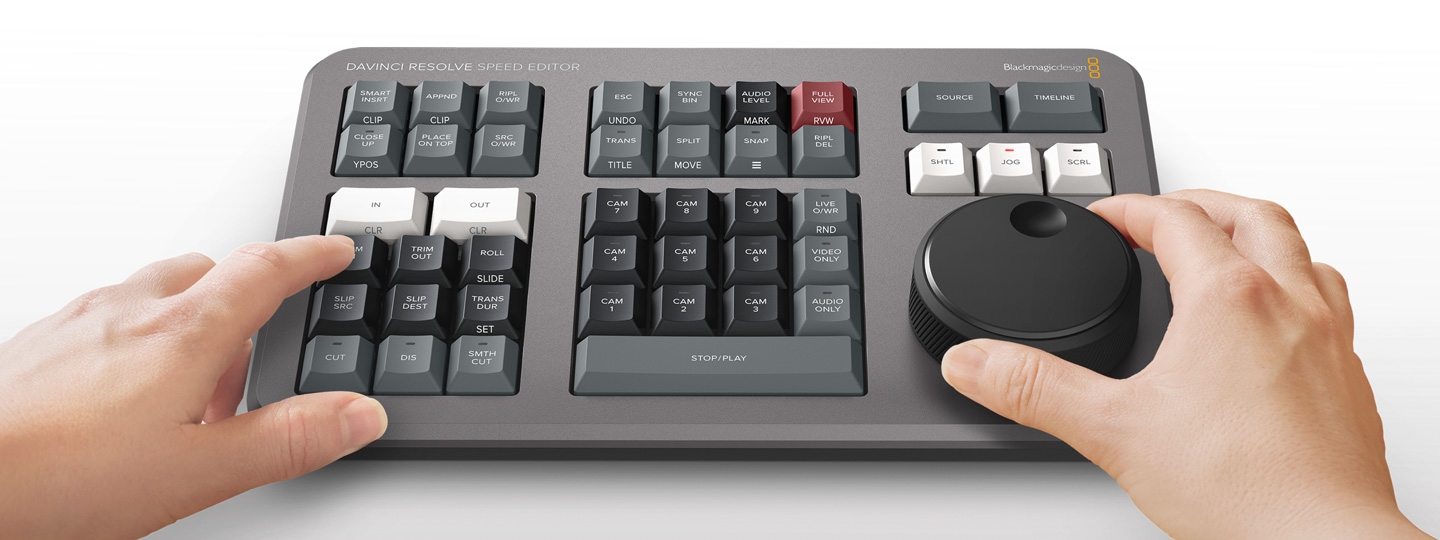
Image source: Blackmagic Design
Connectivity is handled via USB-C or Bluetooth 5.1 LE (Low Energy). For mobile editors, the internal battery and wireless capability make it a highly portable companion. However, it is important to note that the device draws approximately 4W of power when charging via USB, so users should ensure their ports provide sufficient current for simultaneous operation and charging. While it is widely considered one of the strongest hardware additions for Resolve users, its utility is highly dependent on how well you adapt to the "Cut Page" environment.
Is the Speed Editor Bundle Still a Good Deal at $395?
When the Speed Editor first launched, it was part of a promotional offer where the hardware was essentially included for free with the purchase of a $295 Studio license. As of 2026, the market landscape has shifted. The current retail price typically hovers around $395 to $400 . To determine if this represents a strong value proposition, one must look at the component costs.
A standalone DaVinci Resolve Studio license costs $295. This license is a lifetime purchase, covering all future updates (a policy Blackmagic has maintained for years). If you already own the Studio version, paying $395 for the Speed Editor might feel like a steep investment for a secondary controller. However, for new users or those upgrading from the free version, the hardware effectively costs only $100. At that price point, the build quality—machined metal and professional switches—is exceptionally strong compared to generic plastic macro pads.
Comparison of Resolve Hardware Options
| Feature | Standalone License | Speed Editor Bundle | Full Editor Keyboard |
|---|---|---|---|
| Retail Price | $295 | ~$395 | ~$595 | Search Dial | No | Weighted Metal | Weighted Metal + Clutch |
| QWERTY Keys | N/A | No | Yes (Full Size) |
| Connectivity | N/A | USB-C & Bluetooth | USB-C Only |
| Best For | Budget Users | Portable/Cut Page | Full-Time Pros |
For professional editors, the decision often comes down to desk space and mobility. The Speed Editor is a premier choice for those who travel or work on laptops. Conversely, the $595 Full Editor Keyboard is a more comprehensive solution for dedicated edit suites, as it replaces the main keyboard entirely and includes a mechanical clutch in the dial for shuttle modes.
Why Your Speed Editor Isn't Working and How to Fix It
Despite its robust build, the Speed Editor is known for several technical quirks that can frustrate new users. Addressing these requires looking beyond the DaVinci Resolve application itself. One of the most common issues reported on the Blackmagic Design Forum is the device failing to light up or be recognized despite being plugged in.
If your Speed Editor is connected but unresponsive on Windows, check your background services. The Logitech LampArray Service (often installed with G-Hub) is known to conflict with Blackmagic hardware. Disabling this service in the Windows Task Manager often restores functionality immediately.
The Firmware Update Loop
If your device is not responding, do not assume the hardware is faulty. Blackmagic handles hardware communication through a separate utility called DaVinci Control Panels Setup . Users often miss this because they expect the main Resolve software to handle updates. If the firmware is out of date, the device may enter a "sleep" state where no lights appear. Opening the Control Panels Setup utility will usually trigger a prompt to update the firmware, which is a necessary step for the device to communicate with the latest version of Resolve.
Bluetooth Connectivity Errors
On Windows 10 and 11, Bluetooth 5.1 LE can sometimes result in a "Driver Error" message in the system settings. This is frequently caused by background interference from other HID (Human Interface Device) drivers. To resolve this, users should:
- Unpair the device from Windows Bluetooth settings.
- Open DaVinci Resolve and generate a Diagnostic Log from the Help menu to identify service conflicts.
- Ensure the device is not simultaneously paired with another nearby tablet or computer, as it does not support multi-point pairing.
Mastering the Cut Page with Source Tape and Smart Indicators
The Speed Editor was built to shine on the Cut Page. The most significant advancement it offers is the Source Tape feature. In a traditional workflow, you double-click individual clips in a bin to view them. Source Tape treats every clip in a bin as one continuous long reel of film. By spinning the search dial, you can fly through hours of footage in seconds, hitting "In" and "Out" points as you go.
Expert editors like Darren Mostyn emphasize a two-handed philosophy. The right hand stays on the search dial for navigation, while the left hand rests on the edit keys (Append, Place on Top, Ripple Overwrite). This eliminates the "mouse travel" time—the seconds spent moving the cursor from the viewer to the timeline and back. Over a long work day, these saved seconds accumulate into hours of gained productivity.
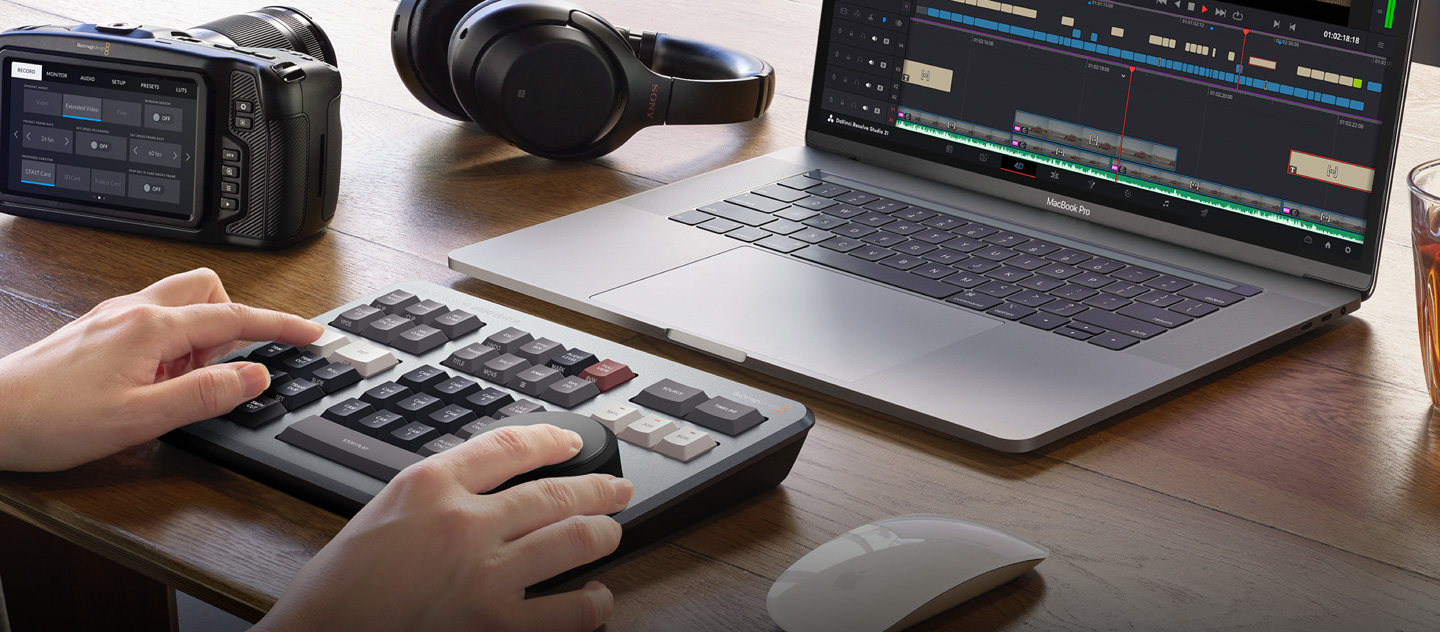
Image source: Blackmagic Design
Live trimming is another area where the hardware sets a high standard. By holding down the "Trim In" or "Trim Out" buttons while rotating the dial, you can perform sub-frame adjustments to your edit points in real-time. The visual feedback on the Cut Page—which shows a zoomed-in view of the cut point—makes this process feel incredibly intuitive compared to clicking and dragging with a mouse.
Can You Use the Speed Editor on the Edit Page?
A common question among professionals is whether the Speed Editor is a "one-page pony." While Blackmagic markets it for the Cut Page, it remains a popular choice for use on the Edit Page, though with notable limitations. The search dial functions perfectly for Jog, Shuttle, and Scroll modes across all pages, including the Color and Fairlight pages. This makes it a top-tier tool for colorists who need to scrub through long timelines to find specific frames.
Feature Compatibility: Cut Page vs. Edit Page
- Search Dial (Jog/Shuttle): Works on both pages.
- Source Tape: Cut Page only (Edit Page uses traditional bin viewing).
- Smart Insert / Append: Functions on both, but behaves more predictably on the Cut Page.
- Source Overwrite: Cut Page only (This is a specific multi-cam feature).
- Live Trimming: Limited on the Edit Page; requires more manual selection.
Many editors find that they use the Speed Editor for the "first pass" of an edit on the Cut Page—rapidly assembling the story—and then switch to the Edit Page for fine-tuning, using the Speed Editor only for its dial and transport controls. It is not a replacement for a mouse on the Edit Page, but it remains a highly impactful peripheral for navigation.
Ergonomic Secrets for Professional Editors
Using the Speed Editor correctly involves more than just plugging it in. There are physical nuances that can affect both your comfort and the device's performance. One documented issue is the "Gravity Flaw." Because the search dial is heavy and uses high-quality bearings, it is sensitive to the angle of the device. If you use a keyboard riser to tilt the Speed Editor toward you, the weight of the dial may cause it to "drift" or rotate on its own, potentially moving your playhead when you don't want it to. For maximum precision, the unit should be kept on a flat surface.
Regarding desk placement, Scott Simmons suggests that placing the device to the side of your keyboard (where a mouse usually sits) is actually counter-productive. Because the Speed Editor requires two-handed use for many of its best features, the most efficient placement is often above your QWERTY keyboard or directly in front of you, with the main keyboard pushed back slightly. This allows you to move your hands between the two devices without twisting your torso.
"The Speed Editor is a two-handed device. The speed comes from the synergy of the left hand hitting edit keys while the right hand never leaves the search dial." — Darren Mostyn, Broadcast Colorist.
Speed Editor vs. Full Editor Keyboard — Which Should You Choose?
The Speed Editor is often described as a "cutdown" version of the $595 Editor Keyboard. While they share the same high-quality dial, the larger keyboard offers several advantages for high-end suites. The most significant is the inclusion of a full QWERTY layout and a number pad. Professional editing involves a lot of clip naming, metadata entry, and shortcut usage (like 'G' for grouping or 'D' for disabling clips). On the Speed Editor, you are constantly reaching back to your main keyboard for these tasks.
However, the Speed Editor wins on portability and price. If you are a wedding videographer, a YouTuber, or a documentary editor who needs to work on location, the Speed Editor is an excellent choice. It fits in a laptop bag and provides 90% of the tactile benefits of the larger board at a fraction of the cost. If you spend 8 hours a day in a dedicated edit bay, the Full Editor Keyboard may be the stronger long-term investment to reduce clutter and provide a unified interface.
Frequently Asked Questions
Does the Speed Editor work with Premiere Pro or Final Cut Pro?
No, the DaVinci Resolve Speed Editor is software-locked to DaVinci Resolve. While some third-party developers have attempted to create drivers to map the keys to other software, there is no official support. The keys are hard-coded to send specific commands that only Resolve interprets correctly. If you use multiple NLEs, this device will only be active when Resolve is the front-facing application.
Can I remap the buttons on the Speed Editor?
Currently, Blackmagic Design does not allow for native remapping of the Speed Editor keys. The buttons are designed to perform specific tasks within the Resolve ecosystem. While this might seem restrictive, it ensures a consistent experience across different workstations. Users looking for fully customizable macro pads might prefer options like the Elgato Stream Deck, though those lack the high-end weighted dial found here.
How long does the battery last on Bluetooth?
Based on typical usage patterns and the 4W power draw, the internal battery generally lasts for several days of heavy editing. Most users report getting 30 to 50 hours of active use before needing a charge. The device charges relatively quickly via USB-C, and you can continue to use it while it is plugged in. It is recommended to plug it in overnight once a week to ensure it never dies during a session.
Do I need a specific version of Resolve to use it?
The Speed Editor requires DaVinci Resolve 17 or later. It will not function with version 16 or earlier. Additionally, your operating system must be macOS 10.15 Catalina (or later) or Windows 10 64-bit (or later). Always ensure you have the "DaVinci Control Panels Setup" utility installed to keep the hardware firmware synchronized with your software version.
Is the Studio license included in the bundle a subscription?
No, the DaVinci Resolve Studio license included with the Speed Editor is a perpetual (lifetime) license. Unlike Adobe Premiere Pro, there are no monthly fees. Once you activate the software using the provided code or dongle, you own that version and all subsequent major updates for life. This makes the $395 bundle one of the most cost-effective entries into professional post-production.
Final Thoughts on the Speed Editor
The DaVinci Resolve Speed Editor is a specialized tool that offers remarkable value for the right user. While it isn't a "magic wand" that will fix a poor editing style, it provides the tactile precision necessary for high-volume work. If you are already planning to buy the Studio license, the hardware is a no-brainer addition for a $100 premium.
- Check for software conflicts like Logitech LampArray if the device isn't recognized.
- Use the Control Panels Setup app specifically for firmware updates, not just the main Resolve app.
- Keep the unit flat on your desk to prevent the weighted dial from drifting due to gravity.
- Embrace the Cut Page for initial assemblies to get the most out of the Source Tape feature.
- Position the device centrally or above your keyboard to facilitate two-handed operation.
- Evaluate your mobility needs ; the Speed Editor is a top-tier choice for laptop-based editors.
For your next project, try performing your entire rough cut using only the Speed Editor on the Cut Page to truly master the two-handed workflow.