Home
Home
How to Build a Powerful Markdown Editor in Vue 3 Using md-editor-v3
To implement
md-editor-v3
in a Vue 3 project, install the package via
npm install md-editor-v3
. Import the
MdEditor
component and its mandatory
style.css
file. For Nuxt 3 or SSR environments, always provide a static
editorId
to prevent hydration mismatches. This editor stands out as a top choice for modern applications due to its
JSX-based architecture
, built-in
Mermaid
support, and extensive
TypeScript
definitions.
Why md-editor-v3 Ranks Among the Top Choices for Vue 3 Developers
In the evolving landscape of web development, choosing a markdown editor that aligns with modern framework principles is crucial. According to
official project data
,
md-editor-v3
is built from the ground up using JSX and TypeScript, specifically targeting the Vue 3 ecosystem. This architectural decision ensures that the editor remains highly performant and deeply integrated with Vue's reactivity system.
Unlike older template-based editors, the JSX foundation provides superior type-safety and smoother rendering cycles, making it a popular choice for enterprise-grade TypeScript projects.
It includes native support for Mermaid diagrams, KaTeX mathematical formulas, and Echarts, reducing the need for multiple third-party plugins.
With frequent updates (v6.5.6+ as of recent cycles) and security monitoring by Snyk , it offers a reliable long-term solution.
The Architectural Advantage of JSX and TypeScript
The use of JSX in
md-editor-v3
allows for a more flexible component structure. For developers, this means that the editor can handle complex state changes—such as real-time preview updates and toolbar toggles—without the overhead often associated with heavy template parsing. Furthermore, the comprehensive TypeScript definitions ensure that every prop, event, and configuration option is documented within your IDE, significantly reducing runtime errors during development.
The Sibling Ecosystem and Maturity
It is also worth noting that the library belongs to a mature family of tools. For teams working across different frameworks, the existence of
md-editor-rt
for React ensures a consistent editing experience regardless of the frontend stack. This cross-framework maturity suggests a well-thought-out API that has been refined through diverse use cases.
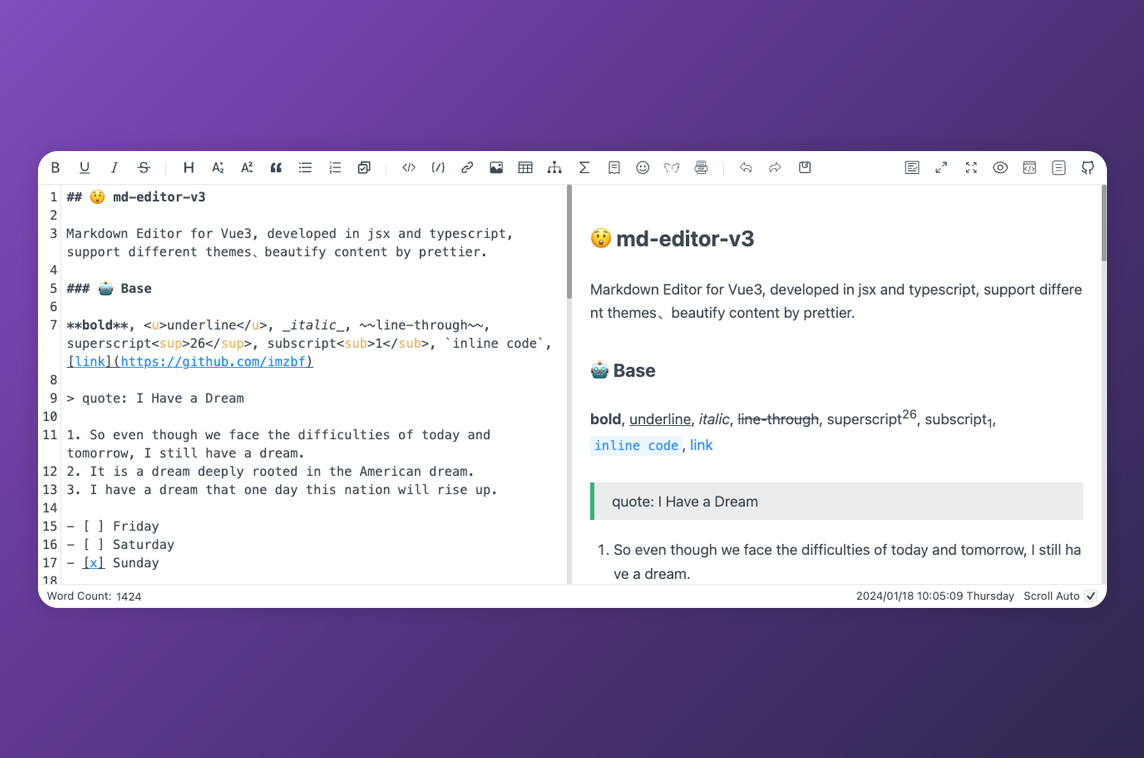
Image source: Made With Vue.js
Getting Started with a Basic md-editor-v3 Installation
Setting up the editor is straightforward. First, you need to add the package to your project using your preferred package manager:
npm install md-editor-v3
# Using yarn
yarn add md-editor-v3
# Using pnpm
pnpm add md-editor-v3
Basic Component Integration
Once installed, you can integrate the editor into your Vue component. A critical step that developers often overlook is importing the CSS file. Without it, the editor will render as a standard, unstyled textarea.
import { ref } from 'vue';
import { MdEditor } from 'md-editor-v3';
import 'md-editor-v3/lib/style.css';
const text = ref('# Hello Markdown');
</script>
<template>
<MdEditor v-model="text" />
</template>
style.css
import is present in your main entry file or the specific component file. If you are using a custom theme, you might need to import additional CSS files provided by the extension library.
How to Handle Image Uploads with a Custom Backend
One of the most powerful features of
md-editor-v3
is its built-in handling for image uploads via the
onUploadImg
event. This event intercepts file selection, drag-and-drop actions, and even clipboard pastes, allowing you to process images through your own server.
Frontend Implementation
The
onUploadImg
prop expects an asynchronous function that receives the file list and a callback to insert the resulting URLs into the editor. Here is a clean implementation using
axios
:
const res = await Promise.all(
files.map((file) => {
return new Promise((rev, rej) => {
const form = new FormData();
form.append('file', file);
axios.post('/api/upload', form, {
headers: { 'Content-Type': 'multipart/form-data' }
}).then((res) => rev(res)).catch((error) => rej(error));
});
})
);
callback(res.map((item) => item.data.url));
};
The Backend Logic (Node.js/Express)
To complete the workflow, your backend must be configured to handle
multipart/form-data
. Using the
multer
middleware in an Express environment is a common and effective approach:
const multer = require('multer');
const app = express();
const upload = multer({ dest: 'uploads/' });
app.post('/api/upload', upload.single('file'), (req, res) => {
// In a real app, upload to S3 or Cloudinary here
const imageUrl = `https://yourdomain.com/uploads/${req.file.filename}`;
res.json({ url: imageUrl });
});
This combination ensures a seamless user experience where images are uploaded in the background and immediately rendered in the markdown preview. Many users find this approach significantly more efficient than manually hosting images elsewhere and pasting links.
How to Use md-editor-v3 with Nuxt 3 and SSR
Server-Side Rendering (SSR) introduces unique challenges for interactive components. Because
md-editor-v3
generates unique IDs for its internal elements, a mismatch can occur between the server-rendered HTML and the client-side hydrated version, leading to the dreaded "Hydration node mismatch" error.
The editorId Solution
According to
official documentation
, the most effective way to resolve this is by providing a static
editorId
prop. This ensures that both the server and the client use the exact same ID for the editor instance.
<ClientOnly>
<MdEditor editorId="my-unique-editor" v-model="text" />
</ClientOnly>
</template>
Client-Side Only Wrapping
In Nuxt 3, wrapping the component in
<ClientOnly>
is a standard practice for libraries that rely heavily on browser APIs (like
window
or
document
). While
md-editor-v3
is designed to be SSR-friendly, the
<ClientOnly>
tag provides an extra layer of safety, ensuring the editor UI only initializes once the browser environment is fully available. This does not negatively impact SEO for the content itself, as the markdown text can still be rendered as static HTML elsewhere on the page using the
MdPreview
component.
How to Customize the Toolbar and Themes for a Better User Experience
The default toolbar is comprehensive, but for many applications, a minimalist approach is preferred. The
toolbars
prop allows you to define exactly which buttons appear and in what order.
Toolbar Configuration
You can pass an array of strings to the
toolbars
prop. Here is an example of a minimalist configuration focused on basic formatting and links:
'bold', 'italic', 'strikeThrough', '-',
'title', 'sub', 'sup', 'quote', '-',
'unorderedList', 'orderedList', '-',
'link', 'image', 'table', 'code', '-',
'revoke', 'next', '=', 'github'
];
Applying Community Themes
Beyond the built-in light and dark modes,
md-editor-v3
supports a variety of preview themes. By using the
config
function from the library, you can register and apply themes like
arknights
,
vuepress
, or
cyanosis
. These themes change the visual style of the rendered markdown, allowing the editor to match your application's aesthetic perfectly.
Image source: GitHub
How to Extend Functionality with Mermaid, KaTeX, and Extensions
For technical documentation, basic markdown is rarely enough.
md-editor-v3
provides built-in support for advanced rendering engines that are typically difficult to configure manually.
Enabling Advanced Rendering
Support for Mermaid diagrams was introduced in v1.8.0, followed by KaTeX in v1.9.0. To use these, you generally only need to ensure the corresponding libraries are available or configured via the
config
prop. The editor handles the complex task of parsing these blocks and rendering them into SVG or HTML in real-time.
The @vavt Extension Ecosystem
The developer, imzbf, also maintains a dedicated extension library called
@vavt/v3-extension
. This library adds several high-value components:
- Emoji Picker: A dedicated dropdown for inserting emojis.
- PDF Export: Allows users to download their markdown as a formatted PDF.
-
Table of Contents (Catalog):
A
MdCatalogcomponent that automatically generates a clickable navigation menu based on headings.
@vavt/v3-extension
v3.0.0+ requires
md-editor-v3
v5.2.0+ to function correctly. Always check for version parity when updating your dependencies.
How to Optimize Performance with On-Demand Importing
As applications grow, bundle size becomes a critical metric. Starting with version 4.0.0,
md-editor-v3
supports on-demand importing of its internal components. This is particularly useful if you only need the preview functionality on certain pages.
Reducing Bundle Size
Instead of importing the full
MdEditor
, you can import only what you need:
import 'md-editor-v3/lib/preview.css';
By using
MdPreview
, you avoid loading the heavy editing logic, toolbar components, and event handlers required for the full editor. This can reduce the component's footprint by up to 40% in some scenarios, leading to faster page loads and better Core Web Vitals scores.
md-editor-v3 vs v-md-editor — Which One Should You Choose?
When selecting a markdown editor for Vue 3, two main contenders often emerge:
md-editor-v3
and
v-md-editor
. While both are excellent, they cater to slightly different needs.
| Feature | md-editor-v3 | v-md-editor | tui.editor |
|---|---|---|---|
| Framework Focus | Vue 3 (JSX/TS) | Vue 2 & 3 (Template) | Framework Agnostic |
| Mermaid/KaTeX | Built-in | Plugin-based | Plugin-based |
| SSR Support | Strong (editorId) | Moderate | Complex |
| Bundle Size | Optimized (v4+) | Moderate | Heavy |
Choose md-editor-v3 if: You are building a modern Vue 3 application with TypeScript, require Mermaid support out of the box, or are using Nuxt 3. Its JSX architecture makes it a top-tier option for performance-sensitive projects.
Choose v-md-editor if: You are maintaining a legacy Vue 2 project or prefer a more traditional template-based customization workflow.
Choose tui.editor if: You need a WYSIWYG (What You See Is What You Get) experience that is framework-independent, though be prepared for a larger bundle size and more complex integration.
Frequently Asked Questions
Does md-editor-v3 support Vue 2?
md-editor-v3
is specifically designed for Vue 3. If you are working in a Vue 2 environment, you should look at the React version (
md-editor-rt
) with a wrapper or consider alternative editors like
v-md-editor
which maintains a Vue 2 compatible version. The architectural shift to JSX and Vue 3's Composition API makes back-porting this specific library impractical.
How do I change the language of the editor UI?
language
prop. By default, it includes English and Chinese. For other languages like Japanese, Russian, or French, you can use the
config
function to register new language packs from the
@vavt/cm-extension
library. This allows for a fully localized editing experience in global applications.
Can I use md-editor-v3 as a read-only viewer?
MdEditor
component with a
readOnly
prop, you should use the
MdPreview
component. This component is stripped of all editing logic and toolbars, making it much lighter and faster for displaying content to end-users while maintaining consistent styling.
Why are my Mermaid diagrams not rendering correctly?
md-editor-v3
to ensure compatibility. Also, check that the Mermaid code block in your markdown starts with the correct
```mermaid
syntax.
How do I integrate Prettier for auto-formatting?
prettier
prop. When enabled, it can automatically format the markdown content to follow standard style guides. You will need to have
prettier
installed in your project, and you can trigger the formatting through the toolbar or by calling the internal
format
method via a component ref.
The Bottom Line
Integrating
md-editor-v3
into your Vue 3 application provides a robust, developer-friendly editing experience. To ensure a successful implementation, keep these key points in mind:
-
Import the CSS:
The editor will not function visually without
style.css. - Use editorId for SSR: Prevent hydration errors in Nuxt 3 by setting a static ID.
- Leverage onUploadImg: Create a seamless image handling workflow with a custom backend.
- Optimize with MdPreview: Use the preview-only component for read-only views to save on bundle size.
-
Explore Extensions:
Enhance functionality with the
@vavtlibrary for PDFs and Emojis. -
Check Compatibility:
Ensure your version of
md-editor-v3matches your extension versions.
Start by installing the package today and testing the basic configuration in a sandbox environment to see how it fits your specific project needs.