Home
Home
How to Choose and Build a High-Performance MDX Editor for Your React Application
What Is an MDX Editor and Why Do You Need One?
MDX represents a significant advancement in content authoring, serving as the intersection where the simplicity of Markdown meets the interactive power of JSX. Unlike traditional Markdown, which is limited to static text and basic formatting, MDX allows developers to embed live React components directly within their content. According to the official MDX documentation , this format compiles to JavaScript, meaning there is no runtime overhead for parsing once the build is complete.
In recent years, the demand for "Notion-like" editing experiences has surged. Users no longer want to write raw code in a textarea; they expect a visual, What-You-See-Is-What-You-Get (WYSIWYG) interface. This shift has forced a move away from simple regex-based parsers toward tree-based editors. Modern solutions like Lexical and ProseMirror provide a structured Abstract Syntax Tree (AST) that ensures the integrity of the document while offering a seamless visual experience.
Implementing an MDX editor is not just about providing a text box. It is about creating a bridge between non-technical content creators and the complex React components that power modern web applications. Whether you are building a documentation site, a headless CMS, or a personal blog, the right editor can significantly improve the authoring workflow by providing immediate visual feedback for interactive elements like callouts, charts, and video embeds.
Which MDX Editor Should You Choose for Your Project?
Selecting the right library requires balancing feature richness against performance constraints. The landscape is currently dominated by a few key players, each catering to different project requirements.
| Library | Bundle Size (Gzipped) | Base Framework | JSX Support | Best Use Case |
|---|---|---|---|---|
| MDXEditor | ~851.1 kB | Lexical | Full / Custom | Complex CMS / Documentation |
| @uiw/react-md-editor | ~4.6 kB | CodeMirror | Basic | Simple Blogs / Comments |
| Milkdown | ~40-60 kB | ProseMirror | Plugin-based | Lightweight WYSIWYG |
| StackEdit | N/A (Browser) | Custom | None | Standalone Editing |
MDXEditor: A Leading Choice for Rich Experiences
MDXEditor, created by Petyo Ivanov, is widely regarded as one of the most robust options for React developers. Built on Meta’s Lexical framework, it treats the document as a tree rather than a string. This architectural choice allows for "nested editors," such as a code editor residing inside a table cell, which is a significant step forward compared to older ProseMirror implementations. It is highly modular, meaning you only import the plugins you need, such as `headingsPlugin()` or `quotePlugin()`.
uiw/react-md-editor: The Lightweight Alternative
If your project cannot afford a nearly 1MB increase in bundle size, `@uiw/react-md-editor` stands out as a top-performing alternative. At only 4.6kB gzipped, it is exceptionally lean. It functions more like a traditional Markdown editor with a live preview pane rather than a full WYSIWYG experience. While it lacks the deep JSX integration of MDXEditor, it is a popular choice for simple applications where performance is the priority.
Milkdown: The Plugin-Driven Middle Ground
Milkdown offers a highly flexible, plugin-driven approach based on ProseMirror. It provides a "natural" writing experience similar to Typora or Notion. While it requires more configuration than MDXEditor to handle complex JSX components, its smaller footprint makes it a strong contender for developers who want a balance between features and speed.
Why Bundle Size Is the Most Important Metric You Are Ignoring
One of the most critical factors developers overlook when choosing an MDX editor is the impact on the final bundle size. According to data from Strapi's technical analysis , MDXEditor carries a gzipped weight of approximately 851.1 kB. This is not a trivial amount; for a public-facing landing page, adding nearly a megabyte of JavaScript can severely degrade Total Blocking Time (TBT) and Lighthouse performance scores.
The decision matrix for bundle size is simple: if your application is a content-heavy CMS where the editor is the primary interface, the weight of MDXEditor is justified by its feature set. However, if you are simply adding a "comment" box to a social media app, the 4.6kB of `@uiw/react-md-editor` is a much more responsible choice. Always measure the impact on your users' Time to Interactive (TTI) before committing to a heavyweight library.
How to Implement MDXEditor in Next.js Without Killing Performance
Implementing a heavy editor in a Next.js environment requires a specific strategy to avoid hydration errors and main-thread blocking. Because MDXEditor relies heavily on browser APIs (like `window` and `document`), it cannot be rendered on the server.
Wrap your editor component in `next/dynamic` with `ssr: false`. This ensures the code is only loaded on the client side, preventing the "Window is not defined" error.
Only import the plugins you actually use. A lean initialization might look like this:
const Editor = dynamic(() => import('./MyEditor'), { ssr: false });

// Inside MyEditor.tsx
<MDXEditor
  plugins={[
    headingsPlugin(),
    listsPlugin(),
    quotePlugin(),
    markdownShortcutPlugin()
  ]}
/>
Integrate with `next-themes` by passing the current theme to the editor's wrapper class. Use `cm6-theme-basic-dark` for consistent styling in dark environments.
By following this pattern, you ensure that the heavy editor bundle is only downloaded when the user actually needs to edit content, keeping your initial page load fast. This approach is a significant step forward in maintaining high performance while offering rich features.
Solving Common MDX Implementation Gotchas and Pitfalls
Even with a top-tier library, developers often run into technical hurdles. One frequently reported issue is the onChange escaping problem . Users have noted that the `onChange` callback sometimes returns escaped characters (like `\&_`) instead of raw markdown. This occurs because the internal Lexical AST is being converted back to a string using strict markdown rules. To fix this, you may need to implement a custom unescaping utility or adjust the serialization settings in the editor's configuration.
Another common point of confusion is the Missing Viewer Component . It is important to clarify that MDXEditor is designed for *input* only. It does not provide a read-only viewer for your front-end. For the output, you should use a library like `next-mdx-remote` or `react-markdown`. The workflow typically involves saving the editor's string output to a database and then parsing it with a dedicated viewer on the public-facing page.
Finally, many developers struggle with GenericJsxEditor mapping failures . When adding custom React components to the editor, you must correctly map the component's properties to the editor's schema. If the mapping is incorrect, the component will render as raw code rather than a visual block. Referencing the GitHub discussions on this topic is highly recommended for troubleshooting specific mapping errors.
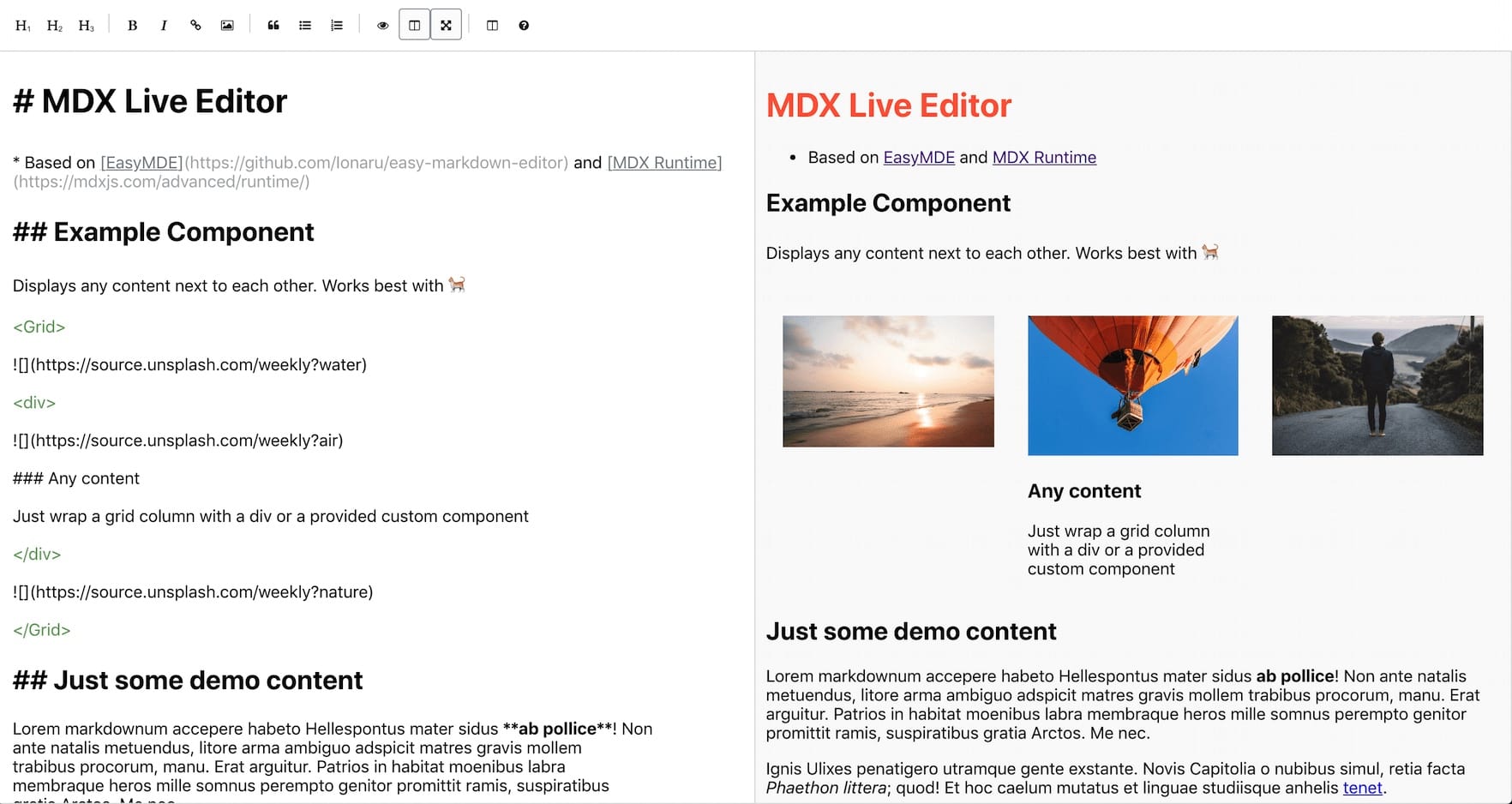
Image source: GitHub
Building a Custom WYSIWYG Experience with Lexical and MDAST
To truly master MDX editors, one must understand the underlying architecture. The process follows a specific flow: Markdown String → MDAST → Lexical AST → UI . The MDAST (Markdown Abstract Syntax Tree) acts as the intermediate representation that allows the editor to understand the structure of the text.
Lexical then takes this tree and converts it into its own internal state. This bi-directional conversion is what allows you to type `# Heading` and see it instantly turn into an `<h1>` tag. Because Lexical is tree-based, it can handle complex nested structures that would break a simple regex-based editor. This architecture is widely considered a significant improvement over older technologies like Draft.js, which struggled with complex document hierarchies.
For developers looking to build highly customized experiences, the power lies in the Nested Editors capability. You can register a custom JSX component that contains its own Lexical instance, allowing for incredibly complex content types like interactive quizzes or multi-column layouts that remain fully editable within the main document flow.
How to Configure Advanced Toolbars and Custom Components
A professional editor needs more than just a text area; it needs a context-aware UI. Using the `ConditionalContents` component in MDXEditor, you can create toolbars that change based on the user's cursor position. For example, you can show table-specific tools only when the user is inside a table cell, and code-formatting tools only when they are inside a code block.
Adding custom JSX components is the "killer feature" of MDX. By registering a `JsxComponentDescriptor`, you can tell the editor how to render a specific React component. This allows you to create a "Callout" component that looks like a styled box in the editor but saves as a simple `<Callout>` tag in the markdown file. This bridge between visual editing and clean data storage is what makes MDX so capable for modern teams.
What Are the Top MDX Editors for VS Code and Online Use?
While web-based editors are essential for CMS platforms, developers often prefer local tools for documentation. For VS Code, the MDX VS Code extension is a leading choice, providing syntax highlighting and IntelliSense for JSX components within markdown files. Combining this with Tailwind CSS IntelliSense creates a highly productive environment for styling your MDX content.
For quick prototyping, several online playgrounds offer excellent environments. The official MDXEditor demo is a great place to test plugin configurations. StackBlitz and CodeSandbox also provide templates that allow you to spin up a Next.js environment with MDX support in seconds. These tools are exceptionally helpful for testing how a specific library handles your custom components before you integrate it into your main codebase.
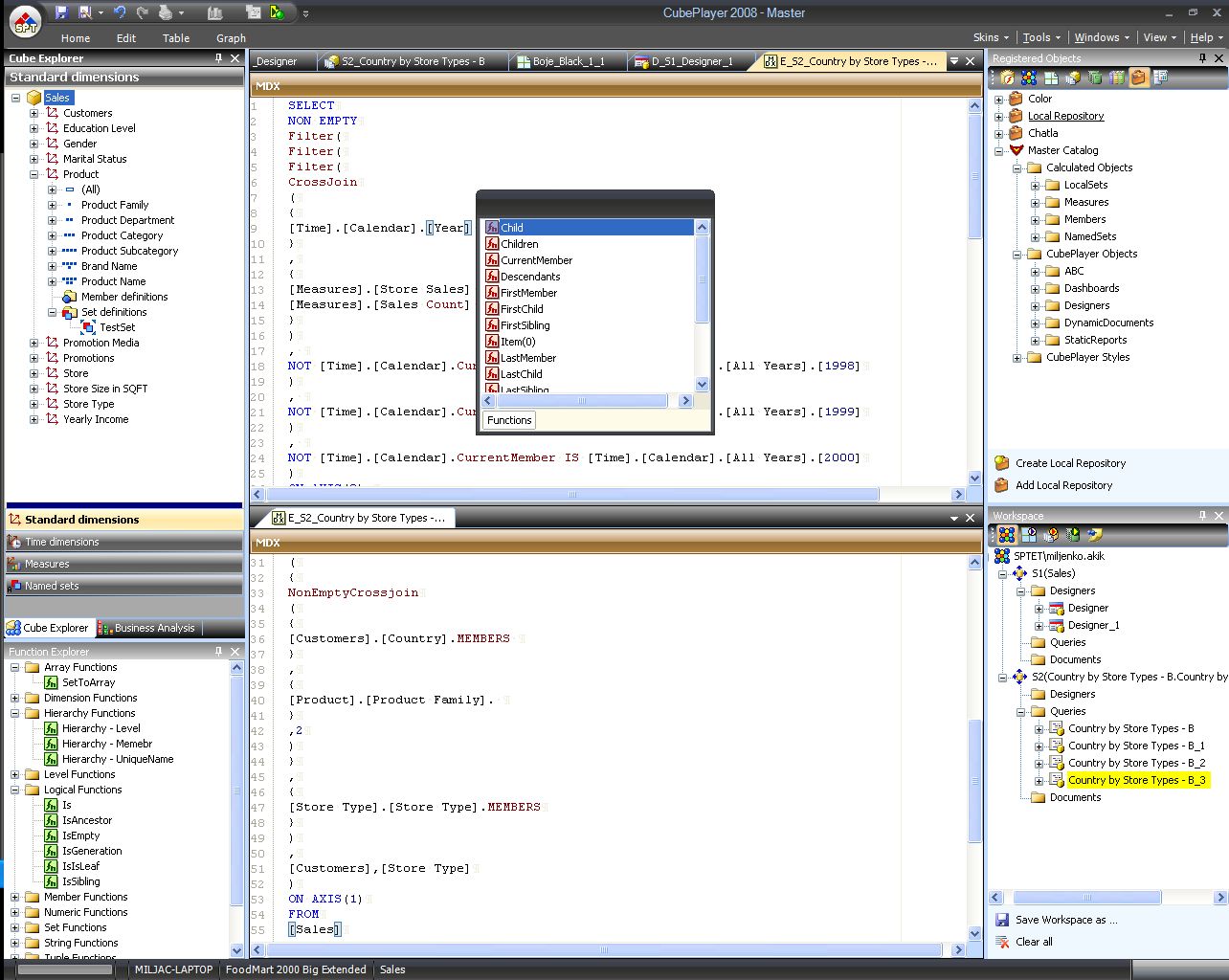
Image source: SoftPro
Frequently Asked Questions
Markdown is a static markup language for formatting text. MDX is a superset of Markdown that allows you to import and use React components (JSX) directly in your files. This makes MDX a top-tier choice for interactive documentation and dynamic content that requires more than just bold text and links.
Yes, MDXEditor is designed to work with modern React versions, including React 19. However, some users have reported version-lock issues when using older peer dependencies. It is recommended to check the latest release notes on GitHub to ensure compatibility with your specific React environment and to avoid dependency conflicts.
Absolutely. You can style the editor's output by wrapping it in a container with Tailwind's `prose` classes (from the `@tailwindcss/typography` plugin). Additionally, you can pass custom class names to the editor's internal elements to ensure the UI matches your application's design system perfectly.
Lexical, the engine behind MDXEditor, is highly efficient at handling large Abstract Syntax Trees (ASTs). However, if you experience lag, consider disabling heavy plugins like the real-time preview or complex code syntax highlighting for very large documents. Using a debounced `onChange` handler can also help reduce the processing load.
MDXEditor itself is open-source and released under the MIT license, making it free for both personal and commercial use. Other free alternatives include Milkdown and `@uiw/react-md-editor`. Each has its own community-driven ecosystem of plugins and extensions that you can leverage without licensing costs.
Key Takeaways for Implementing MDX
- Prioritize Performance: Use dynamic imports with `ssr: false` to prevent heavy editor bundles from slowing down your initial page load.
- Match Library to Need: Choose MDXEditor for full WYSIWYG and JSX support, or `@uiw/react-md-editor` for lightweight markdown tasks.
- Understand the AST: Recognize that these editors work with trees (MDAST/Lexical AST), which is why they are more stable than regex-based textareas.
- Separate Input and Output: Remember that MDXEditor is for content creation; use a separate library like `next-mdx-remote` for rendering the content.
- Optimize Images: Always use an upload handler to store images on a CDN rather than embedding them as Base64 strings in your markdown.
- Leverage Plugins: Keep your editor lean by only importing the specific plugins (tables, lists, code blocks) that your users actually require.
To get started, try installing MDXEditor in a fresh Next.js project and experiment with the basic plugin configuration to see the performance impact firsthand.