Home
Home
How to Check for and Install the Latest Android Update on Your Device
To update most Android devices, navigate to Settings > System > Software update and tap Check for update . For Samsung Galaxy users, the path is Settings > Software Update > Download and install . Ensure you have at least 75% battery and 20% free storage space before beginning to prevent installation failures.
Keeping your smartphone updated is one of the most effective ways to ensure digital security and access new features. While the Android ecosystem is diverse, the process for obtaining the latest software has become increasingly streamlined. Whether you are using a Google Pixel, a Samsung Galaxy, or a device from another manufacturer, understanding the nuances of how updates are delivered can help you maintain a high-performing device.
Updating Stock Android Devices Like Pixel and Motorola
Devices running "Stock" or near-stock versions of Android—such as the Google Pixel series, Motorola, and Nokia—follow a standardized update path. These devices often receive updates faster because they do not require the extensive manufacturer-specific modifications found on other platforms. According to Google Support , the standard procedure is straightforward but requires attention to background processes.
To check for an update on these devices:
- Open your device's Settings app.
- Near the bottom, tap System .
- Tap Software update (on some versions, you may need to tap Advanced first).
- Tap Check for update .
A unique characteristic of Pixel devices is the use of A/B (seamless) system updates. This technology allows the update to install in the background while you continue to use your phone. Once the installation is complete, you will receive a notification to restart. Unlike older methods that locked the phone for 10–20 minutes, this approach minimizes downtime. However, the update is not fully active until that manual restart occurs. If you ignore the notification, your phone will remain on the older version despite the "installation" being finished.
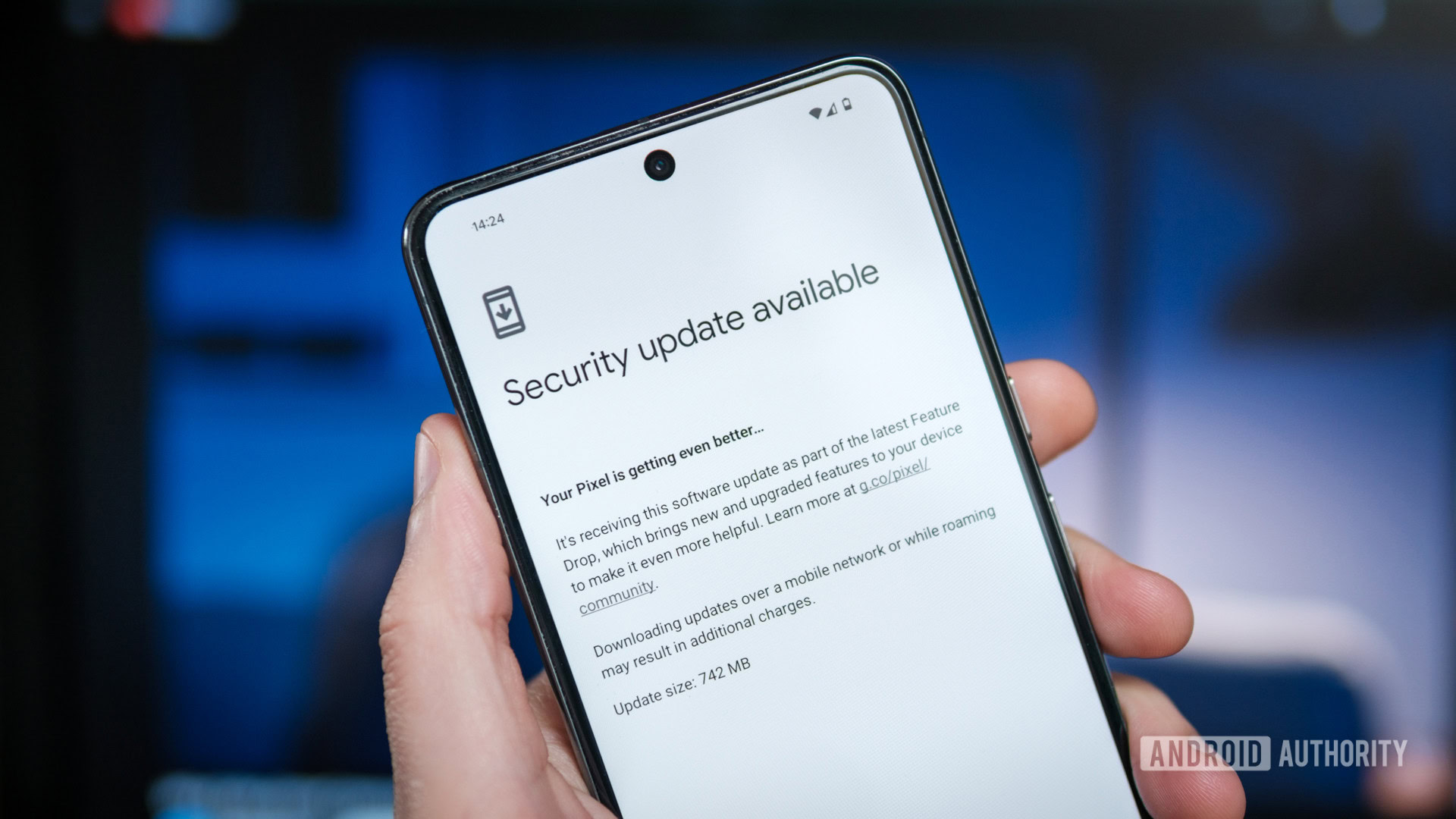
Image source: Android Authority
Managing Software Updates on Samsung Galaxy Phones
Samsung is widely regarded as a leader in update longevity, often promising up to seven years of support for its flagship models. However, because Samsung uses the "One UI" overlay, the menu structure differs from the standard Android layout. Samsung also integrates its own proprietary safety and security suites, which operate independently of Google’s default tools.
To update a Samsung Galaxy device:
- Swipe down from the top of the screen and tap the Settings (gear) icon.
- Scroll down until you find Software Update .
- Tap Download and install .
- If an update is available, you can choose to install it immediately or schedule it for a later time (such as overnight).
It is important to note that Samsung devices typically do not use the seamless background installation found on Pixels. When a Samsung phone updates, it will boot into a dedicated installation screen, during which the device is unusable. This process can take anywhere from 5 to 15 minutes depending on the size of the update. Ensure you do not force a shutdown during this window, as it can lead to system corruption.
Understanding the Three Distinct Layers of Android Updates
One of the most common points of confusion for users is the existence of three different types of updates. Often, a user might see that their "System is up to date" while still lacking the latest security features. This is because Google has fragmented the update process to allow for faster delivery of critical fixes without requiring a full OS overhaul.
| Update Type | Source | Frequency | Primary Purpose |
|---|---|---|---|
| OS Update | Manufacturer/Carrier | Yearly | Major features (e.g., Android 15 to 16) |
| Security Patch | Manufacturer | Monthly/Quarterly | Fixes vulnerabilities and exploits |
| Google Play System | Monthly | Core system modules (WebView, Wi-Fi) |
The Google Play System Update is particularly important. Part of "Project Mainline," these updates allow Google to fix critical components like the media framework or encryption modules directly through the Play Store. To check this specifically, navigate to Settings > Security & privacy > System & updates > Google Play system update . Many users find that manually checking this menu reveals pending updates even when the main system menu says everything is current.
Essential Steps to Take Before Starting an Installation
While modern updates are generally safe, certain environmental factors can cause an installation to fail, potentially leaving the device in a "boot loop" or causing significant data loss. Following a few preparatory steps can mitigate these risks.
The 75% Battery and Power Rule
Official documentation from Android Help suggests that devices should be charged to at least 75% before starting an update. Even if the phone is plugged into a charger, the system may block the update if the battery level is too low. This is a safety mechanism; if power is lost during the writing of system files, the device may become unbootable.
The 10-20% Storage Buffer
A common pitfall is attempting to update a device that is nearly full. An Android update requires "breathing room" to download the compressed files, unpack them, and move them into the system partition. As a rule of thumb, you should maintain at least 10% to 20% free storage space. If your 128GB phone has only 2GB left, the update may download but fail to initialize, or it may cause the device to become exceptionally sluggish after the restart as the system struggles to index new files.
Reasons Your Device Might Not Show a New Update
It can be frustrating to read about a new Android version online only to find your device claiming it is "up to date." This discrepancy is usually due to the complex logistics of mobile software distribution. Unlike Apple, which controls both hardware and software, Android updates must often pass through multiple "gates."
- Staged Rollouts
- Google and manufacturers release updates in waves. This allows them to monitor for unforeseen bugs on a small percentage of devices before a global launch. If a major issue is detected, they can "pull" the update before it affects millions of users.
- Carrier Testing
- If you purchased your phone through a carrier like Verizon or T-Mobile, that carrier adds its own layer of testing. They ensure the update doesn't break specific network features like Wi-Fi calling or 5G handoffs. This can delay an update by several weeks compared to an unlocked version of the same phone.
- Regional Differences
- Software is often localized by region. A user in Germany might receive an update before a user in the United States due to different regulatory requirements or local testing schedules.
Proven Methods to Fix a Stuck Android Update
If your update is stuck on "Downloading," "Installing," or "Verifying," there are several steps you can take to resolve the issue without resorting to a factory reset. Most update failures are related to network interruptions or corrupted temporary files.
Clearing Google Play Services Cache
The Google Play Services framework handles the communication for many system updates. If this cache becomes corrupted, the update handshake may fail. To fix this:
- Go to Settings > Apps > See all apps .
- Find Google Play Services .
- Tap Storage & cache and then Clear cache .
- Restart your phone and try the update again.
The "Wait and See" Protocol
According to Consumer Reports , Android updates are designed to be resilient. If an update fails, the system is programmed to retry automatically over the next several days. Sometimes, the best course of action is simply to wait 24 to 48 hours for the system to clear its own internal flags and attempt the download again during a period of low network activity.
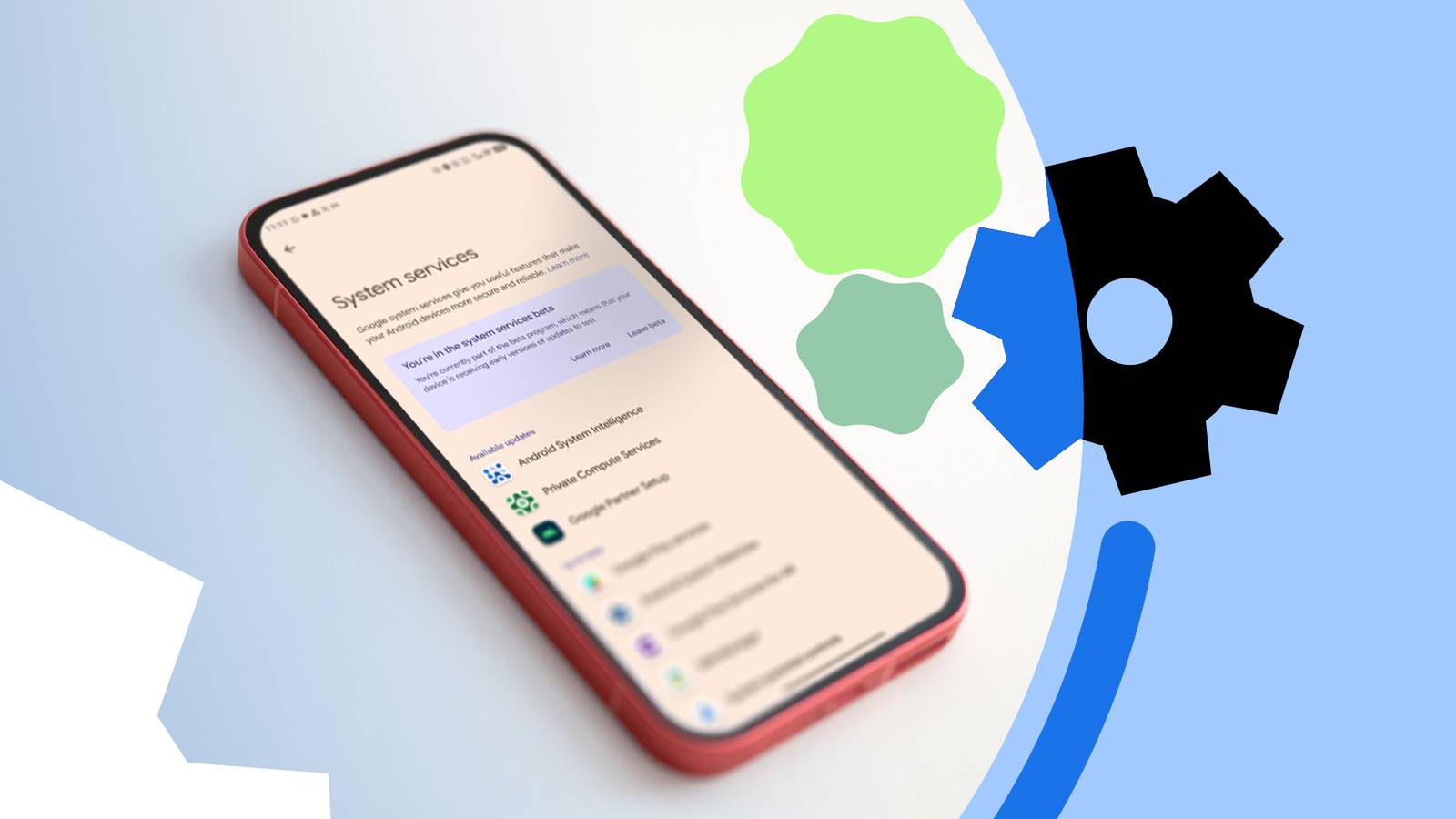
Image source: Android Police
How to Improve System Speed After a Major Update
It is common for a phone to feel slightly slower or for the battery to drain faster in the first 48 hours following a major OS update. This is usually due to the system re-indexing files and optimizing apps for the new version. However, you can take active steps to make the new OS feel more responsive.
The Animation Scale Hack
This is a favorite technique among power users to make any Android version feel twice as snappy. By reducing the time it takes for windows to open and close, the UI feels significantly faster.
- Go to Settings > About phone and tap Build number seven times to enable Developer Options.
- Go to Settings > System > Developer options .
- Find Window animation scale , Transition animation scale , and Animator duration scale .
- Change all three from 1x to .5x .
The Weekly Restart Habit
Modern Android versions are excellent at memory management, but major updates can leave behind "zombie" processes or memory fragments. Restarting your device at least once a week—especially after a software change—clears the system's temporary memory and allows the new code to run in a clean environment.
Future Features Coming in Android 16 and Android 17
As of mid-2025, Android 16 has reached a stable state for developers, and early details regarding Android 17 have begun to emerge. These updates focus heavily on privacy and user-generated content. According to Android Developers , the release cycle has shifted to provide more frequent, smaller feature drops alongside major annual versions.
Screen Reactions
A new feature in Android 17 that allows users to use the front-facing camera to record their reactions simultaneously while performing a screen recording.
Privacy Location Button
A dedicated hardware or quick-toggle button that instantly kills all location access for all apps, providing a physical "kill switch" for privacy.
Remappable Controls
Enhanced support for gaming peripherals, allowing users to remap hardware buttons at the system level for any mobile game.
Resolving Android Auto Connectivity Issues After Updating
One of the most frequent complaints in the Android community is that system updates often "break" Android Auto. This is rarely a permanent software bug and is more often a "handshake" issue where the car's head unit no longer recognizes the phone's updated security certificates.
If your Android Auto stops working after an update, try these steps in order:
- Forget the Car: Go to your phone's Bluetooth settings and "Forget" the car. Do the same on the car's head unit for the phone, then re-pair them.
- Check the Cable: Updates can sometimes increase the data requirements for the connection. A cable that worked yesterday might not have the shielding required for the new software version. Swap to a high-quality USB-IF certified cable.
- Reset App Preferences: Go to Settings > Apps > Android Auto and clear both the cache and data. This forces the app to run the initial setup wizard again.
The Bottom Line
Maintaining an updated Android device is a balance of following the correct paths and preparing your hardware for the transition. By understanding the different layers of updates and keeping your storage lean, you can ensure a smooth experience.
- Check multiple menus: Don't just check the System update; remember to check the Google Play System update separately.
- Maintain a buffer: Keep 20% of your storage free to ensure the system has room to unpack and optimize new files.
- Battery is key: Never start an update with less than 75% charge, even if the device is plugged in.
- Be patient with rollouts: Carrier and regional delays are normal; your phone isn't broken if it doesn't see an update on day one.
- Use the animation hack: Set your animation scales to .5x in Developer Options to make the new OS feel significantly faster.
- Restart regularly: A weekly restart is a simple but effective way to maintain post-update performance.
Open your settings menu now and check for a Google Play System update to ensure your core security modules are current.
Frequently Asked Questions
How do I force an Android update to show up?
While you cannot truly "force" a server-side rollout, you can sometimes trigger a check by toggling Airplane mode on and off, or by clearing the cache of the "Google Play Services" app. However, most rollouts are based on your device's unique IMEI number. If your number isn't in the current "bucket," no amount of button-mashing will make the update appear until the manufacturer expands the rollout.
Will updating my Android phone delete my photos or messages?
Standard over-the-air (OTA) updates are designed to keep all user data intact. They only replace system files. However, software updates carry a small inherent risk of failure. It is always a top-tier practice to back up your photos to Google Photos and your messages to Google Drive before initiating a major OS version change, just in case the installation encounters a critical error.
Why is my battery draining faster immediately after an update?
This is usually temporary. After an update, Android performs several background tasks, including re-indexing your files for search, optimizing app code (via the ART runtime), and recalibrating battery stats. This process typically settles within 48 hours. If the drain continues after three days, check your battery settings to see if a specific app has become incompatible with the new OS version.
Can I go back to a previous Android version if I don't like the update?
Downgrading an Android version is difficult and generally not recommended for average users. It usually requires unlocking the bootloader (which voids many warranties) and performing a factory reset, which wipes all data. Furthermore, many modern devices have "anti-rollback" protection for security reasons, which prevents the installation of older, potentially vulnerable software versions.
How long will my specific phone continue to receive updates?
Update longevity varies by manufacturer. Google and Samsung now offer up to seven years of updates for their premium flagship models (like the Pixel 9 or Galaxy S26). Budget-friendly or mid-range phones typically receive two to three years of OS updates and an additional year of security patches. You can check your specific model's support window on the manufacturer's official website.
All trademarks, copyrighted content, and quoted material referenced in this article belong to their respective owners. Brief excerpts are used under fair use (17 U.S.C. § 107) for purposes of commentary, criticism, and informational reporting. This article is not affiliated with or endorsed by Google LLC or Samsung Electronics.