Home
Home
How to Choose and Use a Top File Explorer for Android TV
For most users, X-plore File Manager stands out as a top choice due to its dual-pane interface, while AnExplorer is widely considered one of the best for fixing Android 11+ "File Picker" errors. If you prioritize a modern UI and privacy, FX File Explorer is a leading contender. Ensure you enable "All Files Access" in your TV settings to manage external USB storage effectively.
Why You Need a Dedicated File Explorer for Your TV
Android TV is a highly capable operating system, but its native interface is designed primarily for media consumption rather than file management. Unlike a smartphone or a PC, your TV doesn't come with a robust way to browse folders, move downloads, or manage external drives out of the box. This is where a third-party file explorer becomes essential.
One of the primary hurdles is the Remote Control Factor . Standard Android apps are designed for touchscreens, but a TV app must be optimized for D-pad navigation. According to AndroidTVNews , a quality file manager must allow users to navigate complex folder structures using only a standard remote. Without this optimization, you may find yourself stuck in menus that you cannot exit or unable to click specific buttons.
Furthermore, file explorers serve as the primary gateway for Sideloading APKs . Many useful applications, such as specialized media players or utility tools, are not available on the official Google Play Store for TV. A file explorer allows you to download these APKs on a PC, move them to a USB drive, and install them directly onto your TV. This flexibility is what transforms a standard smart TV into a versatile media hub.
Finally, Storage Management is a critical concern for devices like the Chromecast with Google TV or the Amazon Fire Stick, which often have limited internal space. Apps like Plex, Kodi, and various streaming services accumulate massive caches over time. A dedicated explorer allows you to find these hidden folders and clear them, preventing the dreaded "Storage Full" errors that can cause system lag or app crashes.
Which File Explorer Should You Choose for Your Device?
Selecting the right application depends on your specific needs, whether you are a power user managing a home server or a casual viewer looking to install a single app. Below are the leading options available as of 2026.
X-plore File Manager for Power Users
X-plore is frequently cited in Reddit communities as a premier choice for those who need deep functionality. Its most distinctive feature is the dual-pane layout. This allows you to see two different storage locations simultaneously—for example, your internal storage on the left and a USB drive on the right. Moving files is as simple as selecting a file and clicking "Copy" to the other side.
Beyond basic movement, X-plore includes a "Disk Map" feature. This provides a visual breakdown of your storage, showing which folders are consuming the most space with proportional blocks. While some users find the interface "busy" or dated, its utility is exceptionally strong for managing complex directory structures or connecting to cloud services like Google Drive and Dropbox.
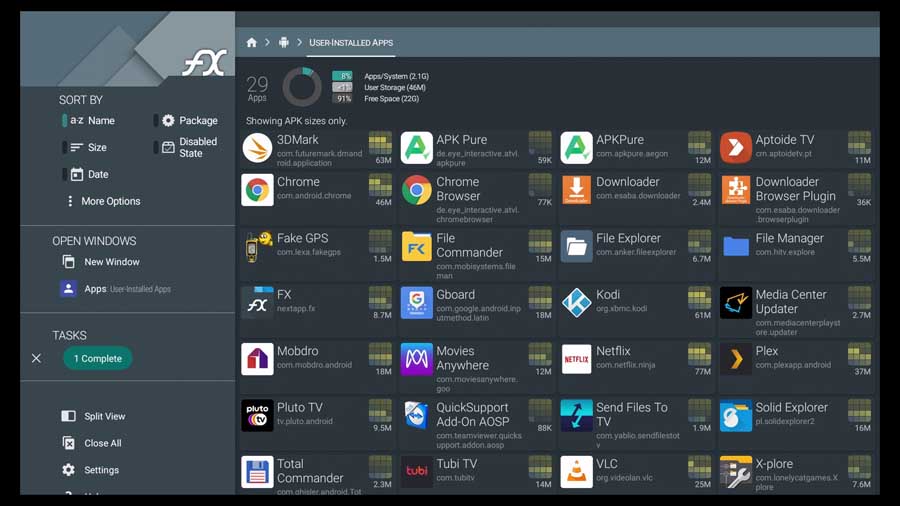
Image source: Android TV News HomePage - AndroidTVNews
AnExplorer for Maximum Compatibility
If you are running a newer version of Android TV (version 11 or higher), you may have encountered the "You don't have an app that can do this" error when trying to select files within other apps. This is because modern Android versions lack a native system file picker. AnExplorer is a significant advancement in this area because it registers itself as a system-level file picker, effectively fixing this OS-level limitation.
AnExplorer is also remarkably lightweight. With a footprint of only about 3MB, it is an excellent choice for devices with very low storage. It supports a wide range of features, including RTL languages and folder size displays, making it one of the most versatile tools for global users. You can find the open-source version on GitHub for those who prefer transparent software.
FX File Explorer for Aesthetics and Privacy
For users who find X-plore too cluttered, FX File Explorer offers a notably innovative UI that feels modern and integrated with the Android TV aesthetic. It focuses heavily on privacy, featuring a "No Ads" policy even in its free version. The home screen categorizes your files into intuitive groups like "Videos," "Images," and "Downloads," which simplifies navigation for less technical users.
FX also excels at networking. It provides robust support for SMB v2 and v3, which is essential for streaming high-bitrate 4K content from a local NAS (Network Attached Storage). Its privacy-first approach ensures that no data is collected or sent to external servers, a rare trait in the world of free utility apps.
File Manager + for Simplicity
If you want an experience that mirrors the Windows File Explorer, File Manager + is a top-performing option. It uses a familiar folder-based grid that requires almost no learning curve. It is particularly effective for users who just want to plug in a USB drive and play a movie file without navigating through complex settings or dual-pane views. It supports all basic operations and provides a clear summary of used vs. available storage on the main screen.
Comparison of Top Android TV File Managers
To help you decide, we have compiled a comparison of the most popular options based on their technical capabilities and user ratings.
| App Name | Best For | SMB v3 Support | File Picker Fix | Price |
|---|---|---|---|---|
| X-plore | Power Users | Yes | Partial | Free / Donation |
| AnExplorer | Compatibility | Yes | Yes | Free / Pro |
| FX Explorer | UI & Privacy | Yes | No | Free / Paid |
| File Manager + | Simplicity | Yes | No | Free (Ads) |
| RS File Manager | Encryption | Yes | No | Free / Pro |
How to Fix Common USB and Storage Issues
One of the most frequent complaints among Android TV users is that their USB drive is not showing up in their file explorer. This usually stems from one of two issues: formatting or permissions.
Formatting Requirements: Android TV typically prefers the FAT32 or exFAT file systems. If you plug in a drive formatted as NTFS (common for Windows), many TVs—especially older Sony or TCL models—will not recognize it without third-party drivers. If your drive isn't appearing, try formatting it to exFAT on a PC first. Note that FAT32 has a 4GB file size limit, which is problematic for high-quality movie files.
Granting "All Files Access": Starting with Android 11 and 12, Google introduced stricter privacy controls. Even if you install a file manager, it may appear empty because it hasn't been granted permission to see the entire disk. To fix this, navigate to Settings > Apps > Special App Access > All Files Access . Find your file explorer in the list and toggle the switch to "On." This is a critical step that many users overlook, leading to the mistaken belief that their hardware is faulty.
How to Connect Your PC to Your Android TV Wirelessly
You don't always need a physical USB drive to move files. In fact, using an FTP (File Transfer Protocol) Server is often faster and more convenient. Most top-tier explorers, including X-plore and AnExplorer, have a built-in FTP feature.
When you enable the FTP server on your TV, the app will provide you with an IP address (e.g.,
192.168.1.50:2121
). You can type this address into the Windows File Explorer or a browser on your PC. This creates a wireless bridge, allowing you to drag and drop APKs or movies directly from your computer to your TV's internal storage. On a 5GHz WiFi network, you can expect transfer speeds between 30MB/s and 80MB/s, which is often faster than the write speeds of cheap USB 2.0 thumb drives.
For those with a permanent media collection, setting up an SMB (Server Message Block) share is a highly impactful solution. By sharing a folder on your Windows PC or NAS, your Android TV file explorer can "mount" that folder as if it were a local drive. This allows you to stream large 4K files without ever using up the limited internal storage on your TV or streaming stick.
Hardware Specific Setup Guide for File Management
The way you manage files depends heavily on the specific hardware you own. Not all Android TV devices are created equal when it comes to connectivity.
- Nvidia Shield TV Pro
- This device is a top-performing choice for file management because it features two full-sized USB-A 3.0 ports. You can plug in external hard drives or SSDs directly without any adapters. It also supports "Mount Network Storage" at the system level, making it exceptionally strong for NAS users.
- Amazon Fire TV Stick
- Because the Fire Stick only has a single Micro-USB port (used for power), you must purchase a Micro-USB OTG (On-The-Go) Hub . This adapter allows you to plug in both the power cable and a USB drive simultaneously. Be aware that the Fire Stick may not provide enough power for large portable hard drives; a powered USB hub is often required for mechanical drives.
- Google TV Streamer (2024)
- The latest flagship from Google uses a USB-C port. To use external storage, you will need a USB-C hub that supports Power Delivery (PD) . This ensures the device stays powered while reading your files.
Advanced Tips for Managing Your Android TV Files
Once you have your explorer set up, you can perform more advanced tasks to optimize your experience. One such task is Batch Renaming . If you have a large library of ROMs for emulators or home videos, apps like X-plore allow you to select multiple files and rename them using patterns, saving hours of manual work.
Another advanced workflow involves Cloud Integration . By linking your Google Drive or OneDrive account, you can use the cloud as "virtual internal memory." You can upload an APK to your drive from your phone and then immediately see and install it on your TV. This bypasses the need for any cables or complex network setups entirely.
For those who have rooted their devices, file explorers provide access to the
Root Directory
. This allows you to modify system properties (like
build.prop
) to change the device's identified name or tweak performance settings. However, this should only be attempted by experienced users, as deleting the wrong system file can result in a "boot loop" that renders the TV unusable.
Frequently Asked Questions
How do I access Android TV files from my phone?
The easiest way to access TV files from a phone is by using an app like "Send Files to TV" (SFTTV) or by enabling the FTP server within your TV's file explorer. Once the FTP server is active, you can use a mobile file manager like Solid Explorer or MiXplorer to connect to the TV's IP address and transfer files wirelessly over your local WiFi network.
Why can't I delete files on my external SD card or USB drive?
This is usually due to Android's write-protection permissions. Since Android 4.4, the OS has restricted apps from writing to external storage unless they use the Storage Access Framework (SAF). To fix this, ensure you have granted "All Files Access" in the system settings. If the issue persists, the drive might be formatted in a way that the TV can only read (like NTFS on some devices).
Which file manager is best for Nvidia Shield?
X-plore File Manager is widely considered a top choice for the Nvidia Shield. Because the Shield is a high-performance device, it handles X-plore's dual-pane interface and complex networking features smoothly. The Shield's ability to mount network storage at the system level also works perfectly with X-plore's directory tree, allowing for seamless management of massive media libraries.
Is there a completely free file explorer without ads?
Yes, AnExplorer (specifically the version found on GitHub) is an open-source, ad-free option. FX File Explorer also offers a very clean experience without intrusive ads in its basic version. If you are looking for a community-driven project, searching for open-source managers on F-Droid or GitHub is your best bet for a clean, privacy-focused experience.
How do I install an APK from a USB drive?
First, plug the USB drive into your TV. Open your chosen file explorer and navigate to the USB storage. Click on the APK file you wish to install. If it's your first time, the TV will prompt you to allow "Install Unknown Apps" for that specific file explorer. Enable the toggle, return to the app, and click the APK again to complete the installation.
Key Takeaways for Managing Your TV Files
- Check your Android version : Devices with Android 11 or higher should use AnExplorer to avoid file-picking errors.
- Verify your hardware : Fire Stick users must use an OTG hub, while Shield users can plug in directly.
- Choose your interface : Use X-plore for dual-pane power or FX File Explorer for a modern, clean look.
- Enable permissions : Always toggle "All Files Access" in the Special App Access menu to see your files.
- Go wireless : Use the built-in FTP server to move files from your PC without needing physical cables.
- Avoid bloatware : Steer clear of ES File Explorer and stick to reputable, community-vetted alternatives.
To get started, install X-plore or AnExplorer from the Play Store today and grant the necessary permissions to unlock your TV's full storage potential.